
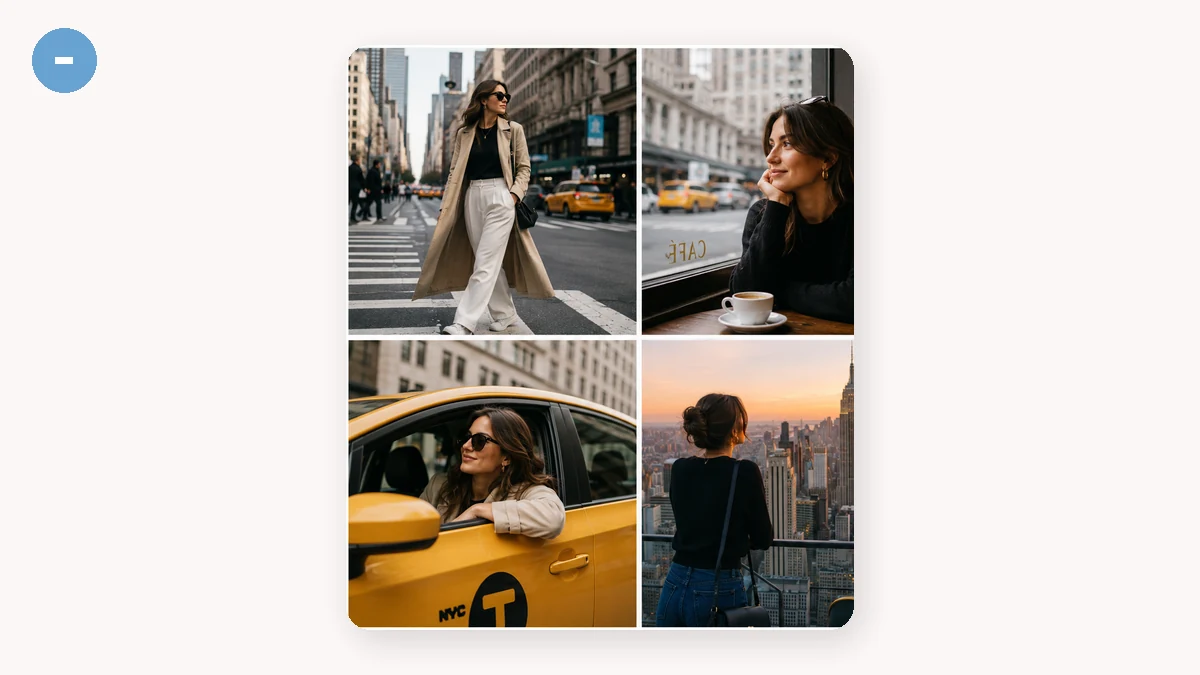
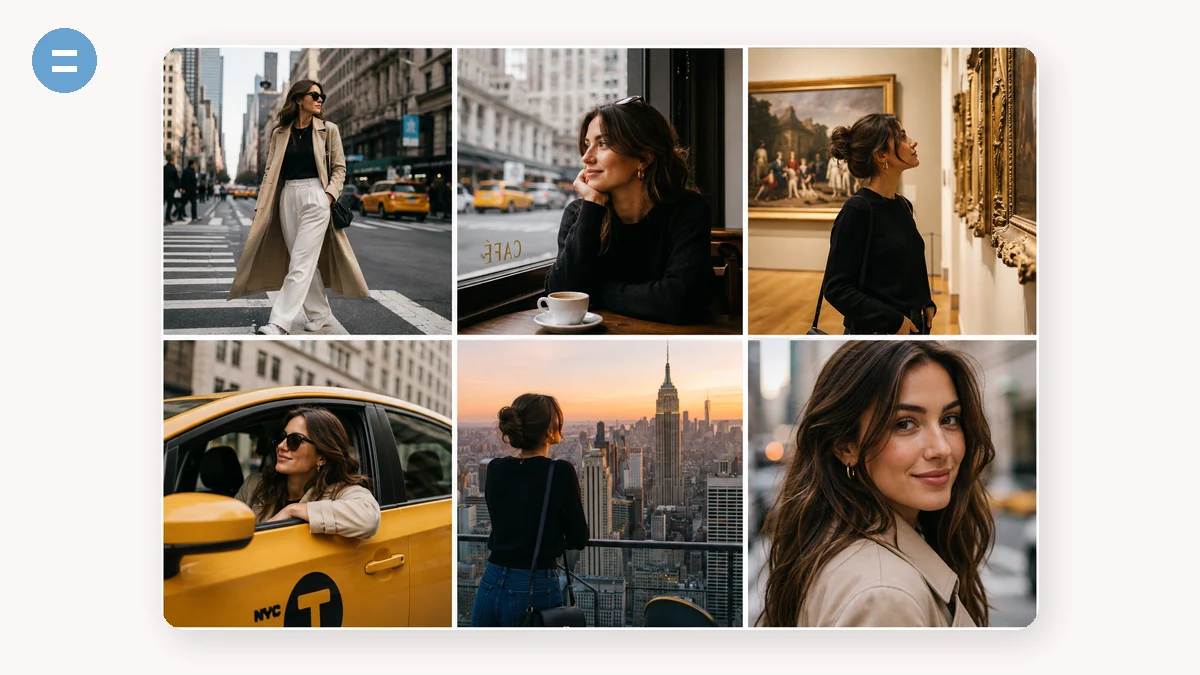
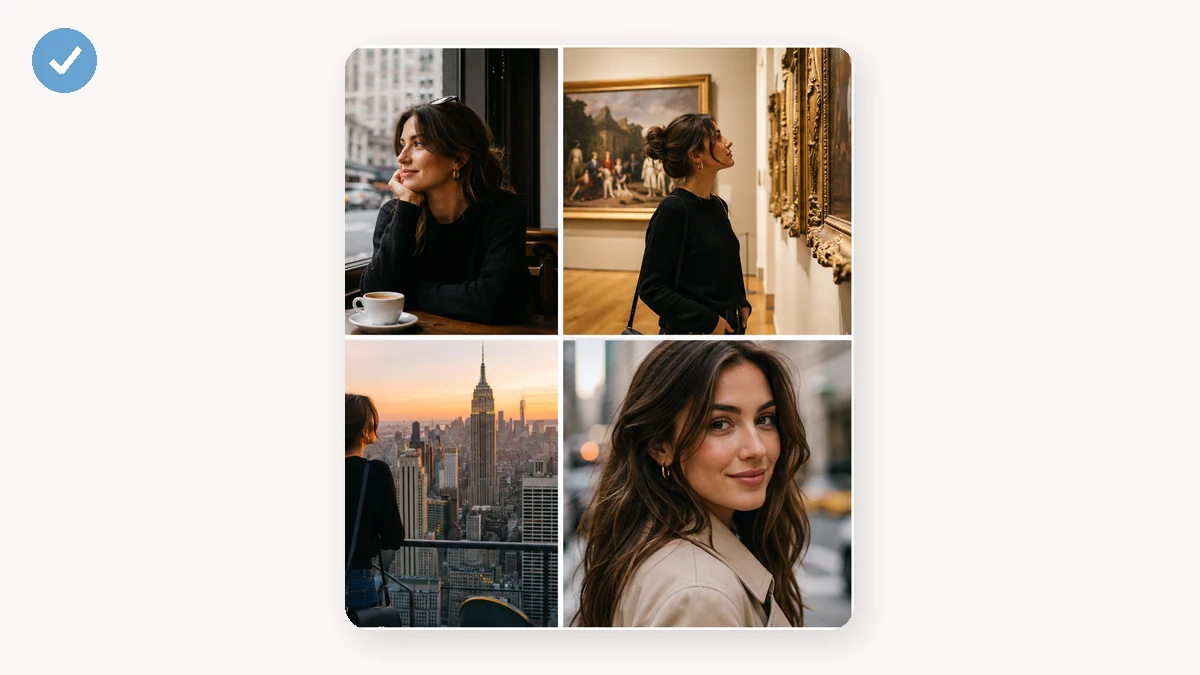
Join screenshots end to end, put before/after shots side by side, or arrange a set of photos into a neat grid. Choose the layout, spacing and background colour, and export a single merged image.
It runs on your device with a live preview, so nothing is uploaded and there's no watermark on the result.
How to use
- Add imagesDrop in the photos you want to combine.
- Pick a layoutChoose vertical, horizontal or grid, and set the gap and background colour.
- DownloadClick Download collage to save the merged image.
Stitch several images into one
Load your photos, pick a layout — vertical, horizontal, or grid — and combine them into a single image you can post or send. A vertical stack is the classic "long image" for step-by-step tutorials and chat screenshots; horizontal works for before-and-after pairs; grid packs several shots into a neat block. You can adjust the gap between images and set the background color to match.
Everything is drawn on a canvas in your browser, so the photos stay on your device. There are no accounts and no upload wait — arrange, tweak the spacing, and download the finished picture.
Why one combined image beats a folder
Some platforms only let you attach one image, and a single stitched picture reads in order without the viewer swiping through a carousel. A long vertical collage is the standard way to share a recipe, a tutorial, or a run of screenshots as one scrollable image.
The gap and background controls are what make a collage look deliberate: a few pixels of white between shots reads clean, while zero gap gives you a continuous panel. Match the background to your images or your brand and the whole thing looks composed rather than pasted together.
What people use it for
Make a long screenshot — Stack chat or app screenshots vertically into one scrollable image for a tutorial or thread.
Show before and after — Place two photos side by side to compare an edit, a renovation, or a fitness result.
Build a grid post — Arrange four or six product or travel shots into a tidy grid for a single social post.
Share a recipe in one image — Stack step photos top to bottom so followers can scroll through the whole process.
Combine for a single upload — Merge several pictures into one when a form or platform only accepts a single image.
Create a mood board — Grid together reference images and swatches into one board to send to a client.
Join panorama-style shots — Stitch horizontal frames together for a wide scene without a stitching app.
Set spacing and background — Add a clean white gap or a colored border so the pieces read as one composed image.
Stitch photos into one image — no account, no watermark across your memories
A collage is usually a small, personal job. Two before-and-after shots side by side to show a haircut or a renovation. A strip of screenshots to file a support ticket. Three photos of the same product from different angles for a listing. A grid of the kids for grandparents. None of these are design projects, yet the tools that dominate the search results treat them like one: sign in, wait for the editor to load, pick from templates you didn't ask for, and then discover the free export drops a small logo in the corner or nudges you toward a subscription right as you're trying to leave.
The mechanics are humble. Placing images next to each other — stacked vertically, laid out horizontally, or arranged in a grid — is arithmetic on a canvas: measure each picture, decide the layout, draw them into a new bitmap, and read that bitmap back as a downloadable file. tools.faxianai.com does exactly this in your browser. The photos are read locally and composited on a canvas that never leaves the page. There's no account gate because there's nothing to save on a server, and no upload because the images stay on your device the entire time.
That local approach matters more than it first appears when the photos are personal. Family pictures, medical progress shots, screenshots that happen to contain a name or a balance — these get combined and downloaded without ever being transmitted. And because the PWA caches after the first visit, you can make a collage with no connection at all. Free, no sign-up, and the finished image carries your photos and nothing else.
What makes it different
- Three honest layouts. Vertical stack, horizontal strip, or a grid — the arrangements people actually want, without hunting through hundreds of templates.
- Stays on your device. Every photo is composited locally; nothing is uploaded, which matters when the collage is family or personal.
- No watermark, ever. The export is clean at any size — no corner logo, no "made with" tag.
- No account, no editor to load. Open the page, drop photos, arrange, download.
- Works offline. Cached as a PWA, so it runs on a plane or with no signal.
tools.faxianai.com vs other collage tools
| Aspect | Design suite (Canva) | Photo editor (Fotor) | Web tool (BeFunky) | tools.faxianai.com |
|---|---|---|---|---|
| Files uploaded | Yes, to cloud | Yes, to cloud | Yes, to cloud | No, stays in browser |
| Account required | Yes | Yes (for most features) | Yes (for most features) | No |
| Price | Free tier; Pro subscription | Free tier; Pro subscription | Free tier; Plus subscription | Free |
| Watermark on free export | On some assets/exports | On some free features | On some free features | Never |
| Works offline | No | No | No | Yes, after first visit |
| Template library | Huge | Large | Large | None (by design) |
| Best for | Full design projects | Rich photo editing | Effects + collage | Quick, private collages |
Being fair to the alternatives: Canva, Fotor, and BeFunky are powerful, well-made tools with enormous template libraries, filters, stickers, text effects, and layouts tools.faxianai.com simply doesn't offer. If you want to design a polished poster, retouch faces, or explore hundreds of preset arrangements, those are the right tools and worth their subscriptions. tools.faxianai.com deliberately does less. It covers the everyday case — put these photos together into one image, keep them off the cloud, get a clean file with no watermark and no login — and it does that case quickly and for free. When a collage is a chore rather than a creative project, less is the feature.
Why tools.faxianai.com
3 layouts
Vertical, horizontal or grid.
Adjustable gap
Control spacing between images.
Background
Pick any background colour.
Private
Merged locally, never uploaded.