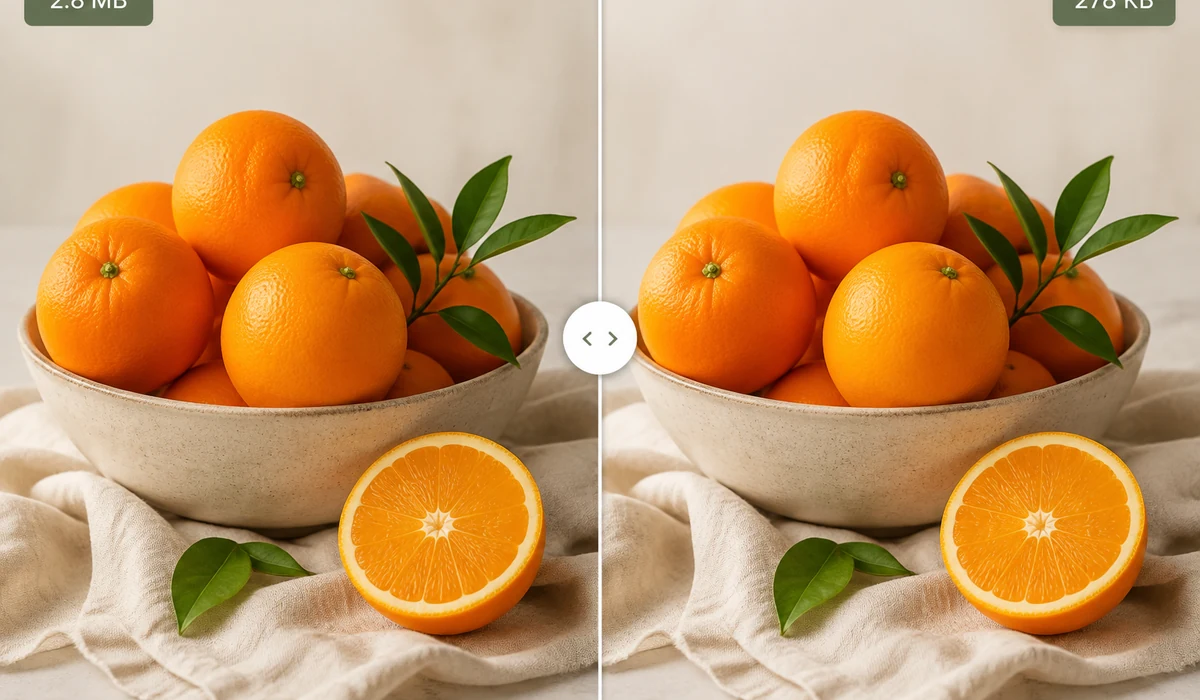
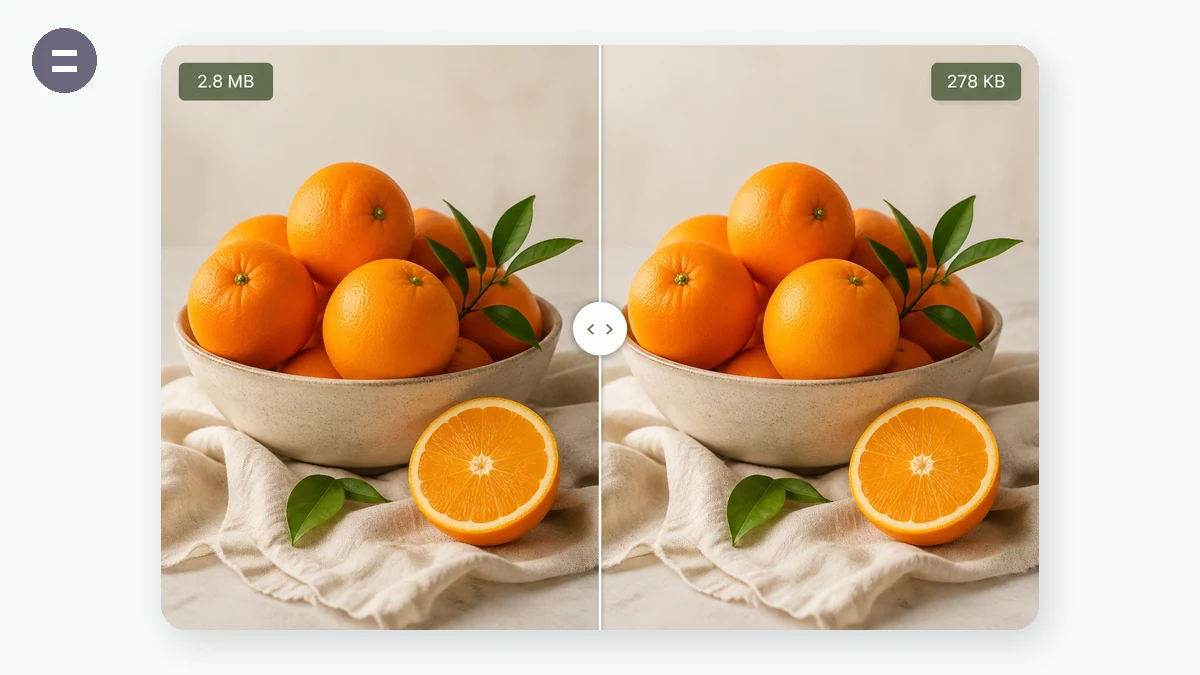
Large images slow down web pages and eat storage. This compressor re-encodes your photos at a quality level you choose, cutting file size while keeping them sharp. Drop in a whole folder and process the batch at once.
Because the work happens on your own device, there is no upload wait and no privacy trade-off. The files never touch a server.
How to use
- Add your imagesDrag in one or many files, or click to browse. Screenshots pasted from the clipboard work too.
- Set the qualitySlide to the sweet spot — 80% is a good start. Optionally cap the width to downscale big photos.
- Compress and saveHit Compress all, check the before/after size on each row, then save the ones you want.
Compress images without leaving your browser
The image compressor re-encodes JPG, PNG, and WebP files at a quality level you choose, so you can reduce image file size before uploading to a website, emailing, or attaching to a form. Everything runs locally in the browser tab, which means your photos are never sent to a server and the whole thing works even on flaky connections.
For JPG and WebP the quality slider controls how aggressively the file is squeezed. For PNG the tool applies 256-color quantization (via UPNG), which is where the big savings on logos, screenshots, and flat-color graphics come from. If a re-encoded file ever comes out larger than the source, the tool keeps the original instead, so you never end up with a bloated result.
Hitting a target size, in batches
Most upload limits are stated as a hard number: an avatar under 100KB, a product photo under 1MB, a form attachment under 2MB. Nudge the quality slider down and watch the output size until it lands under the cap you need, then export. To compress an image to 100KB you usually only need to trade a little quality that nobody will notice at screen size.
You can drop in many files at once and compress the whole set with the same settings, then download them together as a ZIP. There's also an optional max-width downscale, which is often the single biggest win: a 4000px phone photo shrunk to 1600px wide is a fraction of the size before any quality compression even kicks in.
What people use it for
Faster-loading web pages — Shrink hero images and product shots so pages load quicker and score better on Core Web Vitals.
Email attachments that actually send — Get large photos under the mailbox attachment limit without splitting them into multiple messages.
Meeting upload caps — Bring an ID scan or document photo under a portal's 2MB or 5MB ceiling in a couple of slider clicks.
Lighter screenshots for docs — Turn heavy PNG screenshots into compact files for wikis, tickets, and README images.
Batch product catalogs — Compress an entire folder of listing photos at once and grab them as a single ZIP.
Trimming avatars and thumbnails — Compress an image to 100KB or less for forum avatars, profile pictures, and small thumbnails.
Saving phone storage and data — Downscale and compress camera photos before backing them up or sharing over mobile data.
Marketplace and classified listings — Fit multiple photos into a listing that limits total upload size.
Why compress images right in your browser
Large image files are the quiet tax on almost every website, email, and shared folder. A single photo straight off a phone can weigh six or eight megabytes, and a folder of a hundred of them turns into a slow upload, a bounced attachment, or a page that Google marks down for speed. The usual fix is to run the files through an online compressor, but that means sending your originals to a server you don't control, waiting for a round trip, and often hitting a cap on how many files you can process before a paywall appears.
Compressing locally changes the math. When the work happens inside your own browser tab using Canvas and WebAssembly, the pixels never leave your machine. There is no upload progress bar because there is no upload. That matters for private material — screenshots of contracts, medical scans, product shots under embargo, family photos — where handing a copy to a third party is a real risk rather than a hypothetical one. It also means the tool responds at the speed of your CPU, not your connection, so a batch that would take minutes to transmit finishes as fast as your laptop can crunch it.
The compression itself is not a token gesture. For PNG files, tools.faxianai.com applies 256-color quantization, the same family of technique that makes tools like TinyPNG famous for shrinking flat graphics, screenshots, and illustrations by large margins with almost no visible loss. For JPG and WebP you get a quality slider so you can trade sharpness against size and watch the result. A guard rail runs on every file: if the "compressed" version would somehow end up larger than the original, the tool keeps the original instead, so you never accidentally bloat a file that was already efficient.
What makes it different
- Your files stay on your device. Nothing is uploaded; the whole pipeline runs in the browser, so there is no copy sitting on someone else's server.
- Works offline. After your first visit the PWA and service worker cache the app, so it keeps compressing on a plane, in a basement, or with the Wi-Fi off.
- Free with no sign-up and no watermark. Output is your clean image — no badge, no account wall, no trial counter.
- Real PNG savings. 256-color quantization gives the big reductions that flat images and screenshots benefit from most.
- Quality control for JPG/WebP. A slider lets you dial the exact size-versus-clarity point you want.
- Never bigger than the source. The tool refuses to hand back a file larger than what you started with.
- Batch plus ZIP. Drop in many images at once and download them together as a single archive.
tools.faxianai.com vs other image compressors
TinyPNG, Squoosh, and Compressor.io are all genuinely good tools, and Squoosh in particular pioneered serious in-browser codecs. The honest differences are mostly about where the work happens and how batch is handled.
| Aspect | Typical online compressor (TinyPNG, Compressor.io) | Squoosh | tools.faxianai.com |
|---|---|---|---|
| Privacy / uploads | Files uploaded to their servers | Runs in-browser, no upload | Runs in-browser, no upload |
| Price | Free tier with monthly/size limits, paid plans above | Free | Free, no limits or tiers |
| Offline | No | Partial (PWA) | Yes, full offline after first visit |
| Batch | Limited on free tiers | One image at a time | Many files at once, ZIP download |
| Watermark | None on output | None | None |
| PNG technique | Strong quantization (TinyPNG) | Manual codec choice | 256-color quantization |
| Learning curve | Very low | Moderate (lots of knobs) | Low |
Squoosh is the closest in philosophy — also local, also private — but it is designed around inspecting one image at a time with fine codec controls, which is excellent for tuning a hero image and slower for clearing a whole folder. TinyPNG and Compressor.io produce excellent results and are easy to use, but they upload your files and gate heavier use behind limits or subscriptions. If you want strong compression, batch throughput, and files that never leave your machine, that combination is where tools.faxianai.com sits.
Why tools.faxianai.com
Stays private
Images are processed locally and never uploaded.
Batch mode
Compress dozens of files in one go.
You control quality
Preview the size saving before you commit.
No wait
No upload or queue — it runs instantly.