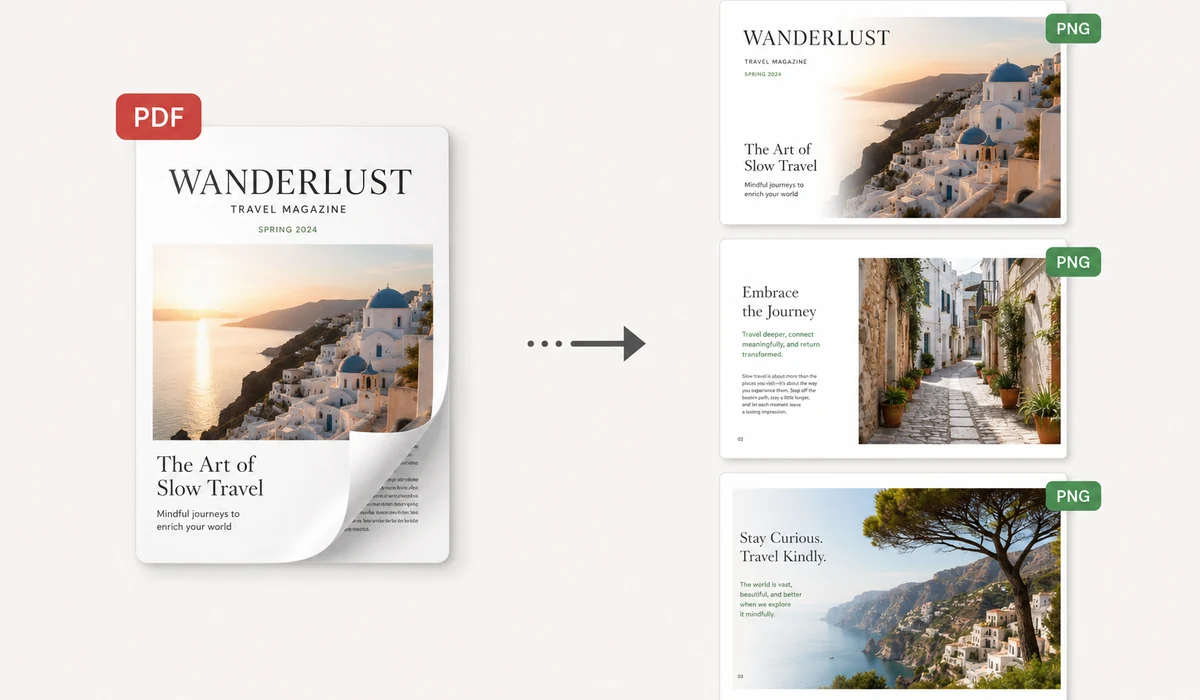
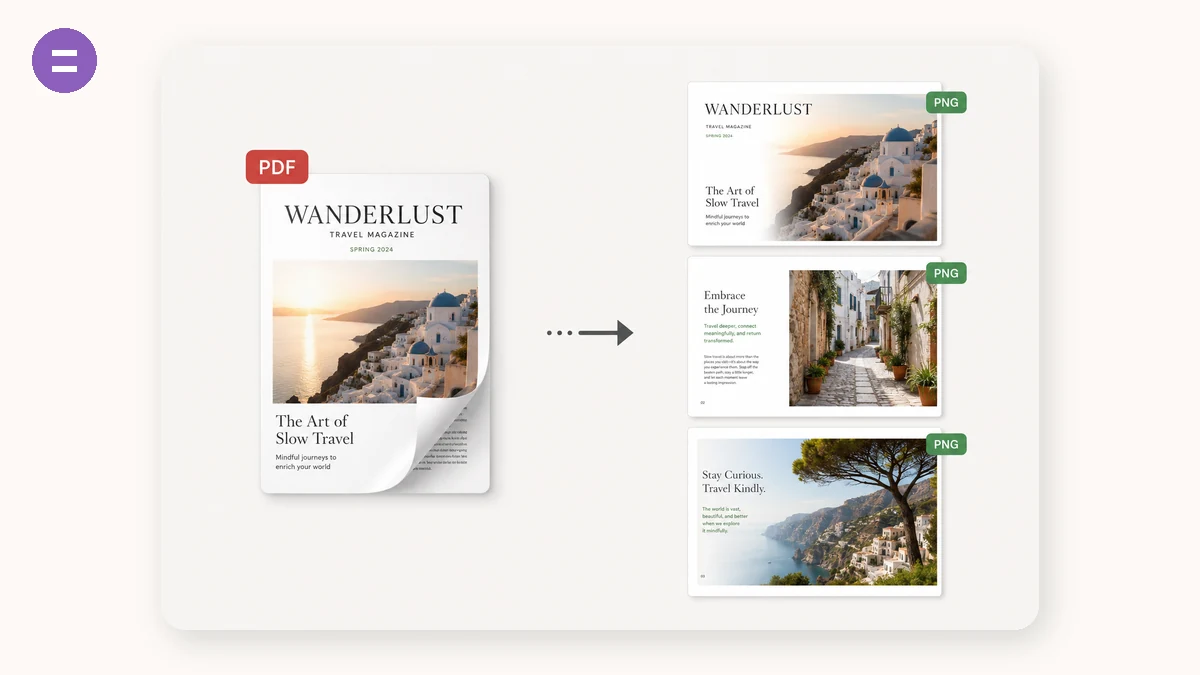
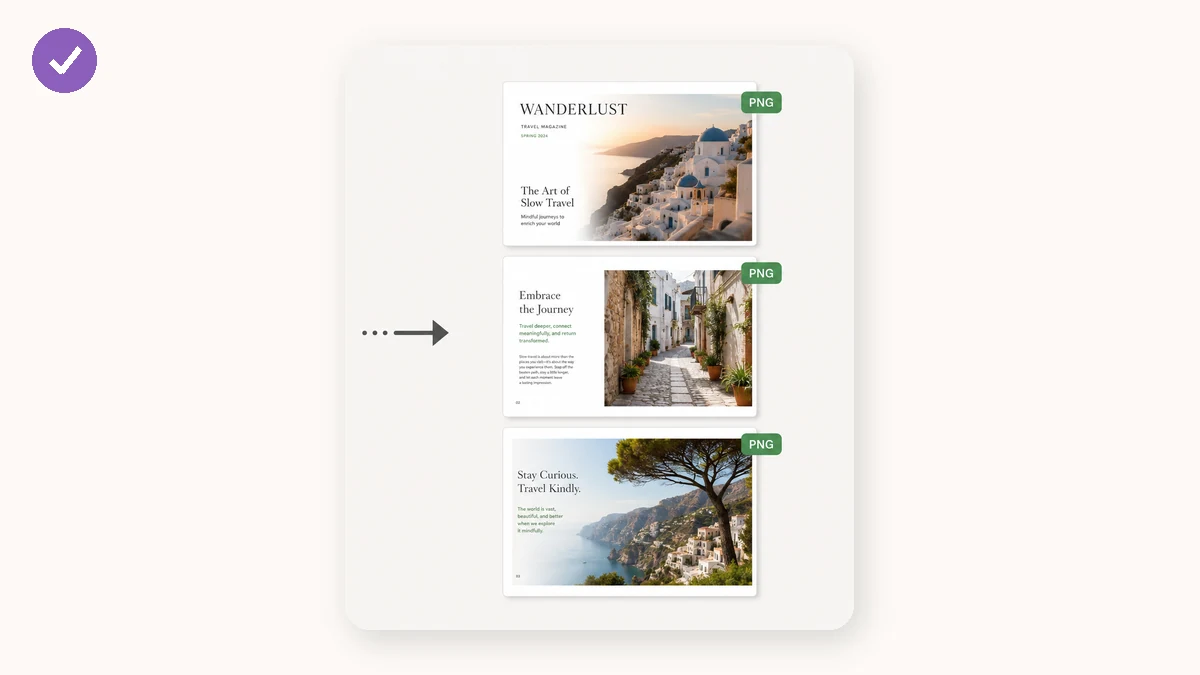
Sometimes you need a PDF's pages as plain images — to drop into a slide, post a page to social, or attach a preview where a PDF won't embed. This tool renders every page to a crisp PNG or JPG at the resolution you choose, using Mozilla's pdf.js engine right in your browser.
Pick screen, high, or print resolution, convert, and download a single image or a ZIP of every page. Your PDF — contracts, statements, whatever — is never uploaded.
How to use
- Add a PDFDrop in the document you want as images.
- Choose format & resolutionPNG or JPG, at screen, high or print DPI.
- ConvertDownload one image, or a ZIP with every page numbered.
Sometimes you don't need a PDF — you need its pages as images. A slide deck, a social post, a chat preview, a web form, a product listing: plenty of places take images but won't embed a PDF, and screenshotting a page means cropping the browser and settling for whatever your screen resolution happened to be. This tool renders every page of a PDF to a clean PNG or JPG at a resolution you choose, using Mozilla's pdf.js engine — the same one Firefox uses — running entirely in your browser.
You pick the format and the size, and it hands back a single image or a numbered ZIP of every page. PNG stays lossless and sharp for text and diagrams; JPG makes smaller files and suits photo-heavy pages. Three resolution presets cover screen, high-density displays, and print. Nothing is uploaded — your contracts, statements, and internal decks never leave the device — there's no account, and once the page has loaded it works with the network off.
What people use it for
Turn slide-deck pages exported as PDF back into images you can drop into Keynote, Google Slides, or a doc.
Post a single PDF page to Instagram or a forum that only accepts images, at the right size.
Grab a chart or diagram from a report as a sharp PNG for a presentation, without a blurry screenshot.
Make preview thumbnails of each page to attach in a chat or embed where a PDF won't render.
Export a page at print resolution to include in a printed handout or flyer.
Convert a signed contract or statement to images locally, so the file is never uploaded to a converter.
When a PDF page needs to be an image
A PDF is great until the moment you need to put a page somewhere that only takes images. Slack previews, an Instagram carousel, a slide you're building in Keynote, a forum post, a product listing, a documentation screenshot — none of them embed a PDF nicely. You end up screenshotting a page, cropping the browser chrome, and settling for whatever resolution your monitor happened to be. This tool does that job properly: it renders every page of a PDF to a clean PNG or JPG at the size you choose, with no window edges, no cropping, and no guesswork about quality.
Under the hood it uses Mozilla's pdf.js — the same engine Firefox uses to display PDFs — running entirely in your browser. It reads the actual page geometry and re-rasterises each page at your chosen resolution, so a diagram or a chart comes out sharp rather than blurry the way a screenshot of a zoomed-out page would. You get a single image if the PDF is one page, or a numbered ZIP of every page for a longer document.
PNG or JPG, and what resolution
Two choices decide how your images look and how big the files are.
Format. PNG is lossless — every pixel is exact, edges stay crisp, and there's no compression fuzz around text and lines. It's the right pick for slides, diagrams, screenshots, or anything with sharp type. JPG trades a little of that sharpness for much smaller files, which suits photo-heavy pages or when you need to keep the total download light. One honest detail: PDF pages can be transparent, but JPG can't hold transparency, so JPG pages are given a flat white background. PNG keeps whatever the page had.
Resolution. Three presets cover most needs:
- Screen (~108 dpi) — light files for web previews, chat, and social, where the image will be viewed on a display anyway.
- High (~144 dpi) — a good default: crisp on high-density phone and laptop screens without ballooning the file size.
- Print (~216 dpi) — dense enough to look clean on paper or when someone will zoom in. Files get noticeably larger; use it when you actually need the detail.
The trade-off worth knowing
An image is pixels, not a document. Once a page becomes a PNG or JPG, the text in it is no longer selectable, searchable, or editable — it's a picture of text. That's exactly what you want when the goal is to show a page somewhere that won't take a PDF, or to stop someone easily copying the text out. It's the wrong tool if you actually need an editable or searchable file — in that case keep the PDF, or use the merge/split PDF tools to rearrange pages while they stay real PDFs. This tool converts to images on purpose; it doesn't pretend the result is still a document.
It runs on your device, and stays there
The files people convert are rarely just brochures. They're contracts, bank statements, medical results, signed forms, internal decks — pages you might want as images to paste into an email or a chat, but definitely don't want sitting on a stranger's server first. Because pdf.js renders everything locally, your PDF is never uploaded. There's no account, no queue, no daily cap, and once the page has loaded it keeps working with the network switched off — which is also the simplest proof that nothing is being sent anywhere.
A practical note on big files: since the work happens on your own hardware, a very long or image-heavy PDF at print resolution leans on your device's memory. Most documents convert in a moment; a few-hundred-page scan at 216 dpi is where an older phone might struggle. If it feels slow, drop the resolution a notch or convert in smaller batches. For the everyday case — turning a handful of pages into images you can actually use, without handing the file to anyone — it's fast, private, and does exactly one thing well.
Why tools.faxianai.com
Every page
Each page becomes its own image.
Resolution control
Screen, high, or print-quality DPI.
ZIP export
All pages in one download, in order.
Private
Rendered locally with pdf.js — no upload.