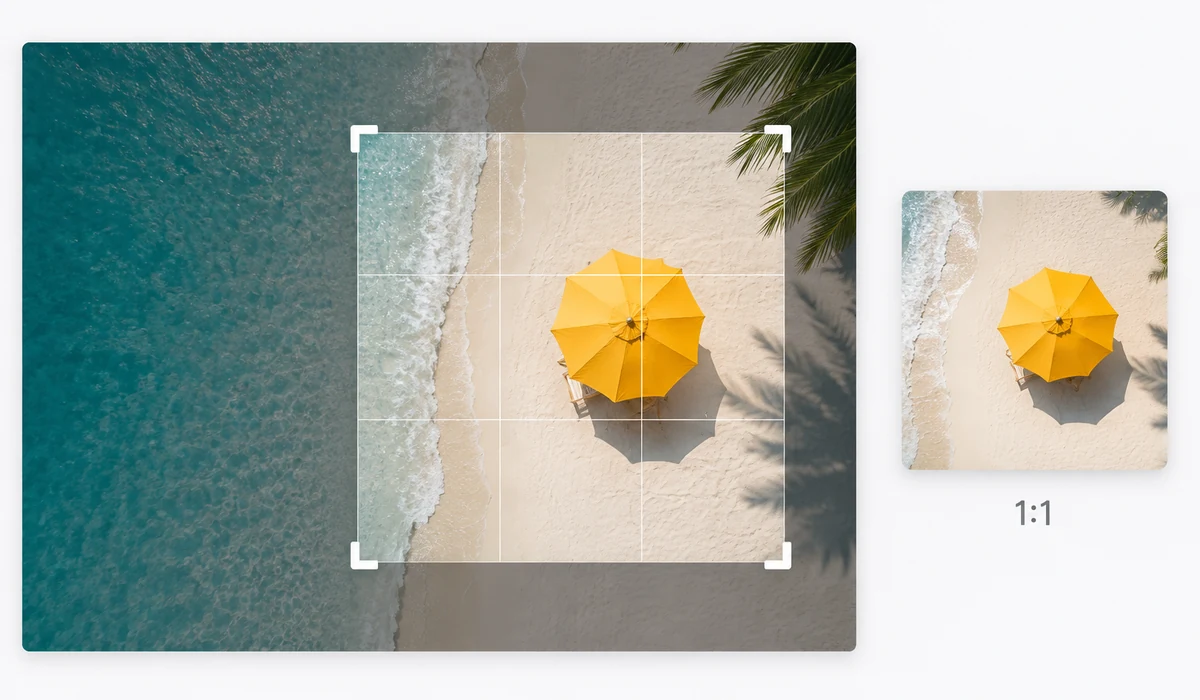
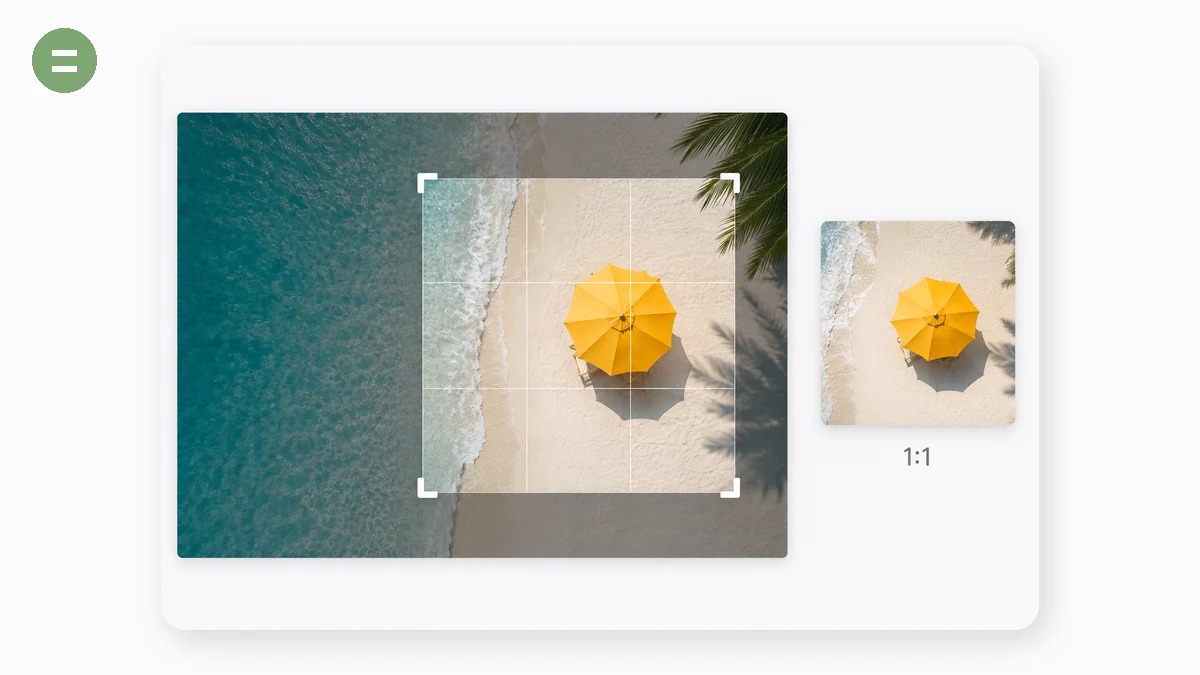
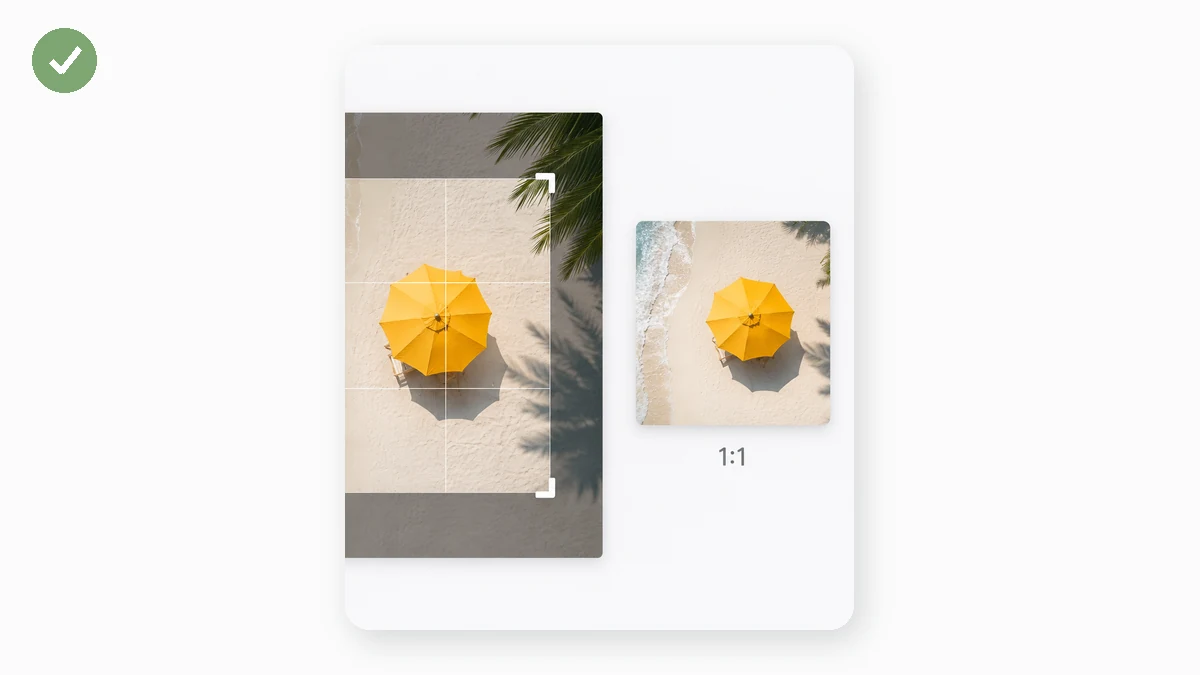
Cut out the part of a picture that matters. Drag the selection to move it, drag the corner to resize, and pick a ratio preset for perfect squares or widescreen crops.
The crop is applied at the image's full resolution, so you don't lose sharpness — and nothing is uploaded.
How to use
- Add an imageDrop in the photo to crop.
- Frame the cropDrag the box and its corner. Choose a ratio like 1:1 or 16:9, or keep it free.
- Crop and saveClick Crop & download to get the trimmed image.
Crop with a draggable box and aspect presets
The image cropper gives you a crop box you can drag across the photo and resize with a handle, so you can frame exactly the part you want to keep. It runs entirely in the browser, so the image you're cropping never leaves your device. When you're happy with the selection, export and the result comes out in the same format you started with.
Aspect presets take the guesswork out of common shapes: Free for anything, 1:1 for a perfect square, 4:3 and 3:4 for standard landscape and portrait, and 16:9 and 9:16 for widescreen and vertical video framing. Pick a preset and the crop box holds that ratio while you position it.
Framing for the platform you're posting to
Different platforms want different shapes, and a poorly cropped image gets awkwardly zoomed or letterboxed. Crop to square for an Instagram feed post or a profile picture, 9:16 for a Reel or Story, 16:9 for a YouTube thumbnail or a slide, and 4:3 or 3:4 when a listing or print layout expects those proportions.
Cropping is also about attention: tightening the frame around your subject removes dead space and makes the important part fill the image. Drag the box to reframe, trim distracting edges, and straighten a subject that drifted off-center when you took the shot.
What people use it for
Crop to a square — Make a perfect 1:1 crop for profile pictures, avatars, and Instagram feed posts.
Vertical for Stories and Reels — Use the 9:16 preset to frame content for Stories, Reels, and TikTok.
Thumbnails and slides — Crop to 16:9 for YouTube thumbnails, banners, and presentation slides.
Tightening the composition — Drag the box in around your subject to cut dead space and draw the eye where it matters.
Removing unwanted edges — Trim a stray finger, timestamp, or cluttered border out of the frame.
Fitting a listing photo — Crop to 4:3 or 3:4 to match the shape a marketplace or catalog expects.
Straightening a subject — Reframe an off-center subject so it sits where you want in the final image.
Prepping a headshot — Crop a portrait to a clean, centered frame for a resume, badge, or team page.
Why crop images right in the browser
Cropping is where an image gets its point. A product shot needs the clutter trimmed away; a profile picture has to land as a perfect square; a thumbnail must hit 16:9 or the platform letterboxes it; a screenshot carries a strip of toolbar you'd rather cut. These are quick decisions, but the tools people reach for often force a bad bargain: upload the image to a cropping website and hand a copy to a server, or open a full editor and wait for it to launch just to draw a box and hit save.
Cropping in your own browser sidesteps both. A draggable box lets you frame the shot by eye, and preset ratios — 1:1, 4:3, 16:9, 9:16 — snap the selection to exactly what a platform expects, so a square avatar is truly square and a vertical story fills the frame without guesswork. When you want full freedom, the box is unconstrained and you trim to any shape you like. Everything happens on-device through Canvas, so the original never leaves your machine and there's no upload step between deciding on a crop and downloading it.
That local, private path matters more than it first appears. Cropping is often the moment you're removing something sensitive — a face at the edge of a photo, an address bar, a name on a document, a background you don't want public. Doing that on a remote server means the untrimmed original briefly exists somewhere you don't control, which is exactly the wrong place for it. Here the uncropped image is only ever on your device, and the output is a clean file with no watermark, no account, and no cap on how many you process.
What makes it different
- The original never leaves your device. Cropping runs in-browser via Canvas; nothing is uploaded.
- Works offline. Cached after the first visit, so it crops with no connection.
- Free, no sign-up, no watermark. The cropped image is yours, clean and unbranded.
- Preset ratios. 1:1, 4:3, 16:9, and 9:16 snap to common platform requirements.
- Free-form cropping. Drag the box to any shape when you don't want a fixed ratio.
- Draggable, visual box. Frame by eye and see exactly what you'll keep.
tools.faxianai.com vs other cropping tools
Online croppers are fast and free, and Photoshop gives pixel-perfect control with guides, snapping, and non-destructive edits. The trade-off, again, is privacy and weight versus convenience.
| Aspect | Typical online cropper | Photoshop / paid editor | tools.faxianai.com |
|---|---|---|---|
| Privacy / uploads | Image uploaded to a server | Fully local | Fully local, no upload |
| Price | Free, often ad-supported | Paid subscription/license | Free |
| Offline | No | Yes (after install) | Yes, after first visit |
| Install | None | Required, large | None |
| Watermark | Sometimes on free tiers | None | None |
| Preset ratios | Usually | Yes | 1:1, 4:3, 16:9, 9:16 |
| Free-form | Yes | Yes | Yes |
| Learning curve | Low | Steep | Low |
If your crop is part of a larger retouch — with layers, masks, and precise guides — a full editor like Photoshop earns its place, and its control is unmatched. Plenty of online croppers are perfectly good for a one-off, too. The catch with those is that they upload your image, and a few watermark the result or wrap the tool in ads. tools.faxianai.com keeps the speed and simplicity of a web cropper while keeping the original on your device — a fair fit when what you're trimming is something you'd rather no server ever saw.
Why tools.faxianai.com
Ratio presets
1:1, 4:3, 16:9 and more, or free-form.
Drag to adjust
Move and resize the selection by hand.
Full resolution
Crops at the original pixel size.
Private
No uploads, ever.