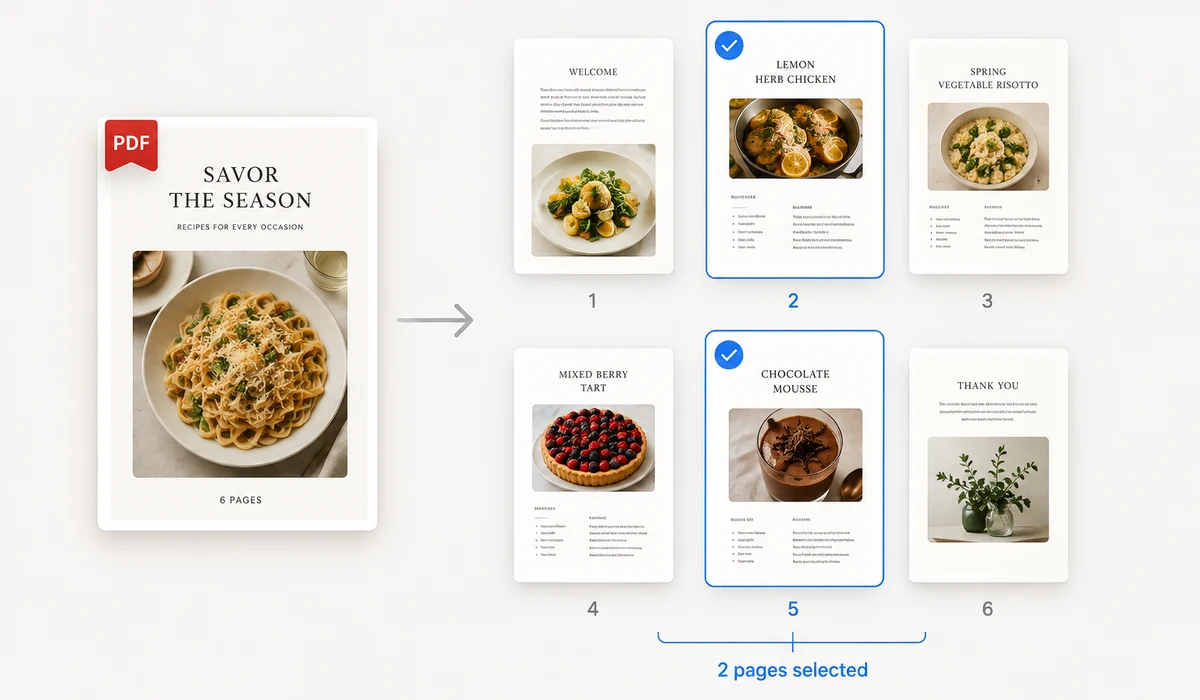
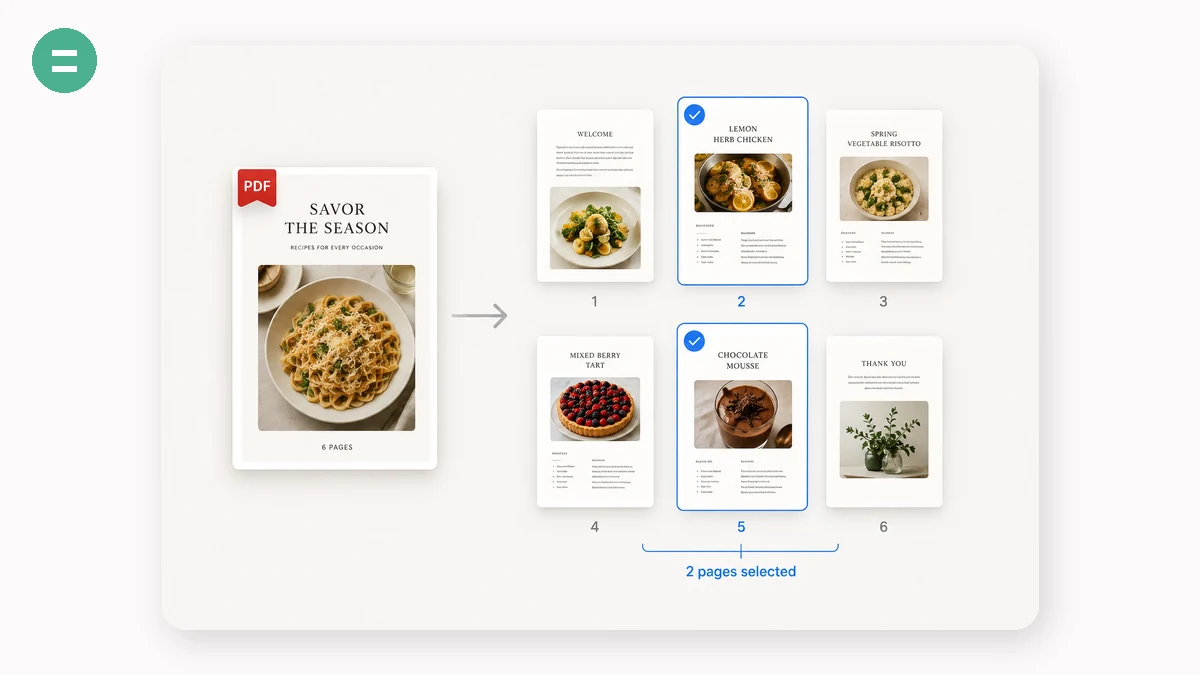
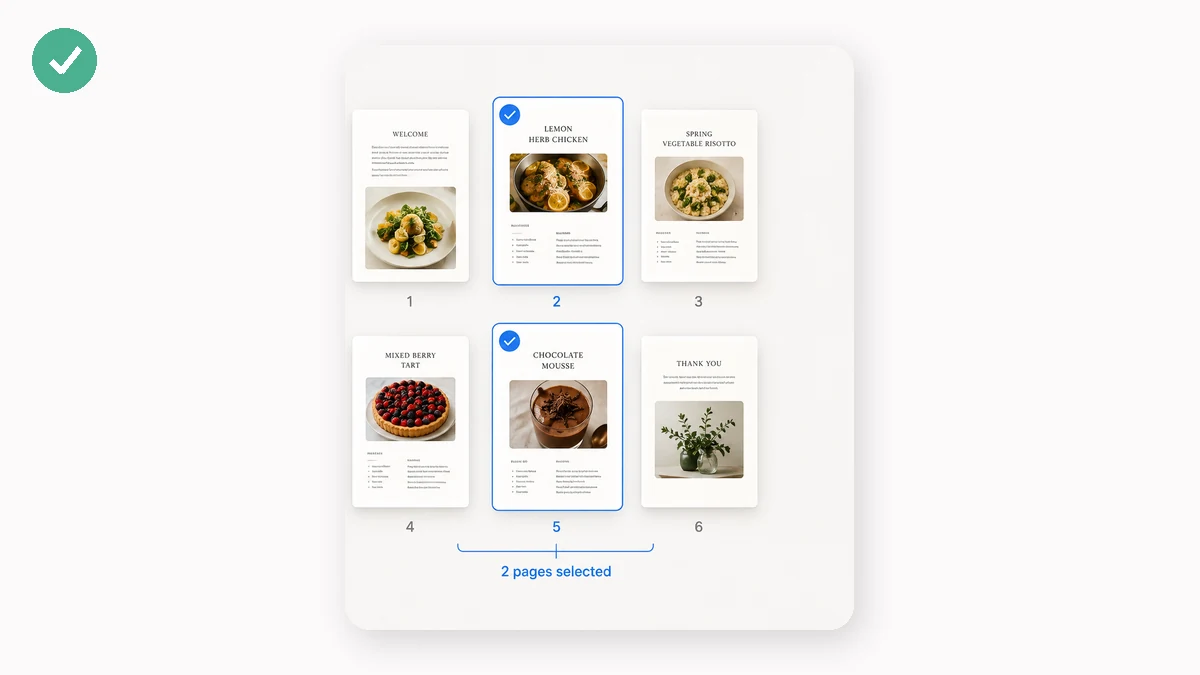
A PDF often has more than you want to send: you need pages 1–3 of a contract, or a single page out of a big scan. This tool lets you extract an exact page range (like 1-3, 5, 8-10) into a new PDF, or explode a document into one file per page, downloaded as a ZIP.
It runs on pdf-lib in your browser, so even confidential documents stay on your device — no upload, no server, no account.
How to use
- Add a PDFDrop in the document you want to split.
- Choose what to keepType a page range like 1-3, 5, 8-10, or switch to one-file-per-page.
- SplitDownload the extracted PDF, or a ZIP of separate pages.
Split PDF pulls the pages you need out of a document, right in your browser. Type a page range like 1-3, 5, 8-10 to extract exactly those pages into one new PDF, or split every page into its own file and download them all as a ZIP. It uses pdf-lib to copy pages from the original, so the result is byte-for-byte identical to the source — text stays selectable, scans keep their resolution, nothing is re-compressed and there's no quality loss.
Nothing is uploaded. The file is parsed and rewritten on your own device, so confidential contracts, statements, and scans never touch a server. There's no account and no daily limit, and once the page has loaded it works offline. Pair it with Merge PDF to join files back together, or PDF to Images when you need pictures instead of a PDF.
What people use it for
Send only the first three pages of a contract by extracting the range 1-3 into a new file, leaving the pricing appendix behind.
Pull a single invoice out of a long scanned batch — extract just page 12 as its own PDF to forward on.
Split a 30-page batch scan into 30 individual PDFs so each form can be uploaded to its own portal.
Turn one long PDF of certificates into separate files, one per recipient, and download them as a ZIP.
Extract a non-contiguous selection — the cover plus the signature page, say 1, 5, 12 — into one clean document.
Split scanned receipts into one file each so your accounting system can take them individually.
You rarely need the whole PDF — just a few pages of it
Most of the time a PDF is too much. Someone asks for the signature page of a lease, and you have a forty-page document. A colleague needs the invoice on page 12 of a scanned batch. You want to send pages 1–3 of a contract without handing over the pricing appendix on page 4. The document is fine as it is — you just need a smaller piece of it, as its own file, that you can attach to an email or drop in a chat.
The usual online route means uploading that whole PDF to a stranger's server so it can cut out the part you want and send it back. For a lease, a bank statement, or a signed agreement, that's a lot of trust to hand over for what is, mechanically, a very small job. Split PDF does the same job in your browser instead.
Two ways to split
Extract a page range. You type which pages you want in a single box — something like 1-3, 5, 8-10 — and the tool builds one new PDF containing exactly those pages, in that order. Commas separate individual pages or ranges; a hyphen makes a range. 1-3, 5, 8-10 gives you pages 1, 2, 3, then 5, then 8, 9, 10 in a single file. This is the mode for "just send me the first three pages" or "pull the one page I actually need."
Split every page into its own file. The second mode takes a document and turns each page into a separate one-page PDF, then hands them all back bundled as a ZIP. A 30-page scan becomes 30 individual PDFs. This is what you want when every page needs to stand alone — a stack of forms to file separately, receipts to sort one by one.
The pages come out exactly as they went in
Under the hood the tool uses pdf-lib to copy pages from the source document into the new one. It copies them — it doesn't re-render or re-compress anything. Text stays selectable, vector graphics stay sharp, an embedded scan keeps its original resolution. There's no quality-loss step because nothing is being redrawn; the page you get out is byte-for-byte the page that was in the original. That matters most for the exact documents people split: contracts and forms where a softened, re-encoded page would look wrong or read as tampered with.
Nothing leaves your device
All of this runs on the page you already loaded. pdf-lib parses and rewrites the PDF right in the browser, so the file never gets uploaded — no server sees it, there's no account, and there's no daily limit. Once the page has loaded you can turn the network off entirely and it still works. For confidential documents — the medical record, the offer letter, the statement with your account number on it — that's the whole point: the file stays on your machine from open to download.
If you're going the other direction, Merge PDF joins files back into one, and PDF to Images turns pages into PNG or JPG when you need pictures instead of a PDF.
Honest about the limits
This is page extraction at the file level, not a full page editor. It pulls pages out into new PDFs; it doesn't reorder pages within the original document, and it doesn't rotate them. If a page is sideways or the internal order is wrong, that's a fix to make in the source document first.
One caveat on locked files: a PDF protected with an open password — the kind that asks for a password before it will even display — can't be read in the browser, so remove the password first and split the unlocked copy. PDFs with owner-only restrictions (print or edit limits, but no prompt to open) usually split without trouble.
Why tools.faxianai.com
Range extract
Keep exactly the pages you list.
Split every page
One PDF per page, as a ZIP.
Smart ranges
Mix ranges and single pages: 1-3, 5, 8-10.
Private
Split locally with pdf-lib — never uploaded.