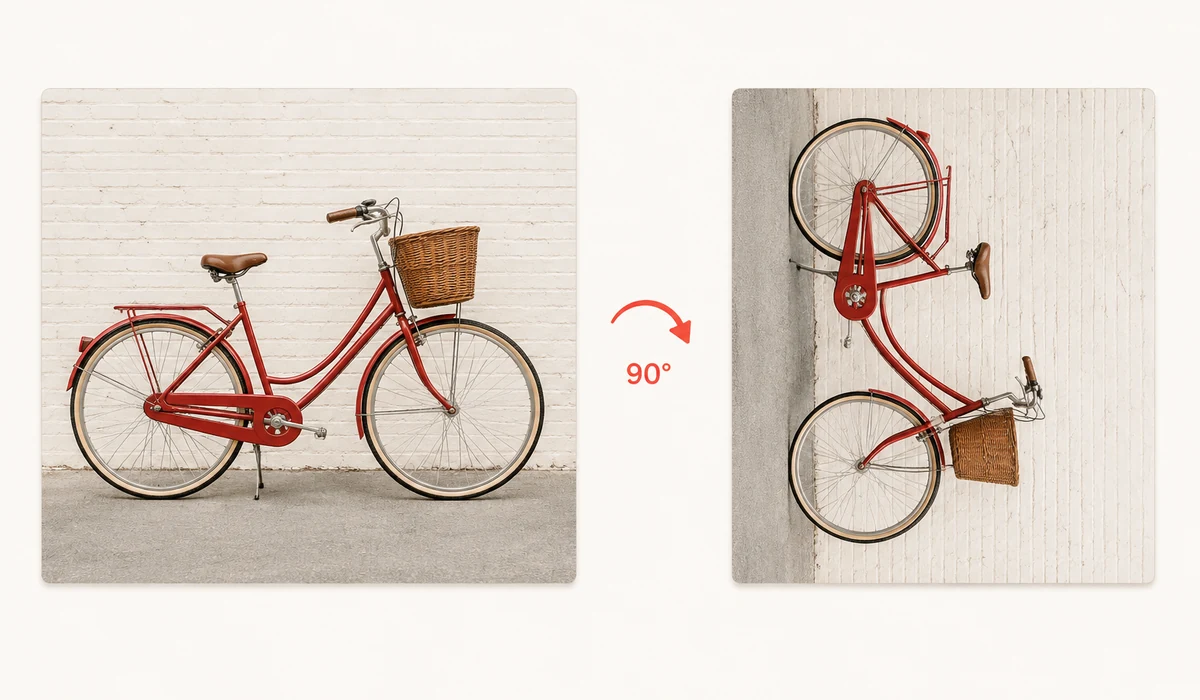
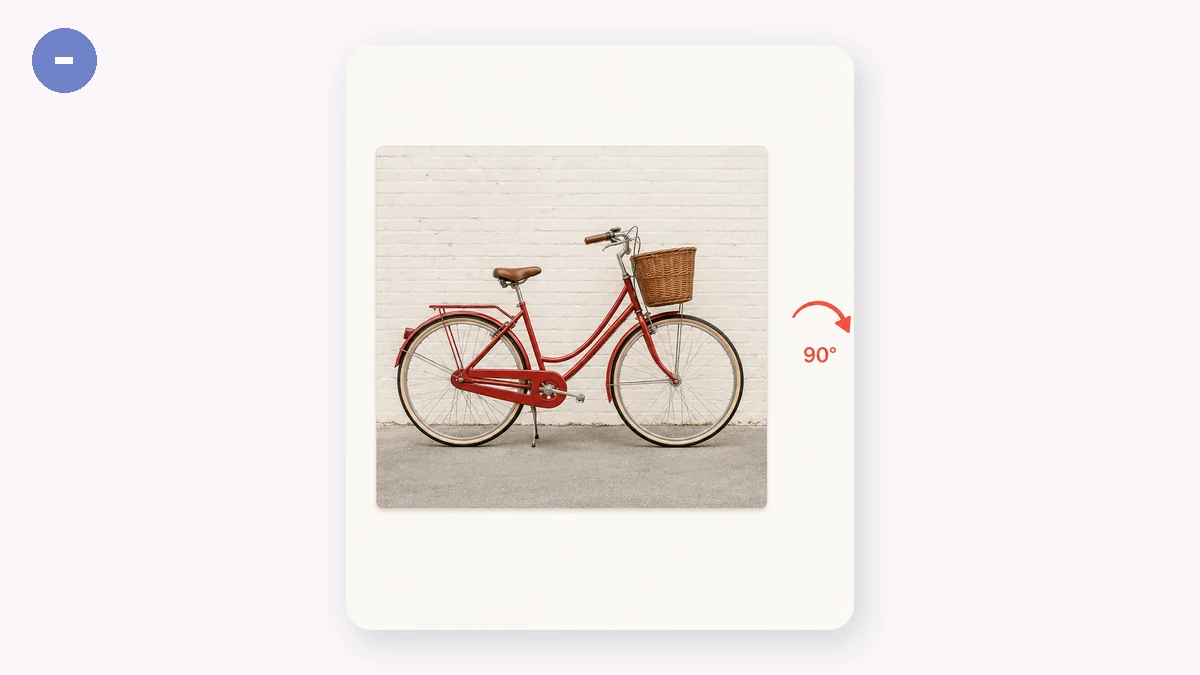
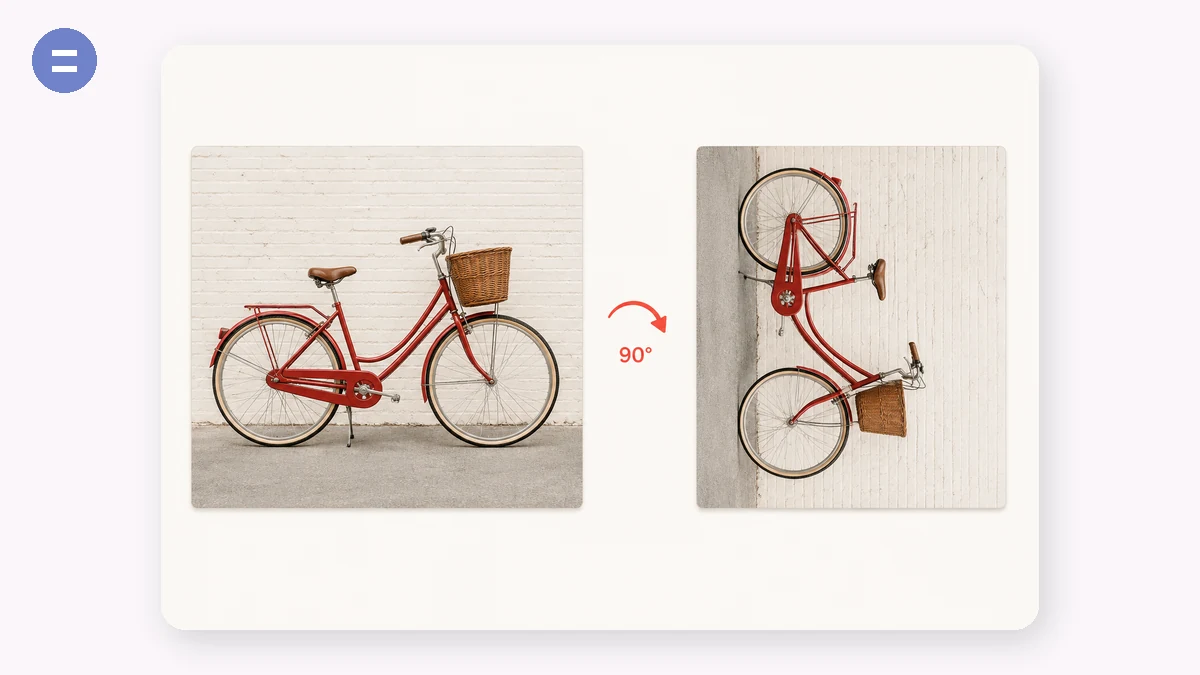
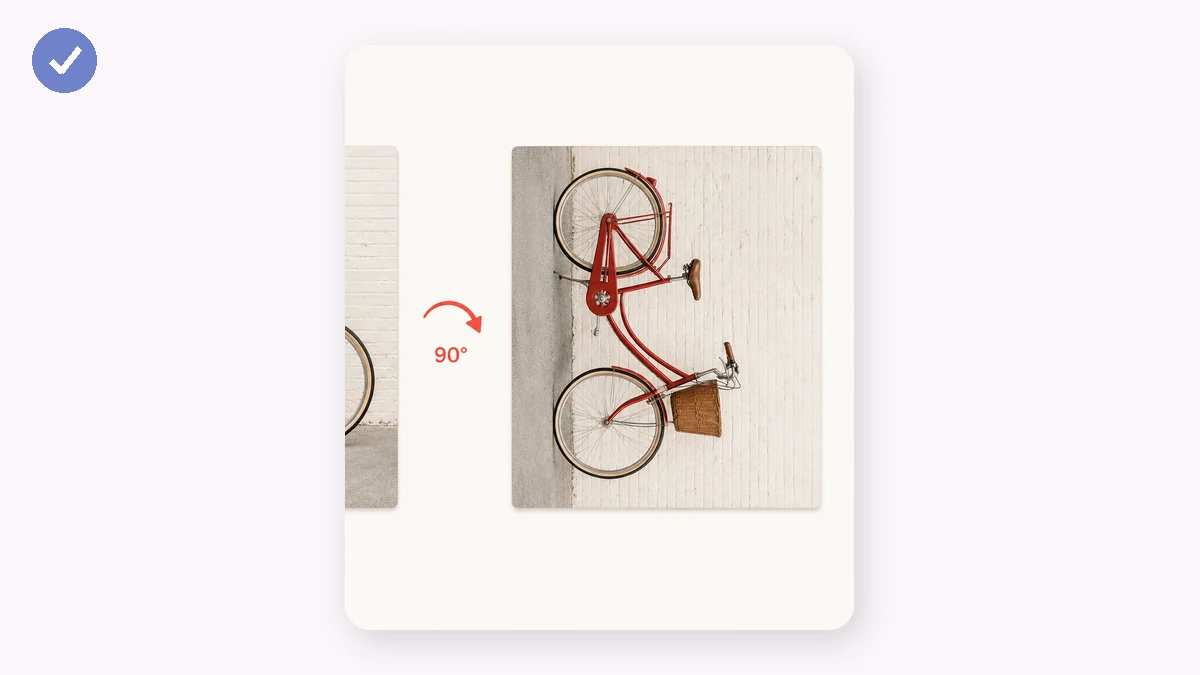
Fix a sideways photo, straighten a scan, or mirror an image for a design. Rotate in quarter turns, dial in a precise angle, or flip along either axis — with a live preview as you go.
The result is rendered at full quality on your device, with no upload and no watermark.
How to use
- Add an imageDrop in the photo.
- Rotate or flipUse the 90° buttons, the free-angle slider, or the flip buttons. Watch the preview update.
- DownloadSave the adjusted image with one click.
Rotate and flip in one place
This tool rotates and flips a single image without any upload: turn it 90 degrees left or right, flip it horizontally or vertically, or set a free rotation angle for finer adjustments. It all happens in the browser, so the photo stays on your device from start to finish.
The 90-degree rotations fix the everyday problem of a photo that came in sideways or upside down. Flips are handy for mirroring a shot, correcting a selfie that reads backwards, or matching the orientation of a scanned page. Free-angle rotation is the one to reach for when a horizon or a document edge sits a few degrees off level.
Straighten, mirror, and reorient
A tilted horizon or a scan that landed crooked is distracting, and a small free-angle nudge is often all it takes to straighten the photo so it looks deliberate. Rotate until the lines that should be level actually are, then export.
Mirroring changes the story an image tells. Flip horizontally so a subject faces the other way to fit a layout, un-mirror a front-camera selfie where text reads backwards, or create a symmetrical pair from a single image. Vertical flips are less common but useful for reflections and correcting an upside-down scan.
What people use it for
Fixing a sideways photo — Rotate a phone photo 90 degrees so it displays upright instead of on its side.
Straightening a tilted horizon — Use free-angle rotation to level a slightly crooked landscape or skyline.
Un-mirroring a selfie — Flip horizontally so text and layout in a front-camera shot read the right way.
Correcting a crooked scan — Nudge a scanned document a few degrees so the text sits level.
Mirroring for a layout — Flip a subject to face the opposite direction so it fits a design or spread.
Rotating a portrait to landscape — Turn a vertical shot on its side when a frame or slot needs landscape orientation.
Creating a symmetric pair — Make a mirrored copy of an image for a balanced, symmetrical composition.
Flipping an upside-down image — Rotate 180 degrees to right an image that came in fully inverted.
Why rotate and flip images in your browser
Sideways photos are one of the most common small frustrations in digital life. You take a picture holding the phone one way, and it lands rotated 90 degrees in an app that ignores the orientation tag. A scan comes in upside down. A screenshot needs mirroring so text reads the right way in a mockup. None of this is hard to fix, but the usual routes are annoyingly heavy: upload to a rotate website and wait on a server, or open a big photo app that turns a two-click job into a project.
Rotating in your own browser makes it as quick as it should be. Turn an image 90 degrees at a time until it's upright, or flip it horizontally and vertically to mirror it — all through Canvas, entirely on your device. Because the pixels are handled locally, there's no upload, no queue, and no copy of your photo left on someone else's server. That last point matters whenever the image is personal or sensitive: a rotated screenshot of a document, a photo you're straightening before sharing privately, anything you'd rather not hand to a service just to spin it a quarter turn.
The everyday win is fixing sideways phone photos. Phones record orientation as metadata, and while some apps honor it, plenty don't — so a picture that looks fine in your gallery shows up rotated when you upload it elsewhere. Applying an actual rotation bakes the correct orientation into the pixels, so the image displays right everywhere afterward, regardless of whether the next app reads the metadata. Output is clean: no watermark, no sign-up, and no limit on how many you fix in a sitting.
What makes it different
- Nothing is uploaded. Rotation and flipping run in-browser via Canvas; your photo stays on your device.
- Works offline. Cached after the first visit, so it works with no connection.
- Free, no sign-up, no watermark. The corrected image is clean and yours.
- Rotate and flip. Turn 90 degrees at a time and mirror horizontally or vertically.
- Fixes sideways phone photos for good. Bakes the right orientation into the pixels so it displays correctly everywhere.
tools.faxianai.com vs other rotate tools
Basic online rotate tools are free and instant, and your operating system's built-in photo app rotates without any upload at all. Both are reasonable; the differences are small but real.
| Aspect | Basic online rotate tool | OS photo app (Photos, Preview) | tools.faxianai.com |
|---|---|---|---|
| Privacy / uploads | Image uploaded to a server | Fully local | Fully local, no upload |
| Price | Free, often ad-supported | Included with OS | Free |
| Offline | No | Yes | Yes, after first visit |
| Install | None | Pre-installed | None |
| Watermark | Sometimes on free tiers | None | None |
| Flip (mirror) | Sometimes | Usually | Yes |
| Bakes orientation into pixels | Usually | Sometimes edits metadata only | Yes |
| Cross-platform | Yes | No, OS-specific | Yes, any browser |
Your OS photo app is a great choice when you're already in it and only touching your own device's files — it's local and free. Basic online tools are fine for a fast one-off, though many upload your image and some add ads or watermarks. tools.faxianai.com sits between them: as convenient as a web tool and usable on any device with a browser, but local and private like the OS app, and it writes the corrected orientation straight into the pixels so a sideways photo stays fixed wherever it ends up next.
Why tools.faxianai.com
90° steps
Quick quarter-turn rotation.
Any angle
Fine slider for precise rotation.
Flip
Mirror horizontally or vertically.
Private
Processed locally only.