Point a phone camera at a QR code and it opens a link, joins a Wi-Fi network, or starts an email. This generator builds them for the most useful cases — plain text or URL, Wi-Fi credentials, email, phone and SMS — and lets you pick the size, error-correction level and both colours.
Because the code is drawn in your browser, you can export it as a razor-sharp SVG for print or a high-resolution PNG for the web, and nothing you type is ever sent to a server.
How to use
- Pick a typeChoose URL/text, Wi-Fi, email, phone or SMS, then fill in the fields.
- Style itSet the size, error-correction level, and foreground/background colours. Keep good contrast so scanners read it reliably.
- DownloadExport a PNG for screens or an SVG for print — both scale cleanly.
This QR code generator runs the entire encoding in your browser using the MIT-licensed qrcode-generator library. You pick a payload type, fill in a few fields, and the pattern is drawn on the spot on your own device. Because the data is encoded directly into the image, there's no server in the loop and nothing gets uploaded — not the URL you're sharing, and not a Wi-Fi password you're about to print on a card. It keeps working with your connection off, and the code you make never expires, because it doesn't depend on any redirect service staying alive.
Beyond plain text and links, it builds the structured strings phones know how to act on: the standard WIFI: format for one-tap network joining, mailto: for a pre-filled email, tel: for a call, and SMSTO: for a text. You control the details that decide whether a code scans reliably — error-correction level (L/M/Q/H), output size from 256 up to 2048 px, foreground and background colour, and the quiet-zone margin. Export a high-resolution PNG for screens and quick prints, or a crisp SVG vector for posters, packaging, and anything that has to stay sharp at large sizes.
What people use it for
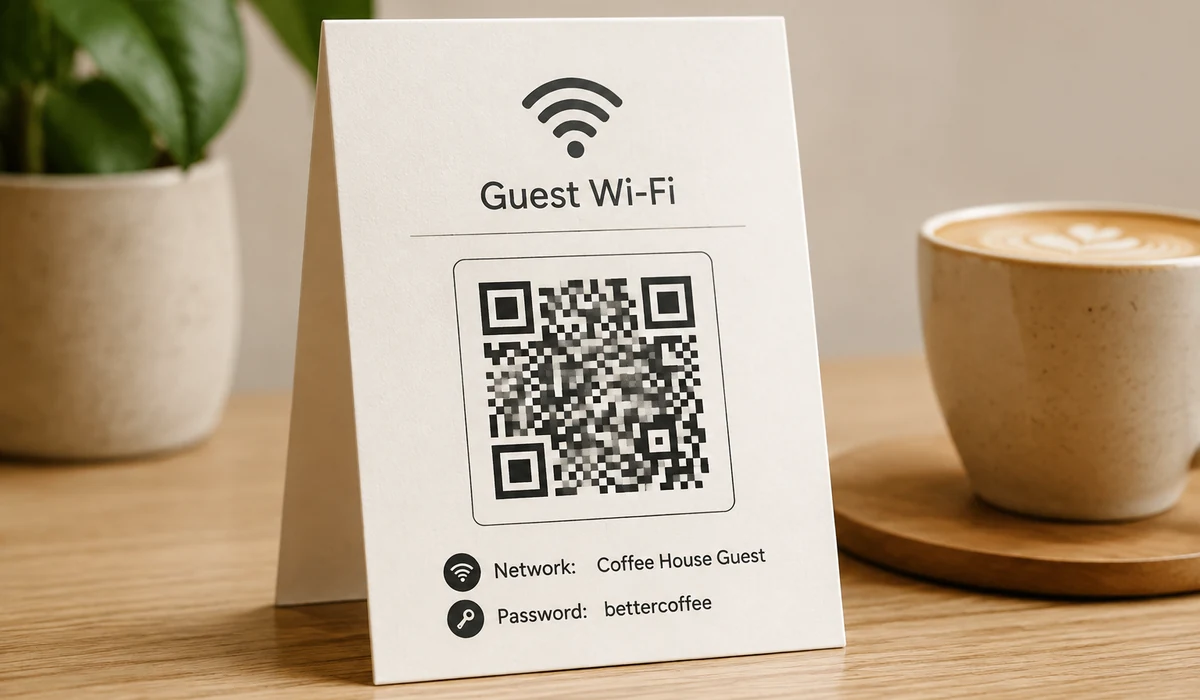
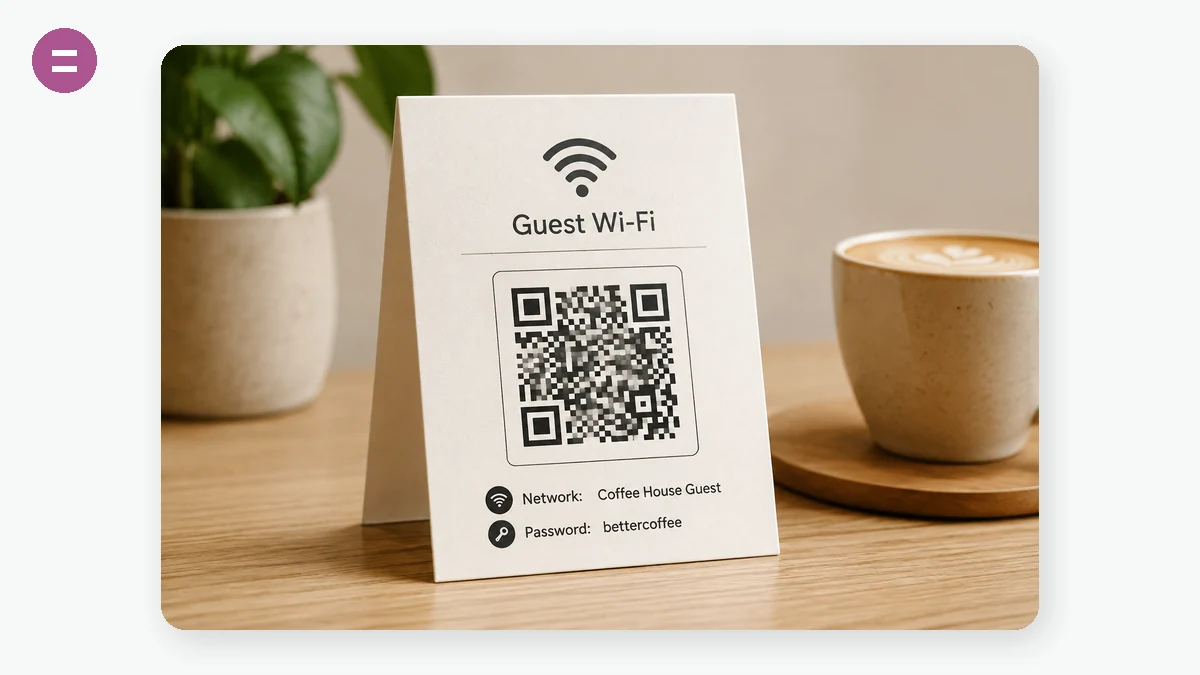
A Wi-Fi QR on the cafe table or the fridge so guests join without you reading out the password.
A link to your site, menu, or booking page printed on a flyer, card, or window sticker.
An SVG code dropped into a poster or packaging layout that stays razor-sharp at any print size.
A tel: code on a service van or shopfront so a passer-by can call you with one tap.
A pre-filled email code on a contact card so people reach you without mistyping the address.
A private, permanent QR for signage or a book that still scans years later with no tracking.
A QR code is just a picture that spells out some text
Strip away the mystique and a QR code is a black-and-white grid that encodes a short string. Point a camera at it, the phone decodes the string, and depending on what the string looks like it opens a link, joins a Wi-Fi network, or drafts an email. That's the whole trick. The string lives inside the pattern — it isn't fetched from anywhere. Which means the moment you know the text you want to encode, generating the code is pure math your browser can do on its own. No account, no server, no upload. This tool uses the MIT-licensed qrcode-generator library and runs entirely on your device; the text you type — including a Wi-Fi password — never leaves the page.
The payload types worth knowing
Plain text or a URL is the obvious one, but the structured formats are where a QR code earns its keep:
- Wi-Fi builds the standard
WIFI:string — SSID, password, encryption type (WPA/WEP/none), and a hidden-network flag. Scan it and the phone offers to join, no typing the password character by character. This is genuinely one of the best uses of a QR code, and it's covered below. - Email encodes a
mailto:with an optional subject and body, so a scan opens a pre-filled draft. - Phone uses
tel:to start a call. - SMS uses
SMSTO:to open a new message to a number.
Pick the type, fill the fields, and the tool assembles the correctly formatted string for you — no need to remember the exact syntax.
The best use: guest Wi-Fi
Print a small Wi-Fi QR code and stick it on the fridge, the café counter, or the Airbnb welcome card. Guests scan and connect without you reading out "capital B, number 4, lowercase..." over and over. Because everything happens in your browser, the password isn't stored on anyone's server on the way to becoming a code — it goes straight from the input box into the pattern. Set the encryption to WPA for any modern router, tick "hidden" only if your network actually hides its SSID, and you're done.
Choosing error correction
QR codes carry redundancy so they still scan when part of the code is smudged, folded, or covered. Four levels: L recovers about 7% damage, M ~15%, Q ~25%, H ~30%. Higher correction packs more backup data into the same code, so the pattern gets denser. For a clean code shown on a screen, M is plenty. For something printed, handled, or stuck on a surface that gets bumped, go Q or H. The other reason to pick H: it leaves enough redundancy that you can drop a small logo in the center yourself later without breaking the scan — this tool doesn't embed logos for you, but High EC is what makes overlaying one afterward safe.
Contrast is not optional
Scanners find the code by the difference between dark and light modules. Keep the foreground genuinely dark and the background genuinely light — dark-on-light, not the reverse (many readers refuse an inverted code). A pale grey on white, or two mid-tones, will read slowly or fail in dim light. If you want brand colours, use a deep, saturated foreground and keep a strong gap to the background. And leave the quiet zone — the blank margin — alone; the tool lets you set its width, and a few modules of empty space is what tells a scanner where the code ends.
PNG or SVG, and why
Export PNG (256 to 2048 px) for anything on a screen or a quick print. Export SVG when it's going to print at size — a poster, a business card, packaging — because SVG is vector: it stays razor-sharp at any scale instead of turning into blurry squares. For print, hand the SVG to your layout and let it scale.
Static, on purpose
Be clear-eyed about one thing: these are static codes. The data is baked into the image, so the code never expires and phones home to no one — no tracking, no scan analytics, nothing to keep paying for. The flip side is you can't edit it after printing; change the URL and you print a new code. Many online QR sites hide a redirect in the middle so they can count scans and change the target later — convenient, but it means every scan pings their server, and if they shut down or start charging, your printed code dies. A static code has none of that leverage over you. For a Wi-Fi card or a link you control, static is the honest choice.
Why tools.faxianai.com
Many types
URL, text, Wi-Fi, email, phone and SMS.
Your colours
Custom foreground and background, adjustable quiet zone.
PNG + SVG
High-res raster or infinitely scalable vector.
Private
Generated locally — nothing is uploaded.