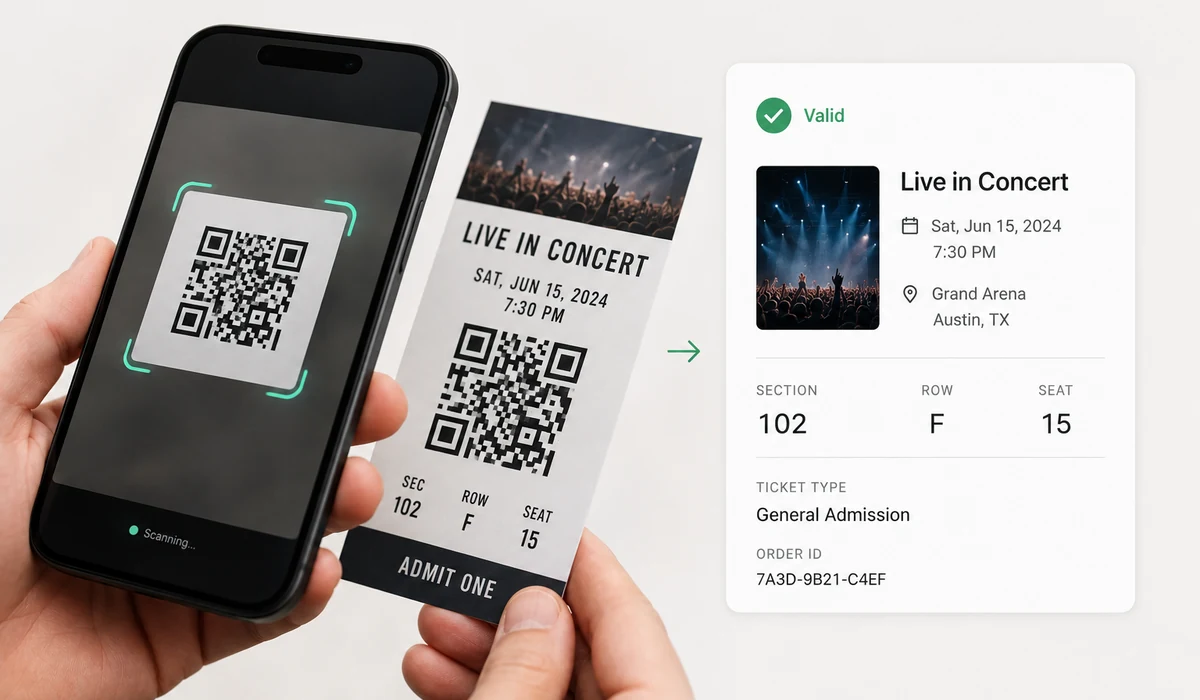
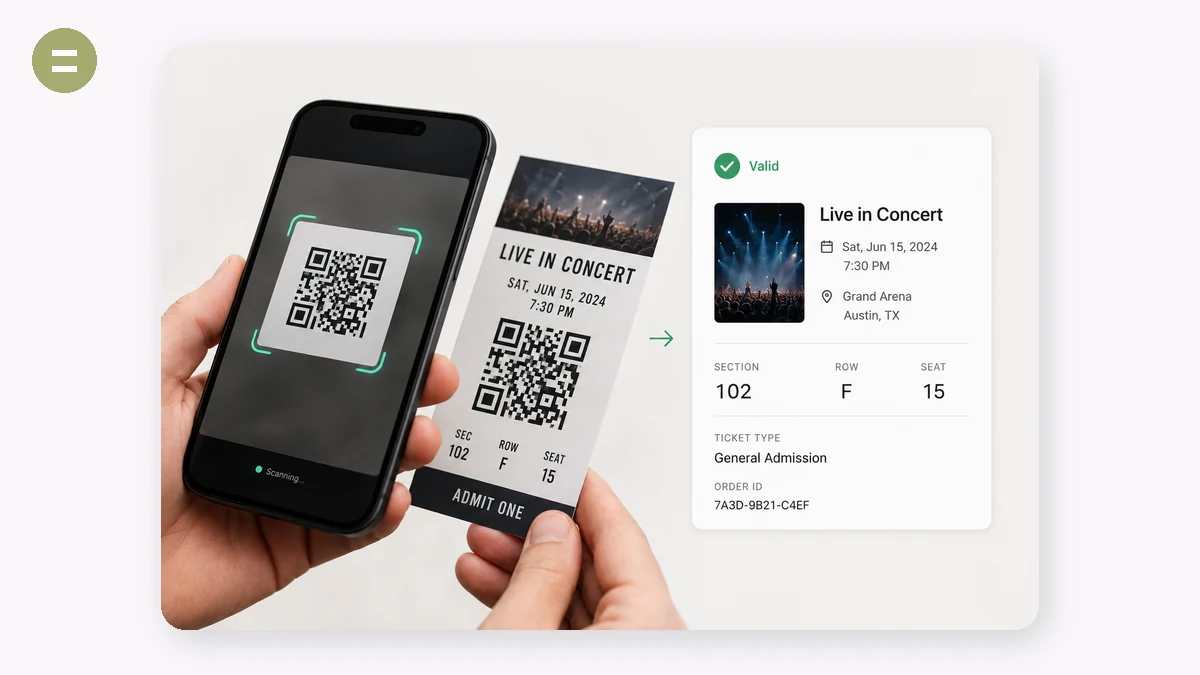
Got a QR code in a screenshot, a PDF, or a photo but no way to scan it with a second phone? Drop the image here and this reader decodes it on the spot, showing the exact text or link it contains.
The picture is processed entirely in your browser — no upload, no camera permission, no app. If the code is a link, you will see it as a clickable result, but nothing opens or connects unless you choose to.
How to use
- Add the imageDrag in, paste, or select a screenshot or photo that contains a QR code.
- Read the resultThe decoded text appears instantly. If it is a URL, a link is offered.
- Copy or openCopy the text with one click, or follow the link if you trust it.
A QR code is just an image, and often the image is already sitting on the device you'd normally scan with — a screenshot in your chat, a code on a PDF ticket, a 'scan to connect' Wi-Fi panel on your own laptop. This reader takes that image and decodes the code inside it, so you don't have to grab a second phone or hold one screen up to another. Drag a file in, paste it from your clipboard, or pick it from your photos, and the text inside the code appears right away.
Everything happens in your browser. The image is drawn to a canvas and decoded on the spot with the jsQR library — nothing is uploaded, there's no account, and once the page has loaded it keeps working with the network switched off. That matters because a QR can hold more than a link: a Wi-Fi password, a private URL, a login token, a contact card. If the decoded text is a URL you get a clickable link; otherwise you get the raw text and a copy button. It reads one code per image and works from a file rather than a live webcam — a deliberate trade to keep the whole thing on your device.
What people use it for
Read the Wi-Fi QR in a hotel or router screenshot without a second phone
Open the link in a QR that's on a PDF ticket you're viewing on the same laptop
Decode a 'scan to connect' code shown on your own screen during app setup
Pull the contact details out of a vCard QR someone messaged you
Check where a QR points before you visit it, by reading the URL first
Recover the text from a QR in an old saved photo when the printed original is gone
The QR code is trapped on the same screen you're reading it on
Here's a situation everyone runs into. A friend sends you a Wi-Fi QR code as a screenshot. A PDF ticket has a QR you need to open. An app shows a "scan to pair" code on your laptop. The catch is that the code is on the device you'd normally scan with — the phone displaying the screenshot can't point its own camera at itself, and holding a second phone up to your monitor to read a code that's already sitting in a file feels absurd. You have the image. You just need the text inside it.
That's exactly the gap this tool fills. You drag, paste, or pick an image file that contains a QR code — a screenshot, an exported graphic, a photo — and it decodes the code right there, showing you the text it holds. If that text is a URL, you get a clickable link (marked rel=nofollow); otherwise you get the raw contents and a copy button. No second device, no juggling.
Why decoding from an image beats the webcam here
Most "QR scanner" pages assume a live camera and a physical code in front of you. That's the wrong model when the code is already a file. Reaching for the webcam means asking for camera permission, aiming at a screen (which introduces glare and moiré patterns that make screen-to-screen scanning flaky), and needing a separate screen to show the code in the first place. When the QR is a screenshot or a PDF page, there is no physical code to point a camera at.
This tool deliberately reads from the image you provide instead of the live camera. That's a real trade-off, stated plainly: it will not open your webcam and scan a code held in your hand. If you have a physical code on a poster or a package, your phone's built-in camera app is the faster path. But for the common case — a code that's already an image on your device — reading from the file is both simpler and completely local.
The privacy angle most sites ignore
A QR code is not always a harmless link. It can encode a Wi-Fi network name and password, a private meeting URL, a one-time login token, a payment string, a vCard with someone's phone number and address. When you decode one of those on a typical online "QR reader," you upload the image to a server you don't control — and with it, whatever secret the code carries. For a Wi-Fi password or a login link, that's genuinely the wrong place to send it.
This tool draws your image to a canvas and decodes it with the jsQR library entirely inside your browser. Nothing is uploaded. There's no account and no backend, and once the page has loaded it keeps working offline — you can literally turn off Wi-Fi and it still decodes. The text inside the code never leaves your machine, which is the only sensible default for something that might be a password.
Getting a clean decode
The tool downscales large images to about 1600px for speed and tries both normal and inverted codes automatically (inversionAttempts: 'attemptBoth'), so light-on-dark codes work too. A few practical habits help when a code is stubborn:
- Crop close. If the QR is a small square in a big screenshot, crop down so the code fills most of the frame. Tiny codes lost in a large image are the most common failure.
- Favour contrast. A dark code on a light background reads best. Very low-contrast or washed-out codes are harder.
- Kill the glare. For a photo of a code, avoid reflections and even lighting beats a bright hotspot across the pattern.
- One code per image. The tool decodes a single QR per image; if a picture holds several, crop to the one you want.
Honest limits: it's image-based, not a live camera, and it reads one code at a time. Very small, blurry, or heavily stylised codes can occasionally fail even after a good crop. Compared to online decoders that upload your picture to read it, the trade you're making is clear — this one keeps the image, and whatever it encodes, on your own device.
Why tools.faxianai.com
From any image
Screenshots, photos, exported graphics.
Instant
Decoded on your device, no camera needed.
Link aware
URLs become a clickable result.
Private
The image is never uploaded.