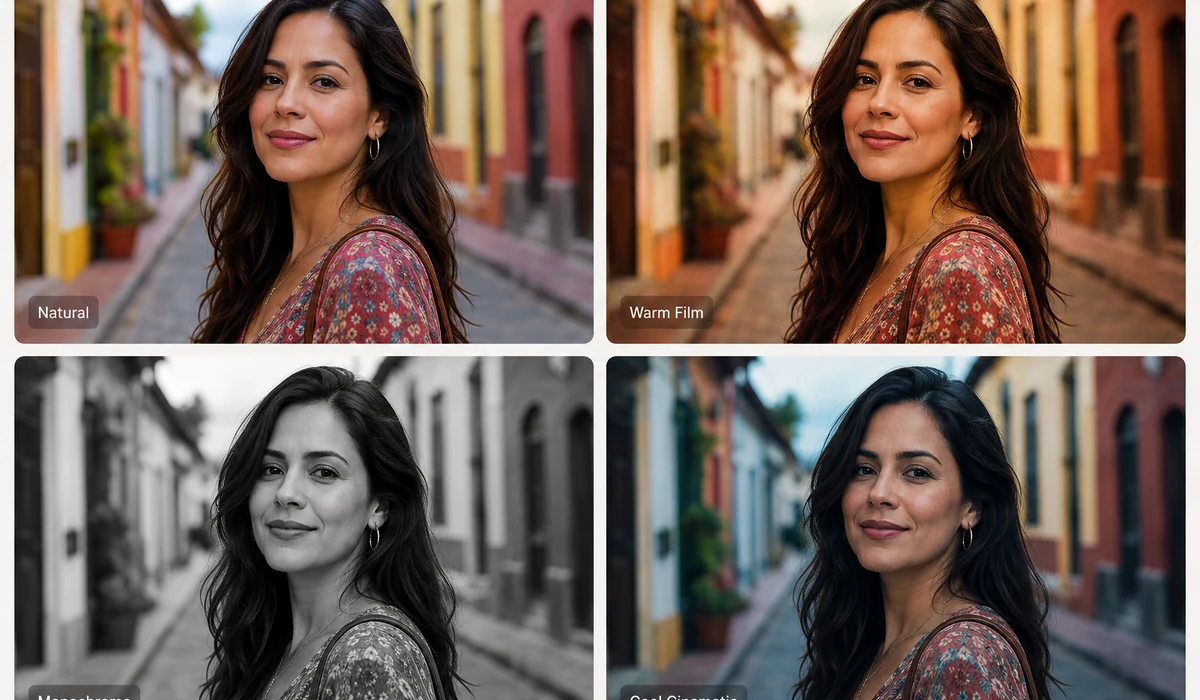
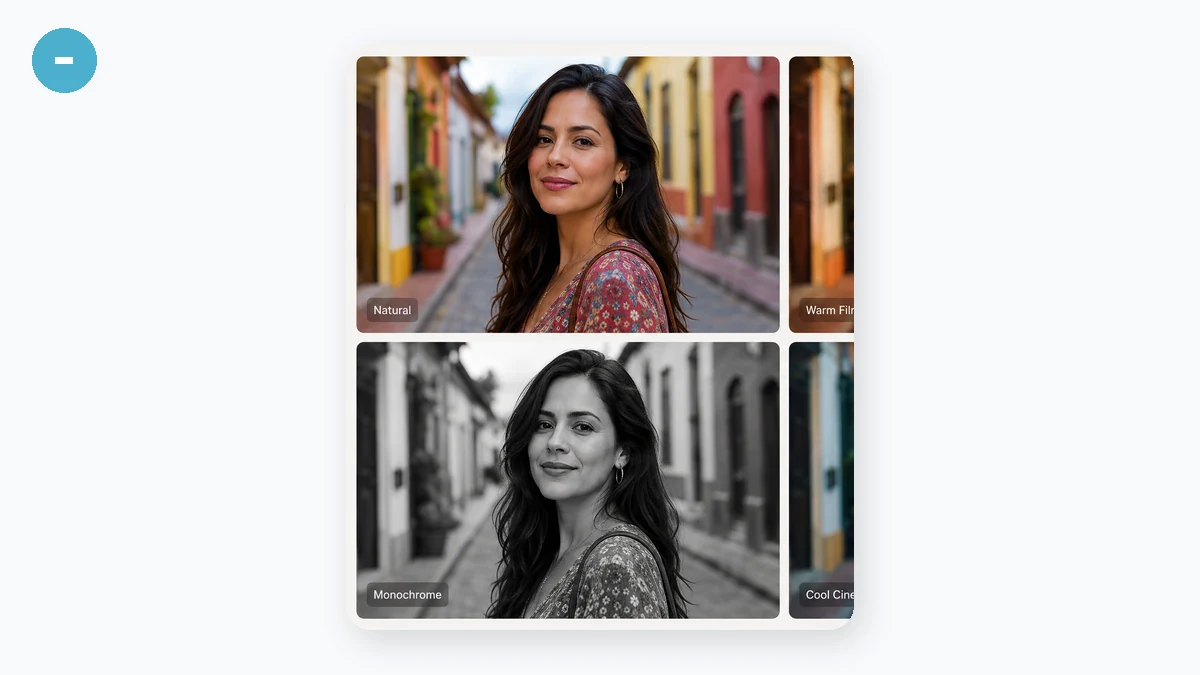
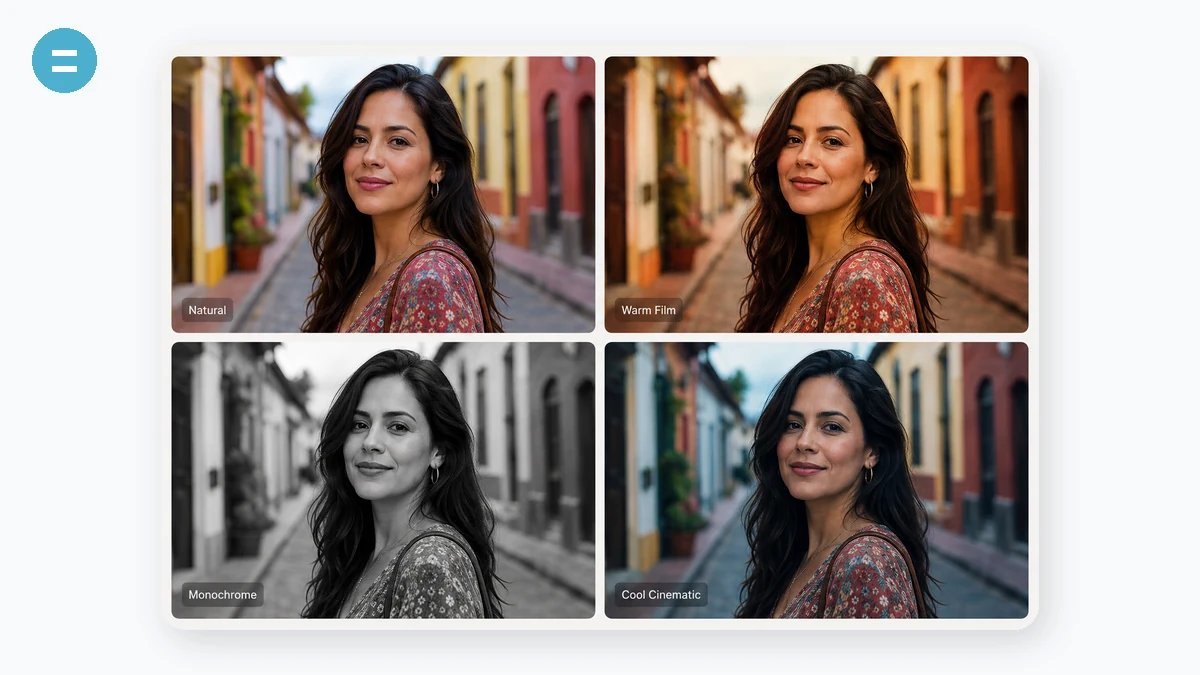
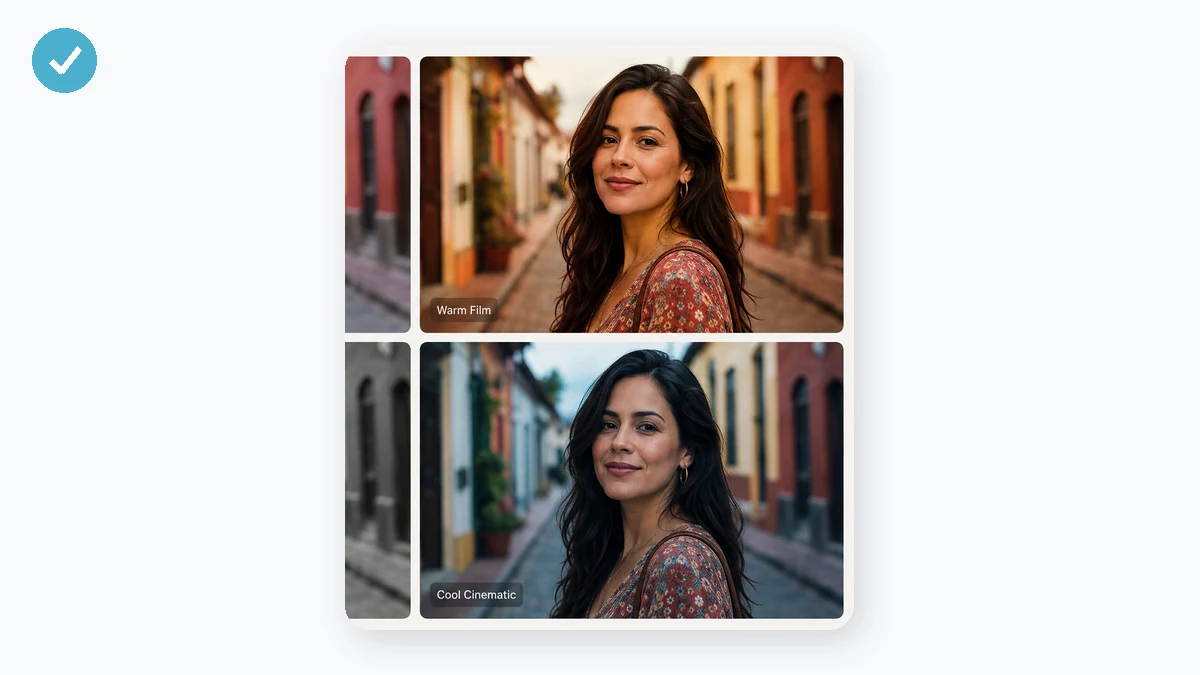
Sometimes a photo just needs a quick look rather than a full edit. Pick from ten one-click filters — Mono, Sepia, Vintage, Warm, Cool, Fade, Noir, Vivid and more — then nudge brightness, contrast, saturation and hue until it's right. A live preview updates as you go.
It renders at full resolution on your device and exports without a watermark. No sign-up, no upload, and the original file never leaves your browser.
How to use
- Add a photoDrop in the image you want to style.
- Pick a filterTap a preset for an instant look, then fine-tune the sliders.
- DownloadSave the result at full quality — JPG or PNG.
Photo Filters gives you ten one-click presets — Original, Mono, Sepia, Vintage, Warm, Cool, Fade, Noir, Vivid, and Clarity — each a fixed recipe of canvas filters that sets a whole mood in a single click. Pick the one that fits, watch it apply in the live preview, and you're most of the way to a finished look without touching a single number.
Underneath the presets sit four fine sliders — brightness, contrast, saturation, and hue — that apply on top of whatever preset is active, so you can nudge a look until it fits the specific photo instead of settling for a one-size-fits-all filter. When it's right, export a JPG or PNG at the image's real resolution: no watermark, no sign-up, and nothing uploaded, because every filter runs locally in your browser. It's a global-adjustment tool — the effects apply to the whole frame, with no localized masks or curves.
What people use it for
Warm up a flat indoor portrait with the Warm preset, then pull brightness up a touch so the face isn't lost in shadow
Give a product shot a clean, crisp feel with Cool and a small contrast bump before posting it to a catalog
Turn a busy street photo into a moody black-and-white with Noir, no app install and nothing uploaded
Add the faded, matte social-feed look with Fade and export it full-resolution with no watermark
Make a dull vacation photo pop with Vivid, then dial saturation back a little when it's too much
Batch-filter a folder of photos on a flight with no connection, since it works offline once loaded
Two ways to use it: a quick pass, or a proper edit
Sometimes a photo just needs a mood. You drop it in, click through ten presets, and the one that fits jumps out — done in five seconds, downloaded, sent. Other times you know the shot is close but not right: a little flat, a little cold, the sky not quite the blue you remember. Photo Filters does both. The ten presets are the quick pass; the sliders underneath are the proper edit. You can stop at either, and the second builds on the first rather than replacing it.
What the ten presets actually do
Each preset is a fixed recipe of canvas filters, and they fall into a few families so you can reach for the right one without trying all ten.
- Original is the untouched image — your baseline and your undo. Click it any time to see where you started.
- Mono and Noir both drop colour. Mono is a straight, even grayscale; Noir pushes contrast harder for a moody, high-drama black-and-white where shadows go deep and highlights punch.
- Sepia and Vintage warm the whole frame toward brown. Sepia is the classic aged-photo tone; Vintage adds a faded, slightly washed feel on top, like a print that's sat in a drawer.
- Warm and Cool shift the colour temperature — Warm toward amber and skin-flattering gold, Cool toward blue for a crisp, calm look. These are the ones for fixing a photo shot under the wrong light.
- Fade lifts the blacks for that soft, low-contrast, matte-film look that reads well on social feeds.
- Vivid and Clarity are the punch-up presets. Vivid boosts saturation for bold, poppy colour; Clarity leans on contrast to make a slightly dull shot look sharper and more defined.
The sliders stack on top
Pick a preset and you're not locked in. Four sliders — brightness, contrast, saturation, and hue — sit under the presets and apply on top of whatever preset is active. So Vintage plus a touch more brightness, or Cool with the saturation pulled back, or Vivid dialled down when it's too much. The preview updates live as you drag, so you're never guessing what the combination looks like. If you'd rather build a look from scratch, start on Original and move the sliders alone. The preset gives you a strong starting point; the sliders let you land it exactly.
Full-resolution export, no watermark, no downscale
When it looks right, you export a JPG or PNG at the image's real resolution — the same pixels you put in, filtered. No watermark stamped in the corner, no sign-up wall, no email. This is the part a lot of free online filter sites quietly get wrong: they hand you back a shrunken preview, or brand it with a logo, or gate the clean download behind an account. Here the download is the finished full-size file, straight away.
It stays on your device
The photo never leaves your browser. Every filter and slider runs locally on a canvas — there's no upload, no server, no backend that ever sees the image. That matters for the photos people actually filter: portraits, family pictures, work-in-progress shots you're not ready to post. Load the page once and it keeps working offline; you can filter a whole folder on a plane with no connection.
Honest about the limits
This is a global-adjustment tool, and it's worth being clear about what that means. Every filter and every slider applies to the whole image at once. There's no brushing an effect onto just the sky, no masking the subject to edit it separately, and no curves for bending specific tonal ranges by hand. If you need to darken one corner, whiten teeth, or pull down only the highlights, that's selective and curve-based work this tool doesn't do — reach for a layer editor instead. What it does do, it does fast and cleanly: set the whole-image mood, tune it with four sliders, and export the full-resolution result with nothing added on top.
Why tools.faxianai.com
10 presets
Mono, Sepia, Vintage, Noir, Vivid and more.
Fine-tune
Brightness, contrast, saturation, hue.
Full quality
Exports at the original resolution, no watermark.
Private
Runs locally — nothing uploaded.