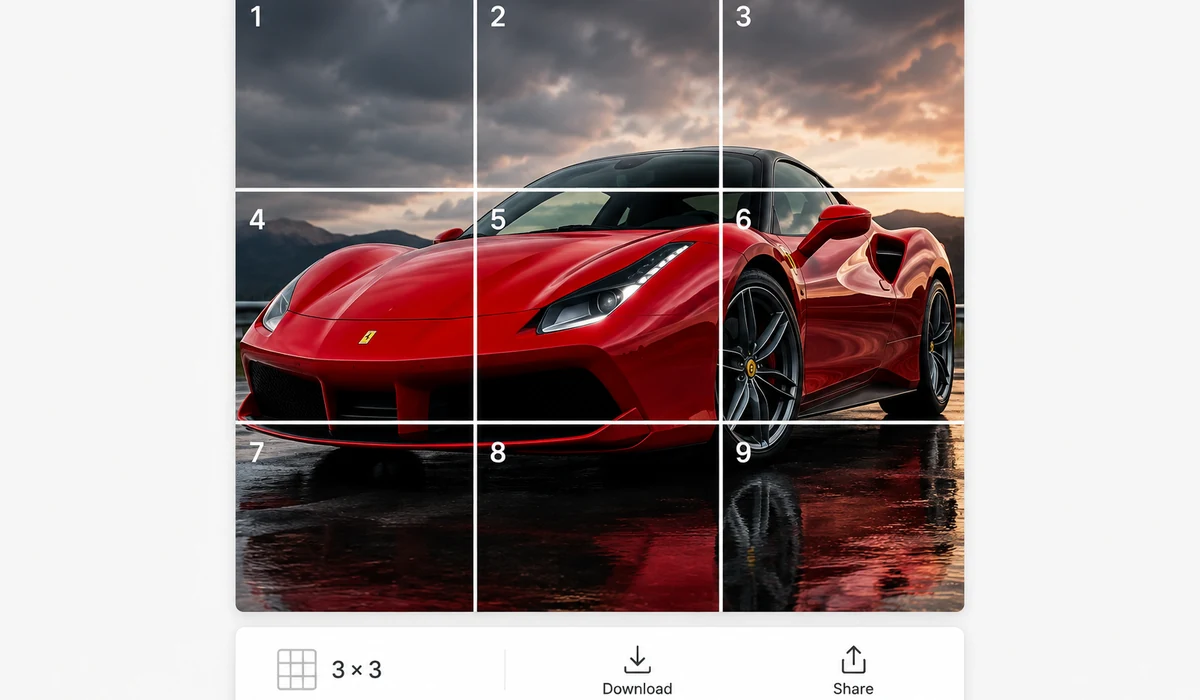
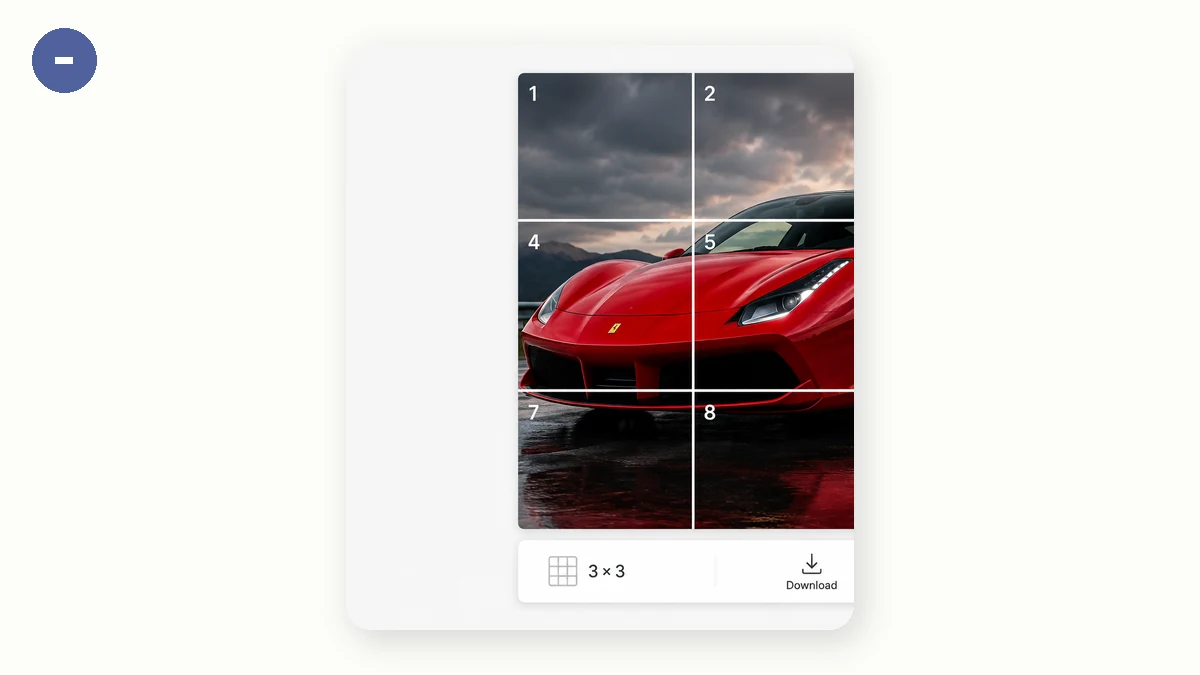
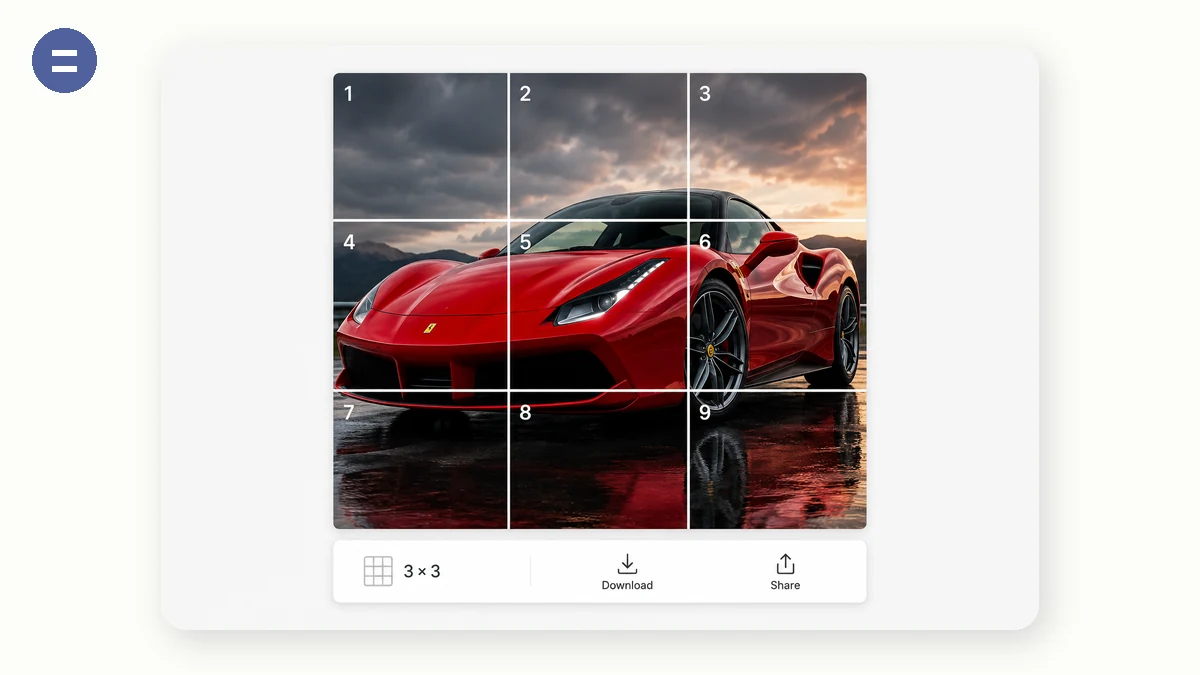
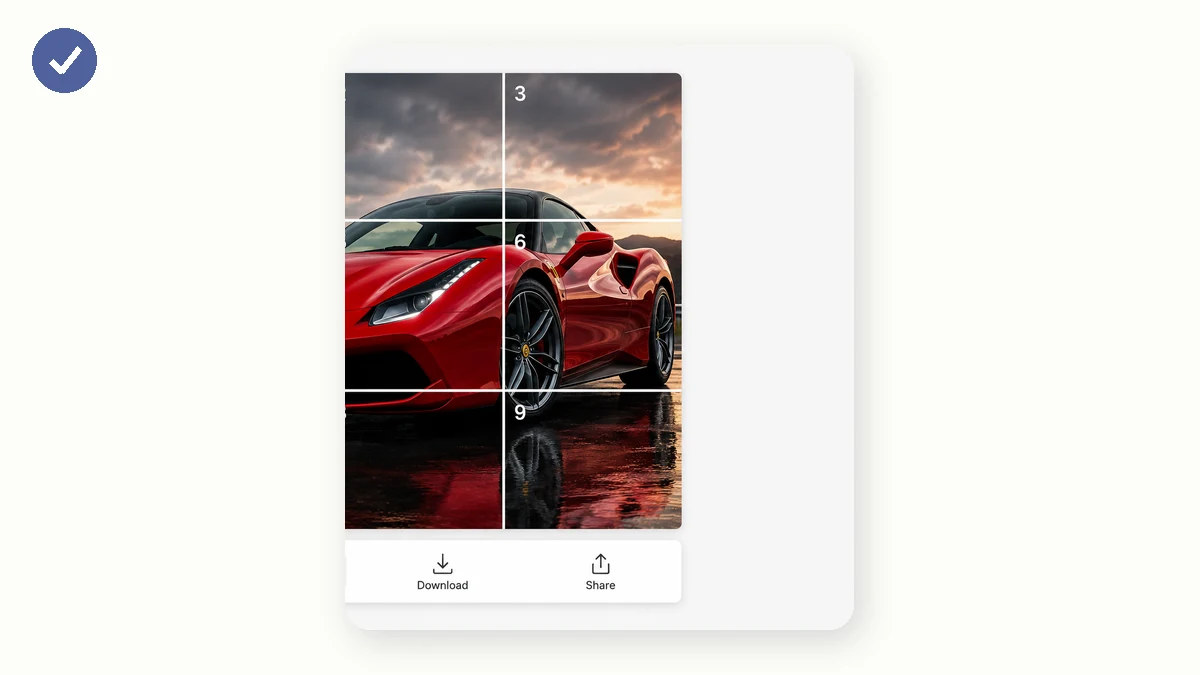
A grid post turns your profile into one big image — a classic Instagram and WeChat Moments trick. The tool center-crops your photo to the grid's exact ratio, cuts it into equal square tiles, and numbers them in posting order.
Tiles come back in a ZIP named 1 through 9 (row by row). Post them in order and the grid lines up perfectly.
How to use
- Add a photoSquare-ish photos work best for 3×3.
- Pick the grid9-grid (3×3), 4-grid (2×2), or 6-grid (3×2). The crop area previews live.
- Download and postTiles are numbered row by row — post 1→9 and the profile grid assembles itself.
Turn one photo into a 9-grid feed post
A single photo split into a 3×3 grid is a classic way to make an Instagram feed or a WeChat Moments post look designed instead of random. This tool center-crops your photo to the right ratio, then cuts it into tiles you upload one by one to rebuild the full picture.
It runs in the browser with nothing uploaded to a server. You choose a 3×3, 2×2, or 3×2 layout, and the tiles come out numbered row by row so posting them in the correct order is simple.
Numbered tiles, clean crops, ZIP download
Because the source is center-cropped to the grid ratio first, every tile lines up when the grid is reassembled, no awkward gaps or stretched edges. The tiles are labeled in reading order, top-left to bottom-right, matching how you'll post them.
When you're finished, all the pieces download together in a single ZIP. That keeps a set together whether you're building an Instagram puzzle feed or a nine-grid 朋友圈 post for WeChat.
What people use it for
Instagram 3x3 puzzle feed — Split one striking photo across nine posts so the profile grid reads as a single large image.
WeChat Moments nine-grid — Cut a photo into a 九宫格 layout for a clean, full-bleed Moments post.
Profile banner effect — Use a 3×2 or 2×2 grid to create a wide header-style block at the top of a feed.
Announcement and event posts — Break a poster into grid tiles so a launch or event graphic fills the whole feed row.
Before-and-after layouts — Use a 2×2 grid to arrange comparison shots into a single tidy block.
Photo collage feeds — Turn one image into a coordinated set of posts instead of unrelated single uploads.
Menu or lookbook grids — Split a menu, catalog, or lookbook image into aligned tiles for a themed feed section.
Quote or typography posts — Spread a large text graphic across a grid so the message reads across multiple tiles.
The grid feed still sells, and cutting one photo into perfect tiles by hand is fiddly
A brand's Instagram grid, a Xiaohongshu or WeChat visual, a TikTok profile mosaic — laying one striking image across a 3×3 block of posts is still one of the most effective ways to make a feed stop a thumb. The catch is that the platform doesn't do the cutting for you. You have to slice the source image into 9 (or 4, or 6) equal tiles that line up perfectly when the feed reassembles them, and each tile has to be the exact same dimensions or the grid drifts and the illusion breaks.
Doing this in a phone photo app is where most sellers end up, and it's where the friction lives: free grid apps bury the export behind ads, stamp a watermark on your tiles, or push a subscription before they'll hand over clean output — an unacceptable trade when the whole point is a polished brand feed. Web tools like ImageSplitter do the job but ask you to upload your creative to their server first. And doing it manually in an editor means measuring, cropping nine times, and hoping every tile is pixel-identical.
This grid tool cuts a photo into a 9-, 4-, or 6-tile grid in your browser and hands you a ZIP with every tile named in order, ready to post one by one. It runs on Canvas locally, so your creative is never uploaded, there's no watermark on anything, and there are no ads gating the download. After your first visit it works offline. Free, no sign-up.
What makes it different
- 9 / 4 / 6 layouts. The classic 3×3 grid, a tight 2×2, or a 2×3 — pick the shape your feed needs.
- Every tile identical. Equal, aligned tiles so the grid reassembles cleanly with no drift.
- No watermark, no ads. Your brand feed stays your brand's, with nothing stamped on it and no ad wall between you and the export.
- Nothing uploaded. The creative is cut locally on Canvas — it never touches a server.
- Ordered ZIP. Tiles come named in posting order so you upload them in the right sequence.
- Offline after first visit. Free, no sign-up.
tools.faxianai.com vs other grid tools
| tools.faxianai.com Grid Crop | ImageSplitter | Phone grid apps | |
|---|---|---|---|
| Price | Free | Free | Free tier, often paywalled |
| Uploads your image | No — runs in browser | Yes | Usually processes on device |
| Watermark | None | None | Often, on free tier |
| Ads | None | Some | Common |
| Grid options | 9 / 4 / 6 | Custom rows/cols | Varies |
| Output | Ordered ZIP | Download | Save to camera roll |
| Offline | Yes, after first visit | No | Sometimes |
| Sign-up | None | None | Often |
Credit to ImageSplitter: it's flexible on custom row/column counts and it's free. Some phone apps bundle grid cropping with filters and scheduling, which is convenient if you want everything in one place. This tool wins the specific job of turning a photo into clean, watermark-free grid tiles without ads, without uploading your creative, and without a sign-up — packed in order and ready to post, and working offline once loaded.
Why tools.faxianai.com
3 grid layouts
3×3, 2×2 and 3×2.
Exact alignment
Center-crop to the precise grid ratio — no gaps.
Numbered tiles
Named 1–9 in posting order.
Private
Nothing uploaded.