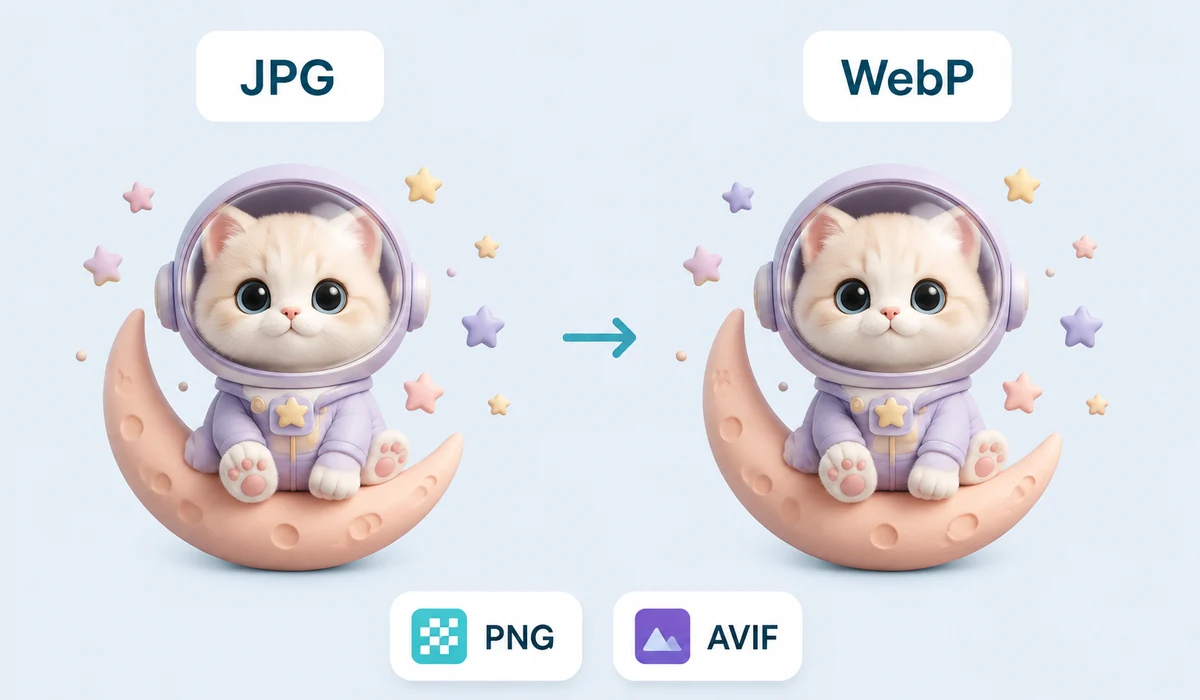
Different jobs want different formats: JPG for photos, PNG for graphics with transparency, WebP and AVIF for the smallest modern web files. This converter switches between them in a couple of clicks.
Everything runs in your browser, so a hundred files convert as easily as one, and none of them are uploaded.
How to use
- Add imagesDrop in the files you want to convert.
- Choose the target formatPick PNG, JPG, WebP or AVIF, and set quality for lossy formats.
- Convert and saveClick Convert all and download each result, or grab them all at once.
Convert between the formats the web actually uses
This image converter changes files between PNG, JPG, WebP, and AVIF right in the browser, with no upload step. Point it at a PNG and get a JPG, turn a WebP back into a PNG, or push a folder of photos to WebP for a lighter website. Because it runs locally, the files you're converting stay on your machine.
Each format has a job. PNG keeps transparency and crisp edges for logos and screenshots; JPG is the universal choice for photos; WebP gives you photo-quality images at noticeably smaller sizes for the web. When you convert to a lossy target like JPG or WebP, a quality slider lets you balance file size against fidelity.
Batch conversion and the AVIF caveat
You can drop in many images and convert the whole set to one target format at once, then download everything as a ZIP. That makes quick work of jobs like turning a batch of PNG exports into WebP, or normalizing a mixed folder of screenshots and photos into a single format.
One honest limitation: browsers can't encode AVIF from a canvas. If you pick AVIF as the target, the tool falls back to WebP and shows an on-screen notice so you're not misled. WebP is the practical, widely supported alternative and gets you most of the same size benefit.
What people use it for
PNG to JPG for sharing — Flatten a heavy PNG into a JPG that's easier to email, upload, or drop into a document.
JPG to PNG for editing — Convert a photo to PNG when a tool or template requires PNG input or a transparent-capable format.
WebP to PNG for compatibility — Turn a downloaded WebP into a PNG so older software or a strict upload form will accept it.
Image to WebP for faster sites — Batch-convert product and blog images to WebP to cut page weight without visible quality loss.
Normalizing a mixed folder — Convert a jumble of formats into one consistent format before importing into a CMS or design tool.
Prepping assets for a build — Standardize icons and illustrations to PNG or WebP so your asset pipeline stays predictable.
Removing transparency for print — Convert a transparent PNG to JPG so it flattens onto a solid background for printing or PDFs.
Bulk export cleanup — Convert an entire export from a design tool to the format your platform expects in one pass.
Why convert image formats without uploading anything
Format mismatches are a constant low-grade annoyance. A designer sends a WebP that your CMS refuses; a phone hands you an AVIF that an old app won't open; a client needs plain JPGs but your export is PNG. The classic answer is a conversion website, and those work, but the free tiers cap how many files you can push through, they hold your images on their servers for some window of time, and every conversion is a round trip that depends on your upload speed rather than your processor.
Doing the conversion in the browser removes the server from the loop entirely. The decode and re-encode happen on your own machine through Canvas and WebAssembly, so your images are never uploaded and there is no queue, no daily quota, and no account. For anything confidential — internal mockups, client deliverables under NDA, personal photos — that is the difference between a copy leaving your control and a copy that never does. It is also simply faster for batches, because you are limited by your CPU rather than by how quickly a hundred files can crawl up your connection.
One point worth being straight about: browsers can reliably decode AVIF, but they cannot encode it through the Canvas API. So when you choose AVIF as the target format, tools.faxianai.com falls back to WebP, which is the closest widely supported format that browsers can actually produce. WebP already delivers most of AVIF's size benefit with far broader compatibility, so in practice this is a sensible substitution rather than a limitation — but it is stated plainly here so you know exactly what you are getting. For PNG, JPG, and WebP targets, the conversion is direct and lossless-to-lossy as you'd expect.
What makes it different
- Nothing is uploaded. Every file is decoded and re-encoded locally in your browser, so images never touch a remote server.
- Works offline. The PWA caches after your first visit, so you can convert with no connection at all.
- Free, no sign-up, no watermark. No daily conversion cap, no account, no badge on the output.
- Batch conversion. Convert a folder of mixed formats in one pass instead of one file at a time.
- Honest AVIF handling. AVIF decodes fine; when chosen as a target it falls back to WebP, the closest format browsers can encode, and we tell you so.
- Broad format coverage. PNG, JPG, WebP, and AVIF as source, with PNG/JPG/WebP as reliable targets.
tools.faxianai.com vs other image converters
CloudConvert and Convertio are powerful, mature services that support a huge range of formats — far more than any browser can, because they run real conversion engines server-side. That breadth is their genuine strength. The trade-offs are privacy, limits, and speed for the common image cases.
| Aspect | Typical online converter (CloudConvert, Convertio) | Desktop app (Photoshop, GIMP) | tools.faxianai.com |
|---|---|---|---|
| Privacy / uploads | Files uploaded to their servers | Fully local | Fully local, no upload |
| Price | Free tier with daily/minute limits, paid above | Paid (PS) or free (GIMP) | Free, no limits |
| Offline | No | Yes | Yes, after first visit |
| Batch | Yes, often limited on free tier | Yes (scripting/actions) | Yes, in one pass |
| Watermark | None | None | None |
| Format range | Very wide (hundreds) | Wide | Common web formats |
| AVIF encode | Yes (server-side) | Depends on version | Falls back to WebP (honest) |
| Learning curve | Low | Steep | Low |
If you need an exotic format — RAW variants, PSD, TIFF layers, or dozens of others — a server converter or a desktop editor is the right tool, and there's no pretending otherwise. But for the everyday PNG/JPG/WebP shuffle that makes up the vast majority of conversions, tools.faxianai.com does it locally, in batch, with nothing uploaded and no cap to hit. That covers most people's actual needs without asking them to trust a server with their files.
Why tools.faxianai.com
4 formats
PNG, JPG, WebP and AVIF, both directions.
Batch convert
Process many files together.
Private
Runs locally — no uploads.
Free & clean
No watermark, no sign-up.