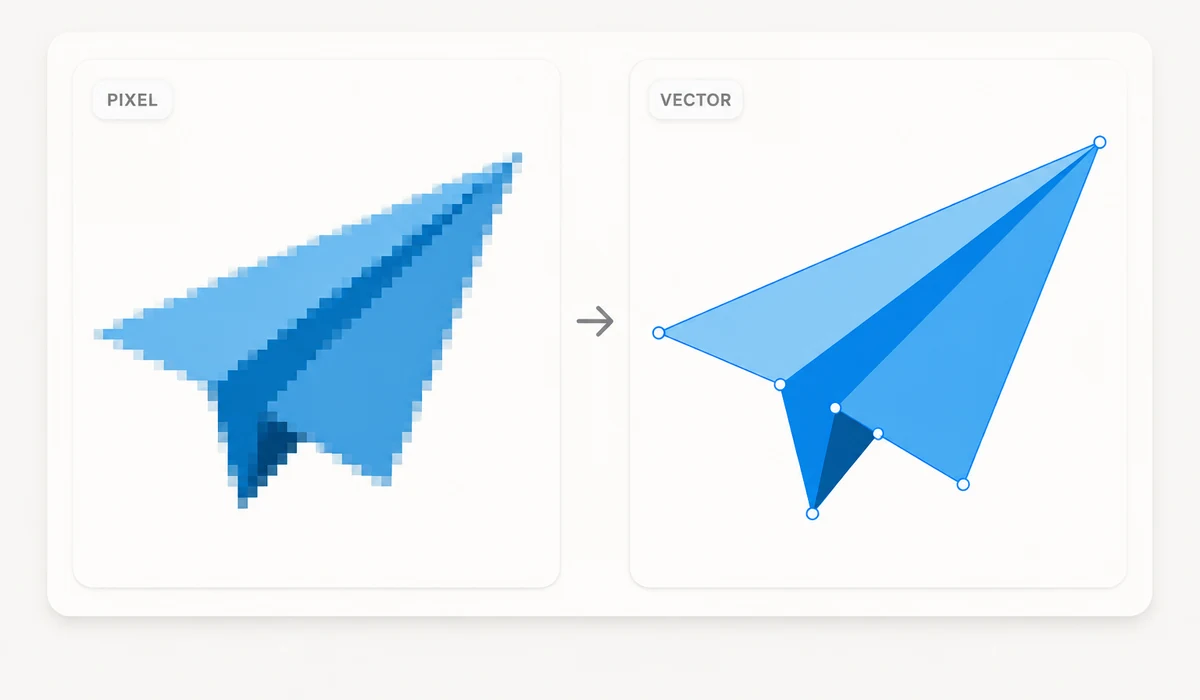
Have a logo or icon that only exists as a small PNG, and you need it sharp at any size? This tool traces the image into an SVG — a vector made of shapes and paths that scales to any size without going blurry. Pick a style from flat to detailed, and download the SVG.
Tracing runs in your browser with the imagetracer engine, so nothing is uploaded. Be honest about the limits: it shines on flat logos, icons and line art. Photographs will trace too, but produce enormous, blobby files — for photos you want a raster format, not SVG.
How to use
- Add an imageDrop in a PNG or JPG logo, icon or sketch.
- Pick a styleFlat/logo, detailed, posterized, or black & white — preview updates live.
- Download SVGSave the vector, ready to scale to any size.
This tool traces a raster image — a PNG or JPG — into a vector SVG, right in your browser. It reads the picture from a canvas on your own machine and uses the imagetracer engine to find the shapes inside it, drawing vector paths around each region of colour. The point of getting there is that an SVG is made of geometry, not pixels, so it stays perfectly sharp whether it's a favicon or a billboard, while a PNG blurs the moment you scale it up. You drop an image in, pick a style preset, compare the before/after preview, and download the SVG.
It's genuinely good at flat, clean-edged input: logos, icons, simple illustrations, line art, hand lettering. Those have a small palette and definite edges, which is exactly what a tracer reads well, so you get a tidy, editable SVG with a handful of shapes. Presets steer the result — Flat/logo keeps colours low, Detailed allows more, Posterized bands the image into bold flats, Black & white reduces it to two tones. Everything runs locally: nothing is uploaded, there's no account, and it keeps working offline once loaded. This is real tracing, not an AI redraw — it follows your pixels rather than inventing a cleaner picture.
What people use it for
Turn a flat PNG logo into an SVG that stays sharp from favicon to billboard
Vectorize a simple icon or line-art drawing so you can recolour it later
Convert hand lettering or a signature outline into an editable vector shape
Trace a two- or three-colour mark for print, where crisp edges matter at any size
Get an illustration into SVG so it scales cleanly on high-resolution screens
Rebuild a small, blurry logo as vector paths you can clean up in an editor
The difference between a picture of a shape and the shape itself
A PNG or JPG is a grid of pixels. Blow it up past its native size and the grid shows: edges turn to stair-steps, a crisp logo goes soft, and there's nothing the browser can do about it because the detail was never there. An SVG stores something else entirely — the actual geometry. A circle is described as a circle, a curve as a path, a fill as a colour. Because the shapes are math, not pixels, they redraw sharp at any size. That's why a logo you plan to put on a business card, a billboard, and a favicon really wants to be an SVG: one file, no blur, at every scale.
This tool converts a raster image into that kind of vector file, and it does the whole thing in your browser. You pick a PNG or JPG, it traces the shapes with the imagetracer engine, and you get an SVG back. The image is read from a canvas on your own machine — nothing is uploaded, there's no account, and once the page has loaded it keeps working with the network off. The picture you drop in never leaves your device.
What it's genuinely good at
Tracing shines when the input is flat and clean-edged: a logo, an icon, a simple illustration, line art, a piece of hand lettering. These have a small number of solid colours and definite boundaries, which is exactly what a tracer reads well. It finds each region of colour, draws a path around it, and the result is a tidy SVG with a handful of shapes — small file, sharp edges, easy to edit afterward.
The presets steer how the tracer reads your image. Flat / logo keeps the colour count low and the shapes simple, best for a two- or three-colour mark. Detailed allows more colours and finer paths for illustrations that carry more nuance. Posterized collapses the image into bold flat bands, a graphic poster look. Black & white reduces everything to two tones, ideal for line art, stamps, and silhouettes. Fewer colours mean a smaller, cleaner file; more colours capture subtlety but add paths and weight. It's worth trying two presets on the same image and comparing — the before/after preview shows you the original and the trace side by side so you can judge before downloading.
The honest caveat about photos
A photograph will trace, but you almost certainly don't want it to. A photo has thousands of subtly different colours and no hard edges — a tracer has to approximate all of that with stacked, overlapping blobs of flat colour. The SVG that comes out is enormous (often far larger than the original JPG), it looks smeared and posterized rather than photographic, and it's miserable to edit. For anything continuous-tone — people, scenery, product photography — a raster format is the right answer, and there are compressors and converters for that. SVG is for shapes, not for photos. This tool won't stop you from tracing a photo, but the preview will make the problem obvious.
One more thing worth being clear about: this is real tracing. It reads the pixels you gave it and draws vector paths that follow them. It is not an AI that redraws or "cleans up" your logo into something new. If the source is fuzzy, low-resolution, or noisy, the trace inherits that — a clean, sharp, few-colour input gives a clean result, and a messy one gives messy paths.
Recolour and edit after you trace
Because the output is a normal SVG made of named paths and fills, you're not stuck with the colours the trace produced. Open the file in a vector editor — Illustrator, Inkscape, Figma, or even a text editor — and you can recolour a whole region by changing one fill, nudge a path, delete a stray shape the tracer picked up, or set colours to your exact brand hex. That's the real advantage of getting a logo into vector form: it stops being a fixed picture and becomes an editable object you own, at any size, blur-free.
Why tools.faxianai.com
Raster → vector
Turns PNG/JPG into scalable SVG paths.
Style presets
Flat, detailed, posterized or B&W.
Scales cleanly
Sharp at any size, unlike a stretched raster.
Private
Traced locally — never uploaded.