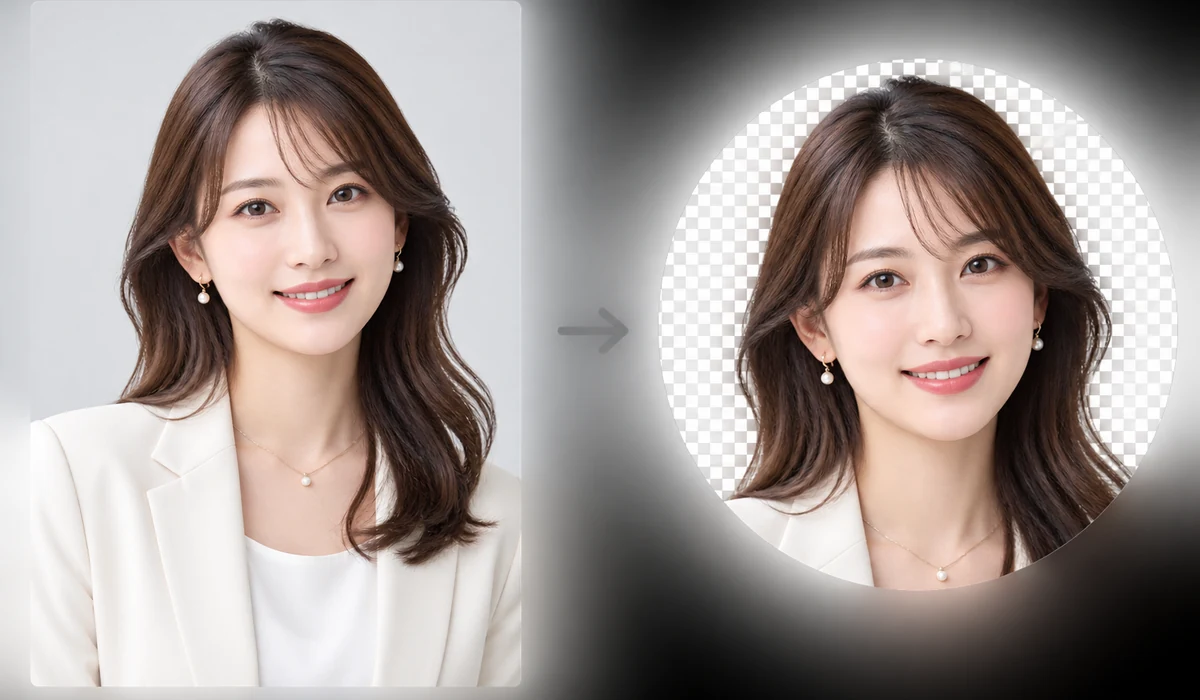
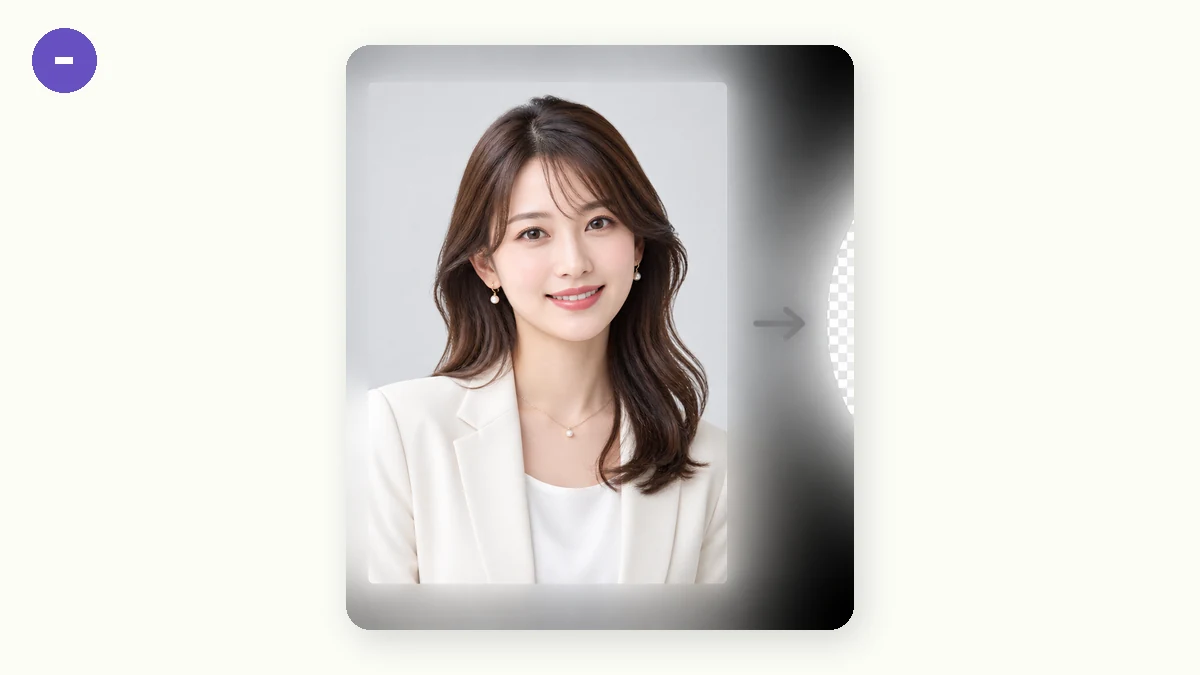
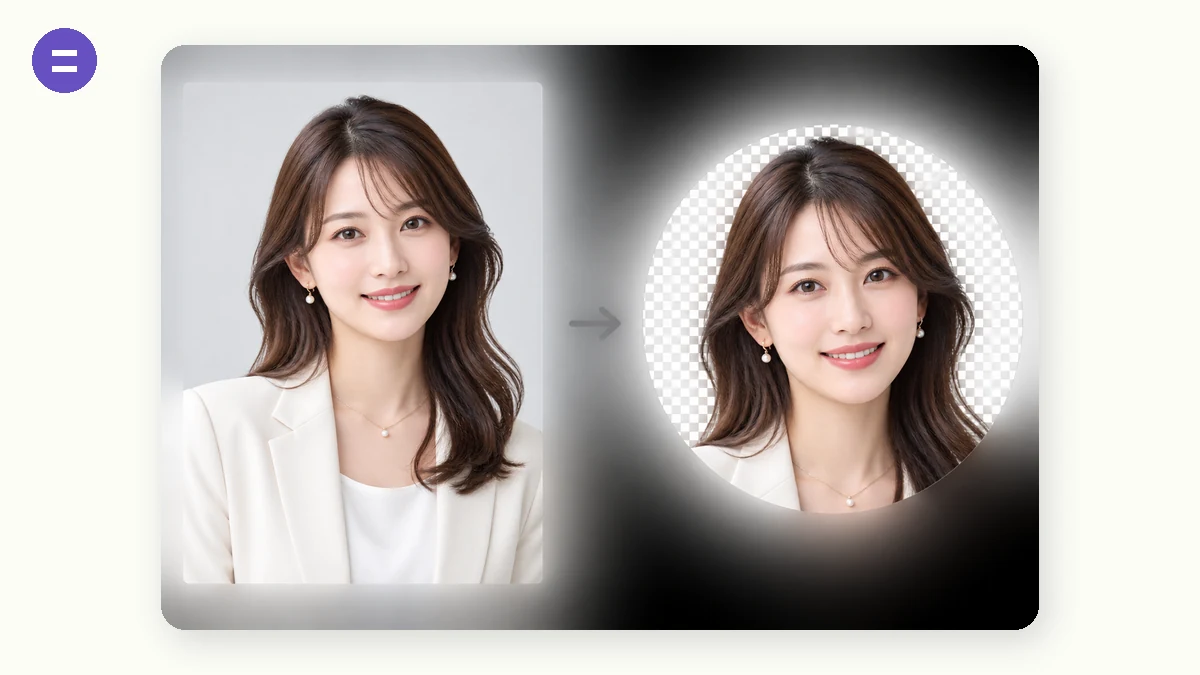
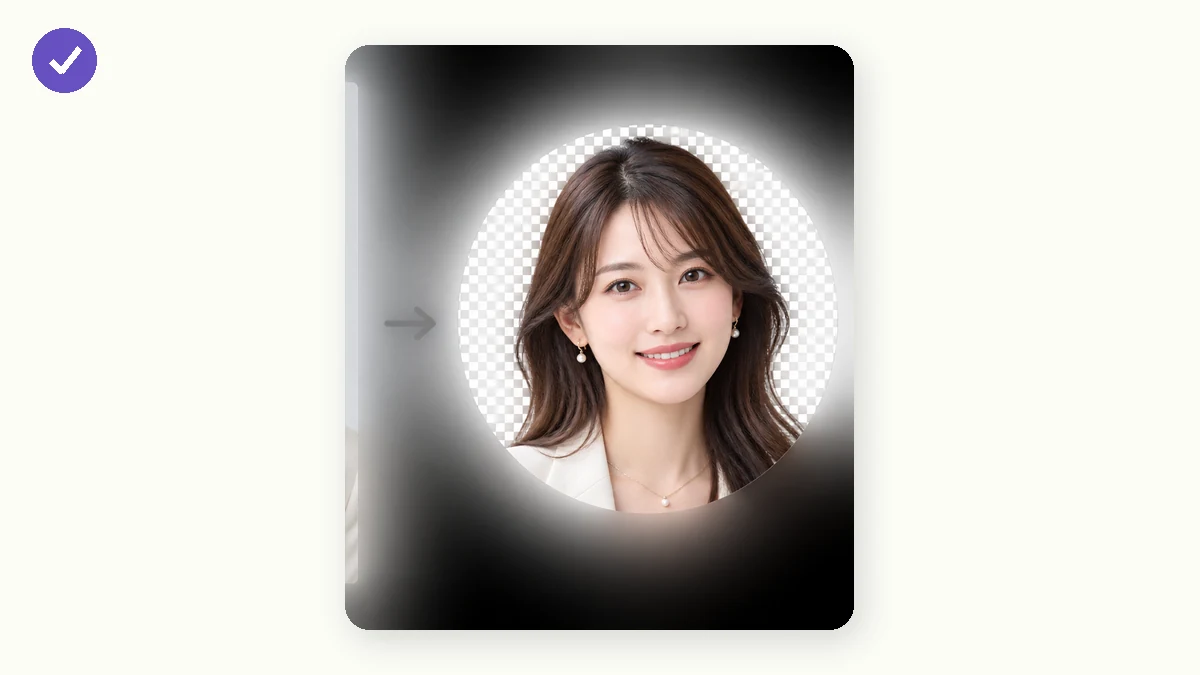
Most profile pictures show up as circles, but the file you upload is still a square — so the corners get chopped off in ways you can't predict. This tool crops your image into a true circle (or a rounded square) and exports a PNG with a transparent background, so it drops cleanly into any avatar slot, signature, or slide.
It centre-crops to a square first, then masks the shape at full resolution. Everything runs in your browser — the photo is never uploaded.
How to use
- Add a photoDrop in the image you want as an avatar.
- Pick the shapeCircle, rounded square, or plain square — with a transparent or white background.
- Download PNGSave a transparent-background PNG, sized square and ready to use.
Circle Crop turns any image into a round avatar, a rounded square, or a plain square, and exports it as a PNG. It centers on the largest square it can take from the middle of your photo, then masks the shape onto that square at full resolution, so the edge of the circle stays sharp instead of being scaled from a small preview. Export with a transparent background and the corners outside the shape come out empty rather than white.
Everything runs in your browser. The image is decoded, cropped, masked, and encoded to PNG on your own device, so nothing is uploaded, there's no account, and no server ever sees the photo. Load the page once and it keeps working with your connection off. It handles one image at a time and crops from the center, so if your subject sits off to one side, crop the photo down to it first with a basic cropper, then bring that tighter image here to make it round.
What people use it for
Make a round profile picture for Slack, a forum, or a chat app with clean transparent corners.
Turn a centered logo into a circular badge that sits on any background color.
Export a rounded-square app icon with the corner radius set to match your platform.
Cut a head-and-shoulders portrait into a circle for a team page or author bio.
Crop a product shot into a plain centered square for a catalog thumbnail.
Prepare a transparent circular PNG to overlay on a dark landing page without a white box.
Why round avatars end up looking chopped
You upload a photo you like, and the site shows it inside a circle. Suddenly the top of your head is clipped, or the frame slices through your shoulder at an odd angle. Nothing is wrong with your photo — the problem is that almost every profile-picture slot is a circle drawn on top of a square image. The app takes your rectangular file, centers it in a square window, and then hides everything outside a circular mask. If the part of the photo you cared about wasn't sitting dead-center, the circle cuts it off. You never see the trimming happen; you just get the result and wonder why it looks off.
The fix is to do the cropping yourself, before you upload, so the circle you hand over already is the final shape. That's what this tool does. It takes any image and crops it into a true circle, a rounded square with an adjustable corner radius, or a plain square, and exports a PNG. You get to see exactly what will be inside the frame instead of trusting a platform to guess.
The transparent PNG is the point
Export with a transparent background and the corners outside the circle become empty, not white. This matters more than it sounds. Drop a transparent circular PNG onto a dark profile page, a colored card, or a chat bubble, and it sits cleanly on top — no white square peeking out behind the round edge. If you'd rather have a solid backdrop, you can export on white instead, but transparency is what makes a cut-out avatar look like it belongs anywhere you paste it. A square JPEG with a baked-in background can't do that; the corners will always show.
The rounded-square option covers the other common case: app icons, cards, and UI thumbnails that want soft corners rather than a full circle. Slide the radius from barely-rounded to nearly-circular and stop wherever it looks right. The plain square is there for when you just need a clean, centered crop with no mask at all.
How the centering works — and where it won't help
The tool centre-crops. It first takes the largest square it can from the middle of your image, then masks the shape onto that square at full resolution — no downscaling to a preview and back, so the exported edge stays crisp. Because the square is cut from the center, this works beautifully when your subject is already roughly centered, which is true of most head-and-shoulders photos and most logos.
Be honest with yourself about the cases where it won't. There's no handle to drag the crop, no way to nudge the framing left or right. If your face is off in one corner of a wide group shot, centre-cropping will grab the middle of the frame, not you. The clean answer is to crop the photo down to your subject first — with any basic cropper — and then bring that tighter image here to make it round. One image at a time, too: this isn't a batch processor. For a single avatar that's exactly the right speed; for fifty, it's a lot of clicking.
It never leaves your machine
Everything runs in your browser. The image is decoded, squared, masked, and encoded to PNG on your own device — nothing is uploaded, there's no account, and no server ever sees the photo. Load the page once and you can keep making avatars offline. For a profile picture, which is often a personal photo of your face, that's the difference between handing it to a stranger's server and keeping it entirely to yourself.
Why tools.faxianai.com
True circle
Clean circular mask, not a square with rounded CSS.
Rounded option
Adjustable corner radius for rounded squares.
Transparent PNG
Corners are transparent, so it sits on any background.
Private
Cropped locally — never uploaded.