

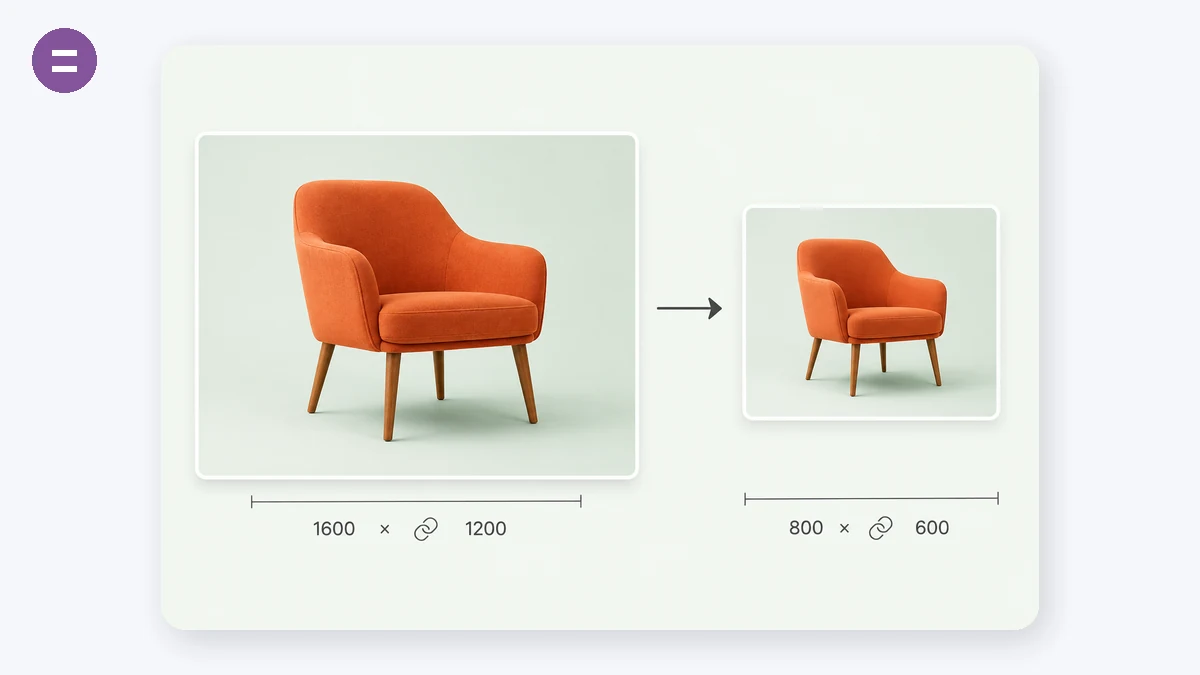
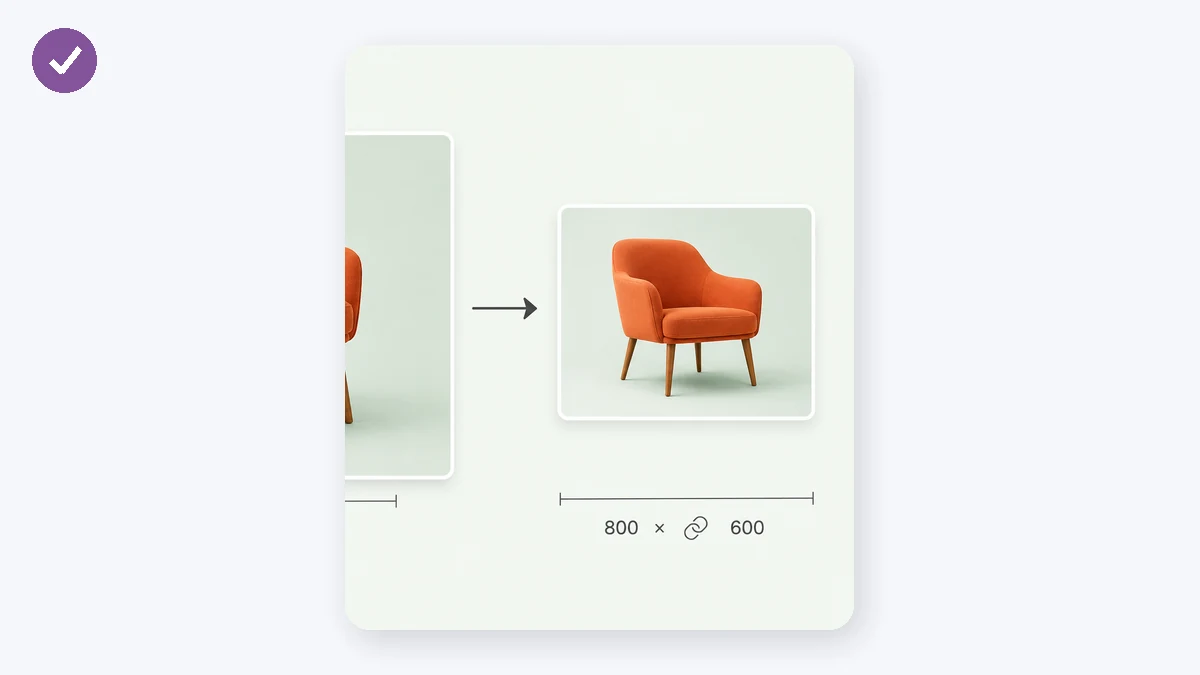
Need a 1200px-wide header, a square avatar, or a photo at half its size? Set the target in pixels or as a percentage and download the resized copy. The aspect-ratio lock keeps things from stretching.
High-quality smoothing keeps downscaled images clean, and since it all runs locally, there's no upload and no limit imposed by a server.
How to use
- Add an imageDrop in the photo you want to resize.
- Enter the sizeType a width or height in pixels, or switch to percentage. Keep the ratio locked to avoid distortion.
- DownloadClick Resize & download to save the new version.
Resize by pixels or by percentage
The image resizer changes an image's dimensions to an exact pixel size or by a percentage of the original, all in the browser with nothing uploaded. Type 1200 for width, scale to 50%, or set both dimensions outright depending on what your target needs. It's the fast way to change image dimensions when a platform demands a specific size.
Lock the aspect ratio and the tool computes the other dimension for you, so photos don't stretch or squash. Enter a new width and the height follows proportionally, which is what you want most of the time. Unlock it only when a spec forces exact non-proportional dimensions.
One image or a whole batch
Resizing to a specific size is a constant chore: a 1080px-wide blog image, a 512x512 app icon, a headshot capped at 400px. Rather than reopening a heavy editor each time, set the numbers here and export in a couple of clicks. Percentage mode is handy when you just need everything roughly half-size and don't care about exact pixels.
You can also resize many images at once with the same settings, which keeps a set of photos visually consistent. That's ideal for prepping a gallery, a product grid, or a folder of images that all need to fit the same width before they go into a page or document.
What people use it for
Meeting exact upload dimensions — Resize a photo to a specific size like 800x600 that a form or platform requires.
App and favicon icons — Scale artwork down to 512x512, 192x192, or 32x32 for icons and PWA assets.
Consistent blog images — Set every article image to the same width so posts look tidy and load evenly.
Shrinking huge camera photos — Bring a 6000px phone shot down to a web-friendly 1600px wide before uploading.
Profile pictures and avatars — Resize a headshot to the square or capped dimensions a site expects.
Percentage downscaling — Halve a whole set of images to 50% when you just need them smaller, not exact.
Product grid uniformity — Batch-resize listing photos to one width so a catalog grid lines up.
Fitting a print or slide layout — Match an image to the pixel dimensions a template or slide placeholder calls for.
Why resize images locally in your browser
Resizing sounds trivial until you actually need it done well and done often. An avatar has to fit exact pixel dimensions; a marketplace rejects photos above a certain width; a print job needs everything scaled to a percentage; a web page loads slowly because it's shipping 4000-pixel images into 800-pixel slots. Each of these is a small task, but the common solutions pull you toward either a browser upload — where your images sit on someone else's server — or a heavyweight editor you have to install, license, and open just to shrink a picture.
Handling the resize in your own browser keeps the whole operation on your machine. The pixels are read, scaled, and written back through Canvas, so nothing is uploaded and there's no waiting on a connection. You can set an exact width and height in pixels, or scale by percentage when you just want "half the size," and the aspect-lock keeps proportions intact so faces and logos don't stretch. The downscaling path is tuned for quality rather than raw speed, which matters most when you're shrinking a large photo: a naive resize leaves jagged edges and moiré, while a high-quality one keeps text legible and lines clean.
Because it runs locally and privately, it fits neatly into workflows where uploading isn't an option — resizing a screenshot of a contract before pasting it into a report, prepping product photos that aren't public yet, or batch-shrinking a folder of images on a laptop with no reliable internet. There's no account, no watermark stamped across your output, and no export cap. What you put in is what you get back, only at the size you asked for.
What makes it different
- Images never leave your device. All scaling happens in the browser via Canvas; nothing is uploaded.
- Works offline. After the first visit the app is cached, so you can resize with the network off.
- Free, no sign-up, no watermark. Clean output at your chosen dimensions, every time.
- Pixels or percentage. Set exact width and height, or scale proportionally by percent.
- Aspect-lock. Keep proportions so images don't stretch or squash.
- High-quality downscale. The resampling path is tuned to keep edges and text crisp when shrinking.
tools.faxianai.com vs other resizing tools
Generic online resizers are convenient and free, and full editors like Photoshop give you total control. The honest gap is in the middle: doing a fast, private, good-looking resize without either uploading your files or launching a large paid application.
| Aspect | Generic online resizer | Photoshop / paid editor | tools.faxianai.com |
|---|---|---|---|
| Privacy / uploads | Files uploaded to a server | Fully local | Fully local, no upload |
| Price | Free, often ad-supported | Paid subscription/license | Free |
| Offline | No | Yes (after install) | Yes, after first visit |
| Install | None | Required, large | None |
| Watermark | Sometimes on free tiers | None | None |
| Downscale quality | Varies, often basic | Excellent | High-quality resampling |
| Aspect-lock | Usually | Yes | Yes |
| Learning curve | Low | Steep | Low |
Photoshop and similar editors are the better choice when resizing is one step inside serious retouching, and their scaling quality is superb — but they cost money, take time to open, and are overkill for a quick fit-to-size job. Generic online resizers solve the quick job, but many upload your image and some watermark the result or bury the tool in ads. tools.faxianai.com aims at the practical middle: quick like a web tool, private like a desktop app, with resampling good enough that shrunk images still look sharp — and nothing ever uploaded.
Why tools.faxianai.com
Exact or relative
Resize by pixels or by percent.
No distortion
Aspect-ratio lock keeps proportions.
Private
Runs on your device only.
Sharp results
High-quality scaling.