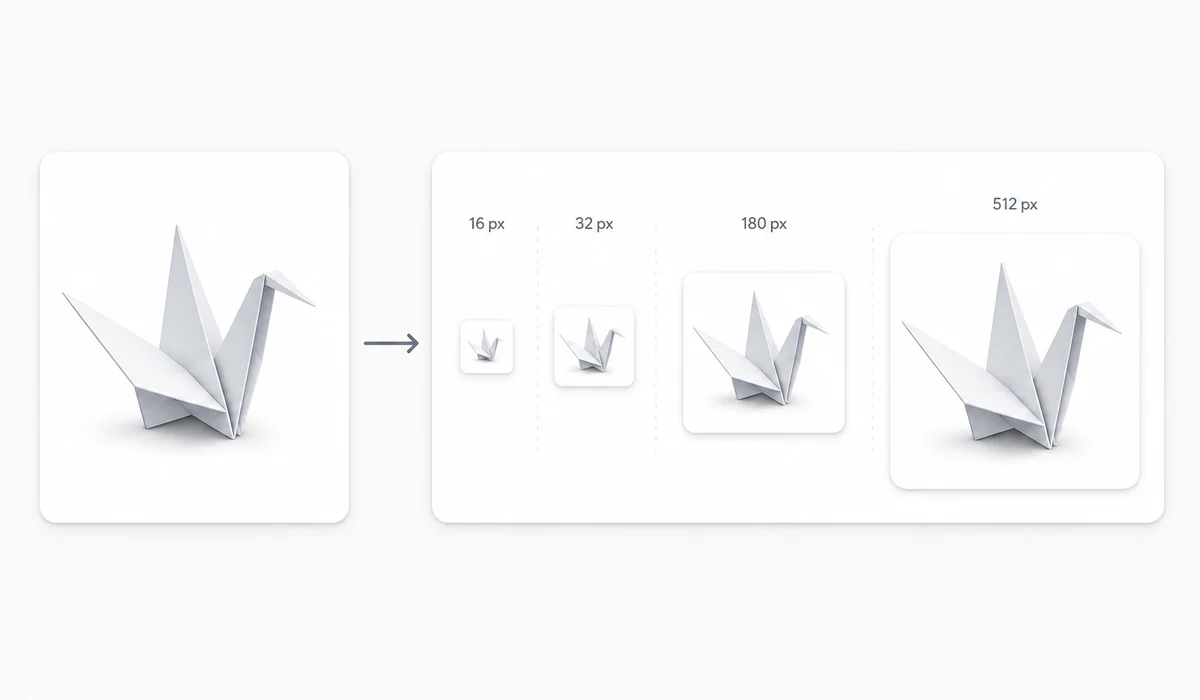
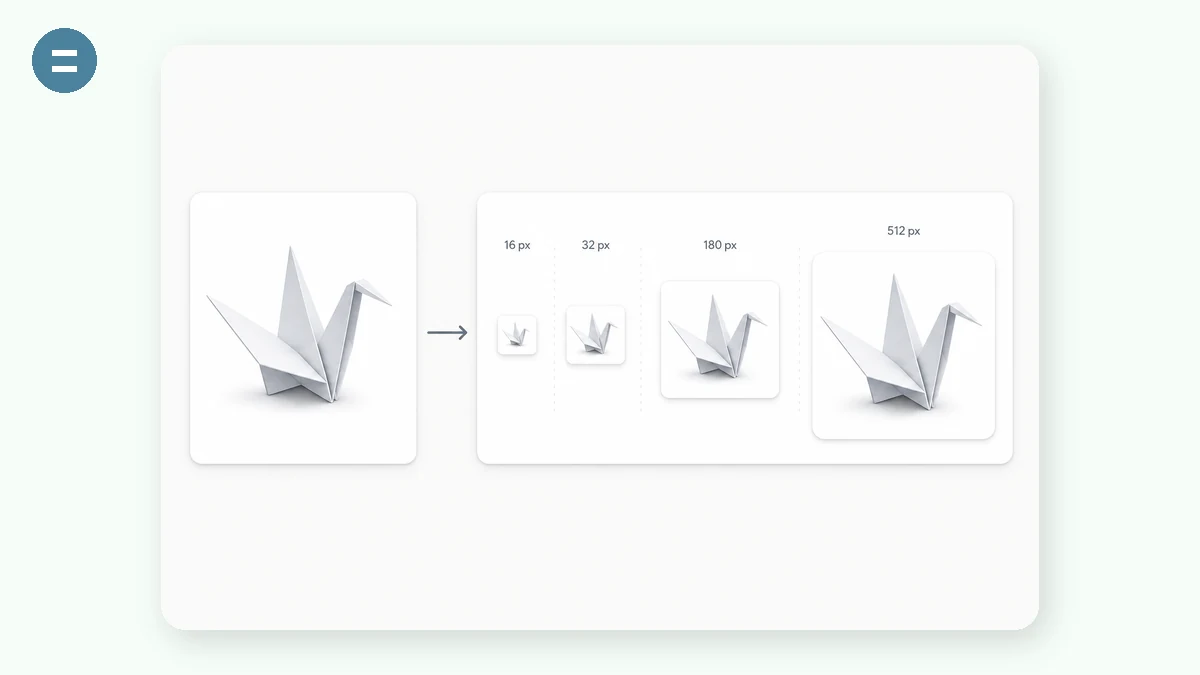
A proper favicon set is more than one file: browsers want a multi-size .ico, iOS wants a 180px apple-touch-icon, Android wants 192 and 512px PNGs plus a web manifest. This tool renders all of them from a single image and packs them into one ZIP, together with the exact HTML tags to paste into your <head>.
The preview shows your icon at real 16, 32 and 48px so you can check it stays recognizable at tiny sizes before you ship it.
How to use
- Add your logoSquare images work best; others are center-cropped.
- Check the small sizesThe 16px preview is what most users will actually see in a tab.
- Download the ZIPfavicon.ico, six PNGs, site.webmanifest and an html-snippet.txt ready to paste.
One image in, a full favicon set out
Drop in a single logo or icon and this generator builds the complete set a modern site needs: a multi-size favicon.ico bundling 16, 32, and 48 pixel versions, standalone PNGs at 16, 32, 48, 180 for the Apple touch icon, and 192 and 512 for Android and PWA installs, plus a site.webmanifest. Everything comes down as one ZIP so you can drop it straight into your project root.
You also get a ready-to-paste HTML head snippet with the correct link and meta tags already wired up. Copy it into your template, upload the files, and the favicon shows up in browser tabs, bookmarks, and home-screen shortcuts without you hand-writing any markup.
Sharp icons at every size
Favicons are punishingly small, so the generator renders true-size previews at 16, 32, and 48 pixels, exactly how a browser tab will show them. That lets you catch a logo that turns to mush at 16px before you ship it. If your source image isn't square, the tool center-crops it so the icon stays balanced instead of squashed.
The whole process runs in the browser from your original image, which means you can generate favicon PNGs and an ICO from a high-resolution logo without any upload or account.
What people use it for
Launching a new site — Generate favicon.ico and every PNG size in one pass so tabs and bookmarks look finished on day one.
Adding a PWA install icon — Export the 192 and 512 PNGs plus a site.webmanifest so your app installs with a proper home-screen icon.
Apple touch icon — Produce the 180x180 apple-touch-icon so iOS bookmarks and home screens show a crisp tile.
Rebranding an existing site — Swap one new logo through the generator and replace the whole icon set at once.
Client handoff — Hand over a single ZIP of ico, PNGs, manifest, and the head snippet so the developer just drops it in.
Checking small-size legibility — Use the true-size 16px preview to confirm a detailed logo still reads as an icon.
Non-square logo — Feed a wide wordmark and let center-crop turn it into a balanced square favicon.
Static site or framework project — Copy the generated head tags into your Next, Astro, or plain HTML template and ship.
Generate a full favicon set from one image — in the browser, in one pass
A favicon sounds like a single 16×16 pixel afterthought, and for years it was. Modern browsers and platforms have quietly turned it into a small production. To do it properly today you need a favicon.ico, a spread of PNGs from 16px up to 512px, an Apple touch icon for iOS home screens, a site.webmanifest so the site can be installed as an app, and the right block of <link> and <meta> tags in your HTML <head>. Miss a size and your tab icon looks fuzzy on a retina screen; miss the manifest and the "add to home screen" icon falls back to a screenshot; get the tag block wrong and some platforms ignore the whole thing.
That's a lot of fiddly output for a task you do once per project and then forget the details of. tools.faxianai.com takes a single source image and produces the complete set — the .ico, every PNG size, the web manifest, and a copy-paste HTML snippet — resizing entirely in your browser with Canvas. Your logo is read locally and rendered to each target size on-device; nothing is uploaded. For a brand mark or an unreleased product's logo that you'd rather not post to a third-party server before launch, that local guarantee is worth having, and it costs nothing.
Because the whole pipeline runs client-side, it also works offline once the PWA is cached, so you can regenerate icons on a locked-down work machine or with no connection. Free, no account, no watermark baked into your icons.
What makes it different
- The whole set, not just an .ico. ICO, PNGs from 16 to 512, Apple touch icon, and
site.webmanifestin one download. - Copy-paste HTML included. The exact
<link>/<meta>block to drop into your<head>, so the icons actually register across browsers. - Nothing uploaded. Your logo is resized locally — useful when the mark is confidential or pre-launch.
- One pass, no wizard. Feed one image, get everything; no multi-step flow asking for platform choices you then have to research.
- Offline and clean. Cached PWA, no sign-up, no watermark on any generated icon.
tools.faxianai.com vs other favicon generators
| Aspect | favicon.io | realfavicongenerator.net | Manual (design app + code) | tools.faxianai.com |
|---|---|---|---|---|
| Files uploaded | Yes, to their server | Yes, to their server | No, local | No, stays in browser |
| Full set (.ico + PNGs + manifest) | Yes | Yes, very thorough | You assemble it | Yes |
| HTML snippet provided | Yes | Yes, detailed | You write it | Yes |
| Steps to result | Few | More (many options) | Many | One pass |
| Works offline | No | No | Yes | Yes, after first visit |
| Price | Free | Free tier; paid options | App cost + your time | Free |
| Account required | No | No | No | No |
Being straight about the competition: realfavicongenerator is excellent and genuinely more thorough — it previews your icon on real platforms, handles edge cases like Safari pinned-tab masks and theming, and lets you tune per-platform appearance. If you want that level of control and don't mind uploading your image, it's a great choice. favicon.io is fast and simple and also produces a solid set. tools.faxianai.com's difference is the combination of complete output with no upload and one pass: you get the same practical deliverables — ico, PNGs, manifest, and the HTML to wire them in — without your logo leaving the browser and without stepping through a configuration wizard. For "I have a logo, give me everything I need to paste in, and don't send my file anywhere," that's the fit.
Why tools.faxianai.com
Complete set
ICO + 16/32/48/180/192/512 PNGs + manifest.
Copy-paste HTML
The exact link tags included as a text file.
True-size preview
See the icon at real 16/32/48px first.
Private
Your logo never leaves the browser.