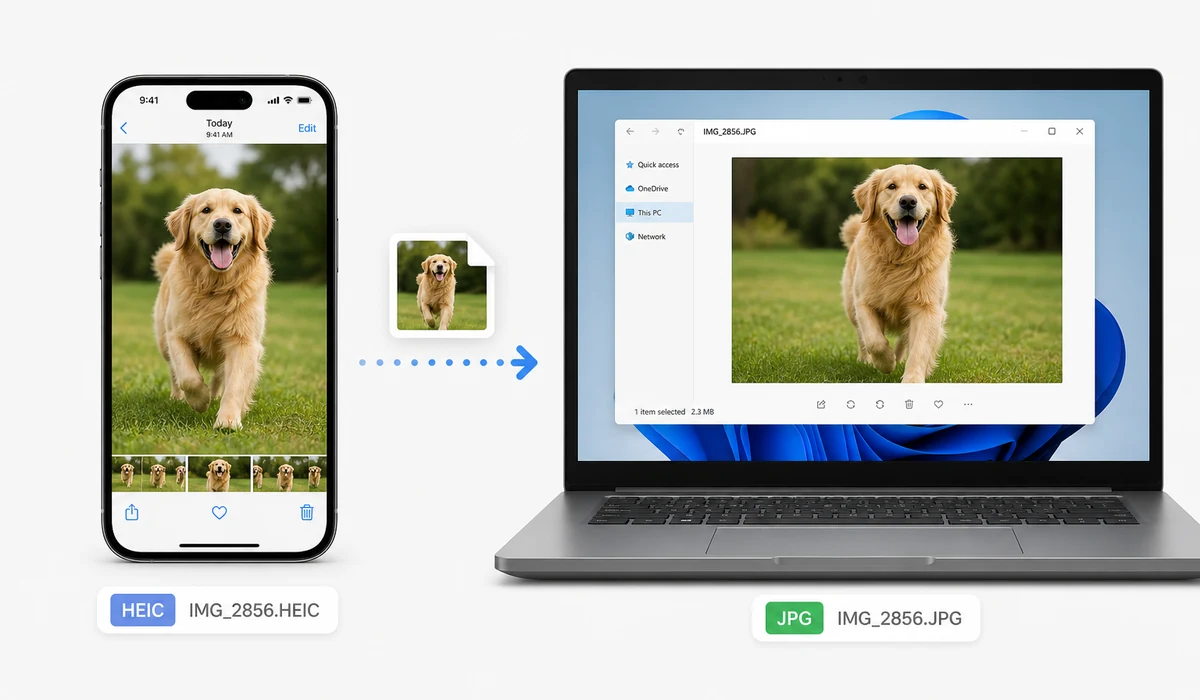
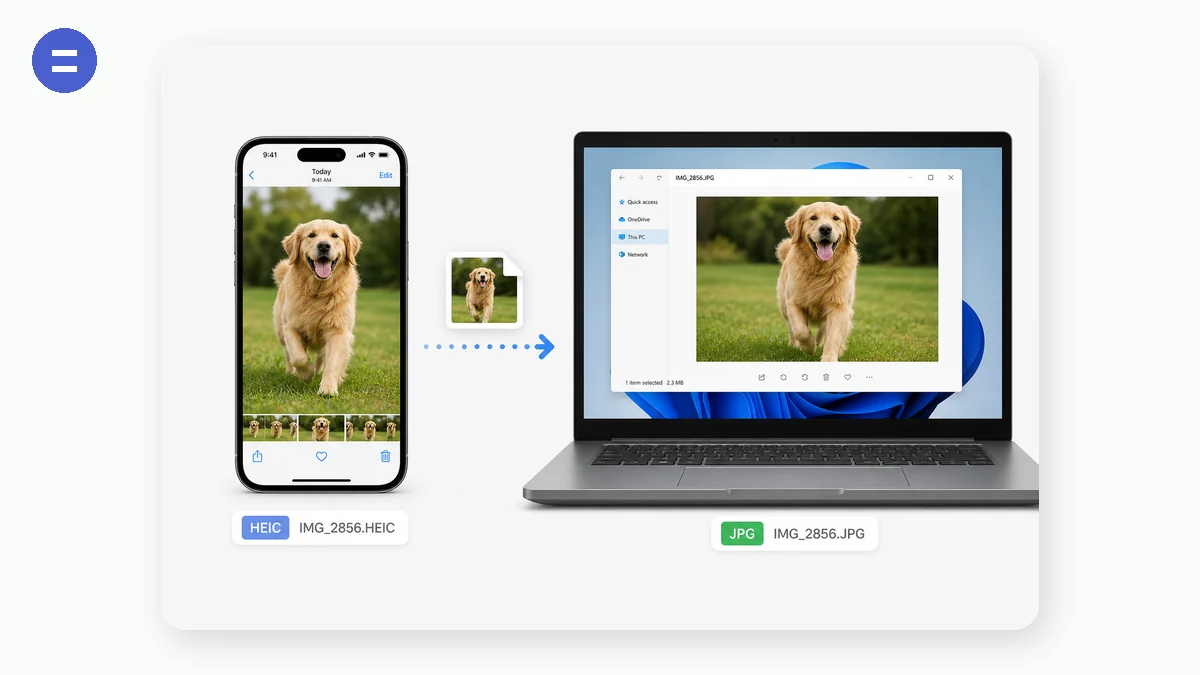
iPhones save photos as HEIC to keep files small, but plenty of apps, websites and Windows tools still can't open them. This converter turns HEIC and HEIF photos into universal JPG (or PNG) right in your browser — drop in a whole batch and download them together as a ZIP.
The decoding is done by a local WebAssembly build of the same libheif engine desktop apps use, so your photos are never uploaded. Once the page has loaded, it even works with no connection.
(Note: this tool needs to download its converter library the first time you open the page — after that it runs fully offline.)
How to use
- Add HEIC photosDrop in one or many .heic / .heif files.
- Choose JPG or PNGJPG for small shareable files, PNG for lossless. Set JPG quality if you like.
- ConvertDownload a single image, or a ZIP for a batch.
Turn iPhone HEIC into JPG, right in your browser
This converter takes the HEIC and HEIF photos your iPhone and iPad save by default and turns them into JPG or PNG that opens on Windows, in old software, and on sites that reject Apple's format. It runs on a WebAssembly build of libheif inside your own browser tab, so the photos are converted on your device and never uploaded to a server.
For JPG output there's a quality slider, so you decide the trade-off between file size and detail. For photos, a mid-to-high setting looks identical to the original at screen size. Choose PNG instead when you need lossless output or the image has crisp edges — like a screenshot or a graphic with text — that you don't want softened.
Whole batches, downloaded as one ZIP
A day out with the phone leaves you with dozens of HEIC files, so you can drop the entire set in at once and convert them in a single pass with the same settings. Download them individually, or grab everything together as one ZIP — which is the quick way to move a folder of photos off your phone and onto a computer that can actually read them.
One honest note on offline use: the converter library is about 1.3MB, and your browser fetches it once the first time you open the page. That request carries code, not your images. After that first load it's cached and the tool runs fully offline, so you can convert batch after batch with Wi-Fi off. Input is HEIC and HEIF only.
What people use it for
Send photos to a Windows user — Convert an iPhone HEIC to JPG so a colleague or relative on Windows can open it without installing a codec.
Get past an upload form that rejects HEIC — Turn a photo into JPG when a job portal, government site, or web form only accepts older image formats.
Clear a phone's photos onto a computer — Batch-convert dozens of HEIC files at once and download the whole set as a single ZIP.
Edit iPhone photos in older software — Convert to JPG or PNG so an image editor that never learned HEIC can open and work with the picture.
Keep family photos off a stranger's server — Convert HEIC locally so pictures with GPS metadata baked in are never uploaded to an anonymous conversion site.
Keep a lossless copy of a screenshot — Convert a HEIF screenshot to PNG when you need sharp edges and text to stay crisp with nothing thrown away.
The photo opens fine on your iPhone and nowhere else
You email a picture to a colleague, or drag it into a form, or try to open it on a Windows laptop, and instead of the photo you get an error or a file the app refuses to touch. The extension is .HEIC. Your iPhone shot it that way by default, and that same file that looked perfect in the Photos app is now a small brick that half the software in the world can't read. This tool turns those HEIC and HEIF files into ordinary JPG (or PNG) that opens anywhere — and it does it in your browser, so the photos never leave your machine.
What HEIC is, and why it won't open
HEIC (and its cousin HEIF) is the format Apple switched to on the iPhone 7 and later to save storage. It packs the same-looking image into roughly half the space of a JPG, which is genuinely good for your phone's memory. The catch is support. Older Windows versions can't open HEIC without an extra codec from the Microsoft Store; plenty of desktop apps, image editors, upload forms, and websites simply reject it. So a format designed to save space ends up costing you time every time you need to share the picture with anything that isn't Apple. Converting to JPG sidesteps all of that: JPG is the most universally readable photo format there is.
JPG or PNG — which to pick
Most of the time you want JPG. It's small, it's understood everywhere, and for a normal photograph the quality loss at a sensible setting is invisible. This tool gives you a quality slider so you can decide the trade-off yourself: higher for a print or an archive copy, lower when you just need something light enough to email or attach.
Pick PNG instead when the image has sharp edges you can't afford to soften — a screenshot, a diagram, text on a flat background — or when you specifically need lossless output. PNG files come out larger, but nothing is thrown away. For a photo of people, a scene, or anything with smooth gradients, JPG is almost always the better call.
Batches and ZIP
Nobody has just one HEIC file. A day out with the phone leaves you with dozens. Drop the whole set in at once and convert them in one pass with the same settings, then download them individually or grab everything as a single ZIP. That last part matters when you're moving a folder of holiday photos off your phone and onto a computer that can actually read them — one download instead of clicking through fifty.
Your photos don't need a stranger's server
Search "HEIC to JPG" and most results are sites that upload your file, convert it on their machine, and hand back a link. Think about what's inside a typical iPhone photo: it's a picture of your family, your home, your kids — and baked into it is EXIF metadata, often including the GPS coordinates of exactly where it was taken. Sending that to an anonymous conversion server, reading whatever their privacy policy happens to say, is a lot to give up for a format change you can do yourself.
This tool does the conversion with a WebAssembly build of libheif (through the heic2any library) running inside your own browser tab. Your CPU does the work. The photo is never transmitted anywhere, there's no account, and there's no file sitting on someone else's disk afterward.
One honest note on offline use
To be straight about it: the converter library is about 1.3MB, and your browser has to fetch it once the first time you open the page. That's the only network request involved, and it carries no image data — just the code. After that first load it's cached, and the tool runs fully offline: you can turn off your Wi-Fi and keep converting batch after batch with nothing leaving the device. So it's honest to call this no-upload and offline-capable, as long as you know that very first cold visit needs a connection to grab the library.
The input side has one limit worth stating plainly: it reads HEIC and HEIF only. For anything else, use the format converter.
Why tools.faxianai.com
HEIC & HEIF
Converts iPhone/iPad photos to JPG or PNG.
Batch + ZIP
Convert a whole camera roll at once.
Private
Photos are decoded locally — never uploaded.
Works offline
Runs with no connection once the page has loaded.