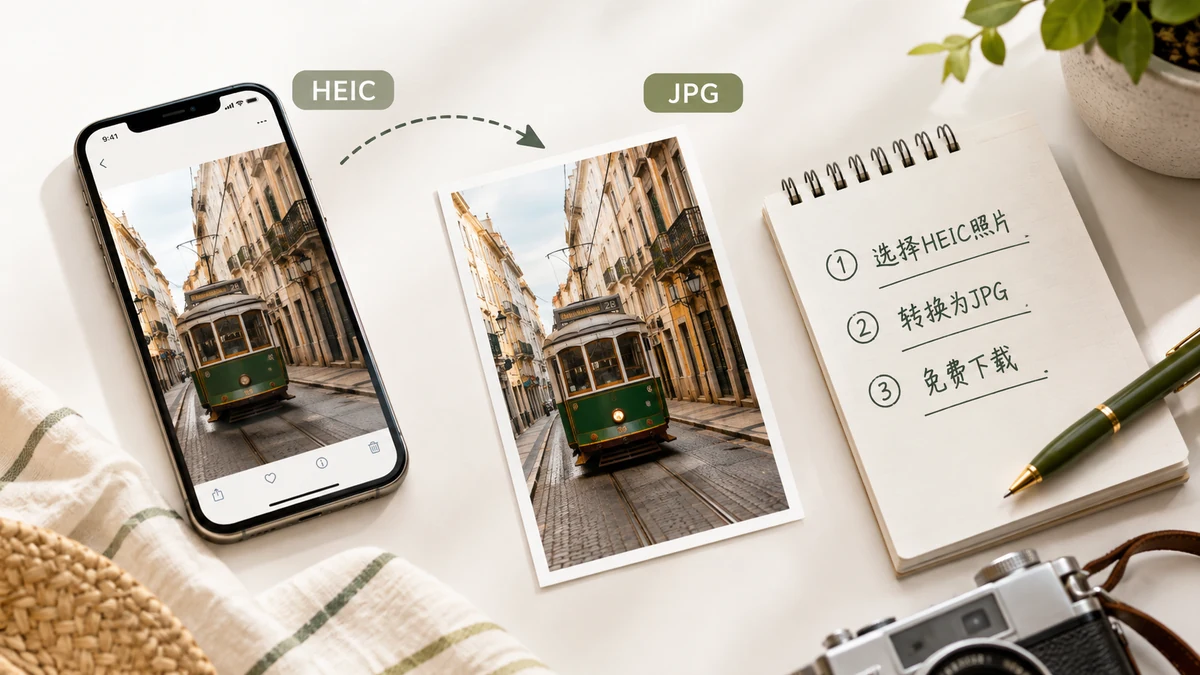
Your iPhone saves photos as HEIC to keep them small. That's fine until you need to send one to someone on Windows, upload it to a site that rejects the format, or open it in an editor that's never heard of it. Then the small file becomes a small problem. The fix is to convert it to JPG, and you shouldn't have to pay for that or hand your photos to a website to do it.
Why HEIC needs converting at all
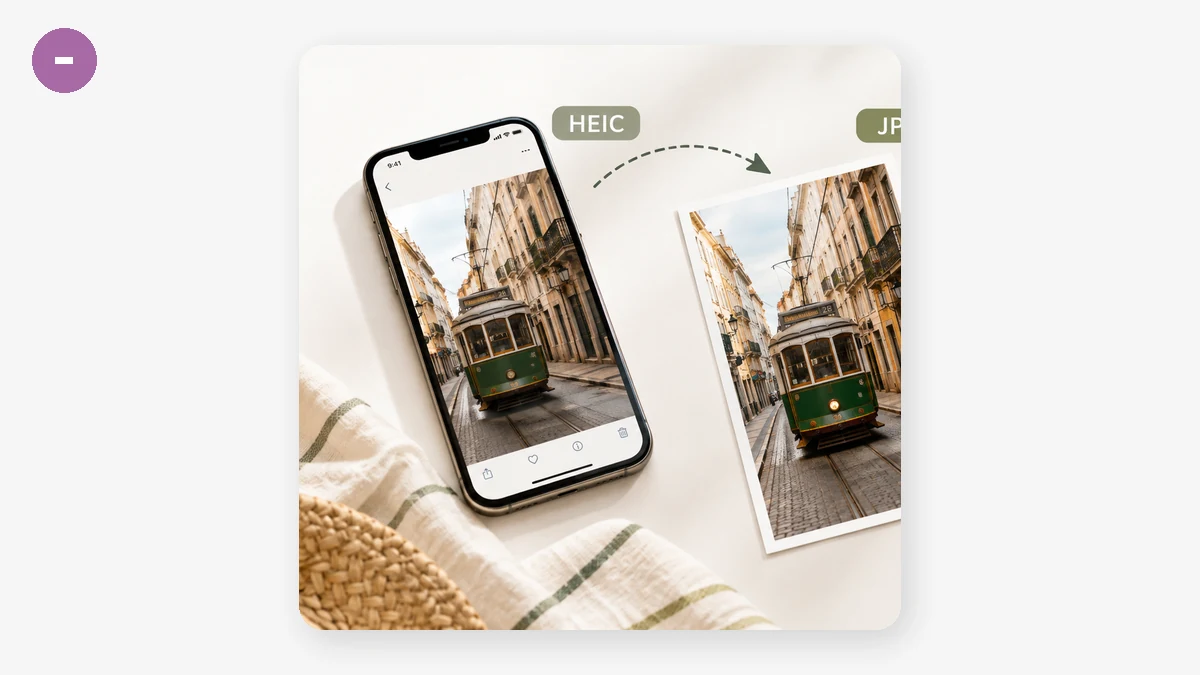
HEIC isn't broken — it's just newer than most software. Apple adopted it to fit the same picture into about half the space of a JPG. The trade-off is reach: older Windows installs need an extra codec to open HEIC, and countless upload forms, web apps, and older editors simply won't accept it. JPG has none of that friction. It's the format everything reads, which is exactly why converting is the practical move when a file has to travel outside Apple's world.
The free way that doesn't upload anything
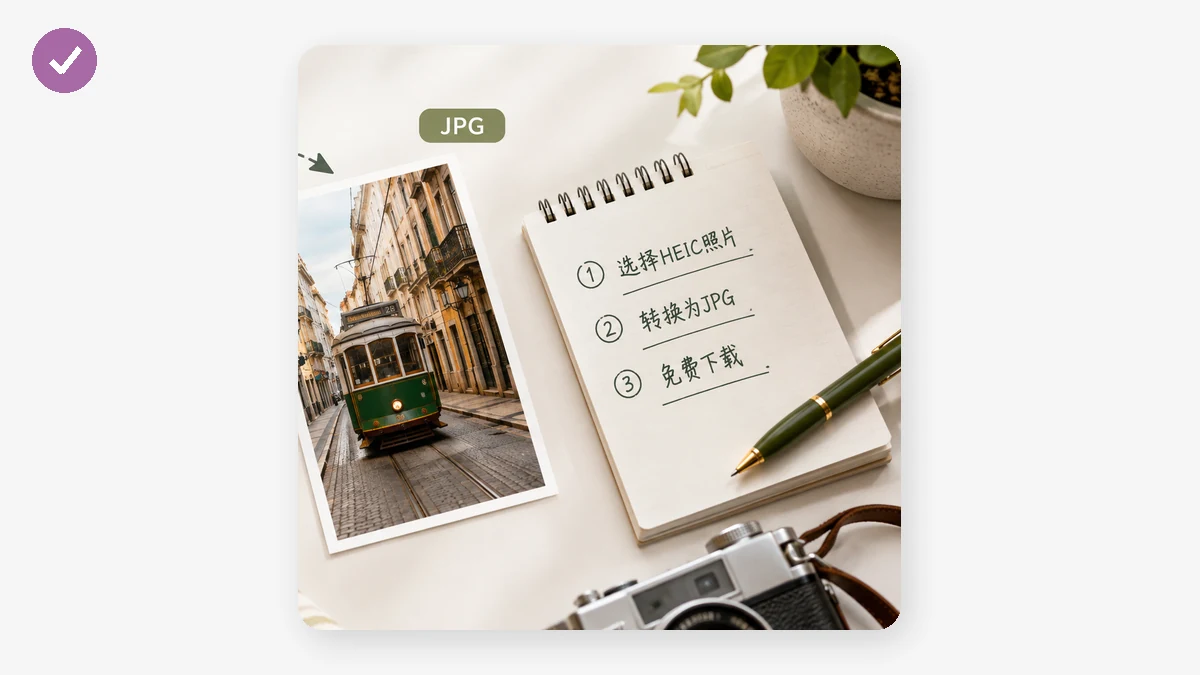
Most "free HEIC to JPG" sites are free because you pay another way: your photo gets uploaded to their server, converted there, and handed back. For a screenshot that's harmless. For a photo of your kids at home — with GPS coordinates quietly stored in its metadata — it's more than you'd probably choose to give away for a format change.
A browser-based converter does the same job without the upload. The conversion runs on your own device using a WebAssembly build of libheif, so the picture never leaves your machine.
Step by step
- Open the converter and drop your HEIC or HEIF files in — one, or a whole batch at once.
- Choose JPG as the output. Photos convert cleanly to JPG; the format is understood everywhere.
- Set the quality slider. Higher keeps more detail for prints and archives; lower makes a lighter file for email and forms. For most photos a mid-to-high setting looks identical to the original at screen size.
- Convert, then download the files individually or grab the whole set as a single ZIP.
That's it. No account, no watermark, no size cap imposed by a server.
JPG or PNG?
JPG is the right choice for nearly all photographs — small, universal, and visually lossless at a sensible quality. Reach for PNG only when you need lossless output or the image has crisp edges you don't want softened, like a screenshot or a graphic with text. For people and scenes, stick with JPG.
One honest detail about "offline"
The converter is genuine no-upload, but it isn't magic on a cold first visit. The library that does the decoding is about 1.3MB, and your browser fetches it once the first time you load the page. That request carries code, not your images. After it lands, everything is cached and the tool runs fully offline — you can switch off Wi-Fi and keep converting batch after batch. So the accurate claim is: no upload, and offline-capable after that first load. Worth knowing if you were hoping to convert on a plane before the page had ever opened.
When you have a lot of them
If you're clearing a phone full of HEIC photos onto a computer, the batch-plus-ZIP path is the time-saver. Select everything, convert in one pass with the same quality, and download a single archive rather than clicking through each file. It turns a tedious afternoon into a couple of minutes, and every photo stays on your own hardware the entire time.
The only input limit worth stating plainly: this tool reads HEIC and HEIF. That's the whole point of it — take the format your iPhone insists on, and turn it into one the rest of the world already accepts.