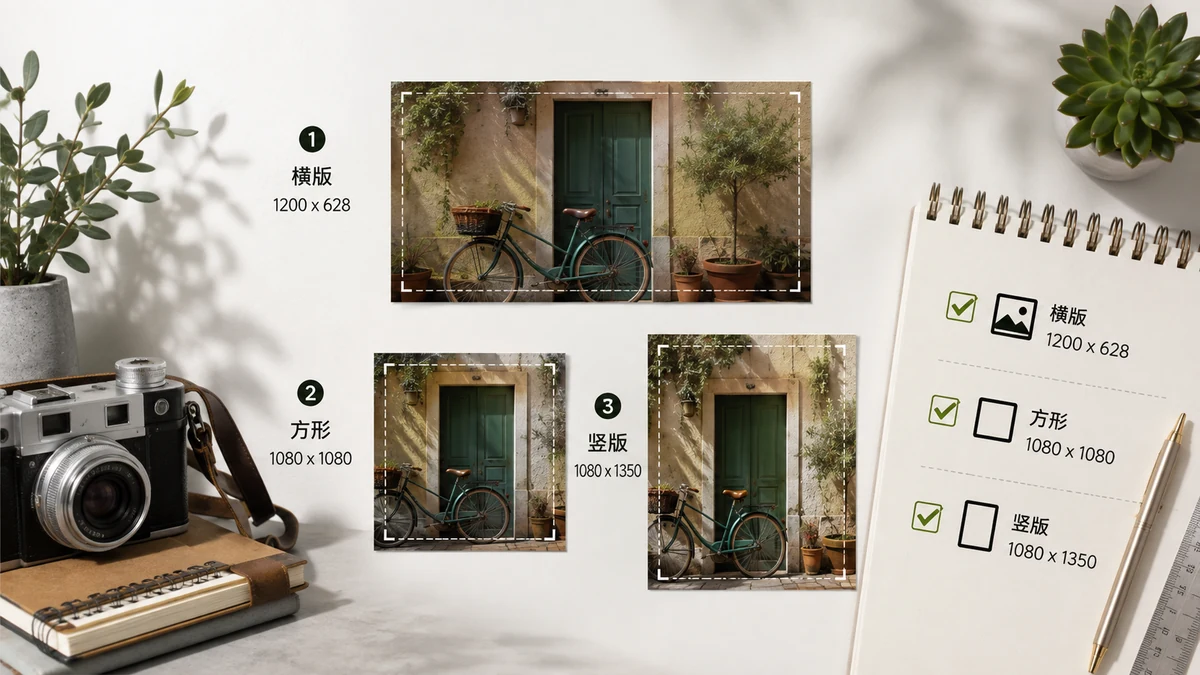
The single rule that saves you the most grief: post images at the platform's native size so nothing gets cropped, squished, or softened by its resizer. Every network compresses and re-scales what you upload — if you feed it the right dimensions to begin with, your image stays sharp and shows exactly what you framed.
Here are the sizes that work in 2026, then a fast way to hit any of them for free.
The dimensions, one table
Sizes drift a little year to year, but these are the safe, current values. When in doubt, match the aspect ratio and go as large as the recommended pixel size — platforms downscale gracefully, but they never add detail back.
| Platform | Format | Size (px) | Ratio |
|---|---|---|---|
| Square post | 1080 × 1080 | 1:1 | |
| Portrait post | 1080 × 1350 | 4:5 | |
| Story / Reel | 1080 × 1920 | 9:16 | |
| Feed image | 1200 × 630 | 1.91:1 | |
| Story | 1080 × 1920 | 9:16 | |
| X (Twitter) | In-stream image | 1600 × 900 | 16:9 |
| X (Twitter) | Card / link image | 1200 × 628 | 1.91:1 |
| Shared image | 1200 × 627 | 1.91:1 | |
| YouTube | Thumbnail | 1280 × 720 | 16:9 |
| YouTube | Channel banner | 2560 × 1440 | 16:9 |
| Standard pin | 1000 × 1500 | 2:3 | |
| TikTok | Video / cover | 1080 × 1920 | 9:16 |
| Open Graph | Link preview | 1200 × 630 | 1.91:1 |
Two patterns are worth memorizing: 1200 × 630 is the near-universal link-preview and feed size (Facebook, LinkedIn, X cards, Open Graph), and 1080 × 1920 is the vertical full-screen size for every Stories/Reels/TikTok surface. Learn those two and you've covered most of your posting.
Why native size matters
Upload a 4000 px photo to a feed and the platform crushes it to fit — its automatic resizer prioritizes speed over sharpness, so text goes fuzzy and fine detail smears. Upload something the wrong shape and it gets center-cropped, often lopping off exactly the part you cared about. Sizing correctly before you post takes both decisions out of the platform's hands.
The goal is simple: right ratio so nothing is cropped, enough pixels so nothing is soft. Hit both and your image looks the way you meant it to.
How to hit any size, free
Three tools cover every case, all running in your browser with nothing uploaded.
Making a cover or link image from scratch? Use the OG Image generator. Pick a preset size — OG 1200×630, a Twitter card, a YouTube thumbnail, a square, or a 9:16 story — add a gradient background and a title, and export at exactly the right dimensions. This is the fastest route for a link preview, a blog cover, or a video thumbnail where you're placing text over a background.
Have a photo that's the wrong size? Use the Image Resizer. Type the target pixels from the table, keep aspect-ratio lock on if the shapes match, and export. Downscaling from a large original stays crisp; just don't try to enlarge a small image to fill a big canvas — go back to a bigger source instead.
Posting a photo as a grid across your profile? Use the Grid Crop tool to split one image into 9, 4, or 6 evenly-sized tiles that line up perfectly in an Instagram feed, delivered as a ZIP. It's the clean way to turn a single wide shot into a multi-post grid without eyeballing the cuts.
A quick workflow
Put it together and posting at the right size becomes routine:
- Find your target in the table above — match the platform and format.
- Building with text? Generate it in the OG Image tool at the preset size.
- Starting from a photo? Resize it to the exact pixels, ratio locked.
- Want a feed grid? Grid-crop the image into tiles.
- Export and post — no cropping, no softening, no surprises.
Every one of these runs locally in your browser, free, with no watermark and no sign-up. Your images never touch a server, and after the first visit the tools work offline. Bookmark the table, and the next time a platform hands you a size, you'll already have it.