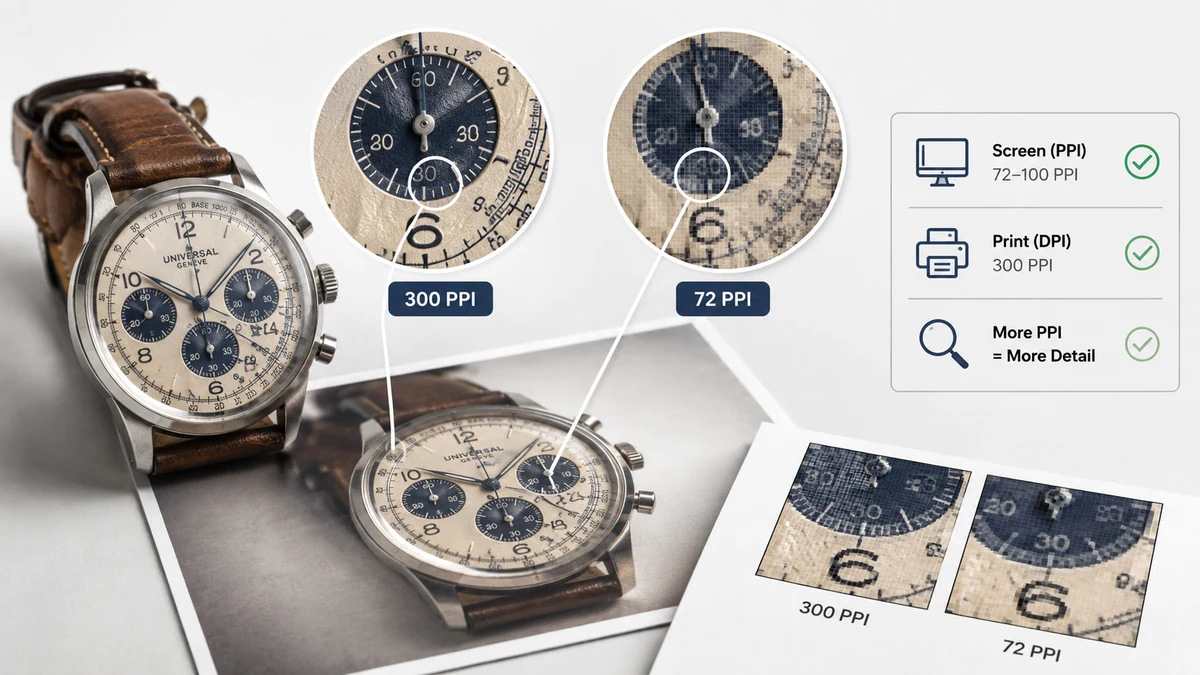
Most confusion about image resolution comes from mixing up two different questions: how much detail does this image contain? and how big will it be when I put it somewhere? Pixels answer the first. DPI and PPI answer the second — but only for print. On a screen, DPI does nothing at all. Once that clicks, the whole topic gets simple.
Let's untangle it.
Pixels are the only real measure of detail
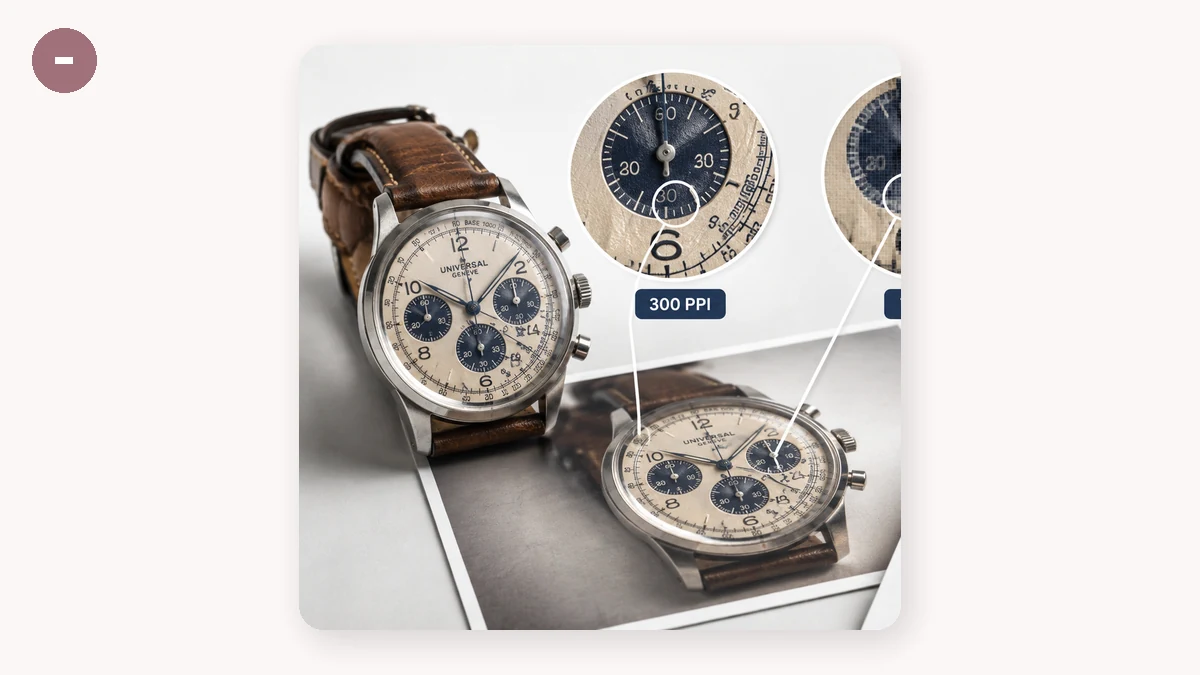
An image is a grid of colored dots called pixels. A photo that's 3000 × 2000 contains six million of them, and that count is fixed the moment the picture is captured or exported. It's the actual, honest amount of information in the file. Everything else — DPI, print size, "300 DPI for print" — is just instructions for how to spread those pixels out in the physical world.
This is why the first thing to check about any image is its pixel dimensions, not its DPI. A 300-DPI image that's only 500 px wide is a tiny image with a big label on it.
PPI vs DPI: they're not the same word twice
People use these interchangeably, but they describe different things.
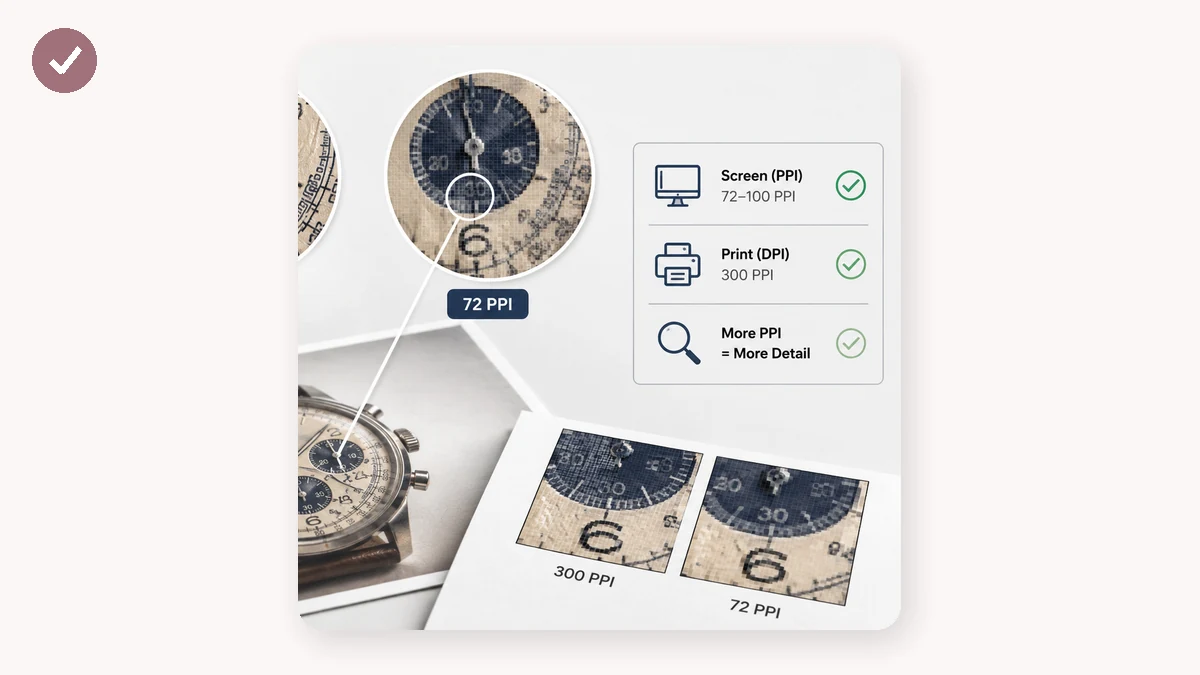
- PPI (pixels per inch) describes how densely an image's pixels are packed when displayed or printed. It's a property of the image and its intended size.
- DPI (dots per inch) describes how many ink dots a printer lays down per inch. It's a property of the printer's hardware.
In everyday use — resizing a photo, prepping something for print — the number you actually set is PPI, even though software labels it "DPI." The distinction rarely bites you, but knowing PPI is about the image and DPI is about the printer keeps the mental model straight.
Why DPI is meaningless on a screen
Here's the part that trips everyone up. A phone or monitor displays images pixel-for-pixel. A 1080 × 1080 Instagram post uses exactly 1,166,400 pixels regardless of whether the file's metadata says 72 DPI or 300 DPI. The DPI tag is ignored on screens entirely. So the old advice to "save web images at 72 DPI" is a harmless leftover — it changes nothing about how the image looks online. For anything that lives on a screen, size it in pixels and forget DPI exists.
Where DPI/PPI does matter: print
Print is physical, so it needs a translation from pixels to inches. The standard for a sharp photo print is 300 PPI. To find the pixel dimensions you need, multiply the print size by 300:
| Print size | Pixels needed at 300 PPI |
|---|---|
| 4 × 6 in (postcard) | 1200 × 1800 |
| 5 × 7 in | 1500 × 2100 |
| 8 × 10 in | 2400 × 3000 |
| A4 (8.27 × 11.7 in) | 2480 × 3508 |
| 12 × 18 in (poster) | 3600 × 5400 |
Read that table backward and it becomes a rule: divide your image's pixel width by 300 to see the largest sharp print it can make. A 3000-px-wide photo prints beautifully up to 10 inches. Push it to a 20-inch poster and each pixel has to cover twice the area — detail gets soft. Large prints viewed from a distance can drop to 150 PPI and still look fine, which is why billboards are surprisingly low-resolution up close.
The practical takeaway
Two rules cover almost every real situation:
- For screens — size in pixels, match the display target, ignore DPI. See the How to Resize an Image guide for getting the pixel dimensions right.
- For print — start from the physical size, multiply by 300 (or 150 for big-and-distant), and make sure your image actually has that many pixels. If it doesn't, you need a higher-resolution original — upscaling won't save it.
When you do need to change an image's pixel dimensions for either purpose, do it in your browser:
The resizer works in pixels or percent with aspect-ratio lock, and everything runs locally on your machine — nothing uploads, and it works offline after the first visit. Set the pixel size the target needs and let DPI take care of itself.