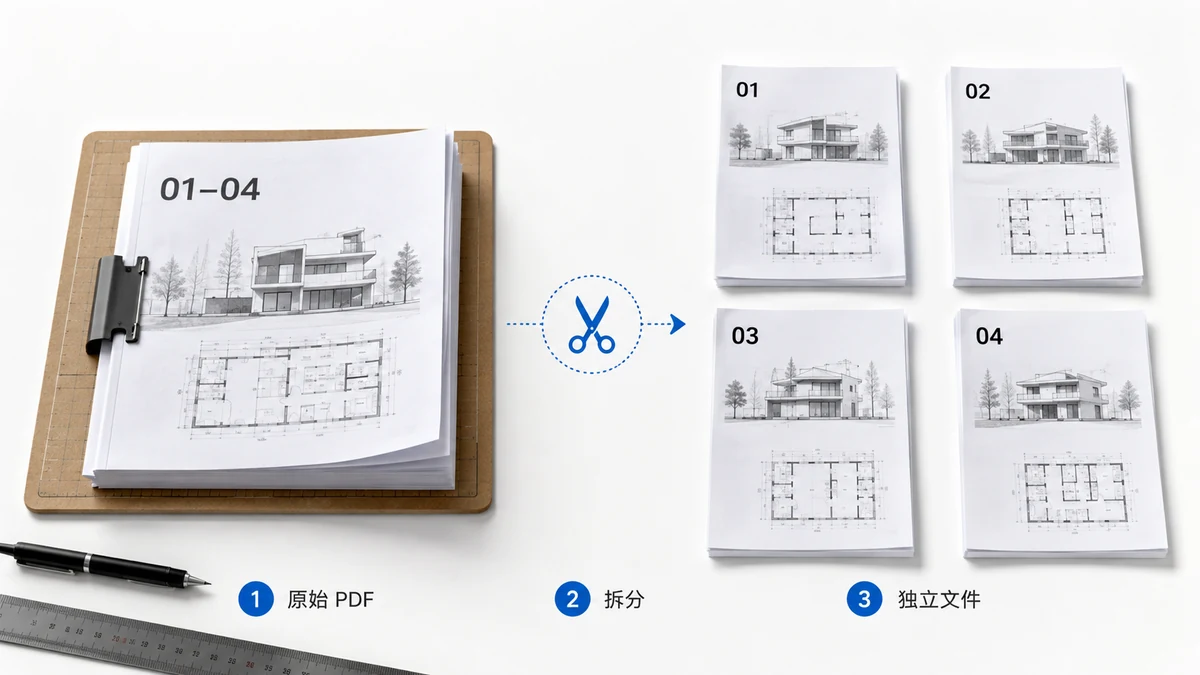
Sometimes a multi-page PDF is the wrong shape for the job. You scanned a stack of forms and they landed in one file, but each one has to be uploaded to a different portal. You have a PDF of thirty certificates and each recipient needs only their own. You've got a batch of receipts scanned together and your accounting system wants them one at a time. What you actually need is not a smaller PDF — it's many PDFs, one per page.
When splitting-every-page is the right move
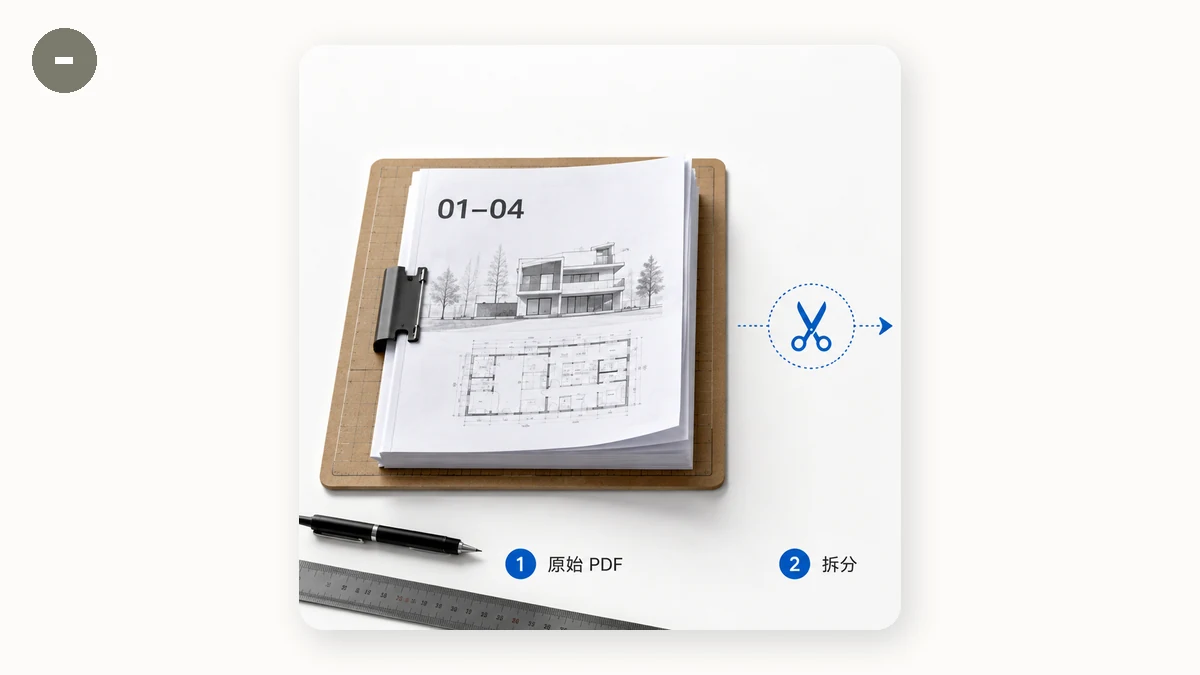
There's a specific shape to this problem. It's not "I want pages 1–3" — that's extracting a range into one file. It's "I want each page to become its own standalone document." The difference matters because doing that by hand is miserable: opening the file, extracting page 1, saving it, extracting page 2, saving it, thirty times over. The whole point of splitting every page at once is that a 30-page scan becomes 30 files in a single action.
Common cases where this is exactly what you want:
- A batch scan where each physical document became one page of a single PDF.
- Certificates, tickets, or badges generated as one long PDF that need to go out individually.
- Receipts or invoices you file, name, or forward one at a time.
- Any page that needs its own filename, its own destination, or its own approval.
How to do it — and get a ZIP back
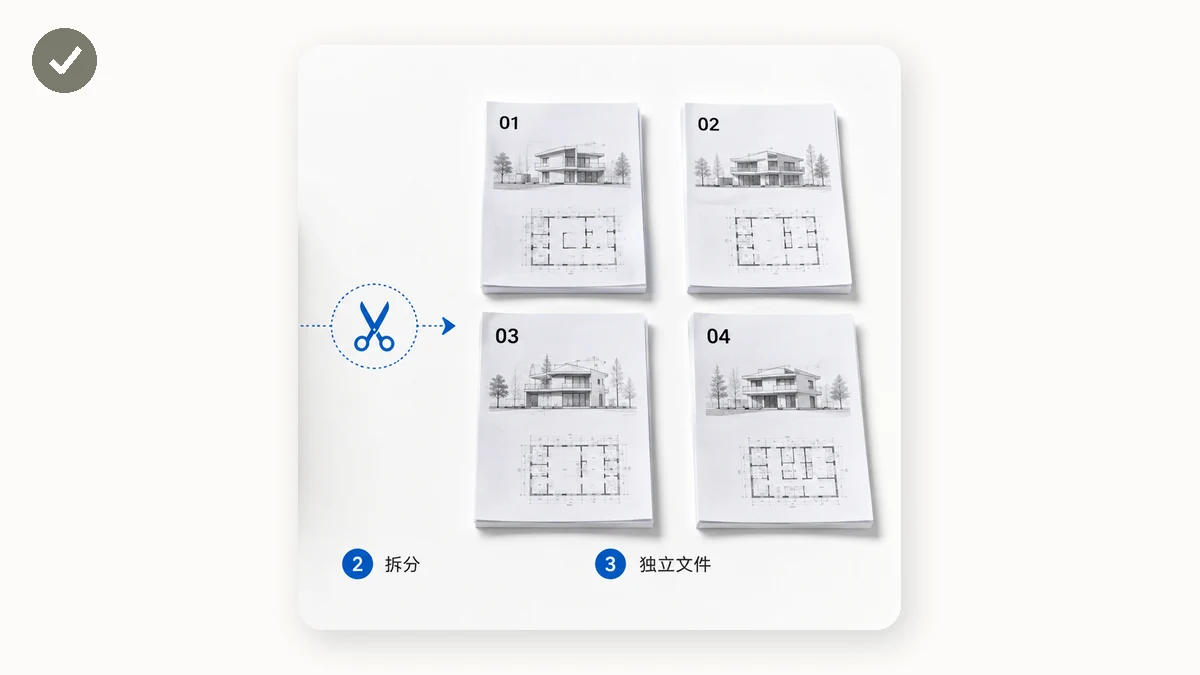
Thirty separate downloads firing at once would be chaos, so the sensible output is a single ZIP holding all the one-page PDFs. You split once, download one archive, unzip it, and there's your folder of individual pages.
tools.faxianai.com's Split PDF has this as its second mode: open your PDF, choose "split every page," and it produces one PDF per page and bundles them into a ZIP for download. (Its first mode does the other job — extracting a page range like 1-3, 5, 8-10 into a single file — when that's what you need instead.) It runs entirely in your browser with pdf-lib, so nothing is uploaded — no server, no account, no daily limit — and once the page has loaded it works offline.
That last point is worth dwelling on for this task specifically, because the files people bulk-split are often sensitive in bulk: a whole batch of scanned IDs, a run of signed forms, a folder of statements. On a conventional site, all of that gets sent to a server to be cut up. Here it never leaves your machine.
No quality loss, page by page
Each page is copied out of the original with pdf-lib, not re-rendered or re-compressed. So every single-page PDF you get is byte-for-byte the page it came from: selectable text stays selectable, a scan keeps its original resolution, nothing softens. Across thirty files that consistency matters — you don't want page 14 looking mysteriously worse than the rest.
The limits, honestly
This splits at the page level: one page in, one file out. It won't rotate a sideways page or reorder pages inside the source — fix those in the original first. And a PDF locked with an open password (one that prompts before it will display) can't be read in the browser, so remove the password and split the unlocked copy. Owner-restricted PDFs usually split without a problem.
If you're going the other way and need to combine pages or files, Merge PDF is the reverse tool, and PDF to Images turns pages into PNG or JPG when you want pictures rather than PDFs. Splitting every page into its own file is just the fastest path from "one document" to "one file each" — done locally, in one click.