You have a photo to compress, convert, or clean up. You search "compress image online," click the first result, drag your file in, and download the smaller version. Simple. But somewhere in those few seconds, your photo was almost certainly uploaded to a stranger's server — and most sites never tell you that.
This guide explains what actually happens to your images on typical online tools, how to check, and how a browser-based tool like tools.faxianai.com does the same job without your file ever leaving your computer.
How most "online" image tools actually work
The word online hides an important detail. On a conventional image tool, clicking "upload" sends the raw bytes of your photo across the internet to the company's server. The server does the processing — resizing, compressing, converting — and sends a new file back. Your original now sits on hardware you don't control.
That design exists because it's easy to build and because server-side processing once was the only option. But it means every photo you touch is:
- Transmitted over the network, where it can be intercepted if the connection is weak.
- Stored, at least temporarily, on the provider's disks — sometimes for hours, sometimes indefinitely.
- Potentially logged, cached, or used to train models, depending on a privacy policy almost nobody reads.
For a meme, that may not matter. For an ID scan, a signed contract, a medical image, a product design, or a family photo with GPS coordinates baked in, it very much does.
How to tell if a tool is uploading your images
You don't have to trust a marketing claim. A few quick checks reveal the truth:
- Watch for an upload bar. A progress bar that fills based on your connection speed means bytes are leaving your machine. Local processing is instant regardless of file size.
- Try airplane mode. Load the page, disconnect from the internet, then try to process an image. A server-based tool will fail; a truly local one keeps working.
- Open your browser's Network tab (DevTools → Network) and process an image. If you see a large POST request carrying your file, it was uploaded.
The browser-based alternative
Modern browsers are powerful enough to compress, convert, resize, and even run AI models entirely on your own device, using technologies called Canvas and WebAssembly. That's the approach tools.faxianai.com takes: the tool code runs in your browser, and your image is never sent anywhere. There is no upload step because there is no server doing the work — your own CPU does it.
The practical differences are immediate. There's no upload wait, so a 40 MB photo processes as fast as a 40 KB one. There's no file-size cap imposed by a server. And there's nothing to leak, because nothing was transmitted or stored in the first place.
A concrete privacy example: hidden metadata
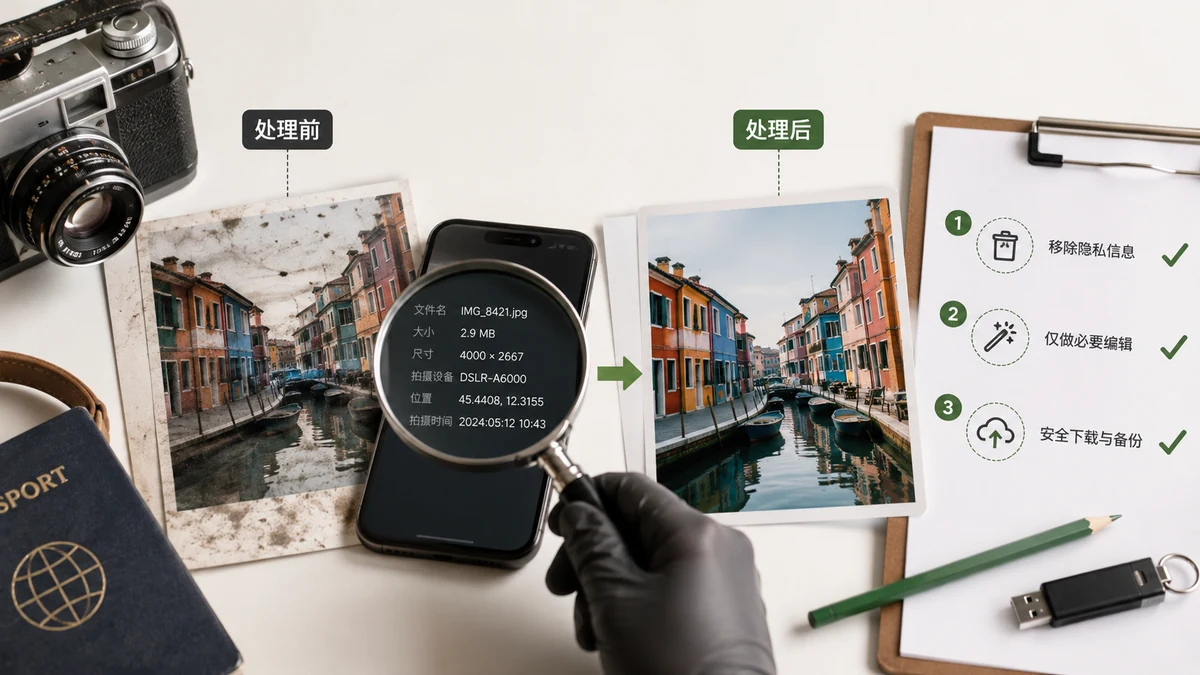
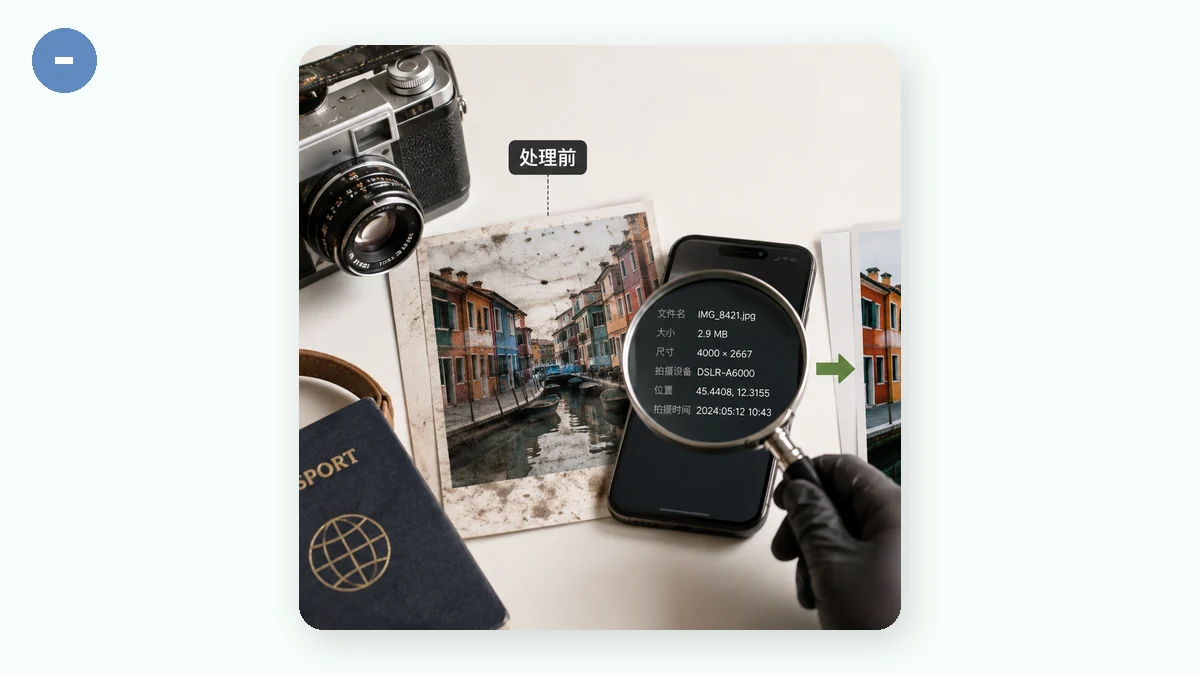
Photos carry more than pixels. A picture from a phone usually embeds EXIF metadata — the camera model, the exact timestamp, and very often the GPS coordinates of where it was taken. Upload that photo to a random tool and you may be handing over your home address without realizing it.
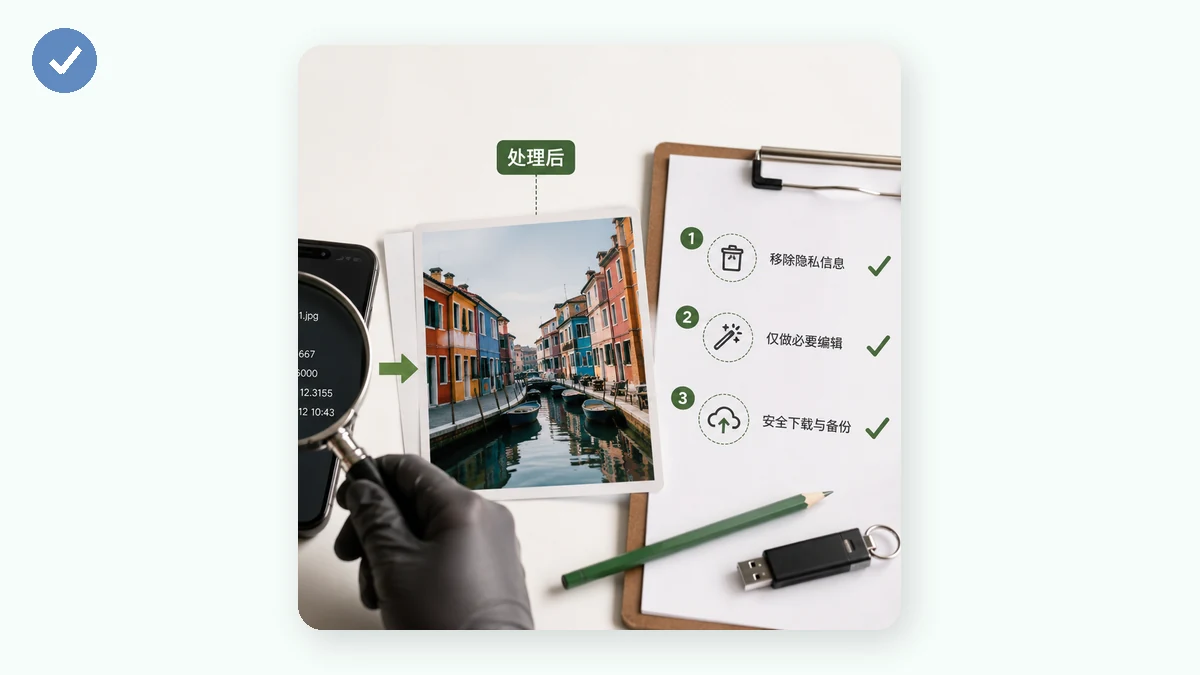
A local tool lets you both see what's hidden and strip it out before you share, and because the check runs on your device, the sensitive data never travels anywhere to be examined.
The bottom line
"Free" online image tools are rarely free of trade-offs — you often pay with your data. Before you upload a photo you'd rather keep private, ask a simple question: does this need to leave my device at all? For compressing, converting, resizing, watermarking, removing backgrounds, and cleaning metadata, the answer is no. Tools that run in your browser do the same work, faster, and keep your images exactly where they belong — with you.