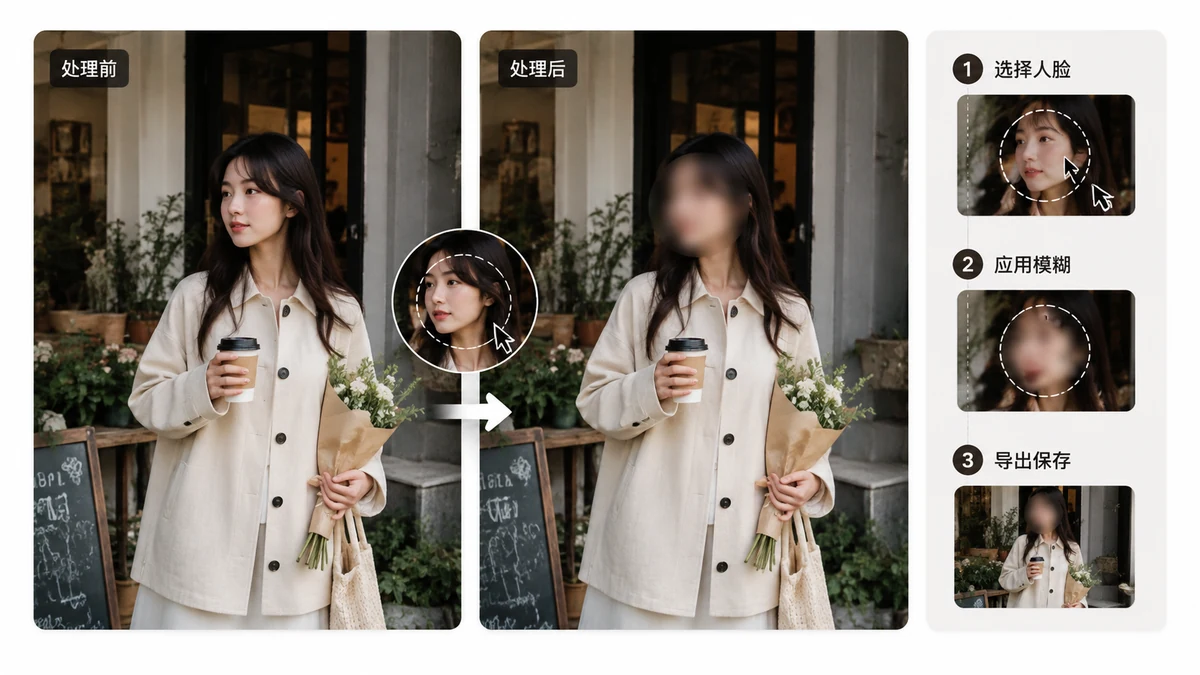
You took a good photo, but there's someone in it who didn't ask to be posted — a kid in the background, a bystander, a colleague who'd rather not show up on your feed. Or it's your own face and you want to stay a little anonymous. Blurring the face is the usual fix, and it takes only a moment. The part worth slowing down for is how you blur, because not every method actually protects the person the way you'd assume.
The quick version
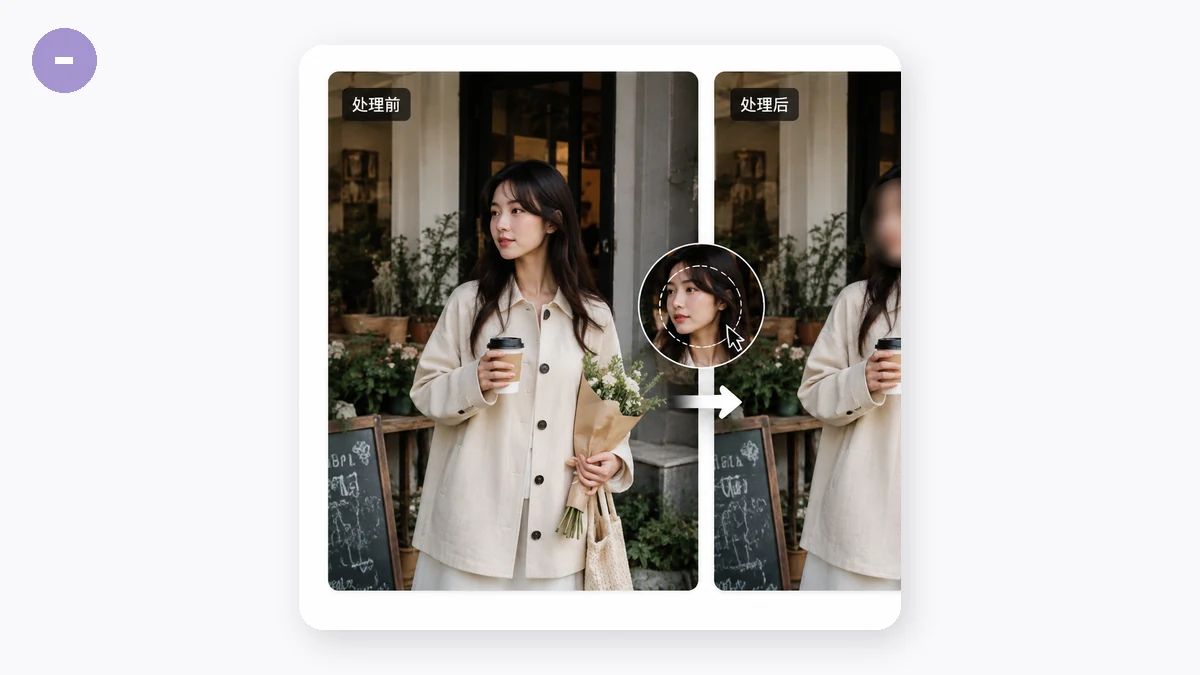
Open your image, drag a rectangle over the face, pick a mode, set the strength, and export. That's the whole task. You can cover several faces in one photo by dragging one rectangle over each, and undo the last box if you misplace it.
Because this runs in your browser, the photo never leaves your device. That matters more than it sounds: if you're hiding a face for privacy, the last thing you want is to upload the original — the one where the face is still perfectly clear — to some server just to get it back with a blur on top.
Blur, pixelate, or black box?
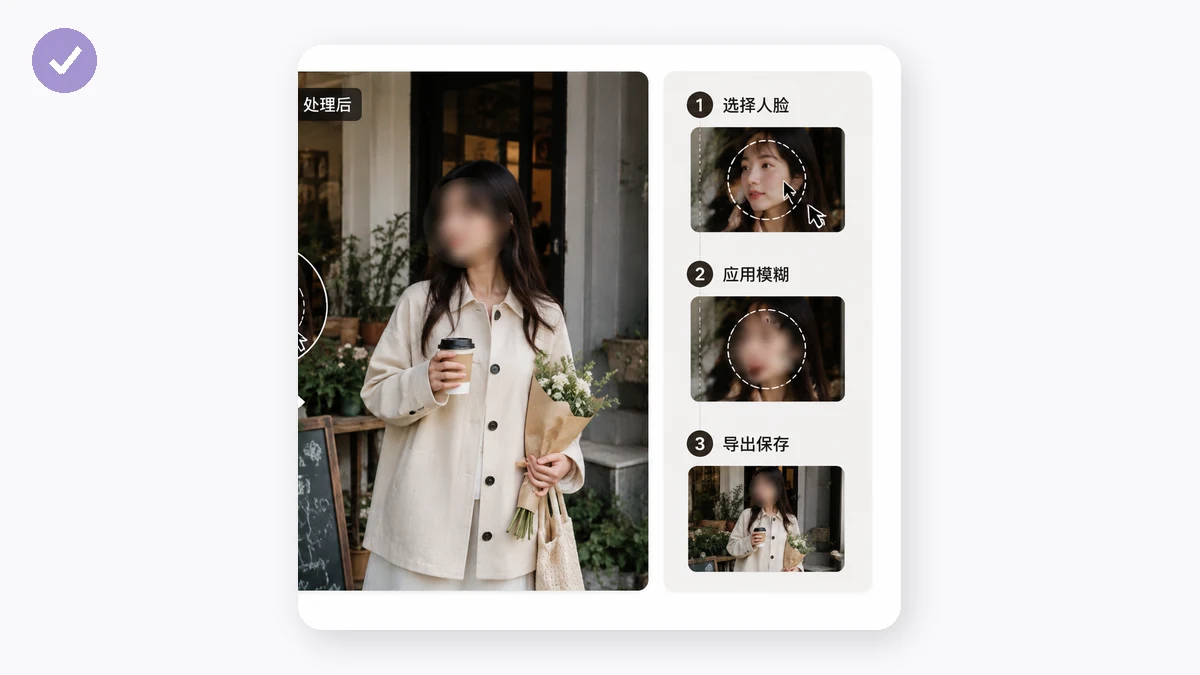
The three options look interchangeable. For privacy, they are not.
A blur spreads each pixel into its neighbours. It looks obscured, but the original detail is smeared rather than destroyed, and the math behind it is partly reversible. Software can sharpen a light blur back toward the original, and faces and text are exactly the kinds of high-structure content that recover best. A gentle blur on a distant, unimportant face is fine. A gentle blur on something you genuinely need hidden is a false sense of safety.
Pixelation is more honest about what it removes. It averages each block down to one flat colour, so the detail is gone, not hidden — as long as you use a coarse enough block size. A fine, barely-there pixelation of a face has the same weakness as a light blur; a chunky one does not.
A black box is the strongest and least ambiguous. It paints solid over the region, and there is simply nothing underneath to recover. It's the least pretty option and the most trustworthy.
The honest rule: if the face genuinely must not be identifiable — a witness, a minor, anyone who could be harmed — use coarse pixelation or a black box, not a soft blur. Save blur for the cases where you just want the face de-emphasised rather than truly protected.
Doing it well
A few things make the result cleaner:
- Cover a bit more than the face. Hair, ears, and a distinctive jawline can still identify someone. Extend the rectangle slightly past the obvious edges.
- Watch for reflections and second appearances. The same person might show up in a mirror, a window, or another shot in the same set. Cover every instance.
- Crank the strength up. With pixelate, a coarser block is safer. There's no prize for a subtle redaction that leaves the face half-readable.
- Check the export at full size. Zoom into the covered area on the final PNG before you post. What looks solid on a thumbnail can be thinner than you think.
Why local matters here specifically
This is a privacy task, so the tool's privacy has to hold up too. Everything happens on your own machine using the browser's canvas — no upload, no account, and it keeps working offline once the page has loaded. The blur or box is baked into the exported PNG on your device, so the un-blurred original never travels anywhere. You're not trusting a company's privacy policy with the very image you're trying to keep private; there's no company in the loop at all.
Blur a face when a face just needs softening. Reach for pixelate or a black box the moment it needs to be genuinely gone — and either way, keep the original on your device where it belongs.