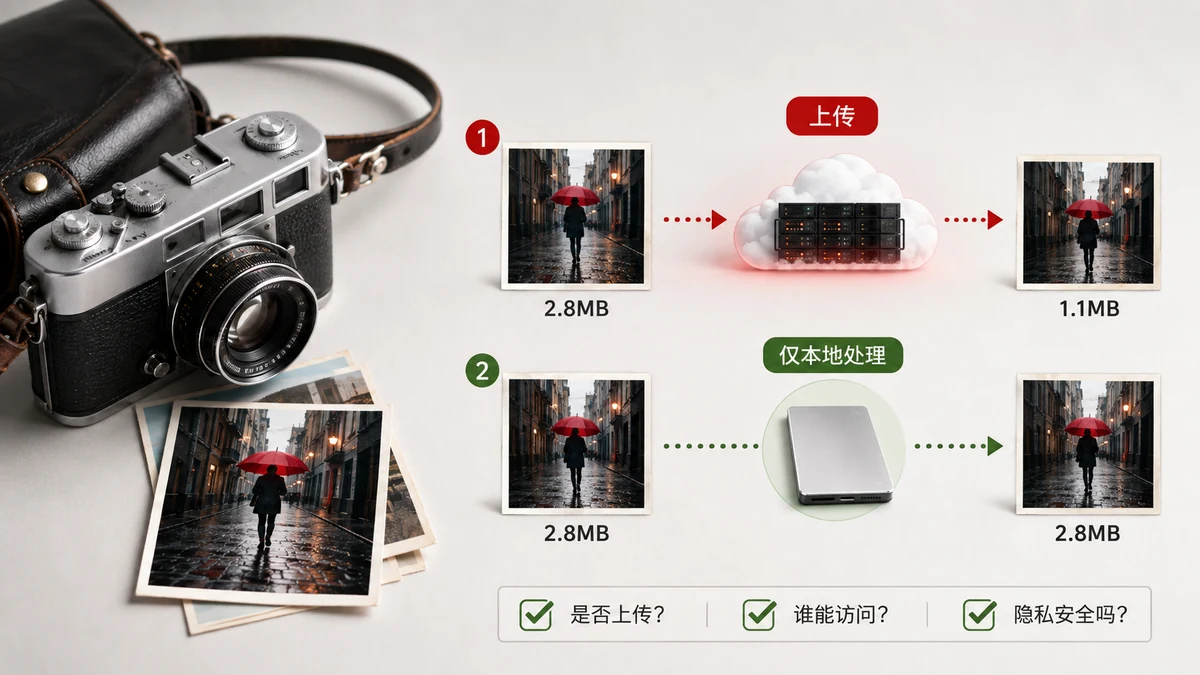
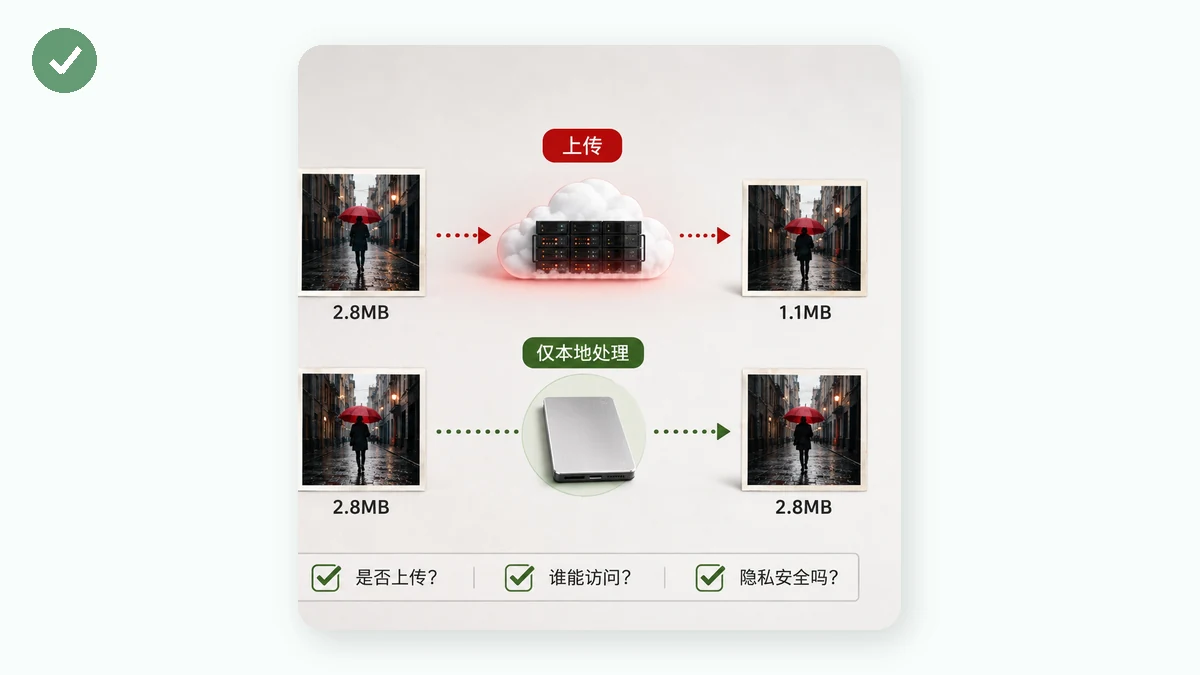
Most of them do. When you drag a photo onto a typical "compress image online" website, the file usually travels to that company's server, gets processed there, and comes back smaller. The compression happens on a machine you don't control, in a datacenter you can't see. Whether that's a problem depends on the photo — and on how much you trust the site.
The short version: some compressors upload, some don't, and the difference is easy to verify yourself. You don't have to take anyone's word for it.
Why most online compressors upload
Server-side processing is simply easier to build. The site sends your file up, a program on the server (often ImageMagick or a similar library) does the work, and the result comes back down. This approach handles giant files without straining the visitor's phone, and it lets the site support formats that are awkward in a browser.
The trade-off is that your image sits on a stranger's hardware, however briefly. Reputable services delete uploads after an hour or a day. Less careful ones keep them around, log them, or — in the worst cases — reserve the right to reuse them. A privacy policy might promise deletion, but a promise is not a mechanism. You're trusting text on a page.
For a holiday snapshot, that may be fine. For a passport scan, a medical form, a contract, or a photo with location data baked in, "probably deleted later" is a weaker guarantee than you'd want.
How to check if a tool uploads your file
You can confirm what any image tool actually does in about a minute.
The airplane-mode test
Load the tool's page once with internet on. Then turn off Wi-Fi and mobile data — literally switch to airplane mode — and try to compress an image.
- If it still works, the processing is happening on your device. Nothing left.
- If it stalls, shows a spinner forever, or errors out, it needed a server. Your file was going to be uploaded.
This test is blunt and honest. Code that runs in your browser doesn't need a network. Code that uploads does.
The network tab
For a precise look, open your browser's developer tools (F12 on desktop), click the Network tab, then compress a photo. Watch the list of requests.
- A big outgoing request the size of your image — often a
POST— means the file was sent somewhere. - No large upload, just the page's own scripts and styles, means the work stayed local.
You can sort by size to spot a multi-megabyte upload instantly. This is the same method security researchers use, and it doesn't lie.
How a browser compressor avoids uploading
A tool that runs entirely in your browser uses the technology already sitting in the page: the HTML Canvas API and WebAssembly. Your image is decoded into memory, re-encoded at a smaller size, and handed back — all inside the tab. The file never becomes a network request.
That's exactly how tools.faxianai.com's image compressor works. PNGs are reduced with 256-color quantization; JPG and WebP are re-encoded at a quality level you choose. It processes a whole batch and hands you a ZIP, and it will never produce a file bigger than the original. Because the logic lives in the page, tools.faxianai.com is a PWA — after your first visit, the service worker caches it, and you can compress photos in airplane mode with no server anywhere in the loop.
Is image compression safe?
Compression itself doesn't damage your photo's privacy — but the place it happens does. Two more things worth knowing:
- Metadata often survives compression. Many compressors shrink the pixels but keep the EXIF block, which can include GPS coordinates and your camera's serial number. If you're sharing a file, strip that separately with an EXIF remover.
- "Free" sometimes means your data is the product. A tool that uploads and is vague about deletion deserves more suspicion than one that never uploads at all.
The safest compressor is one that can't leak your file because it never had it. Run the airplane-mode test on whatever you use. If it keeps working offline, you have your answer.