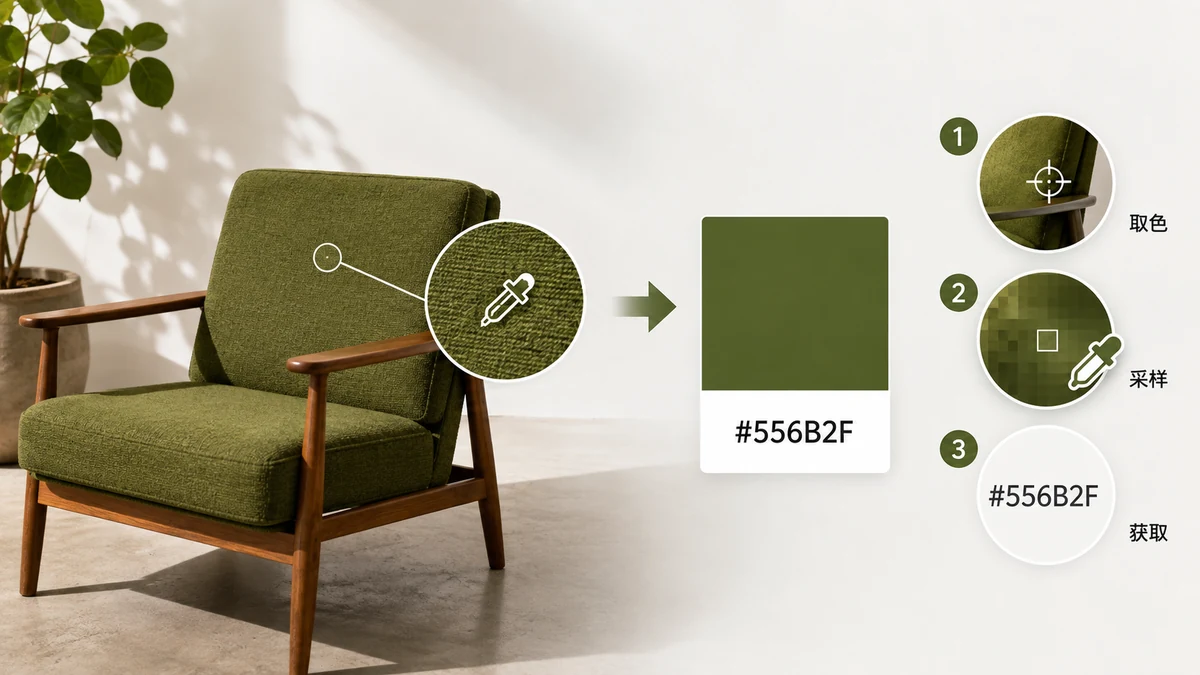
You have an image and you need one number out of it: the hex code of a specific colour. Maybe it's a logo whose brand spec is long gone, a screenshot of a site whose blue you want to match, or a photo with a shade you'd like to reuse. Typing what you think the colour is doesn't work — your eye can't read #3A7BD5 off a screen, and the colour that looks right is usually a few digits off. Here's how to read the actual value straight from the pixels.
Why guessing never quite works
A single "blue" on screen is really a spread of near-identical blues, and your monitor's brightness and calibration shift them further. Pick by eye and you land close but wrong — close enough that the mismatch is annoying but not obvious, so you burn ten minutes wondering why the button doesn't match the header. The fix is to stop guessing and read the number the pixel actually stores.
Get the code in three steps
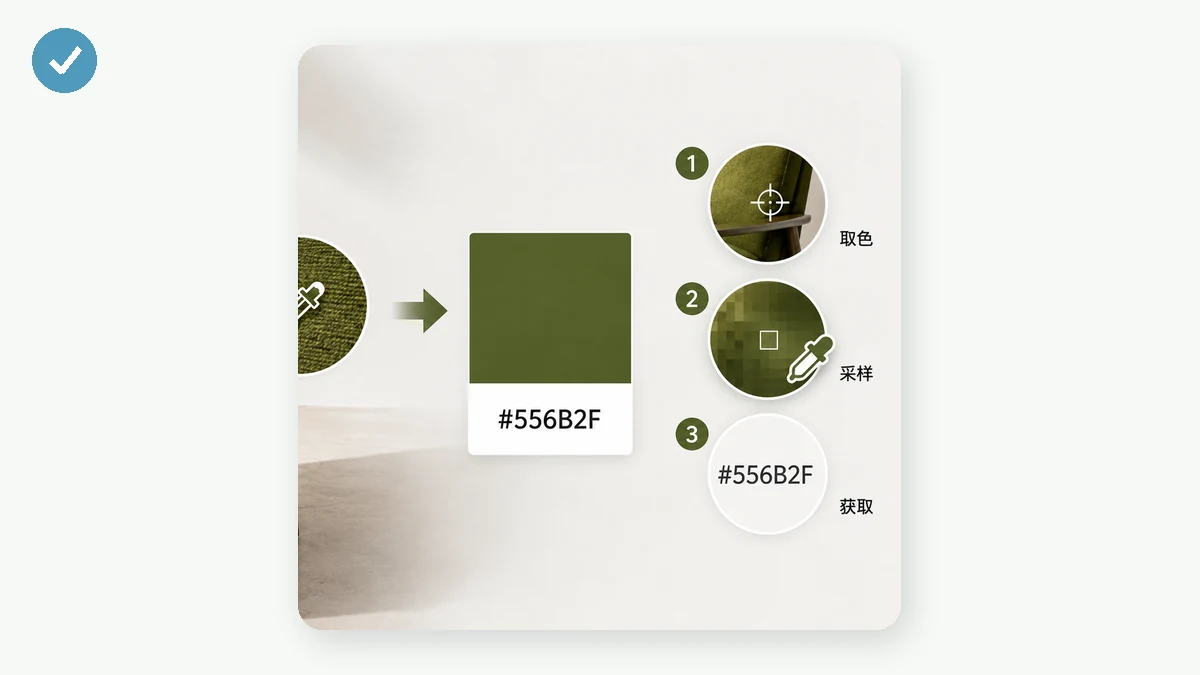
The reliable way is to sample the pixel directly with a color picker.
- Load the image. Drop in the logo, screenshot, or photo you're pulling from.
- Hover to the exact pixel. A magnifier loupe follows your cursor and blows up the area underneath, so on a hard edge you can see which pixel is the flat brand colour and which is an anti-aliased blend of two.
- Click to save, then copy. Each click keeps the colour as a swatch showing its HEX, RGB and HSL, each with its own copy button. Click the HEX and it's on your clipboard.
Land on the right pixel
The loupe matters more than it sounds. Where a colour meets another — a letter against a background, the edge of an icon — the pixels in between are anti-aliased: a smoothed blend of the two colours, not either one. Sample there and you get a muddy value that matches nothing. Aim for a flat area a few pixels inside the shape, where the colour is solid, and the zoomed view lets you confirm you're on it before you click.
On a clean logo or flat UI this is easy — the colour is uniform across a wide area. On a photo it takes more care, because grain and compression mean neighbouring pixels genuinely differ. Pick from a calm, evenly-lit region and take a couple of samples to check they agree.
HEX, RGB or HSL — take what fits
Each swatch gives you all three at once, so you copy whichever your destination wants:
- HEX (
#3A7BD5) — the web default. CSS, Figma, Canva, brand docs. Copy this unless you have a reason not to. - RGB (
rgb(58, 123, 213)) — channel values, useful when a tool asks for them or you need transparency viargba. - HSL (
hsl(215, 65%, 53%)) — hue, saturation, lightness. Best when you want to adjust the colour: brighten it for a hover state, mute it for a variant, or build a scale from it.
Because every swatch carries all three, you never re-sample just to switch format.
Grabbing several colours at once
A logo is rarely one colour. Click the primary, the accent, and the text colour in a single pass — each stacks up in the list so you can compare them and copy them one after another, instead of loading the image three separate times.
If you want a colour summary of a whole image rather than specific pixels — the overall palette a photo is built from — that's a different job, and tools.faxianai.com's separate palette tool auto-extracts dominant colours for you. Use this picker when you know the exact spot you want; use the palette tool when you want the image characterised for you.
It stays on your device
The image is read locally in your browser off a canvas — nothing is uploaded, there's no sign-up, and after the first load it works offline. So an unreleased mockup or a client's private asset never leaves your machine just because you needed one hex code from it.
Load the image, hover to the pixel, click, and copy the code.