
Screenshots are the fastest way to share something, and the fastest way to overshare. You grab a shot of an order confirmation to show a friend, and it also shows your full address. You screenshot a chat to make a point, and the other person's phone number rides along. You post a dashboard, a receipt, a settings page — and there's a name, an email, an account ID sitting right there in the corner. Once it's posted, it's out.
Covering that stuff takes about ten seconds if you know what to look for and use the right kind of cover.
What to actually check for
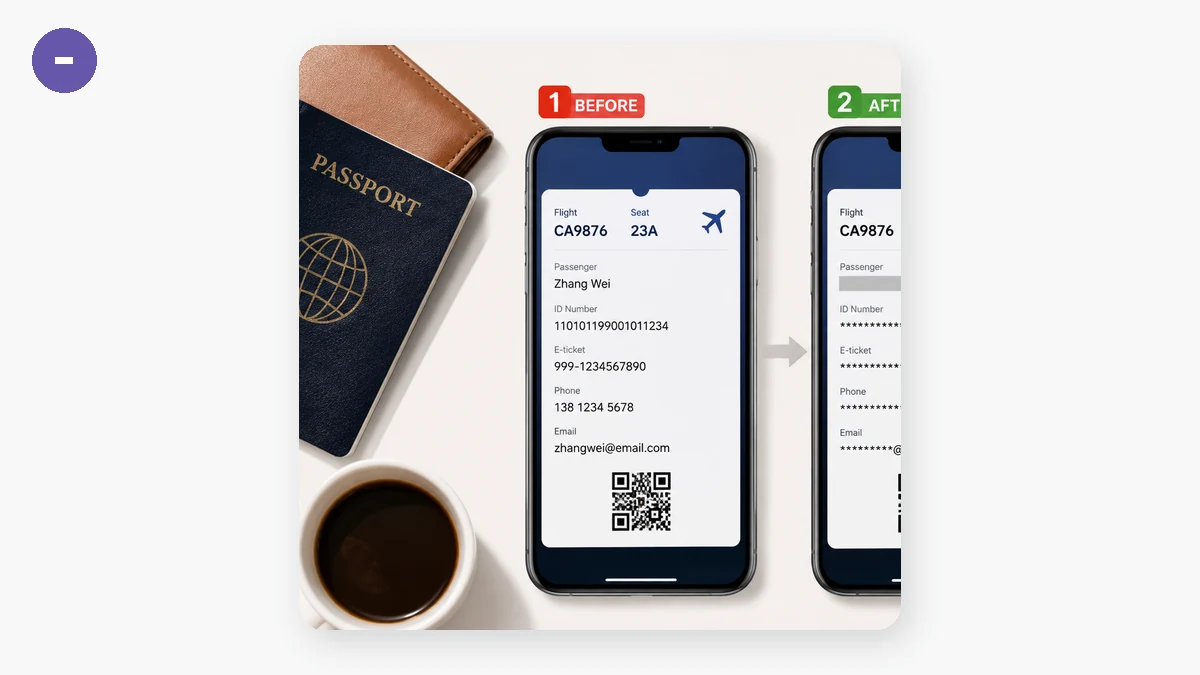
Before you share any screenshot, scan for the usual suspects:
- Names and usernames — yours and other people's, including in the title bar or tab.
- Email addresses and phone numbers, often auto-filled in a corner or a "logged in as" line.
- Home or delivery addresses on confirmations, invoices, and maps.
- Order numbers, account IDs, and reference codes — boring-looking, but enough to link an account or track a package.
- Faces and license plates in any photo thumbnails inside the shot.
- Notification previews from other apps that snuck into the top of the frame.
The last one catches people constantly: you screenshot one app and a banner from another shows a message you never meant to share.
Cover it, don't crop it
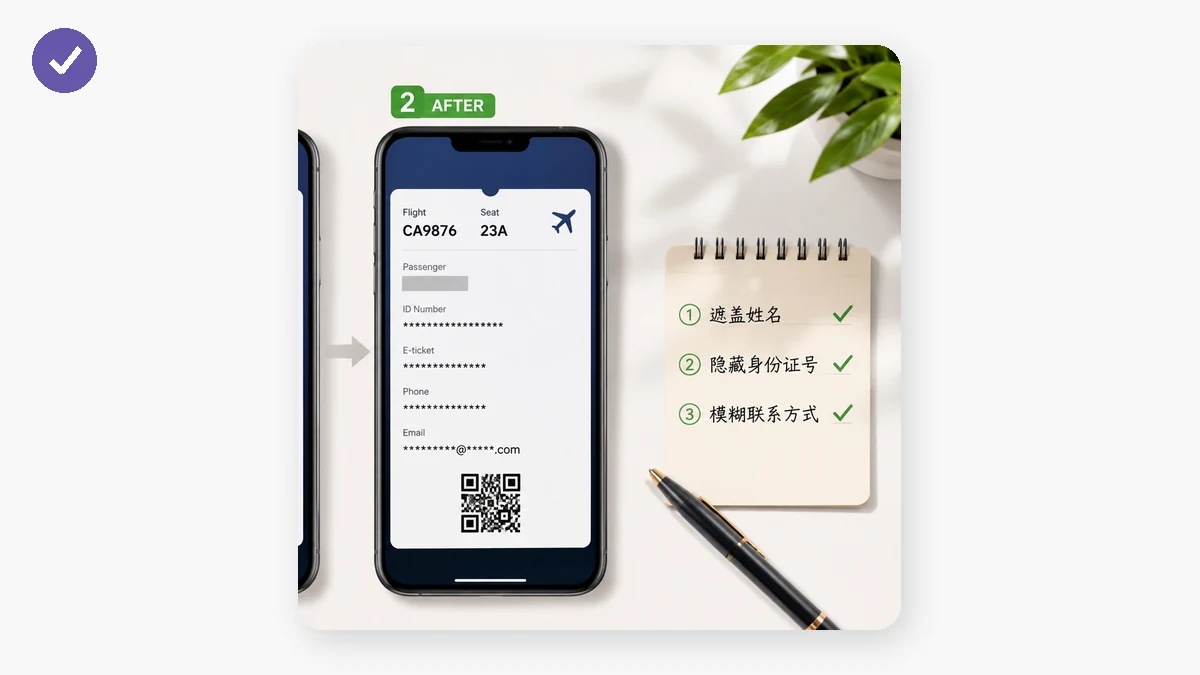
Cropping only works when the sensitive thing is at the edge. Most of the time it's in the middle of what you're trying to show, so you need to cover it in place. Drag a rectangle over each item and hide it under a pixelate block or a solid black box, at a strength you set. Add as many boxes as the shot needs, and undo the last one if you misplace it. Export a clean PNG when it's done.
For text especially — an address, an order number, an email — reach for a black box or a coarse pixelation, not a light blur. Text is high-contrast and predictable, which makes a soft blur one of the easier things to partially read back. A solid box leaves nothing to recover. It's the boring choice and the right one.
Keep it on your device
Here's the awkward thing about most "redact your screenshot" websites: to blur out your address, they ask you to upload the screenshot — with the address still fully visible — to their server first. The unredacted version leaves your machine before any hiding happens. That's backwards.
This tool covers the region right in your browser using the canvas your device already has. Nothing is uploaded, there's no account, and it keeps working offline once the page has loaded. The censored PNG is built on your own machine, so the original — the one with everything still showing — never travels anywhere. When you're hiding personal information, the tool doing the hiding shouldn't be collecting it.
A quick routine that sticks
Make it a habit and it stops being a chore:
- Take the screenshot.
- Before anything else, open it and look at all four corners and the top banner first — that's where leaks hide.
- Drag a box over every name, number, and address. Use pixelate or black for anything that actually matters.
- Zoom into each covered spot on the export to confirm it's solid.
- Now share it.
The whole loop takes seconds, works on your phone with touch right after you capture, and means the version you post is the version you meant to post — nothing extra hitching a ride.