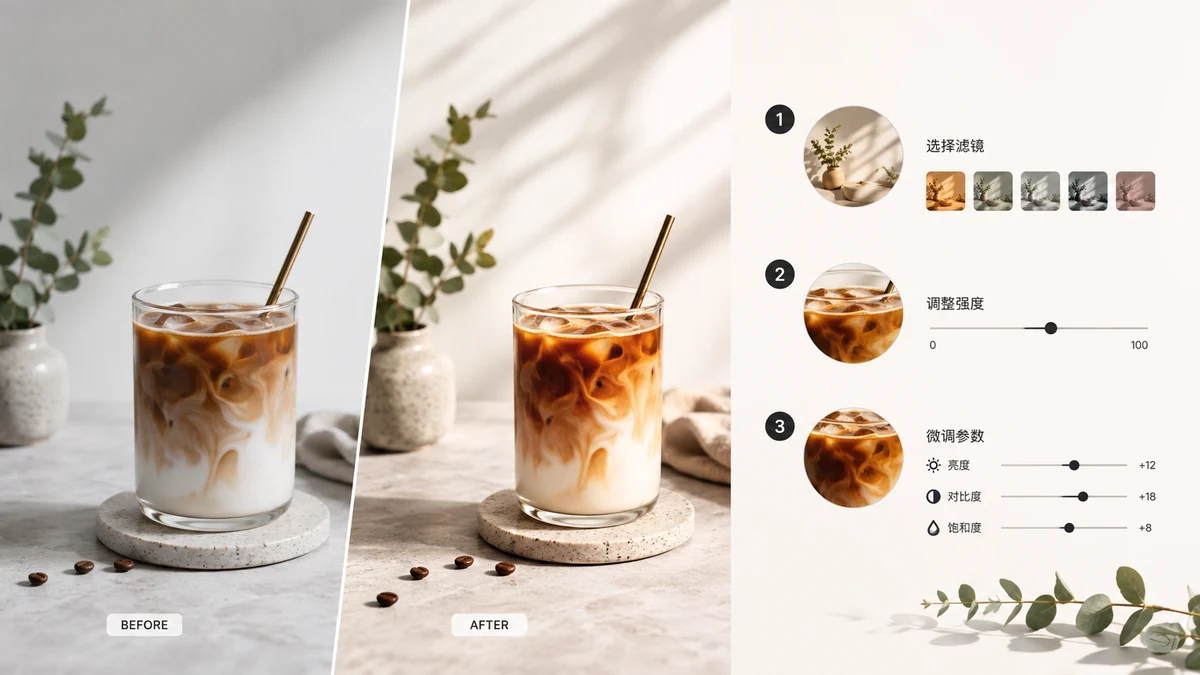
The reason Instagram photos have a "look" isn't secret. Underneath the names, each filter is a small stack of the same adjustments: a shift in color temperature, a bump or cut in contrast, a change in saturation, sometimes lifted blacks for that soft faded feel. Once you see filters as recipes rather than magic, you can get the same results on any photo without installing anything — and without handing your picture to an app that wants an account first.
The looks, and how to get each one
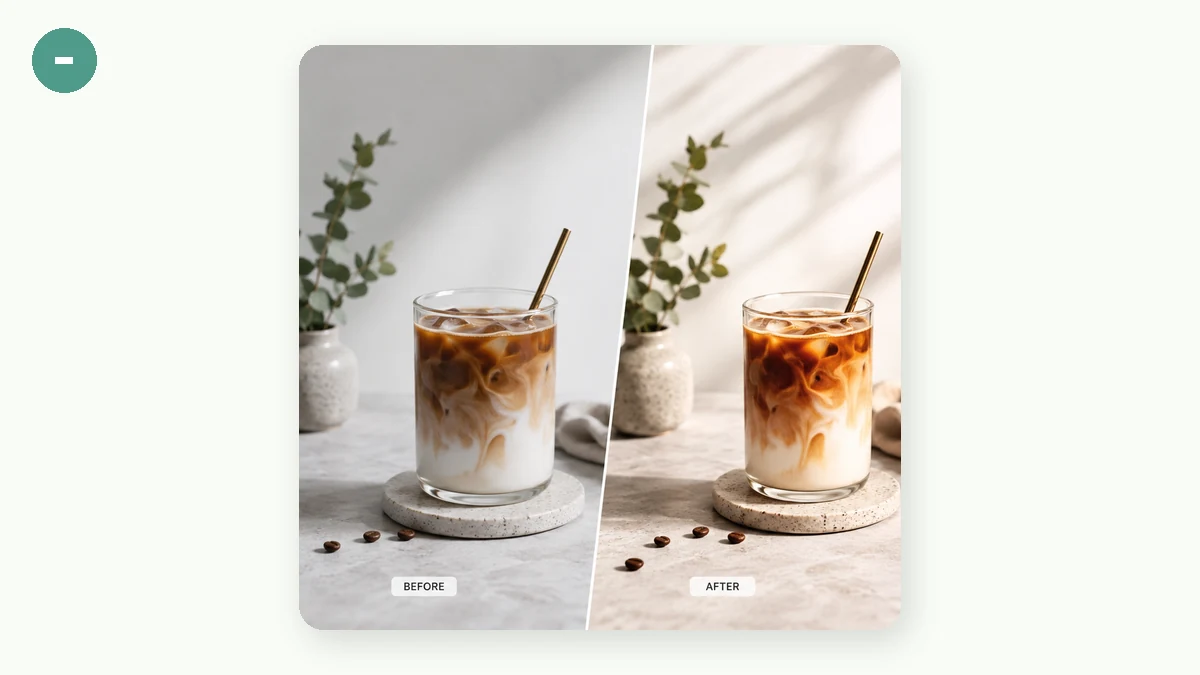
Most of the popular Instagram-style filters map onto a handful of moves. Here's how the well-known looks break down.
The warm, golden look. Think of the classic sunny, skin-flattering filters. That's a warm color temperature — a push toward amber — usually with a small saturation lift. It makes afternoon light glow and does kind things to portraits.
The cool, crisp look. The opposite direction: a shift toward blue for a clean, calm, slightly editorial feel. Good for architecture, food on a white table, or any shot where you want it to read as fresh rather than cozy.
The faded matte look. This is the one that defined a whole era of the app — low contrast with the blacks lifted, so the darkest parts of the photo go soft gray instead of true black. It reads as understated and film-like, which is exactly why it took over feeds.
The vintage look. Warm tone plus a faded, washed quality, like an old print. It's nostalgia in one click, best on scenes with a bit of texture — a street, a market, an old car.
The bold, saturated look. Punchy color for images that should shout: sunsets, graffiti, a plate of bright food. Push saturation and a touch of contrast and let it pop.
Black and white. Either an even, neutral grayscale or a high-contrast, moody version where shadows go deep. Great for portraits and for rescuing a shot where the colors were fighting each other.
Presets first, then fine-tune
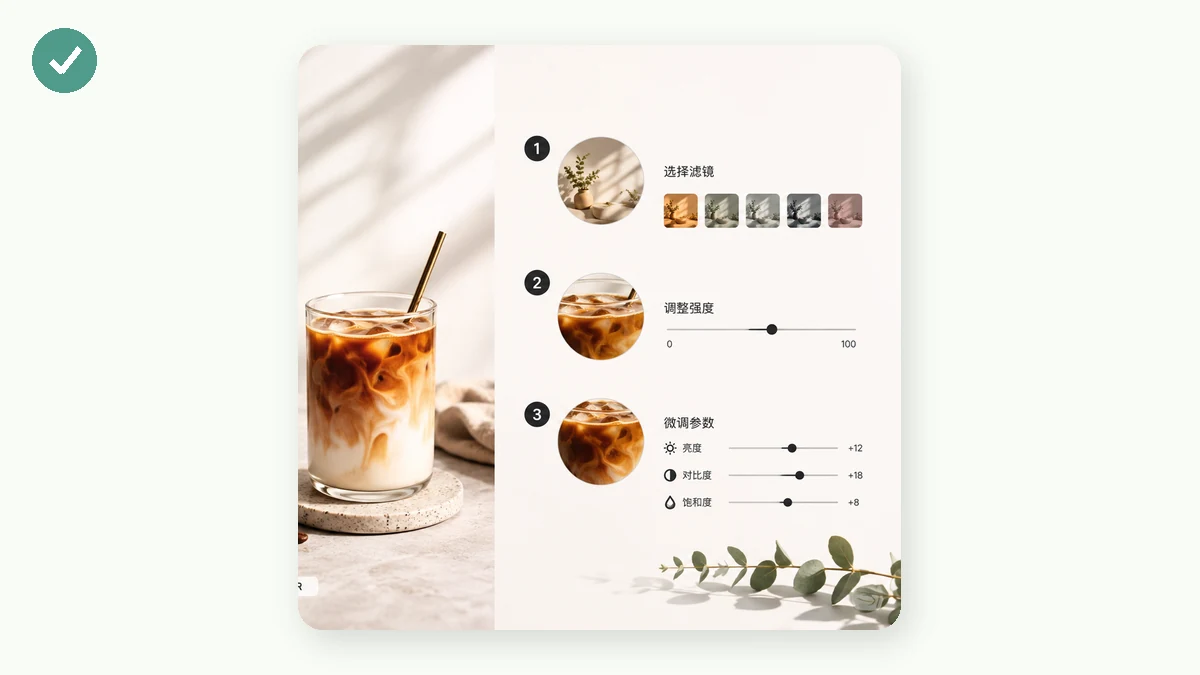
A one-click preset gets you 80% of the way to any of these. But the reason a filter looks perfect on one photo and wrong on the next is that every image starts from a different place — different light, different exposure. That's where the sliders come in. Apply the preset you want, then nudge brightness, contrast, saturation, and hue on top of it until it fits this photo. Warm too strong? Pull saturation back. Fade too gray? Add a little contrast. The preset sets the mood; the sliders make it land.
Full resolution, nothing stamped on it
Here's the practical win over most free filter sites. Plenty of them apply a nice look and then hand you back a shrunken image, or one with a watermark in the corner, or they gate the clean version behind a sign-up. When your photo is filtered here, you export a JPG or PNG at the image's real resolution — the same size you started with, no logo, no account. It's the finished file, ready to post or keep.
Why in-browser beats a phone app for this
Filtering happens locally in your browser. The photo never uploads, so a portrait or a picture of your kids stays on your device instead of passing through a stranger's server just to get a warm tone. Load the page once and it keeps working offline, so you can filter on a flight or with no signal. And there's no app to install, no permissions to grant, no account to make — you open a page, drop a photo, click a look, and download.
One honest note on scope: these are global filters, applied to the whole image. There's no localized editing — no brushing an effect onto just the sky or masking the subject. For setting a mood across the whole frame, which is what Instagram-style filters are, that's exactly what you need.