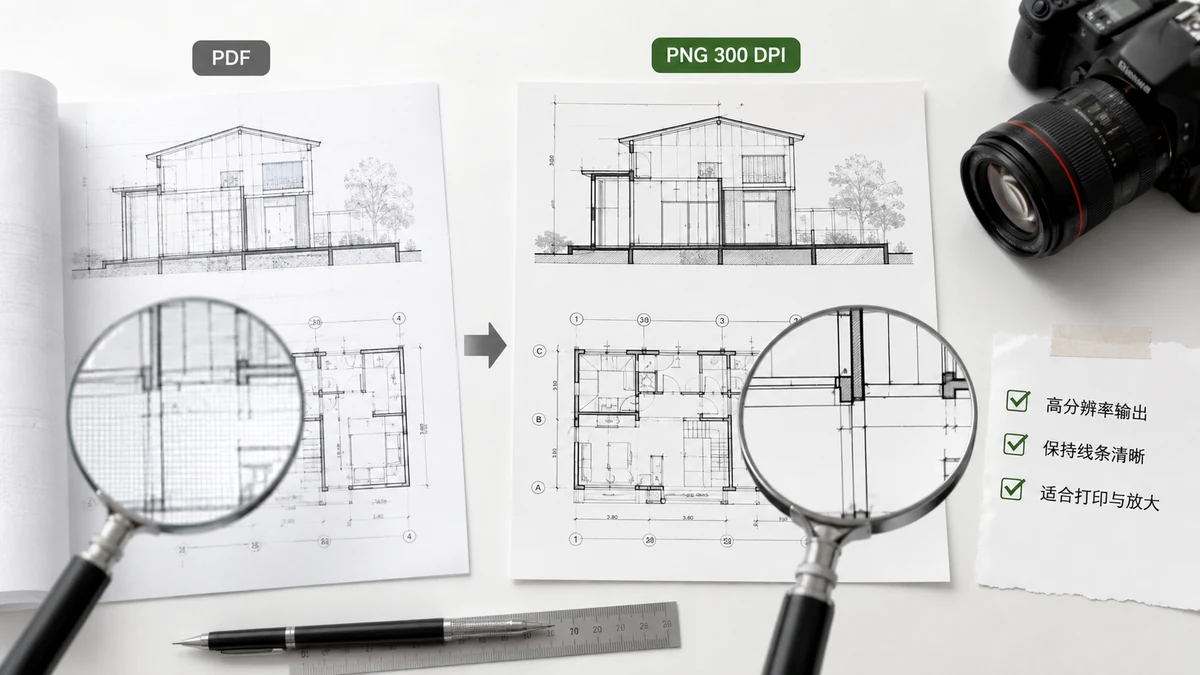
Sometimes a JPG isn't good enough. You're pulling a chart out of a report for a slide, saving a diagram that people will zoom into, or preparing a page for print, and you want it sharp — no compression fuzz around the lines, no soft edges on the text. That's a job for PNG at a high resolution. This guide explains what "high resolution" actually means for a PDF page and how to get it without the compromises.
Why PNG for this
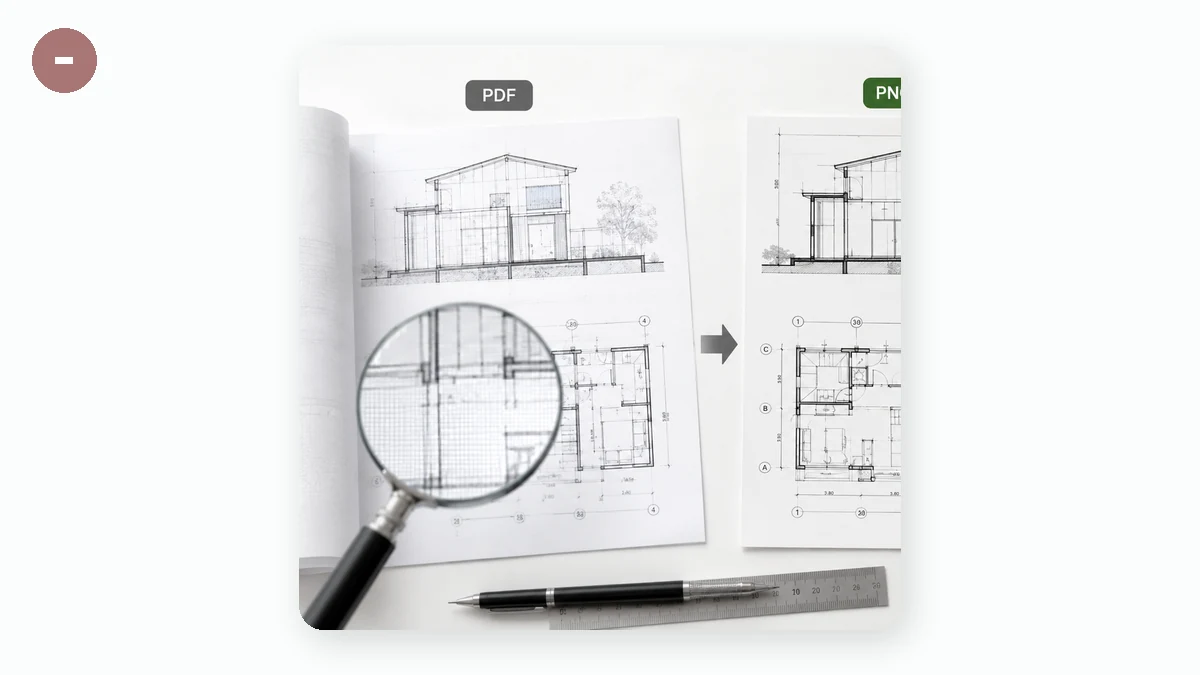
PNG is lossless. Every pixel is stored exactly, so straight lines stay straight, text edges stay crisp, and there's none of the blocky haze JPG leaves around high-contrast detail. For pages that are mostly type, tables, charts, and diagrams — the usual reason you'd want a high-resolution export — PNG is the right format. It also keeps transparency, where JPG would flatten it to white.
JPG still wins for photographic pages and when you need the smallest possible file. But if the point is sharpness, PNG is what you want.
What "resolution" means for a PDF page
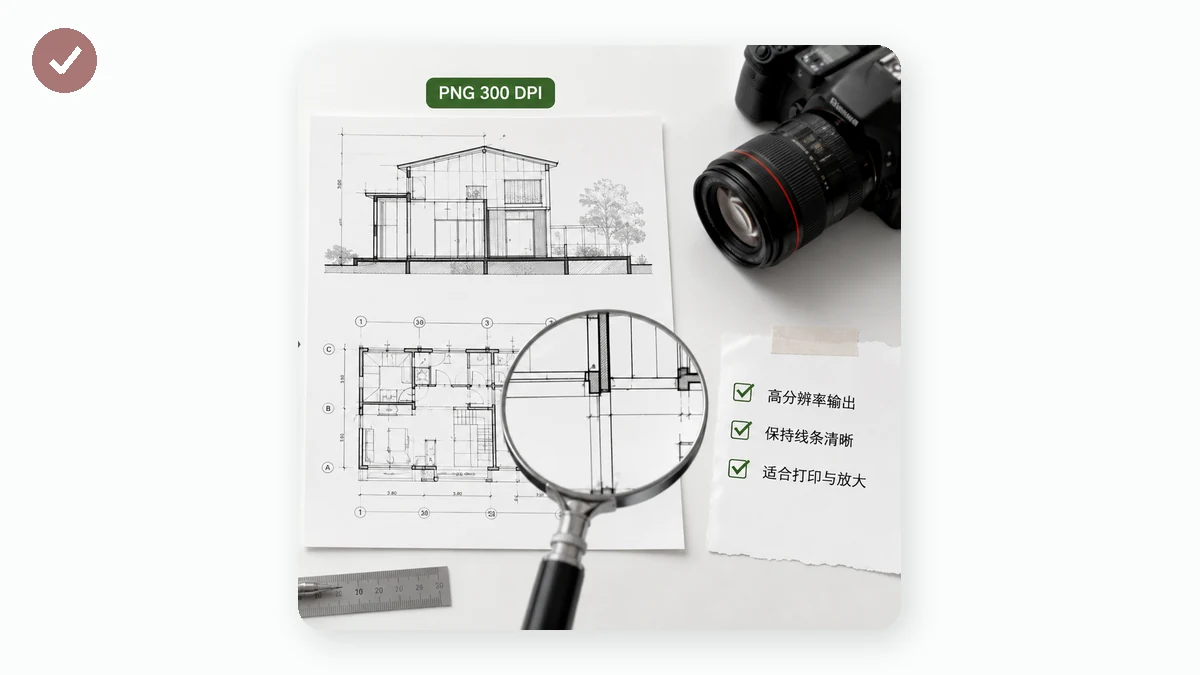
A PDF page has no fixed pixel size — it's described in geometry, so it can be rendered at any resolution. That's the whole advantage. Render at a higher dpi and you get more pixels for the same page, which is what "high resolution" means here.
- Screen (~108 dpi) — enough for something viewed only on a display.
- High (~144 dpi) — crisp on dense phone and laptop screens; a solid default.
- Print (~216 dpi) — dense enough to look clean on paper or hold up when someone zooms in. Files get noticeably larger, so use it when you actually need the detail.
The trap is thinking bigger is always better. A 216-dpi PNG of a full page can be large, and if the image will only ever be seen on screen, the extra pixels are wasted weight. Match the resolution to where the image will land.
The honest trade-off: text becomes pixels
However sharp you make it, a PNG is still an image. The text in it can't be selected, searched, or edited — it's a picture of text. A high-resolution PNG makes that text look excellent and stay readable when zoomed, but it doesn't make it live text again. If you need an editable or searchable document, keep the PDF. Export to PNG when you specifically want a fixed, high-quality image of the page — for a slide, a print, or a diagram that has to look sharp wherever it's dropped.
Getting sharp PNGs without uploading
Rendering a page at 216 dpi is real work, and most online converters do it on their server — which means uploading your PDF first. For a public document that's fine, but reports and internal decks are exactly the files you'd rather not hand over.
tools.faxianai.com renders pages with Mozilla's pdf.js engine right in your browser. You choose PNG and a resolution, and it produces a single image or a numbered ZIP of every page — locally, with nothing uploaded and no account.
Because the rendering happens on your own hardware, a very long document at print resolution leans on your device's memory; if it feels slow, drop a resolution notch or export in smaller batches. For a handful of pages you want as crisp, lossless images — kept entirely on your own machine — a high-resolution PNG export is exactly the tool.