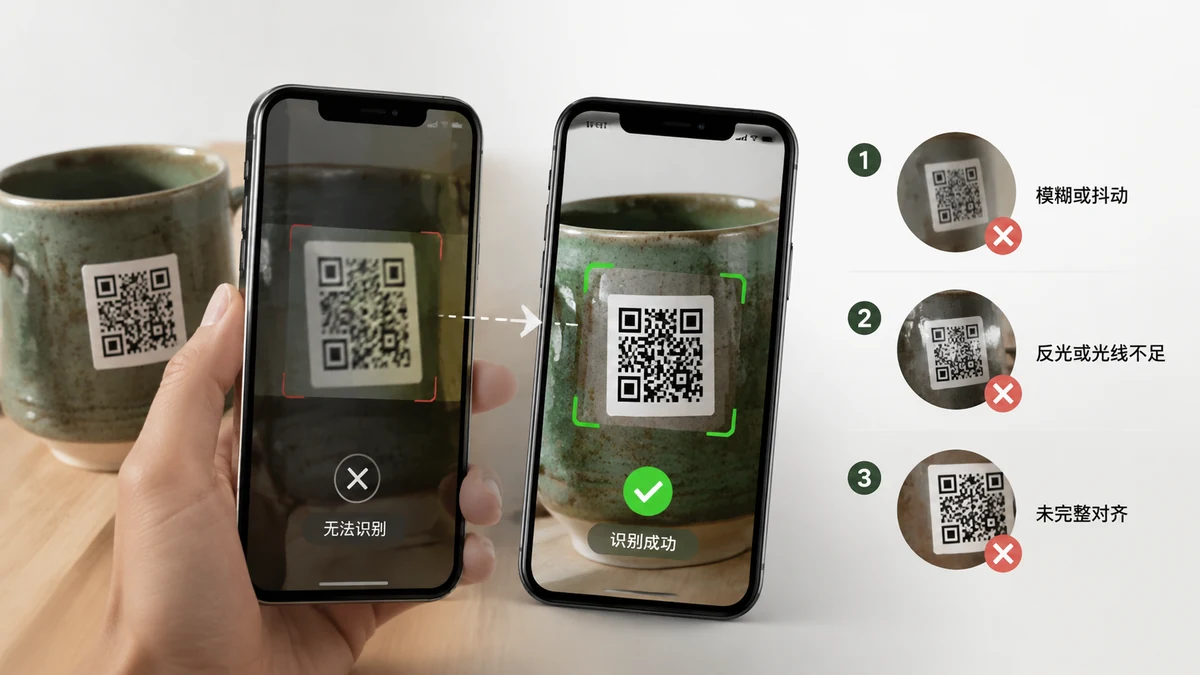
You've got a QR code and nothing reads it. The camera hovers, the reader spins, and you get nothing. Frustrating — but a QR that won't decode almost always fails for one of a few concrete reasons, and most of them you can fix in under a minute. Here's how to figure out which one you're hitting.
1. The code is too small in the frame
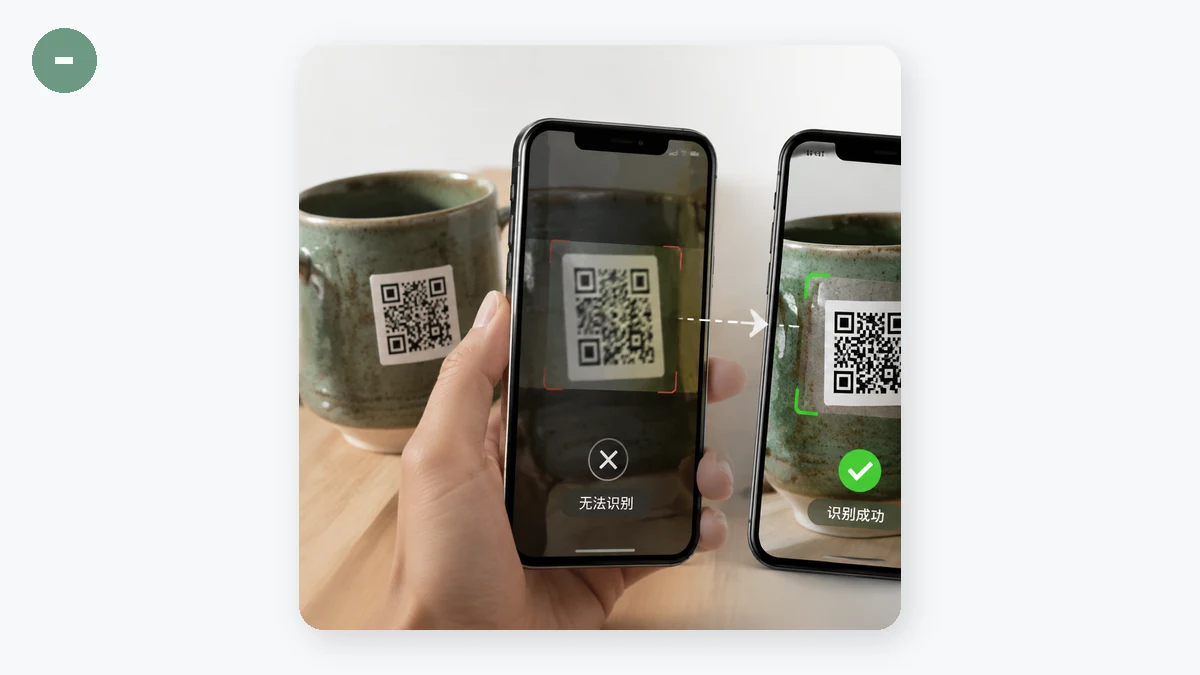
This is the most common cause by far. A QR code needs enough pixels for the decoder to make out its pattern. If the code is a little square in the corner of a big screenshot, or a distant speck in a photo, there simply isn't enough detail to read.
Fix: Crop closer. Trim the image so the QR fills most of the frame before you try to decode it. A code that filled 5% of a screenshot often reads instantly once it's cropped to fill 80%.
2. It's blurry or out of focus
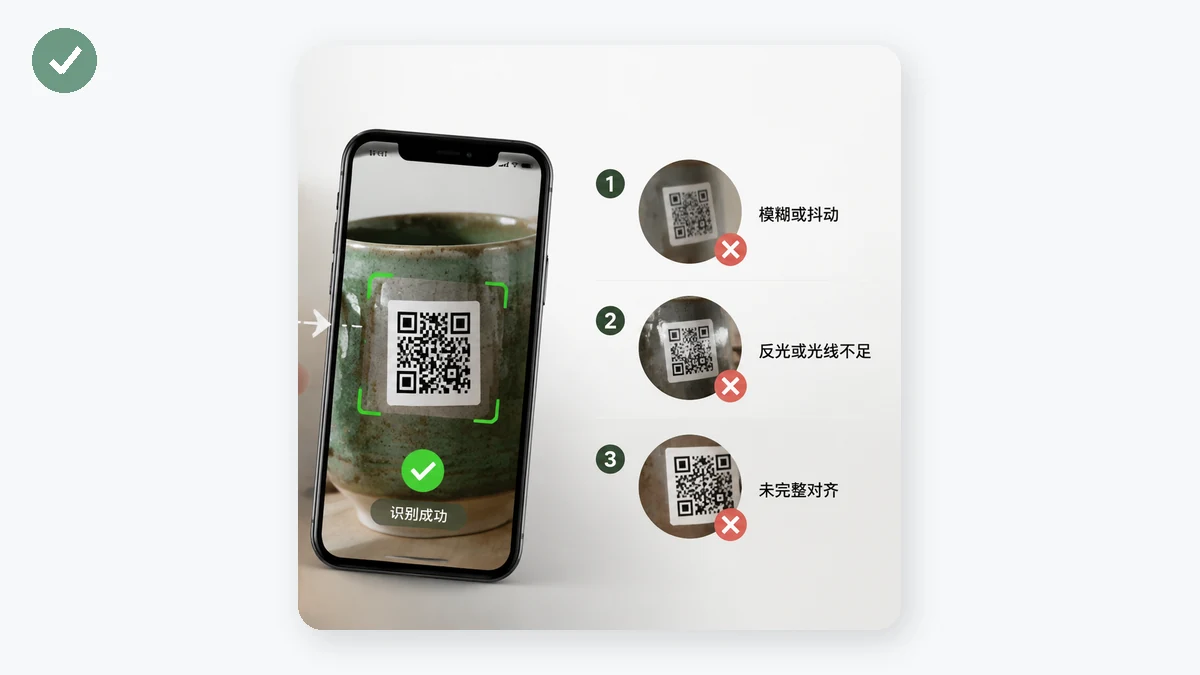
Motion blur from a shaky photo, or a soft focus, smears the sharp edges the pattern depends on. The decoder needs crisp black-and-white transitions.
Fix: If it's a photo, retake it holding steady, tapping to focus on the code. If it's a screenshot of something already blurry, there's less you can do — but cropping to the code and trying again is still worth a shot, since a smaller sharp region sometimes decodes where the whole soft image didn't.
3. Low contrast or odd colours
A QR relies on a clear difference between the dark modules and the light background. A faded print, a code on a busy background, or a stylised code where the "dark" is a pale colour can all fall below the threshold.
Fix: Favour a crisp dark-on-light version if you have one. Good news on inverted codes, though: a proper reader tries both normal and inverted patterns, so light-on-dark (white code on a black background) should still work.
4. Glare, reflections, or uneven light
Photographing a code on a glossy surface or a screen often lays a bright hotspot right across the pattern, wiping out part of it. Screen-to-screen shots also pick up moiré interference.
Fix: Change the angle to kill the reflection, and aim for even lighting rather than one bright spot. If the code is on your own screen, skip the camera entirely — screenshot it and decode the image directly.
5. The code is damaged or partly covered
QR codes have error correction and can survive some damage, but a big scratch, a fold across a printed code, a sticker, or a finger covering a corner can push it past what's recoverable. The three big position squares in the corners especially need to be intact.
Fix: If it's physical, flatten a fold or clean the surface. If part is genuinely missing, no reader can invent the data back — you'll need a clean copy of the code.
Decode from the image, not a shaky camera
If the code is already a file — a screenshot, a saved photo, an exported graphic — you don't need the camera at all. Reading straight from the image skips focus and glare problems entirely.
tools.faxianai.com's QR Code Reader takes the image you give it, decodes it in your browser, and shows the text — trying both normal and inverted patterns automatically, and downscaling large images so they process quickly. Everything runs locally; nothing is uploaded.
A couple of honest limits to set expectations: it reads one code per image, so if a picture holds several, crop to the one you want. And it works from an image, not a live webcam — a deliberate choice to stay fully local. Very small, blurry, or heavily stylised codes can still resist even a good crop; when that happens, the fix is almost always a sharper, closer, higher-contrast capture of the code rather than a different tool.