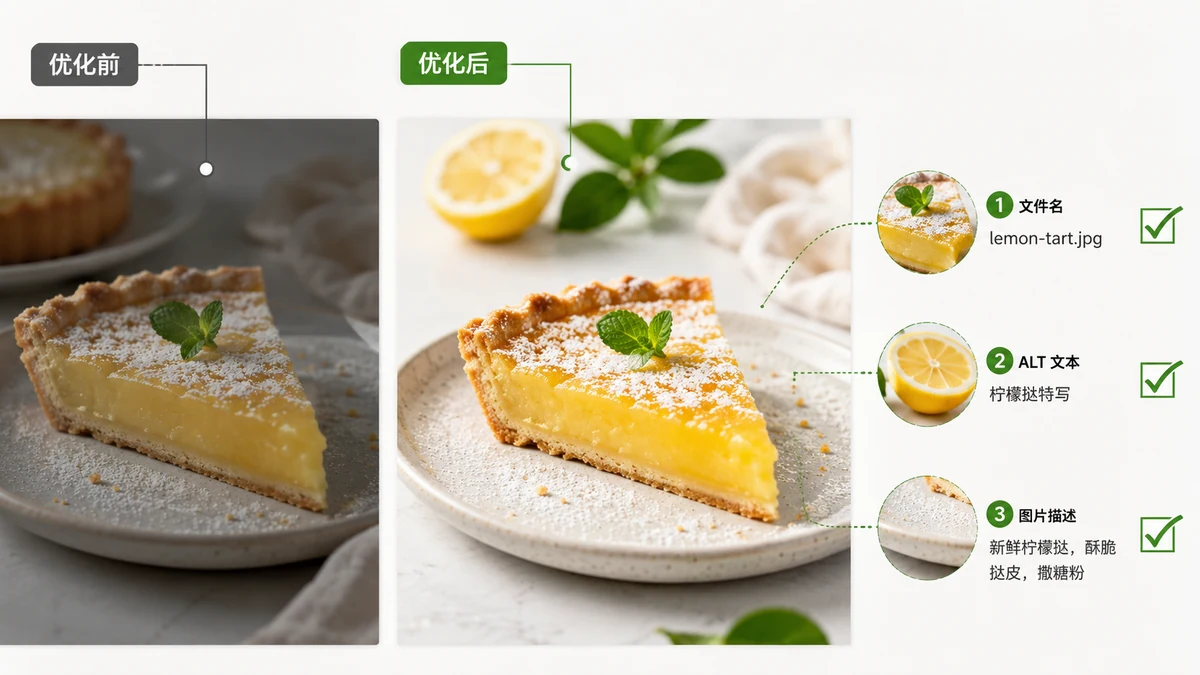
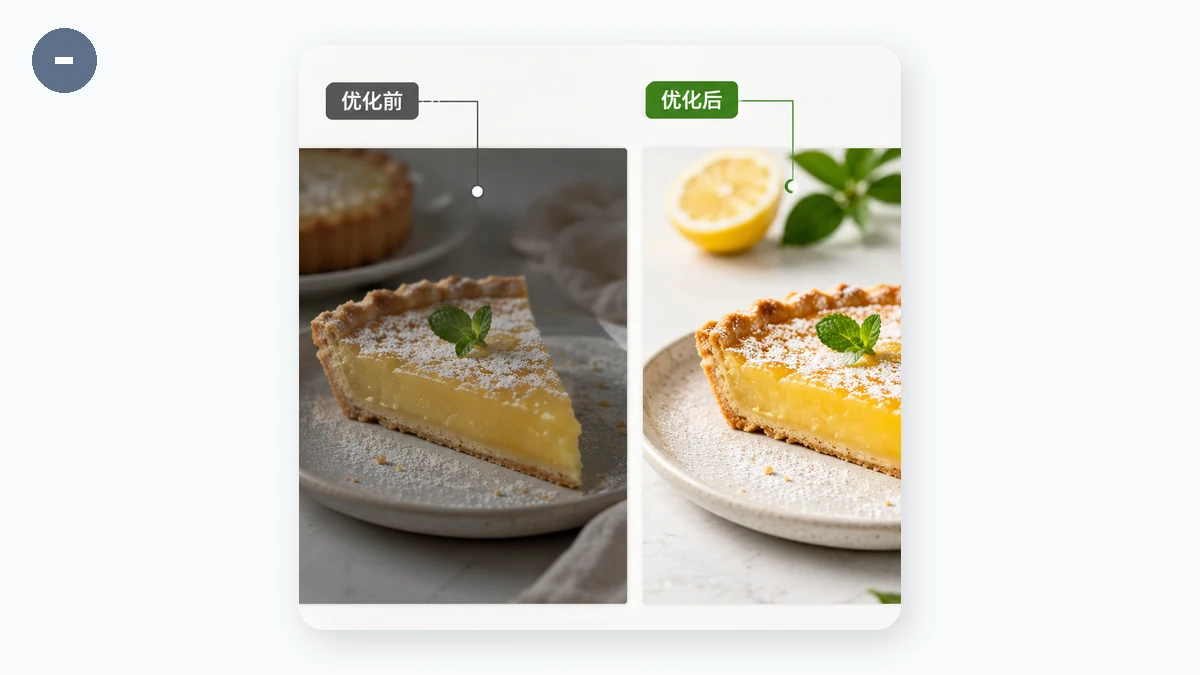
Images are often the biggest missed opportunity in on-page SEO. They pull traffic from Google Images, they shape how fast a page loads (a real ranking factor), and they make content accessible to people using screen readers. Get four things right — filenames, alt text, size and format, and loading behavior — and images become an asset instead of dead weight.
Here is the checklist I use, in the order I apply it.
1. Give files descriptive names
IMG_4823.jpg tells a search engine nothing. golden-retriever-puppy-training.jpg tells it exactly what the image shows. Filenames are a genuine ranking signal for image search, so rename before you upload.
Guidelines:
- Use real words that describe the image, separated by hyphens.
- Keep it short and specific — three or four words is usually enough.
- Avoid keyword stuffing;
best-cheap-dog-training-puppy-tips-guide.jpgreads as spam.
2. Write alt text for humans first
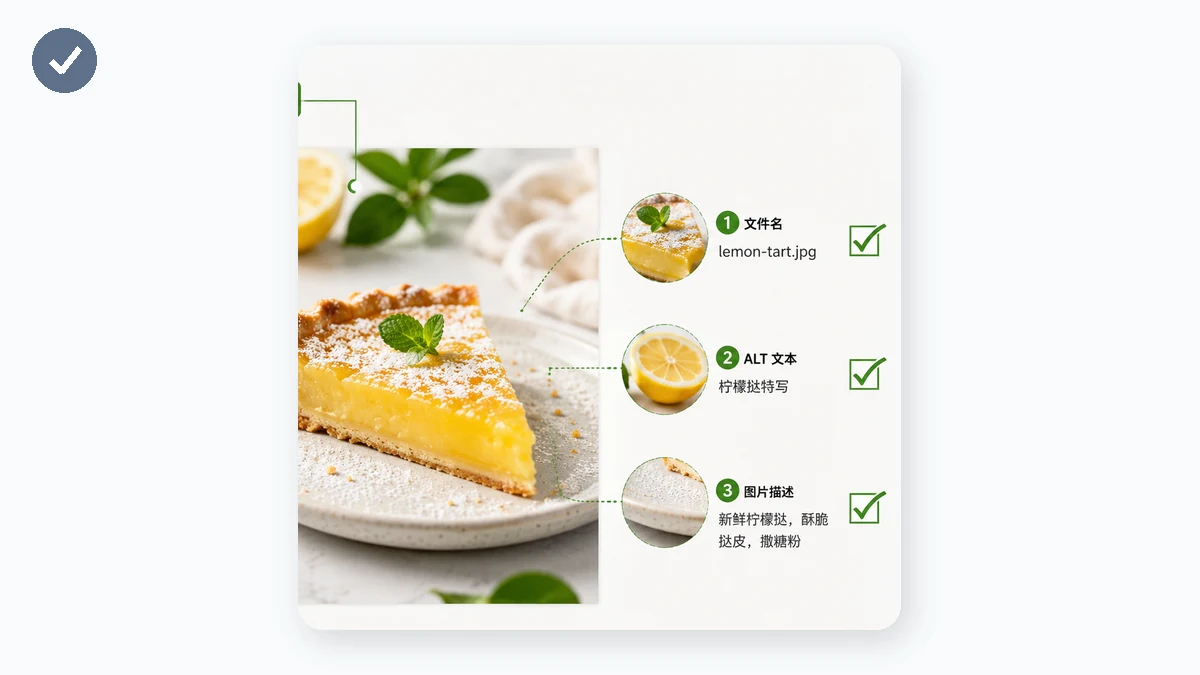
Alt text is the sentence a screen reader speaks aloud and the text shown if an image fails to load. Google also reads it to understand the picture. Write it as if you were describing the image to someone who cannot see it.
- Good:
alt="Golden retriever puppy sitting on command during a training session" - Weak:
alt="puppy" - Bad:
alt="dog training puppy tips best dog trainer near me"
Describe what is actually in the frame. If the image is purely decorative, use an empty alt="" so screen readers skip it. Do not start with "Image of" — search engines and screen readers already know it is an image.
3. Right-size and modernize every file
This is where SEO and page speed meet. An oversized image slows the page, and slow pages rank worse and lose readers. Two moves fix it.
Serve the size you display. A picture shown at 1000 pixels wide should not be a 4000-pixel file. Resize first.
Use a modern format. WebP is the sensible default in 2026; it is 25–35% smaller than JPEG with universal browser support. AVIF goes smaller still. The Image Converter can target AVIF and falls back to WebP automatically when AVIF is not the right fit, so you always ship the smallest format the situation allows.
Then compress. The Image Compressor re-encodes at a quality you choose, quantizes PNGs down to 256 colors, and never outputs a file larger than the original. For a whole page's worth of images, batch them and download a ZIP.
A quick target table:
| Use | Format | Width |
|---|---|---|
| Hero | WebP / AVIF | 1600–2000 px |
| In-article | WebP | 1000–1400 px |
| Thumbnail | WebP | 300–500 px |
| Logo / icon | PNG or SVG | as needed |
4. Control how images load
- Lazy-load images below the fold with
loading="lazy"so they download only as the reader scrolls near. - Set width and height attributes to reserve space and prevent layout shift — good for both user experience and Core Web Vitals.
- Provide a responsive
srcsetso phones get small files and desktops get large ones.
5. Support your images with the page
- Place each image near text that discusses the same topic; context helps search engines interpret it.
- Add an image sitemap entry for important images if your CMS supports it.
- Use captions where they genuinely help the reader — they get read more than body text.
Audit before you call it done
Guessing which images are too heavy wastes time. Run the page through a Page Speed Audit, which uses Google PageSpeed Insights plus an image-weight report to list your heaviest assets and flag anything that is oversized or in an old format. That audit needs an internet connection because it queries Google's live API — it is the one tool here that will not run offline. Fix the biggest offenders first and re-run.
The short version
Descriptive filenames, honest alt text, right-sized files in WebP or AVIF, and lazy loading. Do those four consistently and your images help you rank in both web and image search while keeping the page fast. Audit, fix the heaviest files, repeat.