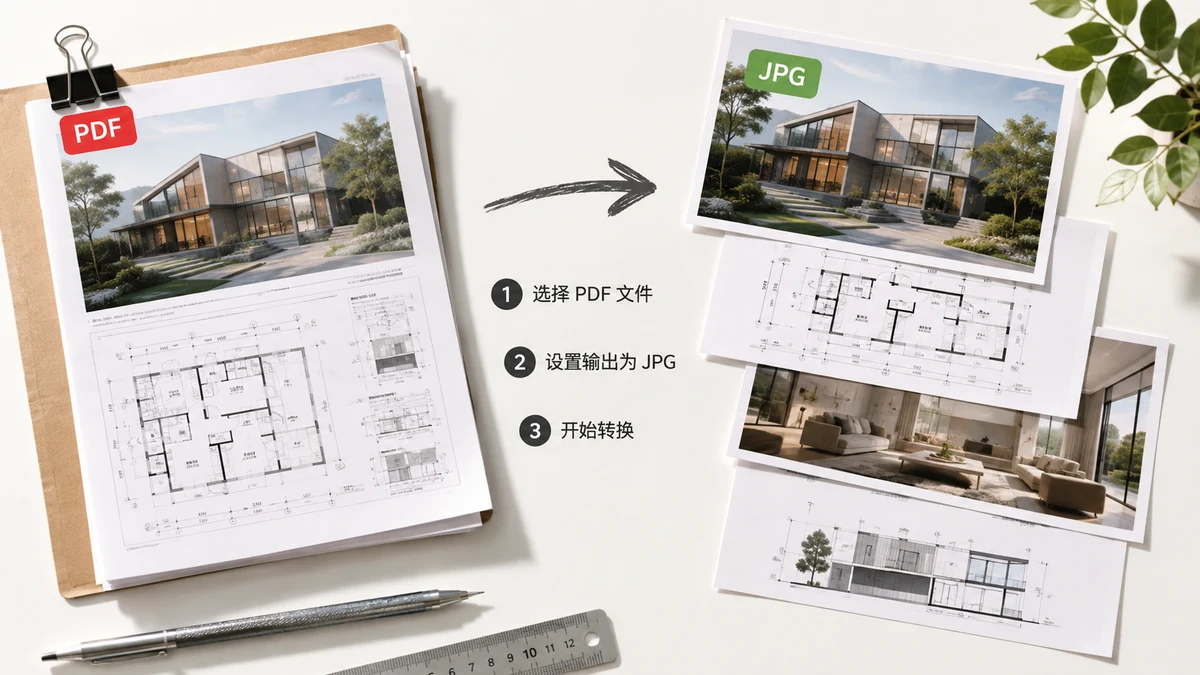
You need a PDF page as a JPG — maybe to post a page to social media, attach a preview in a chat, or drop a page into a document that won't accept a PDF. The conversion itself is simple. What trips people up is what a JPG can and can't hold, and the fact that most converters quietly send your file to a server first. This guide covers both.
Why turn a PDF page into a JPG at all
A PDF is a document format. Plenty of places that accept images don't accept PDFs: Instagram, most chat apps as inline previews, a lot of web forms, and slide editors that want a picture rather than an embedded file. Converting a page to a JPG gives you something that pastes and previews everywhere. JPG in particular keeps file sizes small, which is why it suits photo-heavy pages and anywhere the total download needs to stay light.
The two things that surprise people
Text becomes pixels. A JPG is a flat picture. Once a page is a JPG, the text on it can't be selected, searched, or edited — it's an image of text, not text. That's fine when your goal is to show the page. It's the wrong move if you actually need an editable or searchable file, so keep the original PDF for that.
JPG can't do transparency, so pages get a white background. PDF pages can be transparent; JPG cannot. When you export to JPG, any transparent area is filled with flat white. For most documents that's invisible — the page was white anyway. But if you were counting on a see-through background, choose PNG instead, which keeps transparency intact.
If sharp text and diagrams matter more than file size, PNG is often the better pick — it's lossless, so there's no compression fuzz around edges. Use JPG when the page is photographic or when small files win.
Resolution: don't just take the default
How sharp your JPG looks depends on the resolution you render at. Screen resolution (~108 dpi) is fine for something that'll only be viewed on a display. High (~144 dpi) stays crisp on dense phone and laptop screens. Print (~216 dpi) is for paper or when someone will zoom in — sharper, but noticeably larger files. Pick for where the image will actually be seen; there's no reason to make a 216-dpi JPG for a Slack message.
Doing it without uploading your file
Here's the part most "PDF to JPG" sites skip: clicking convert usually uploads your PDF to their server, which does the work and sends images back. For a public flyer, fine. For contracts, statements, or scanned forms, that's a copy of a private document sitting on hardware you don't control.
It doesn't have to work that way. tools.faxianai.com's converter renders pages using Mozilla's pdf.js engine directly in your browser, so the file never leaves your device. You pick JPG or PNG and a resolution, and it hands back a single image or a numbered ZIP of every page — with no account and no upload.
Once the page has loaded you can even switch off your network and it still works, which is the simplest proof nothing is being sent anywhere. For a quick way to turn PDF pages into JPGs you can post, paste, and share — without the file touching a server — that's all it takes.