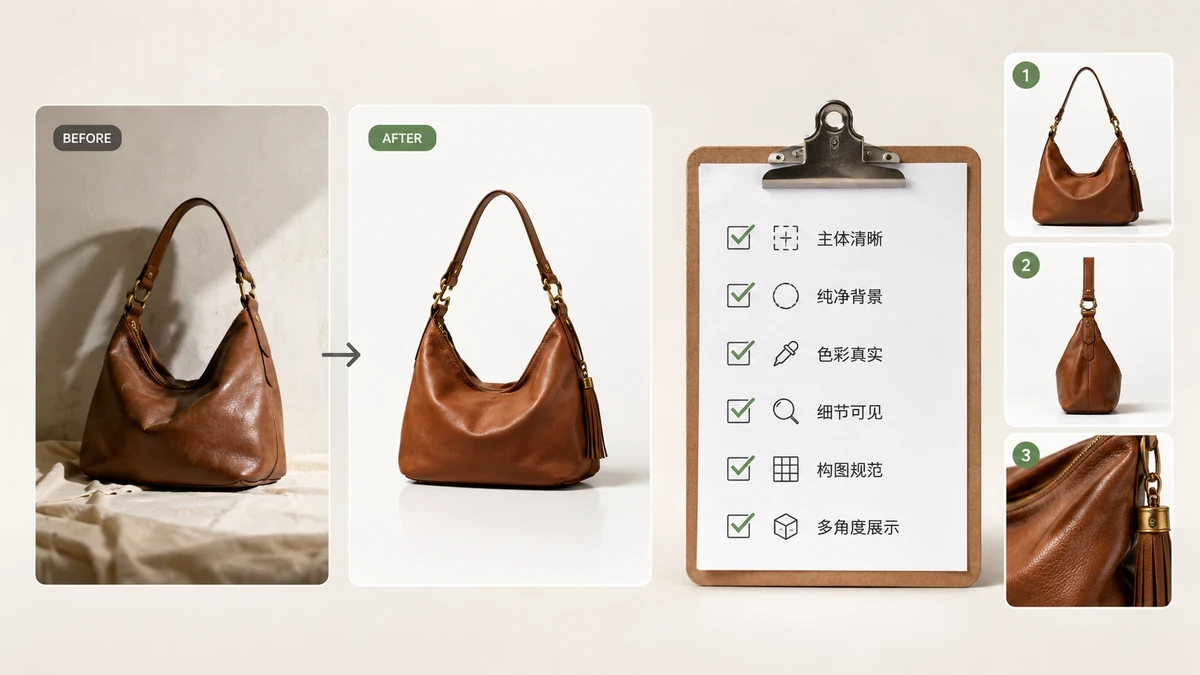
Most listing problems aren't creative — they're mechanical. Wrong size, off-white background, files too heavy, a gallery missing the one shot that answers the buyer's question. This checklist walks through the mechanics so nothing slips before you hit publish. Work top to bottom and your images will be compliant, fast, and persuasive.
Marketplace specs shift, so confirm exact numbers against each platform's current policy; the values here are the common, widely-cited baselines.
1. Dimensions and framing
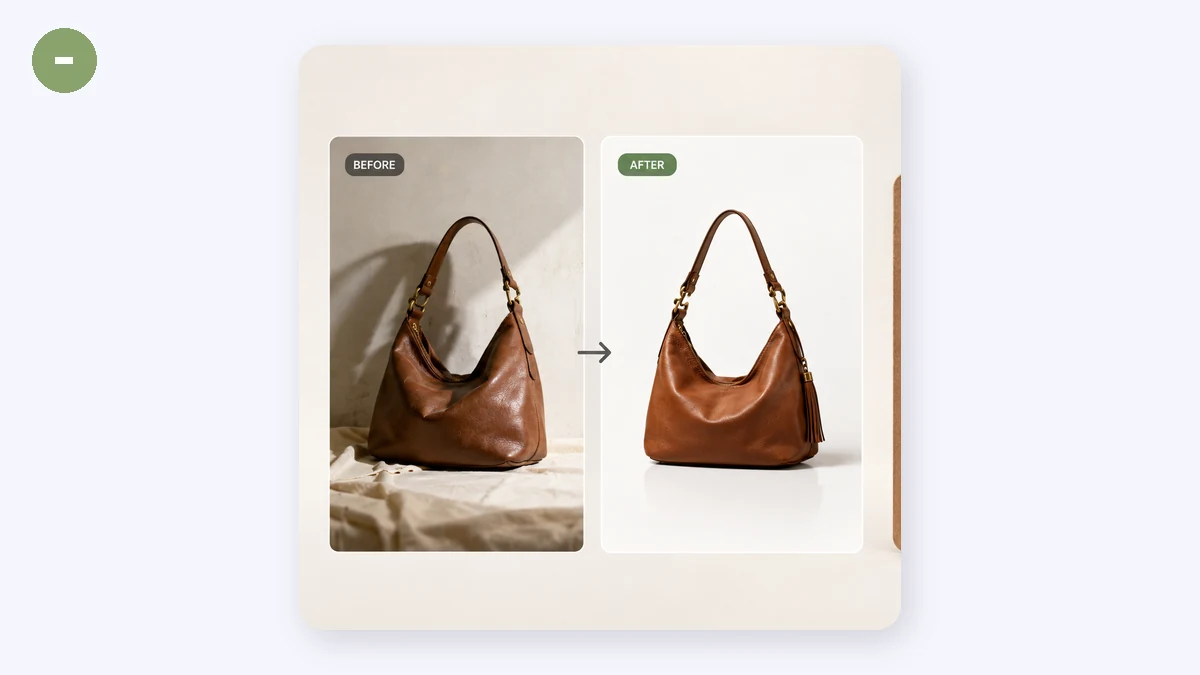
- [ ] Main image is square (1:1) unless the platform says otherwise
- [ ] Long side hits the platform target (Amazon 2000 px, Shopify 2048 px, eBay 1600 px, Taobao/JD 800 px)
- [ ] Product centered with a small, consistent margin
- [ ] Same size and framing across the whole catalog
Consistency here is what separates a store that looks designed from one that looks thrown together. The E-commerce Image Resizer has per-marketplace presets that output the right dimensions with the product auto-centered on white and an adjustable margin — batch a folder, get a ZIP.
2. Background

- [ ] Main image on pure white (RGB 255, 255, 255) where required
- [ ] No stray shadows, props, text, logos, or watermarks on the main image
- [ ] Corners of the canvas read as clean white, not near-white gray
3. File weight and format
- [ ] Photos saved as JPEG, graphics/transparency as PNG
- [ ] Each image compressed (quality 75–85 for photos)
- [ ] No single image heavier than it needs to be
- [ ] Color profile is sRGB
Heavy images are the silent conversion killer — slow galleries lose mobile shoppers and drag your search ranking. Run everything through the Image Compressor; it quantizes PNGs, quality-tunes JPG/WebP, and never returns a file bigger than the original, so you can batch the whole catalog safely.
4. Gallery coverage
A single main image doesn't sell. Fill the secondary slots so every common question is answered before the buyer has to ask:
- [ ] Main: clean product on white
- [ ] Scale: product next to a hand or common object
- [ ] Detail: close crop of texture, stitching, or material
- [ ] In use / lifestyle: the product in its real context
- [ ] Infographic: key specs or dimensions
- [ ] What's in the box: everything the buyer receives
5. Audit the live page
Once the listing (or product page) is live, verify the result instead of assuming. The Page QA tool audits a product page URL through Google PageSpeed Insights (Lighthouse), weighs the images on the page, and runs an e-commerce checklist so you can see what's actually slowing you down.
One thing to know: Page QA needs an internet connection because it calls Google's PageSpeed API — unlike the other tools here, it isn't an offline feature.
Things the audit helps you catch:
- [ ] Images aren't oversized for their display area
- [ ] Total image weight on the page is reasonable
- [ ] Largest Contentful Paint isn't dominated by a giant hero image
- [ ] Nothing is served far larger than it renders
The fast path
For a new batch of products, the efficient order is: resize with the marketplace preset → compress → upload → run Page QA on the live page and fix what it flags. Three tools, and only the last one needs a connection.
The resizer and compressor run entirely in your browser with Canvas and WebAssembly — no upload, no account, no watermark — and keep working offline after your first visit. Page QA is the one exception, since auditing a live URL requires reaching Google's API.
Tick every box above and your listings ship compliant, quick to load, and complete enough to close the sale.