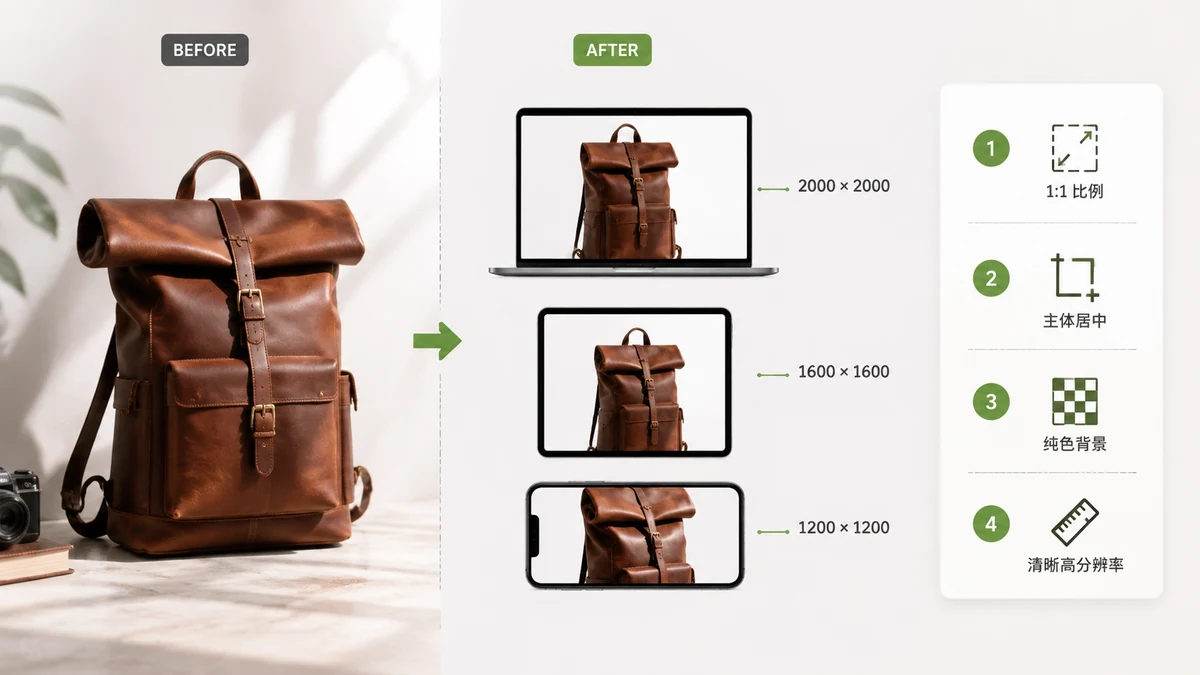
Shopify is more forgiving about image dimensions than a marketplace like Amazon — it will happily display almost anything. That flexibility is a trap. Upload huge, inconsistent files and your theme renders a slow, mismatched grid where some products look sharp and others look cropped or tiny. Getting your sizes right up front makes the whole store feel professional and load fast.
Sizes and theme behavior evolve, so treat these as the common, widely-used recommendations and confirm against your current theme's documentation.
Recommended sizes
| Image type | Common recommendation | Aspect ratio |
|---|---|---|
| Product photos | 2048 × 2048 px | 1:1 (square) |
| Square is safest overall | up to 4472 × 4472 px max | 1:1 |
| Collection / thumbnails | ~1024 × 1024 px | 1:1 |
| Slideshow / hero banner | ~1600 px wide (or wider) | 16:9 or theme-set |
| Max file size | 20 MB per image (aim far lower) | — |
Two things matter more than any single number.
Pick one aspect ratio and stick to it. Shopify themes look best when every product photo shares the same shape. Square (1:1) is the most reliable choice because it fits nearly every theme's grid without awkward cropping. If you mix square, portrait, and landscape, your grid will look ragged.
2048 × 2048 is the sweet spot for products. It's crisp enough for Shopify's built-in zoom on desktop, scales down cleanly for thumbnails and mobile, and stays well under the file-size ceiling. Bigger than that mostly just adds weight.
Standardize the whole catalog at once
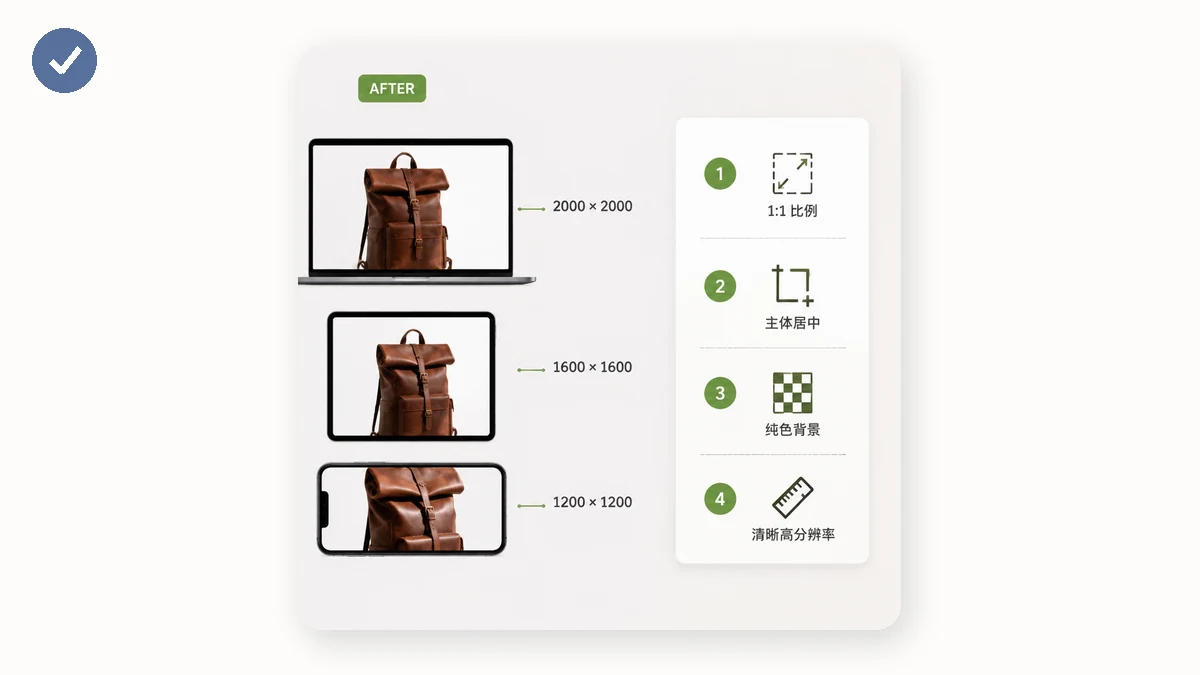
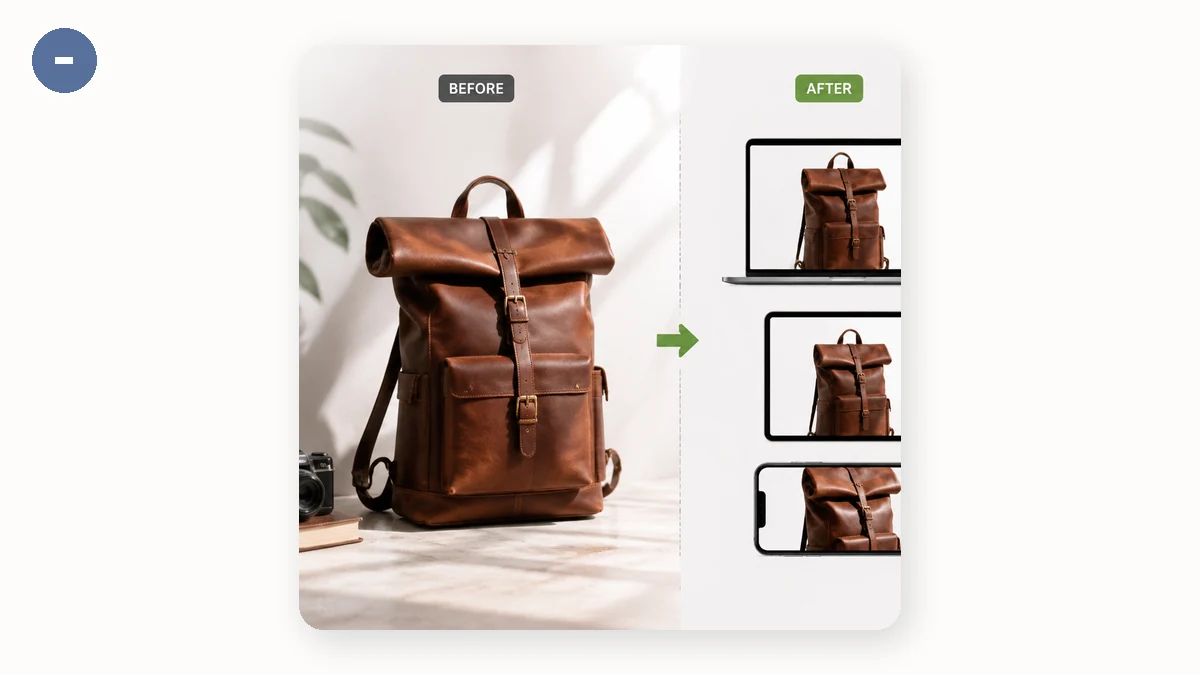
Resizing dozens of product photos by hand is where an afternoon disappears. Don't. The E-commerce Image Resizer has a Shopify preset that outputs 2048 × 2048 squares on a white background, with each product auto-centered and a margin you can adjust so nothing touches the edge. Drop in a folder, get a ZIP back — every image the same size, same shape, same framing.
That consistency is what makes a Shopify grid look designed rather than assembled.
Then cut the file weight
Correct dimensions solve layout. File weight solves speed — and speed is money on Shopify, where slow pages quietly cost conversions and hurt your search ranking.
A 2048 px photo straight out of a camera can be several megabytes. That's far more than the page needs. Run every image through the Image Compressor: for photos, quality 75–85 typically cuts the file 40–70% with no visible difference; PNGs get quantized down automatically. The compressor never hands back a file larger than the one you gave it, so you can batch the whole store safely.
Order that works well:
- Resize to 2048 × 2048 with the Shopify preset.
- Compress at quality 75–85 (or let PNG quantization run).
- Upload — same shape, small files, fast grid.
WebP, JPG, or PNG?
Shopify automatically serves WebP to browsers that support it, so you generally don't need to convert formats yourself. Upload clean JPGs for photographs and PNGs only for graphics that need transparency or crisp text. Let the platform handle format delivery; your job is to ship correctly-sized, well-compressed source files.
Everything stays on your machine
Both tools run entirely in your browser using Canvas and WebAssembly — no upload, no account, no watermark. Your product photos never touch a server. After the first visit the tools are cached and keep working offline, so you can prep a full catalog on a train and upload once you're back online.
Square it, size it to 2048, compress it, and your Shopify store loads fast and looks like one coherent shop instead of a pile of random uploads.