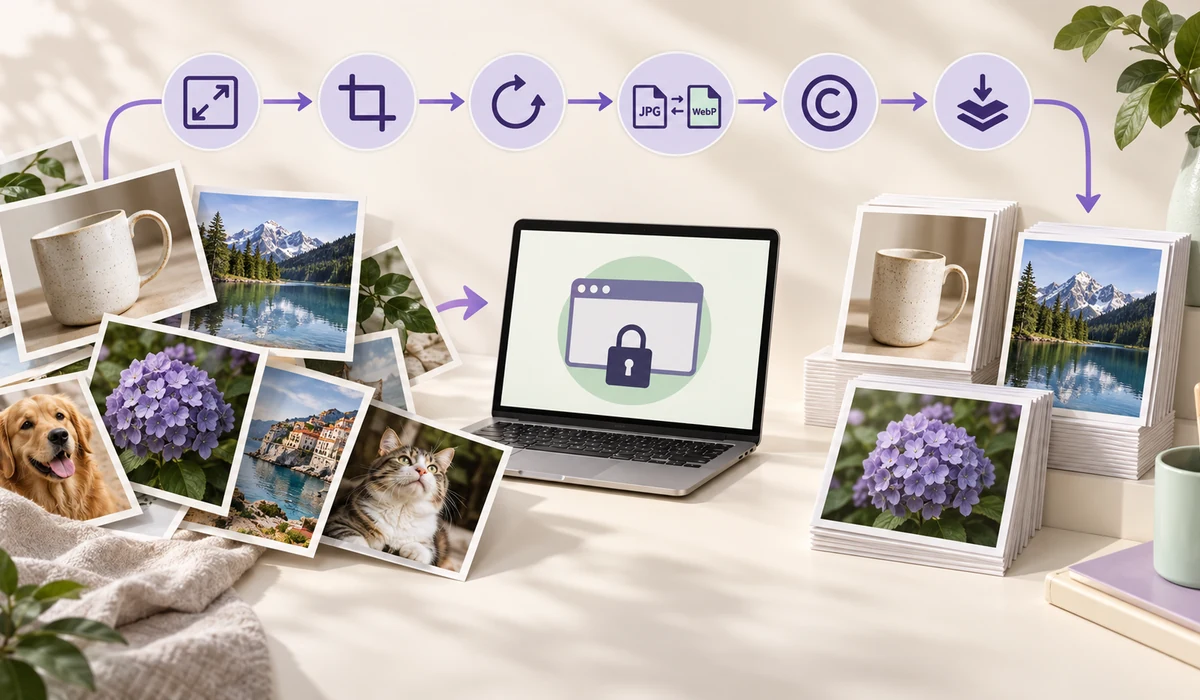
Editing images one at a time burns afternoons. Eight hundred product shots that all need to be 1600×1600 with the shop name in the corner. Three hundred PNG screenshots that should have been WebP. A camera roll that must lose its GPS tags before it goes anywhere. The common thread: the same handful of operations, repeated dozens or hundreds of times.
This studio chains the six operations people actually repeat — resize, crop to a ratio, rotate and flip, colour, watermark, convert and compress — into one pipeline. Set it once, let it run through the batch image by image, and take the results as a single ZIP. Every pixel is processed inside your own browser; the files never leave your computer.
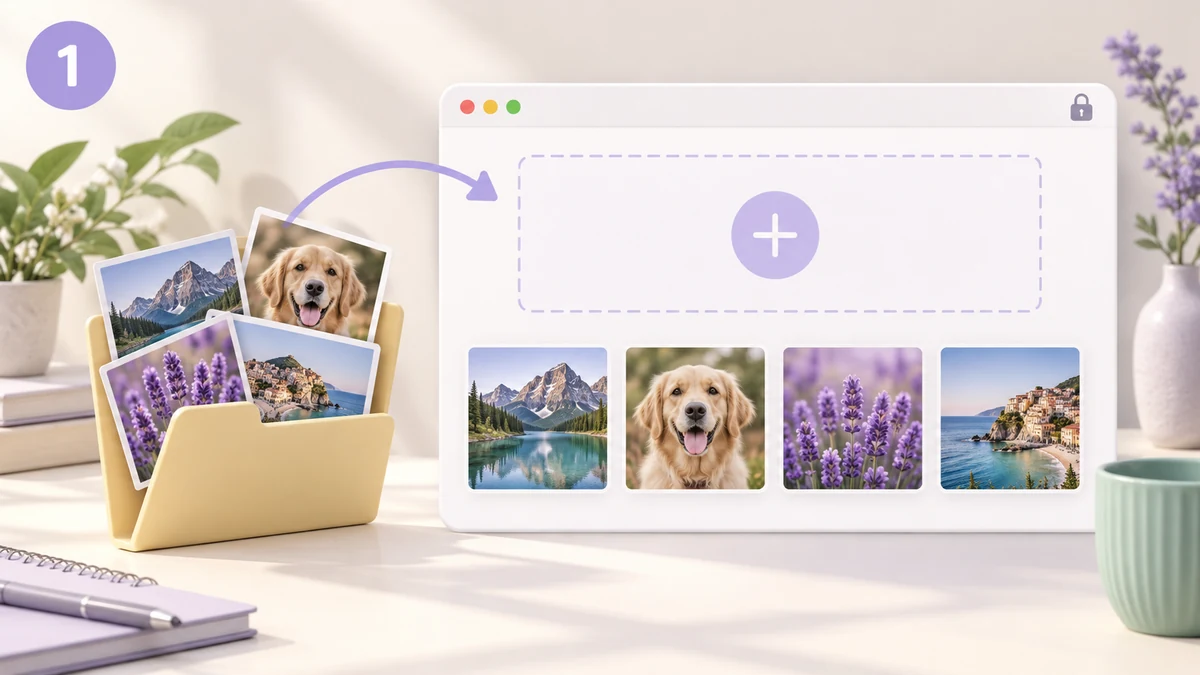
How to use
- Drop the whole batchDozens or hundreds of files at once. iPhone HEIC photos open directly, and pasted screenshots work too.
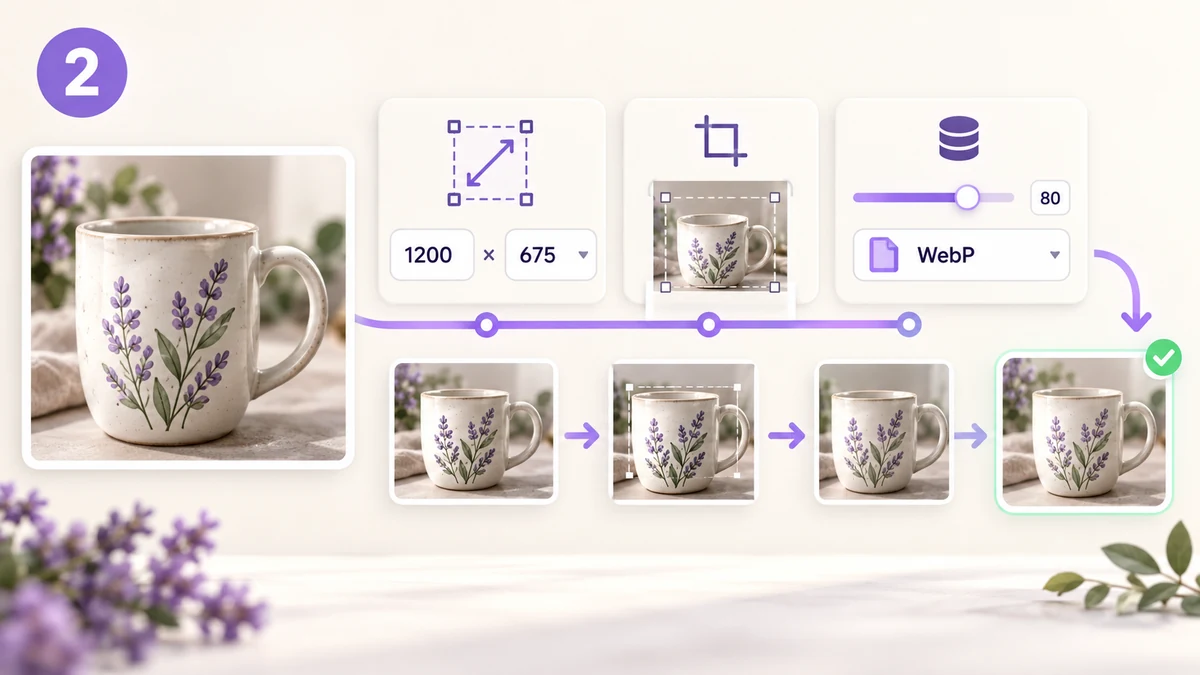
- Switch on the steps you needAll six steps start off. The live preview shows the first image with every setting applied — adjust until it looks right.
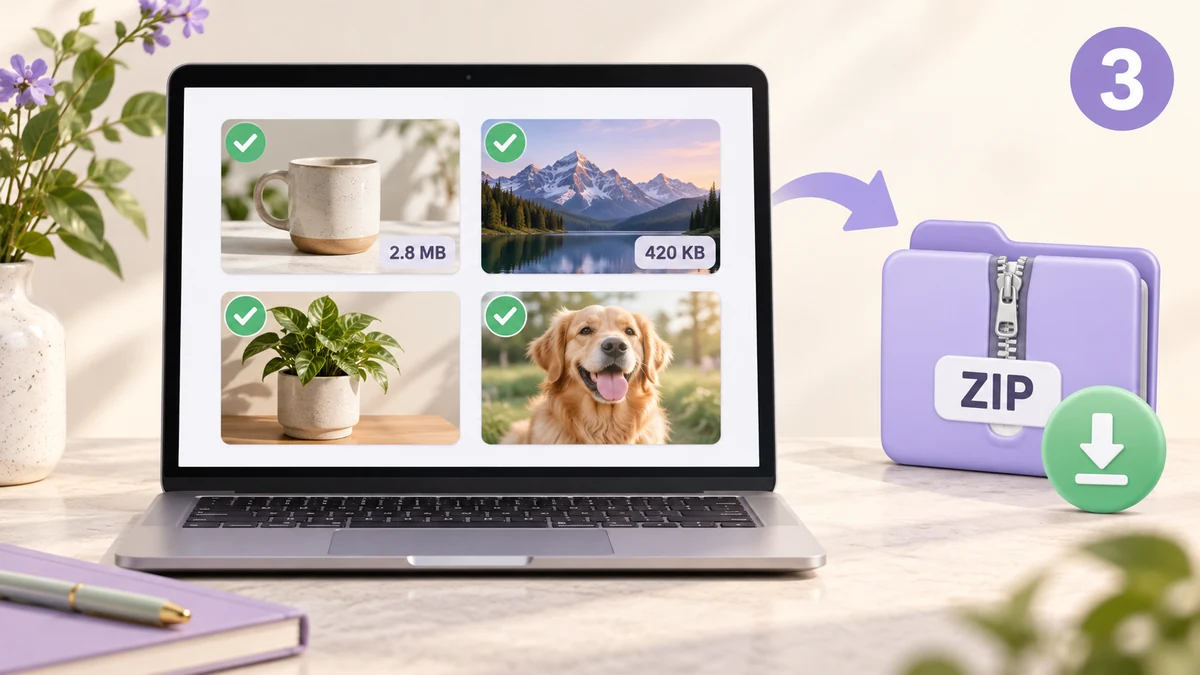
- Process everything and take the ZIPHit Process all, compare size and dimensions before and after for each file, then save one or download the whole batch zipped.
The step order is fixed, and for a reason
Resizing always comes first. Shrinking a 6000-pixel camera original to 1600 before anything else means crop, colour and watermark each touch about one fourteenth of the pixels — on a batch of several hundred, that is the difference between a minute and a quarter of an hour. Cropping follows immediately, so the common e-commerce combination of fill 1600×1600 then trim the overflow happens in one move.
Rotation, colour and the watermark sit in the middle; encoding is last. The watermark is drawn at the final size, so no later downscale can blur it. This is the same order you would choose by hand in a desktop editor — you just don't have to remember it.
Compression and privacy cleanup come for free
The final encode compresses JPG, WebP and AVIF at the quality you set; PNG can go to a 256-colour palette, which usually cuts screenshots and icons by sixty to seventy percent. Never output a file larger than the original is on by default, so a file that was already well compressed is passed through untouched instead of growing.
Re-encoding has one more side effect worth having: the original EXIF block — GPS coordinates, camera model, capture time — never makes it into the output. Photos posted online should not carry your home address, and this saves you a separate metadata-stripping pass.
What people use it for
Uniform product images — Fill the whole batch to 1600×1600, crop square, stamp the shop name bottom-right — ready for the marketplace spec.
Hit a hard upload limit — Set a 200KB target for application photos or a 1MB target for a listing — every file lands under the line in one run.
Re-encode a site gallery — Convert hundreds of PNGs to WebP and cap the longest side at 1920; page weight drops by more than half.
Strip location before sharing — Shrink a camera roll to 2000 pixels; EXIF and GPS disappear with the re-encode.
Watermark a portfolio — A tiled, semi-transparent mark across dozens of images in one go, so reposts still carry your name.
Slim down screenshots — Dozens of PNG screenshots re-encoded on a 256-colour palette shrink a document noticeably.
Deliver with clean names — Rename to project-001, project-002, or add a prefix or suffix, so the hand-off is tidy.
Why a pipeline beats running six tools in a row
This site already has separate tools for compressing, resizing, cropping, rotating and watermarking, and each of them handles batches. Real jobs are rarely a single step, though: preparing listing images is usually resize plus square crop plus watermark plus compress, back to back. Running those separately means downloading four times and re-uploading three, and every round trip re-encodes the image, so quality erodes a layer at a time.
The pipeline decodes each image once and encodes it once. Resize, crop and colour operate on the bitmap in memory with no lossy stage in between; only at the end is the result written out in the format and quality you chose. Take the same batch through four separate passes and through one pass, and the difference in the final JPGs is visible — and the one-pass files are usually smaller.
File names are the other practical problem. Chain several tools and each one appends its own suffix. The pipeline names files exactly once, at the end: keep the original name, add a prefix or suffix, or renumber the whole batch in order.
What makes it different from a typical batch tool
- Nothing is uploaded. Decoding, processing and zipping all happen in your browser. Not a byte reaches a server, which matters for client assets and unreleased product shots.
- Decoded once, encoded once. The six steps run on an in-memory bitmap, so there is no repeated lossy compression between them.
- Preview before the batch. The first image reflects every current setting live. Confirm it, then process — instead of discovering a misplaced watermark after a hundred files.
- Never grows a file. If an image is already small, the original is kept rather than producing a larger 'compressed' copy.
- HEIC in, no conversion first. iPhone HEIC photos drop straight into the batch alongside JPG, PNG and WebP.
- No stingy file cap. Up to 300 per run; the real limit is your computer's memory.
Compared with desktop software and other online tools
Photoshop actions, XnConvert and IrfanView all do this kind of work and do more of it. Online batch tools usually ask you to upload, wait in a queue, or sign up. This studio aims at the space between: nothing to install, nothing to upload, and the six steps people actually need.
| Aspect | Photoshop actions / XnConvert | Typical online batch tool | tools.faxianai.com |
|---|---|---|---|
| Upload | None (local software) | Files go to their server | None (runs in your browser) |
| Install & price | Install required; Photoshop is paid | Free with limits or a watermark | Free, nothing to install |
| Chained steps | Yes, after recording an action | Mostly one operation at a time | Six-step pipeline, toggle and go |
| Quality loss | One encode | One encode per tool | One encode |
| Learning curve | High | Low | Low |
| HEIC input | Partial | Rare | Yes |
If you process thousands of images a day and need scripting or colour management, desktop software is still the professional choice. For the occasional few dozen to few hundred files, with nothing to install and nothing handed over, this is enough.
Why tools.faxianai.com
Privacy first
Processed on your device only. Nothing uploaded.
One encode
Six chained steps without stacking quality loss.
Real batches
Dozens or hundreds in one run, zipped.
EXIF gone
Location and camera data never reach the output.