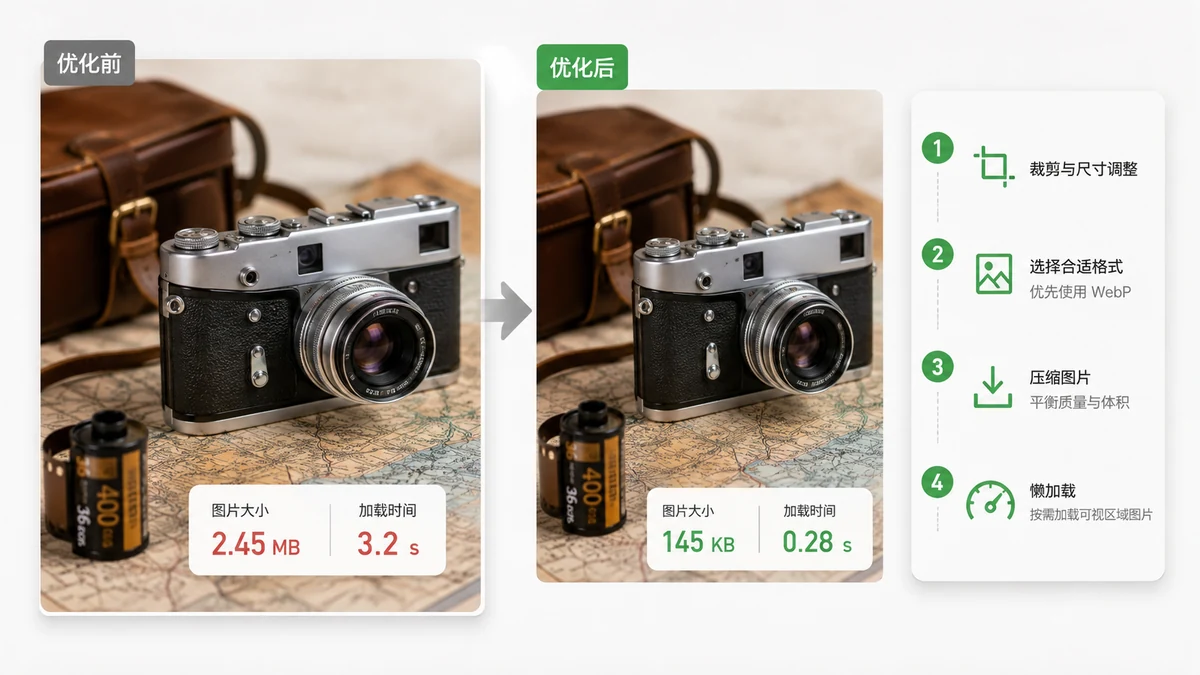
On most websites, images are the single heaviest thing on the page, often larger than the HTML, CSS, and JavaScript combined. If a page feels slow, the images are the first place to look, and the fixes are usually quick.
Three techniques do almost all the work: resize the image to the size it is actually shown, compress it, and serve it in a modern format. Applied together they routinely cut image weight by 70% or more.
Resize to the size you actually display
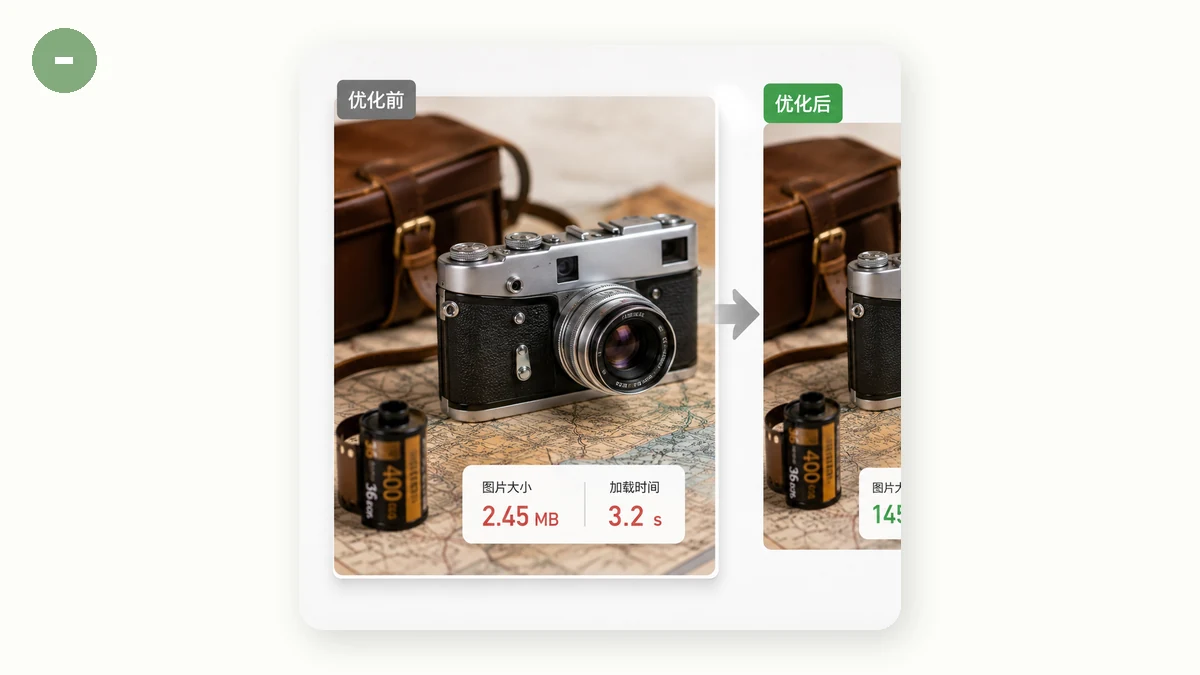
This is the most common and most wasteful mistake. A photo straight off a camera might be 6000 pixels wide, but your article displays it in a column 800 pixels wide. The browser downloads all six thousand pixels and then throws most of them away when it shrinks the image to fit.
Serving a 6000-pixel image in an 800-pixel slot can mean downloading five to ten times more data than necessary. The fix is simple: resize the file to roughly the width it will occupy, plus a little headroom for high-density screens.
A practical rule:
- Full-width hero image: 1600–2000 px wide is plenty.
- In-article image: 1000–1400 px.
- Thumbnail: 300–500 px.
Use the Image Resizer to bring each image down before it ever reaches your page. It keeps the aspect ratio locked so nothing stretches.
Compress to strip the waste
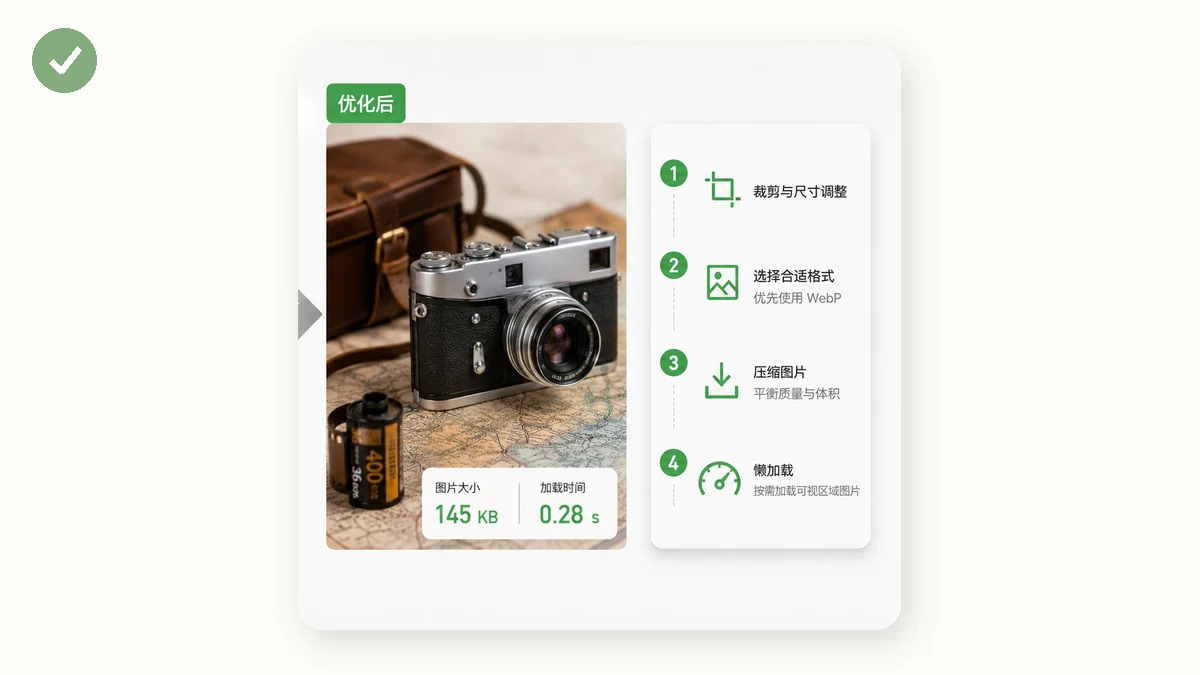
Once the dimensions are right, compression removes detail the eye cannot see. For photographs, quality around 75–85% is the sweet spot: the file drops dramatically while the picture looks the same. For flat graphics and screenshots saved as PNG, color-count reduction (quantizing to 256 colors) can shrink the file to a fraction of its original size.
The Image Compressor handles both. It re-encodes JPEG and WebP by quality, quantizes PNGs, and guarantees it will never produce a file bigger than the one you started with. If you have a whole gallery, run them as a batch and download a ZIP.
Switch to a modern format
Format choice alone can halve a file. Here is how the common options compare for photographs.
| Format | Typical size vs JPEG | Best for |
|---|---|---|
| JPEG | Baseline | Universal fallback; photos |
| WebP | ~25–35% smaller | Photos and graphics; broad browser support |
| AVIF | ~50% smaller | Photos where the smallest size matters |
| PNG | Much larger for photos | Logos, icons, flat graphics, transparency |
WebP is the safe default in 2026 — every current browser reads it and it beats JPEG comfortably. AVIF goes smaller still but takes longer to encode and has slightly narrower support. The Image Converter lets you target AVIF and quietly falls back to WebP when AVIF is not the right fit, so you get the best available result without guessing.
One caution: do not use PNG for photographs. PNG shines for logos, icons, and anything needing transparency, but for a photo it can be several times larger than a WebP of the same quality.
Put it together
A reliable pipeline for any image bound for the web:
- Resize to the display width (plus headroom for retina screens).
- Convert to WebP, or AVIF if you want the smallest possible file.
- Compress at 75–85% quality to shave off the last of the waste.
Do that and a 5 MB camera photo can become a 120 KB WebP that looks identical in an article column. Multiply across a page and the difference in load time is dramatic.
Everything runs in your browser using Canvas and WebAssembly, so nothing is uploaded and the tools keep working offline after your first visit. That means you can prep a folder of images for your site without handing them to any server.
Beyond the files
Two more habits help, and they cost nothing:
- Lazy-load below-the-fold images with
loading="lazy"so the browser only fetches them as the reader scrolls near. - Set width and height attributes so the layout does not jump while images load, which also helps your Core Web Vitals score.
Want to know exactly which images are dragging a page down? Our image SEO guide covers auditing, and a page speed check will list the heaviest assets so you know where to aim first.