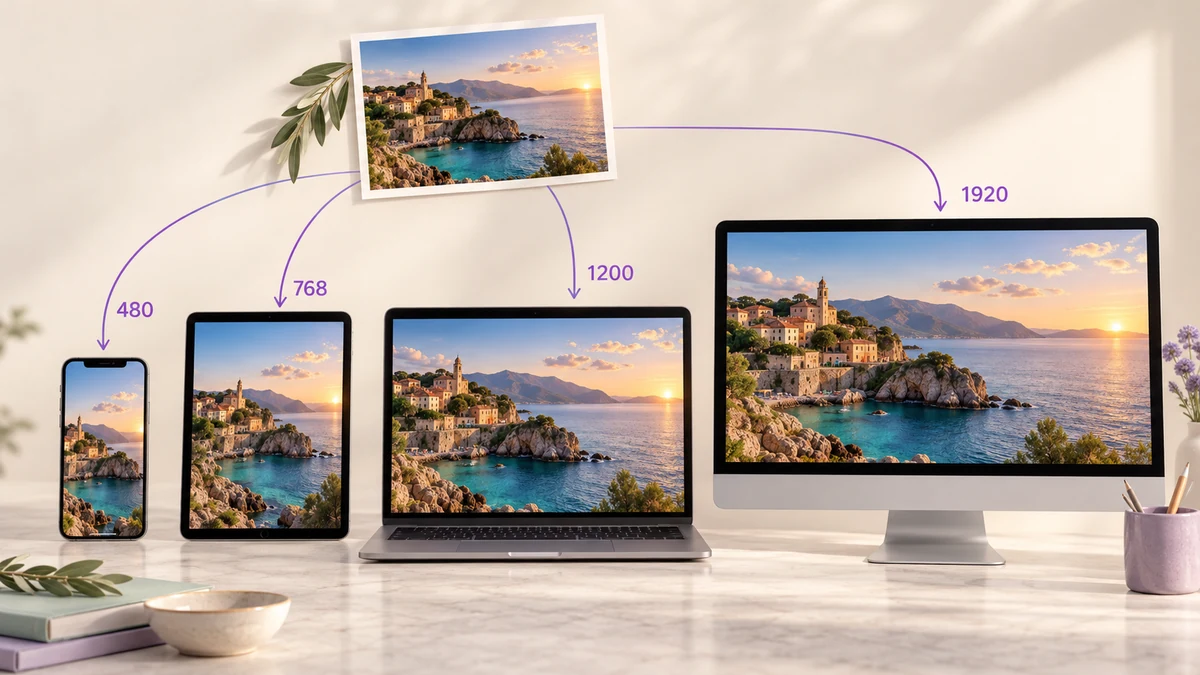
A 1920-pixel-wide image on a page is downloaded in full by phone users too, then scaled down to 390 pixels on screen — five times the bandwidth and a slower load for nothing. srcset lets the browser pick a version that fits the screen, provided you have produced those versions.
Why one image isn't enough
The LCP figure in Core Web Vitals is usually the big image above the fold. Serve a phone a 1920-wide, 400KB file and LCP rarely makes 2.5 seconds; a 480-wide, 40KB version on the same connection is an order of magnitude faster. Google's page-experience signal reads that number directly.
Conversely, a 768-wide image on a large desktop looks soft. Hence several sizes, chosen by the browser.
A practical breakpoint table
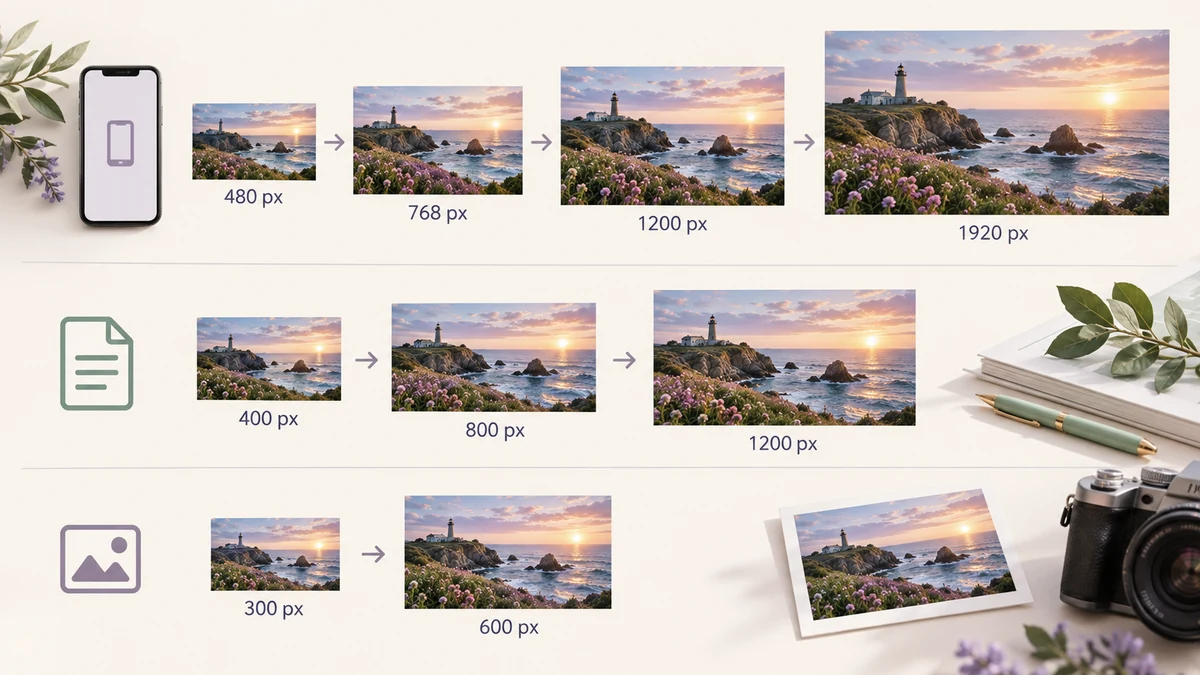
Breakpoints follow the image's rendered width on the page, not the viewport. For the two common cases, full-width banners and in-article figures:
- Full-width images (hero, banners): 480, 768, 1200, 1920. Phone, tablet, laptop, large display.
- Article figures (content column up to about 800): 400, 800, 1200; the 1200 serves 1.5x–2x screens.
- Thumbnails and cards (rendered around 300): 300 and 600.
More steps are not better. Each one is another export and another file to store, and browsers tolerate a mismatch, so steps 1.5–2x apart are the sweet spot. Four steps cover more than nine in ten device combinations.
Do you need 2x versions?
Retina and most phone screens run at 2x–3x density; an image rendered 400 wide needs 800 pixels to look crisp there. The larger steps in the table already act as the 2x version of the smaller ones — 768 is 2x for a 390-wide phone, 1200 is 2x for a 600-wide column.
So there is no need for a separate "@2x" set. Keep roughly 2x spacing between steps and the browser picks the higher one by density.
Format: WebP first, JPG as fallback
At equal quality WebP is 25–35 percent smaller than JPG and every modern browser supports it. Export WebP at each size and keep a JPG fallback via the picture element for old browsers; if pre-2020 browsers no longer matter for your audience, WebP alone is fine.
AVIF is smaller still but encodes far more slowly in the browser, which hurts on large batches. AVIF vs WebP vs JPEG covers the trade-offs in detail.
Batch-exporting the whole set
Drop the source images into Batch Image Processing and run once per step, changing the width and suffix each time:
- Size: width 480, Allow upscaling off, output WebP at 80 percent, suffix -480.
- Same settings at 768 with suffix -768; then 1200; then 1920.
- For a JPG fallback, switch the output to JPG, keep the suffixes, run again.
Each run takes seconds and the ZIP already contains hero-480.webp, hero-768.webp and so on, ready for the images folder. Keep Allow upscaling off so a 1000-pixel original is never stretched to 1920.
To see the size difference per step on one image, try Image Resizer on a single file.
Writing the HTML
For a full-width image:
<img src="hero-1200.jpg"
     srcset="hero-480.webp 480w, hero-768.webp 768w, hero-1200.webp 1200w, hero-1920.webp 1920w"
     sizes="100vw" width="1920" height="1080" alt="...">
For article figures, set sizes to the real width, e.g. sizes="(max-width: 840px) 100vw, 800px". Always include width and height so the browser reserves space and the page doesn't jump.
With that done, add the lazy-loading and compression advice in how to make images load faster and the image portion of your performance score is essentially maxed out.