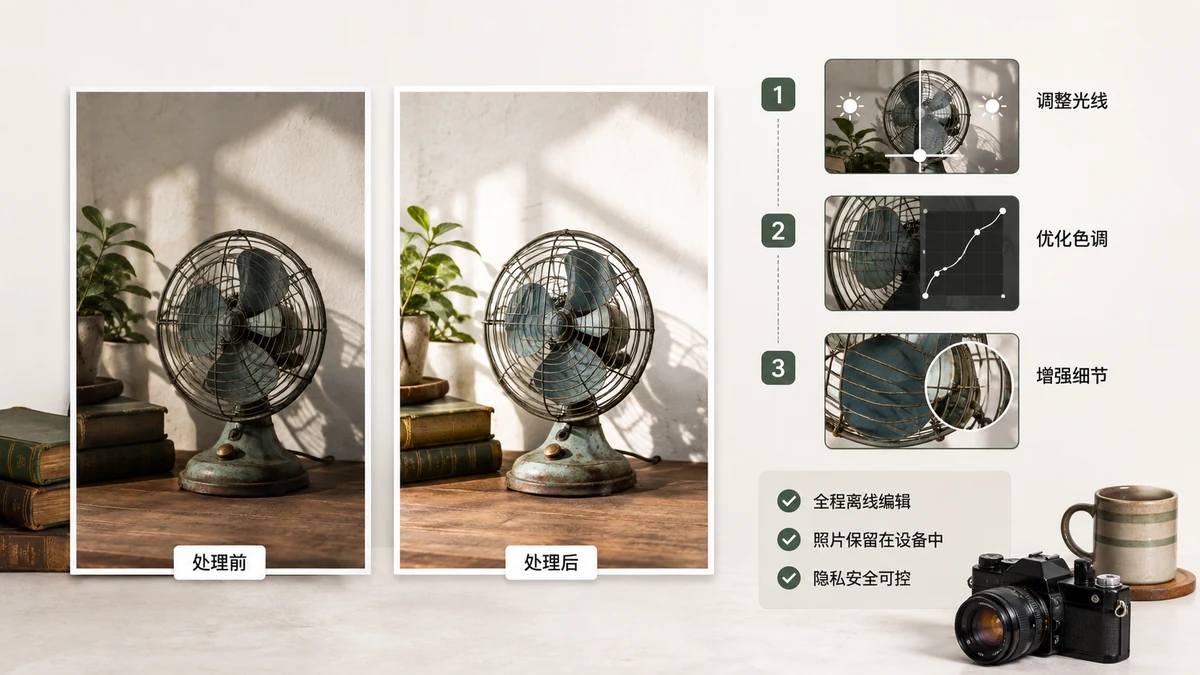
You have a photo you'd rather not hand to a random website — a screenshot of a document, a picture of your kid, an ID card, something for work. You still need to crop it, shrink it, or knock out the background. The usual answer is "upload it to some tool," but you don't actually have to. Every one of those edits can happen right in your browser, with the file staying on your device the entire time.
Here's how private editing works, and which tasks you can do without anything leaving your machine.
What "without uploading" actually means
There are two ways an image tool can process your photo:
- On a server. You upload, their computer edits, you download. Your file left your device.
- In your browser. The page uses your own device's processor — through the Canvas API and WebAssembly — to do the editing. The file is read into the tab's memory and never sent anywhere.
The second kind is what you want when privacy matters. There's a simple way to confirm a tool is the second kind: load it once, switch to airplane mode, and try to use it. If it still works with no internet, the processing is local. A server-based tool can't run offline; a browser-based one doesn't need to.
Compressing a photo locally
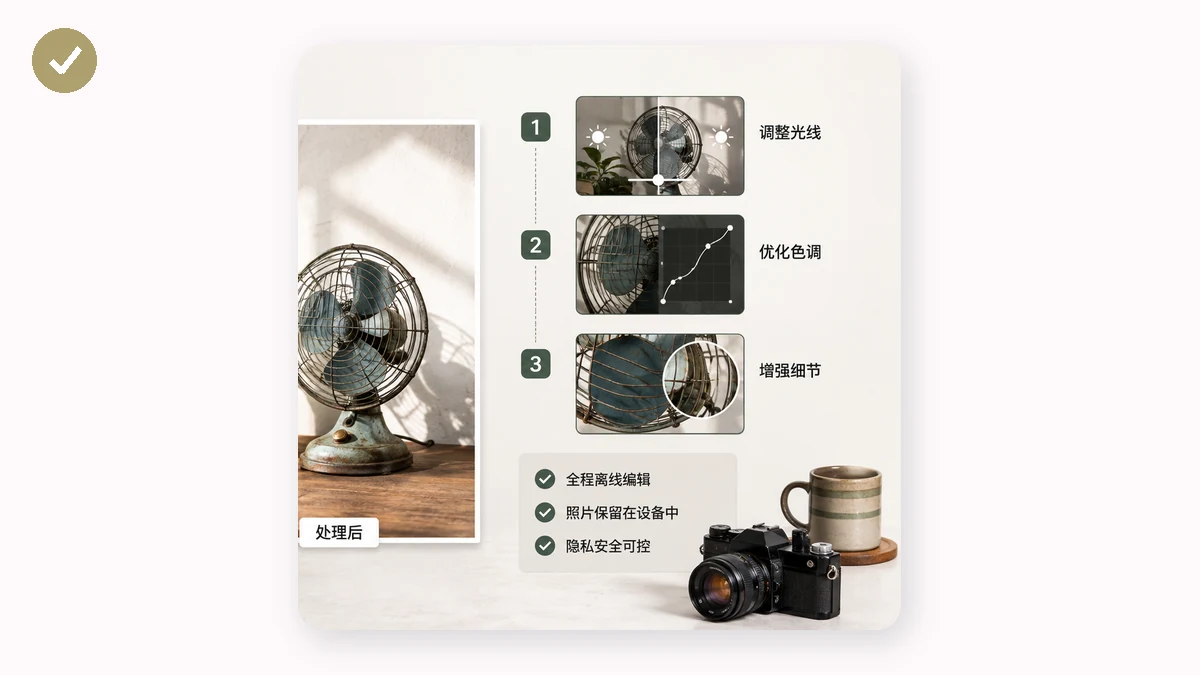
Big image files are awkward to email and slow to send. To shrink one without uploading, use a browser compressor like tools.faxianai.com's compress tool. Drop the image in, pick a quality level (or let it quantize a PNG down to 256 colors), and it re-encodes the file in your browser. It handles a batch at once and gives you a ZIP, and it never outputs a file larger than the original. Nothing is transmitted.
Cropping without a server
Cropping is pure geometry — you're just choosing which rectangle of pixels to keep. There is no reason it should require an upload. The crop tool gives you a draggable box with free-form or preset aspect ratios (1:1 for a profile picture, 16:9 for a banner, and so on). You drag, you confirm, you download. The math runs on the Canvas element in your browser. Your original photo is never sent to anyone.
Removing a background on your own device
Background removal used to be the one task that felt like it needed a server, because it uses an AI model. It doesn't. tools.faxianai.com's background remover runs the cutout model inside your browser using WebAssembly, producing a transparent or white background without uploading your photo.
There's one honest caveat: the AI model has to be downloaded once. It's a small file (u2netp is about 4MB; the higher-quality silueta is about 43MB). That download is the model itself — not your image. After it's cached, background removal works offline too, and your photos still never leave the device.
A quick privacy checklist for any photo tool
Before trusting a tool with a sensitive image, run through this:
- Airplane-mode test. Load the page, go offline, try to edit. Works offline = local processing.
- Watch the network tab. Press F12, open Network, do the edit. A big upload the size of your file means it was sent to a server.
- Strip metadata separately. Editing pixels doesn't remove EXIF data like GPS coordinates. If you're sharing the result, clean it with an EXIF remover afterward.
- Prefer no-signup tools. If a "free" editor wants your email and account before touching a photo, ask what it's collecting.
The whole point of browser-based editing is that the trust question mostly disappears. A tool can't misuse a file it never received. tools.faxianai.com is a PWA, so once you've visited, the tools stay cached and keep working with your device fully offline — the strongest guarantee that your photos are staying put.