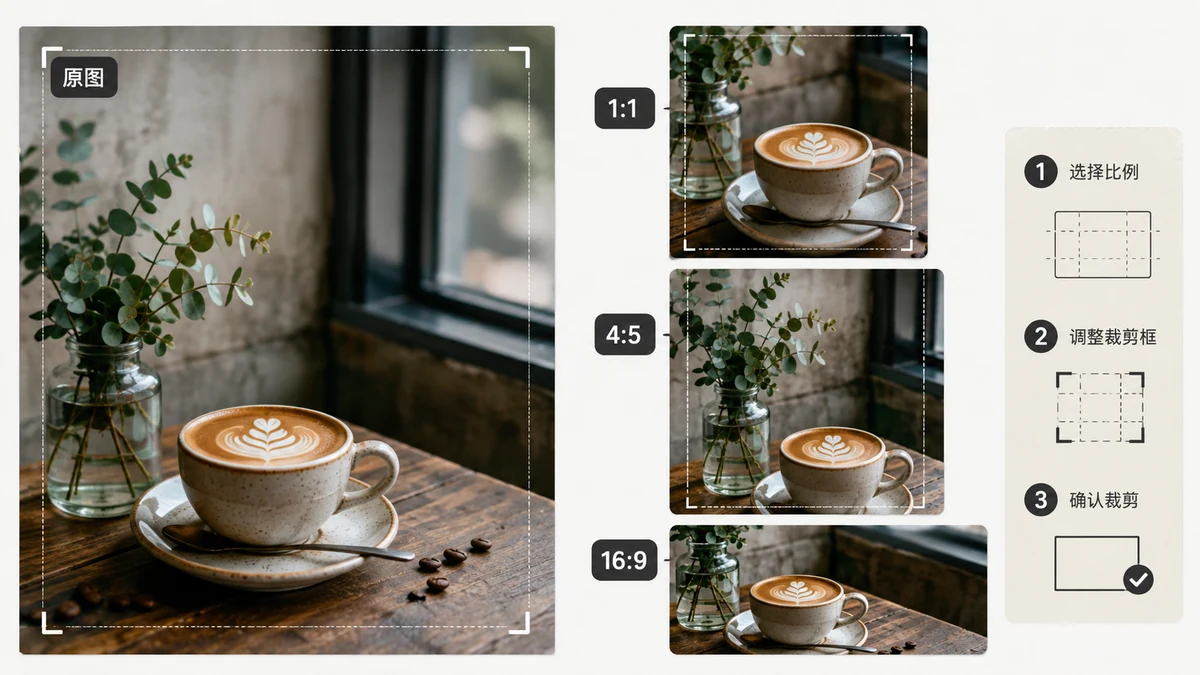
Aspect ratio is just the shape of the frame — width to height — before you worry about pixels. A 1:1 crop is a square. A 16:9 crop is a wide rectangle. Cropping to a ratio means trimming a photo down to one of these shapes so it lands cleanly wherever it is going, instead of getting auto-stretched or letterboxed by the platform. Here is when each common ratio earns its place.
The four ratios you actually use
1:1 — square
The safe, symmetric choice. Instagram grid posts, profile pictures, avatars, album art. A square crop forces you to center the subject, which usually makes a stronger image. When you are unsure where a photo will be shown, square travels well.
4:3 — classic photo
The traditional shape of point-and-shoot cameras and most phone photos. It feels natural and balanced, a touch taller than widescreen. Good for prints, presentations, and general-purpose photos that do not need to be dramatically wide.
16:9 — widescreen
The shape of monitors, TVs, YouTube thumbnails, and slide decks. Landscape and cinematic. Crop to 16:9 when the image is going on a screen or into a video, and let the extra width carry a horizon or a room.
9:16 — vertical / stories
16:9 turned on its side. This is the full-phone-screen shape: Instagram Stories and Reels, TikTok, YouTube Shorts, phone wallpapers. Crop to 9:16 for anything meant to be viewed on a phone held upright.
A quick reference
| Ratio | Shape | Best for |
|---|---|---|
| 1:1 | Square | Profile pics, IG grid, avatars |
| 4:3 | Standard | Prints, slides, everyday photos |
| 16:9 | Widescreen | Monitors, thumbnails, video |
| 9:16 | Vertical | Stories, Reels, phone wallpaper |
Cropping is subtraction — plan for it
Every crop throws pixels away. Going from a 4:3 phone photo to 16:9 shaves off the top and bottom; going to 9:16 shaves off the sides. That is fine as long as the subject survives the trim, so leave a little breathing room around the important part when you frame the original.
There is no way to crop a landscape photo into a tall 9:16 without either cutting a lot off the sides or ending up with a narrow slice. If the subject is wide, a vertical crop simply may not have enough to work with — that is a limit of the source, not the tool.
Do it in the browser
The Crop tool gives you a draggable box with locked presets for 1:1, 4:3, 16:9, and 9:16, plus a free mode when you want an exact custom shape. Drag the box over the part you want to keep, and export. It runs entirely in your browser on Canvas, so the photo never uploads and there is no wait — and no watermark on the result.
Pick the ratio by where the image is going, not by habit: square for profiles and grids, 4:3 for prints and slides, 16:9 for screens and video, 9:16 for phones. Get the shape right first, and resizing the pixels afterward is trivial. It is free, needs no account, and keeps working offline after your first visit.