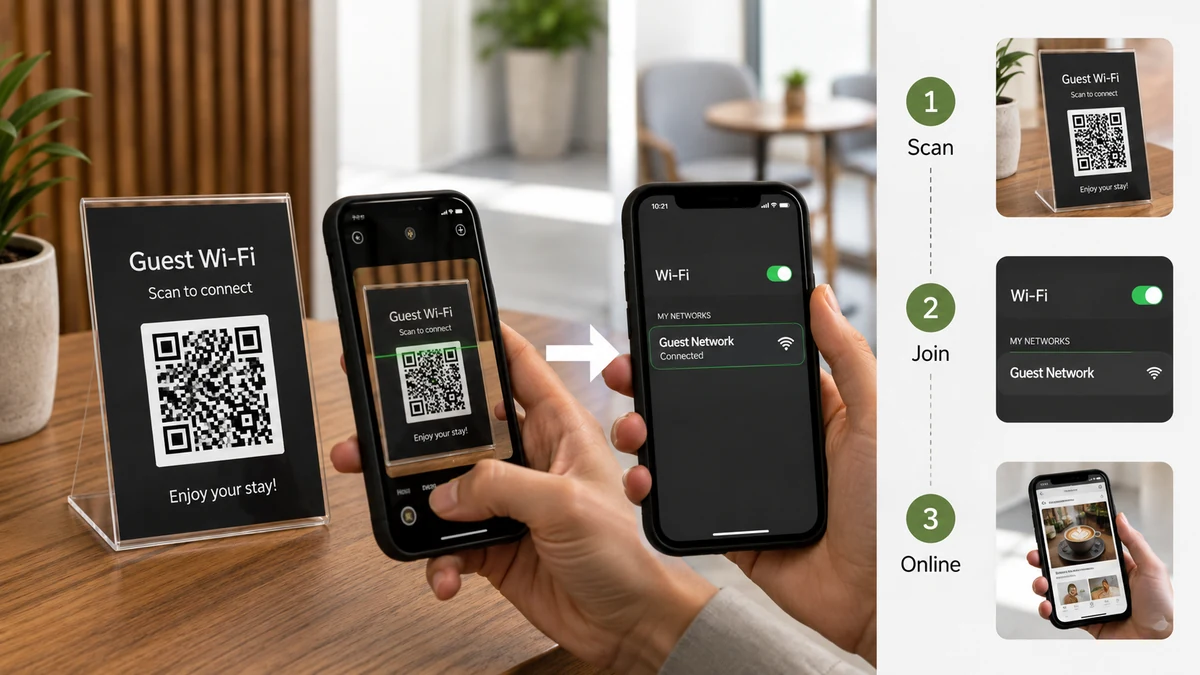
If you've ever spelled out "capital B, four, lowercase g, the squiggly line..." to a guest squinting at their phone, you already understand why Wi-Fi QR codes exist. A guest points their camera at a small printed square, taps "Join," and they're online. No typing, no misheard characters, no you standing over their shoulder.
This works because a phone camera recognizes a specific text format and offers to act on it. The QR code doesn't do anything magic — it just holds a string, and the phone knows what to do when the string starts with WIFI:.
What the WIFI: string actually looks like
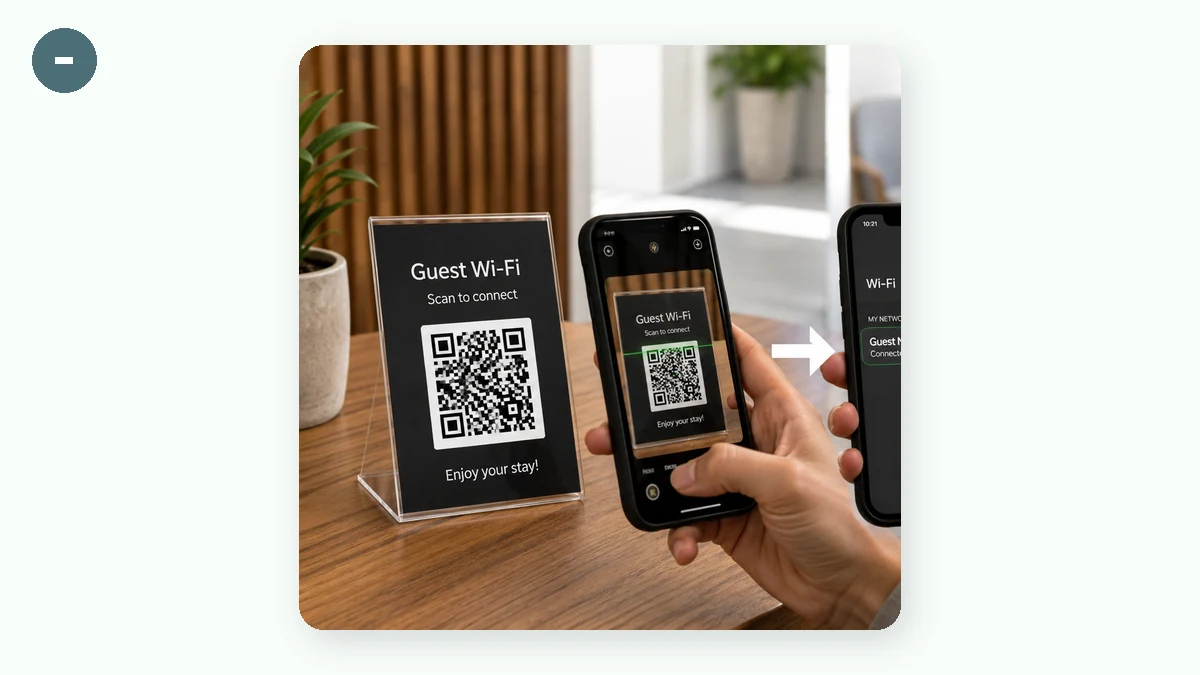
When you make a Wi-Fi QR code, the text encoded inside follows a standard format that both iPhone and Android understand:
WIFI:T:WPA;S:MyNetworkName;P:mypassword;H:false;;
Breaking that down:
T:— the encryption type.WPAcovers WPA and WPA2 (use this for basically any modern router),WEPfor old gear, ornopassfor an open network.S:— the SSID, i.e. the network name exactly as it appears.P:— the password.H:— whether the network is hidden. Leave itfalseunless your router actually suppresses its SSID broadcast.
You don't have to write this by hand. Choose the Wi-Fi payload type, fill in the four fields, and the tool assembles the string correctly — including escaping awkward characters like semicolons or commas in your password, which are easy to get wrong manually.
Why do it in the browser (and not a random QR site)
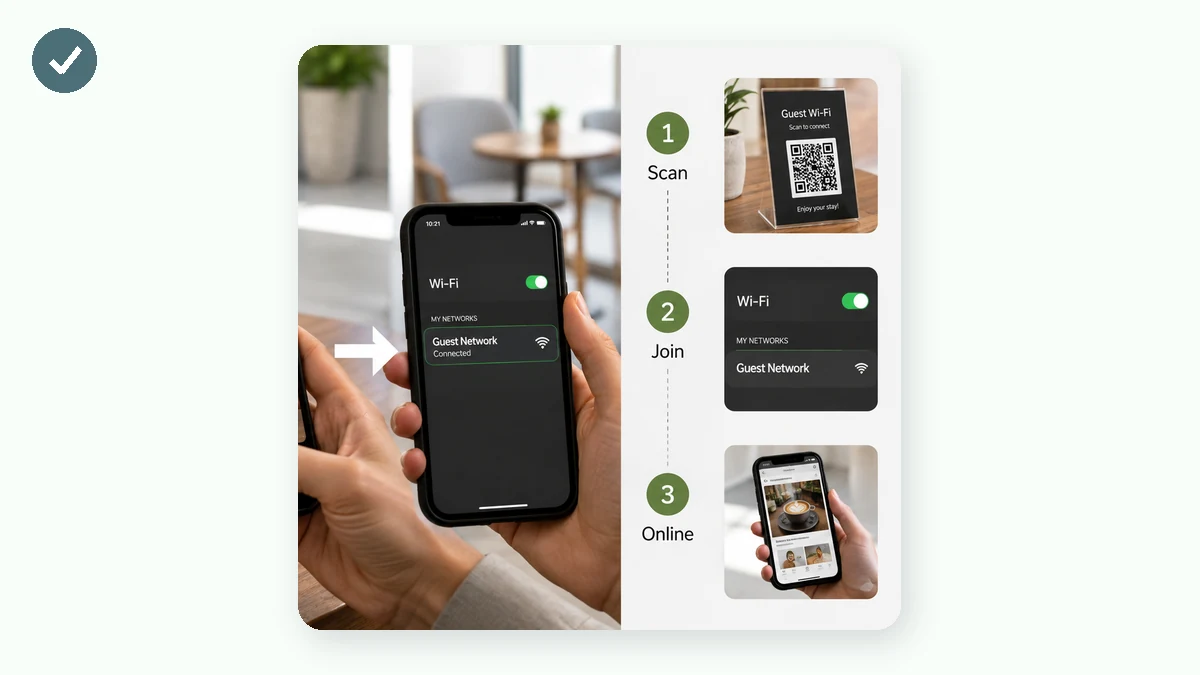
Here's the part most guides skip: your Wi-Fi password is a real secret. On a lot of "free QR generator" websites, the details you type get sent to their server to render the image — which means your network name and password just took a trip through someone else's backend, possibly logged.
A browser-based generator does the encoding on your own device with JavaScript. The password goes from the input box straight into the pattern; nothing is uploaded, and it works even with your Wi-Fi off. For a credential you're about to print and stick on a wall, that difference is worth caring about.
Step by step
- Open the generator and pick Wi-Fi as the type.
- Type your network name exactly as it appears in the Wi-Fi list — capitalization matters.
- Enter the password, and set encryption to WPA for almost any current router.
- Leave hidden off unless you know your network is hidden.
- Bump error correction to Q or H — a printed code on a fridge or counter gets bumped, and higher correction survives smudges.
- Export SVG if you're printing it at a decent size (it stays sharp), or a large PNG for a quick print or to show on a screen.
Real places this pays off
- Cafés and restaurants: a small card on each table, or one by the register. Guests stop asking, staff stop repeating.
- Airbnb and short lets: print it on your welcome card. Guests connect the minute they arrive instead of texting you.
- Home: stick one inside a kitchen cabinet or on the fridge for visiting family — nobody memorizes a 20-character password.
- Offices and events: a guest network code on a poster or badge, separate from your main network.
A couple of honest caveats
The code contains your actual password in plain text — anyone who scans it, or photographs the printed square, can read the network credentials. That's fine for a guest network you're happy to share, but don't post your primary home network's code somewhere public. And because the password is baked in, if you change it later you'll need to generate and reprint the code. For a guest network you rotate rarely, that's a non-issue; just remember it's a picture of this password, not a live link to your router.