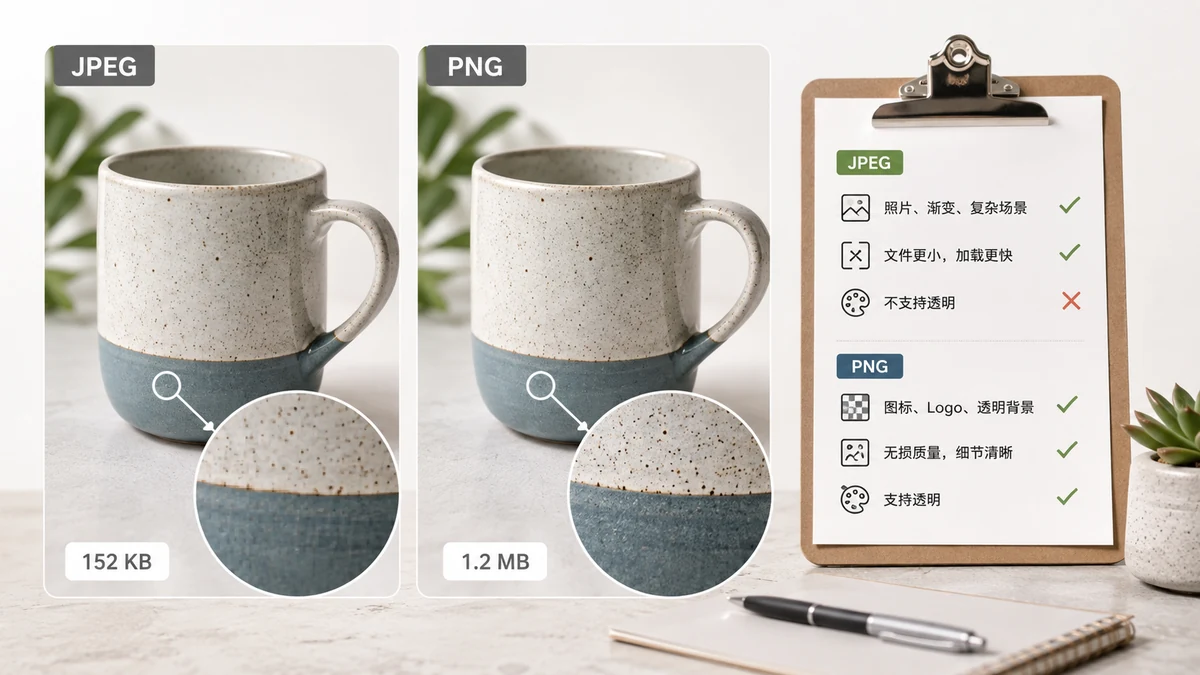
The fast answer: photos go to JPEG, graphics with sharp edges or transparency go to PNG. If you remember nothing else, that rule handles 90% of decisions correctly. The rest of this page explains why, so you can call the edge cases yourself.
The one distinction that matters
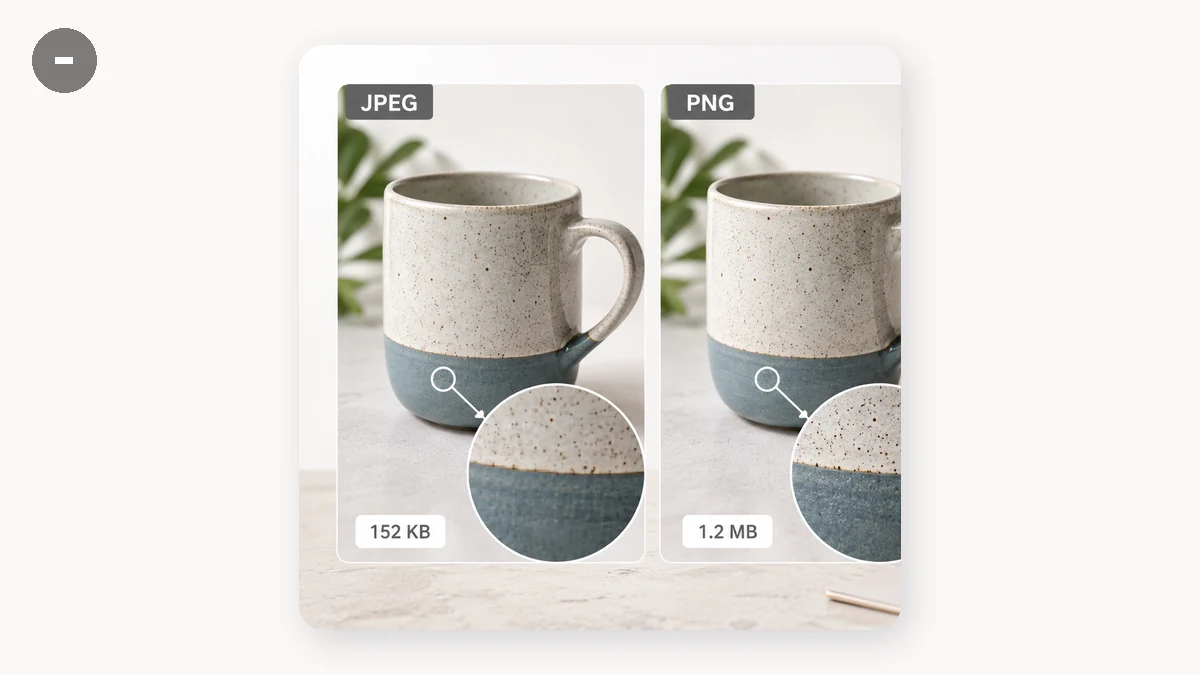
JPEG and PNG were built for different kinds of images.
- JPEG is a lossy format tuned for photographs. It excels at smooth gradients — skin, skies, out-of-focus backgrounds — and it's happy to discard fine detail your eye ignores. That's how it makes a 12-megapixel photo fit in 2 MB.
- PNG is a lossless format built for flat color, crisp lines, and text. It also supports transparency, which JPEG cannot do at all. A logo, an icon, a screenshot of a UI, or a chart belongs in PNG.
Use the wrong one and you feel it immediately. Save a logo as JPEG and the sharp edges get fringed with gray "mosquito noise." Save a photo as PNG and the file balloons to five or ten times the size for no visible benefit.
A quick decision guide
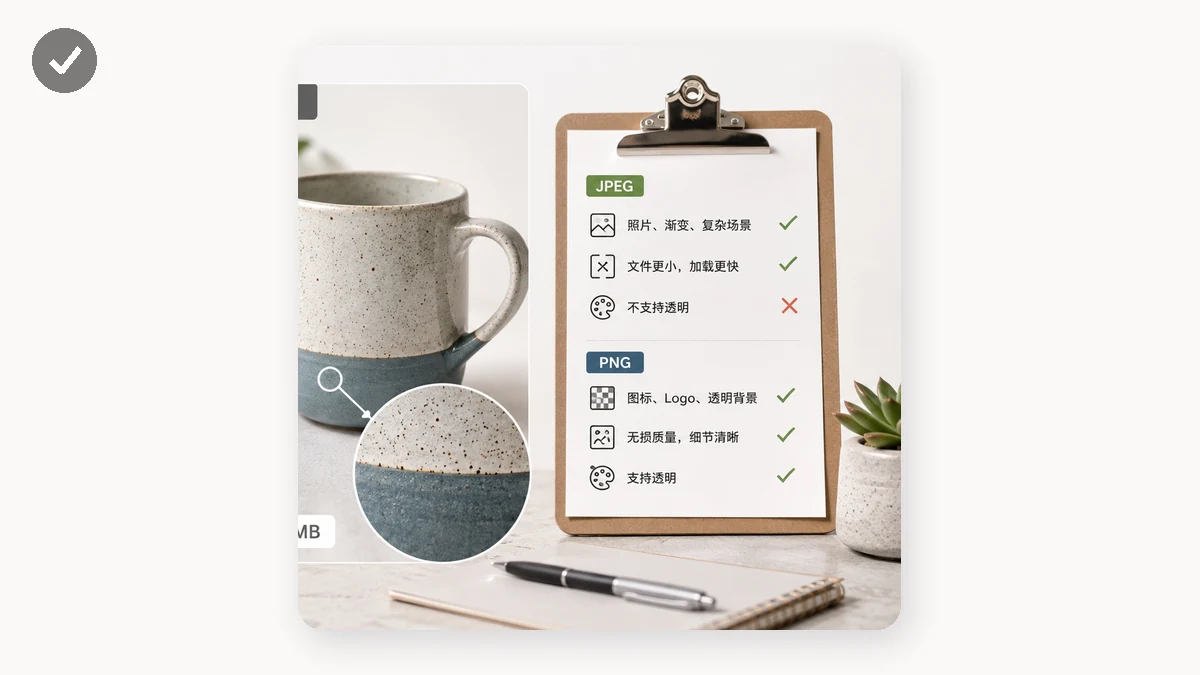
Ask two questions in order:
- Does it need transparency? If yes → PNG (or WebP). JPEG has no transparency, period.
- Is it a photograph or a photo-like image with lots of gradients? If yes → JPEG. If it's flat color, sharp text, or line art → PNG.
Screenshots are the classic trap. A screenshot of a photo-heavy web page compresses better as JPEG; a screenshot of code, a spreadsheet, or a UI stays crisp and small as PNG. When in doubt, try both and compare — which brings us to the tools.
Converting between them
If you've got the wrong format, switching is trivial. tools.faxianai.com's Image Converter moves between PNG, JPG, WebP, and AVIF right in the browser. (Note: browsers can't encode AVIF through canvas, so AVIF output falls back to WebP — which is nearly as small and universally supported.) You can convert a whole batch at once.
The most common win: a designer handed you a folder of PNG photographs. Convert them to JPG and watch the folder shrink by 80% or more with no visible loss.
Compressing each format the right way
Format choice is only half the job — you still want the file small.
- For JPEG (and WebP): use a quality slider. The 75–85 range is visually lossless for most photos while cutting size hard.
- For PNG: there's no quality slider because it's lossless. Instead, reduce the color count. Most PNGs use far fewer colors than they're allowed, so quantizing down to a 256-color palette typically saves 60–80% with no visible change — and it keeps transparency intact.
tools.faxianai.com's Image Compressor applies the right method automatically depending on the format you feed it, and it never outputs a file larger than the original. Batch a mixed folder of JPGs and PNGs and each gets the treatment it needs.
What about WebP?
Worth a mention: WebP does both jobs. It compresses photos like JPEG and supports transparency like PNG, usually at smaller sizes than either. If your audience is on modern browsers (which is nearly everyone now), converting to WebP is often the best single move. Keep a JPEG or PNG fallback only if you must support very old software.
Bottom line
Photos → JPEG. Logos, icons, text, transparency → PNG. Need both compression and transparency, or the smallest possible file → consider WebP. Then compress with the format-appropriate method. Every step here runs entirely in your browser — nothing uploads, and after your first visit the tools work offline.