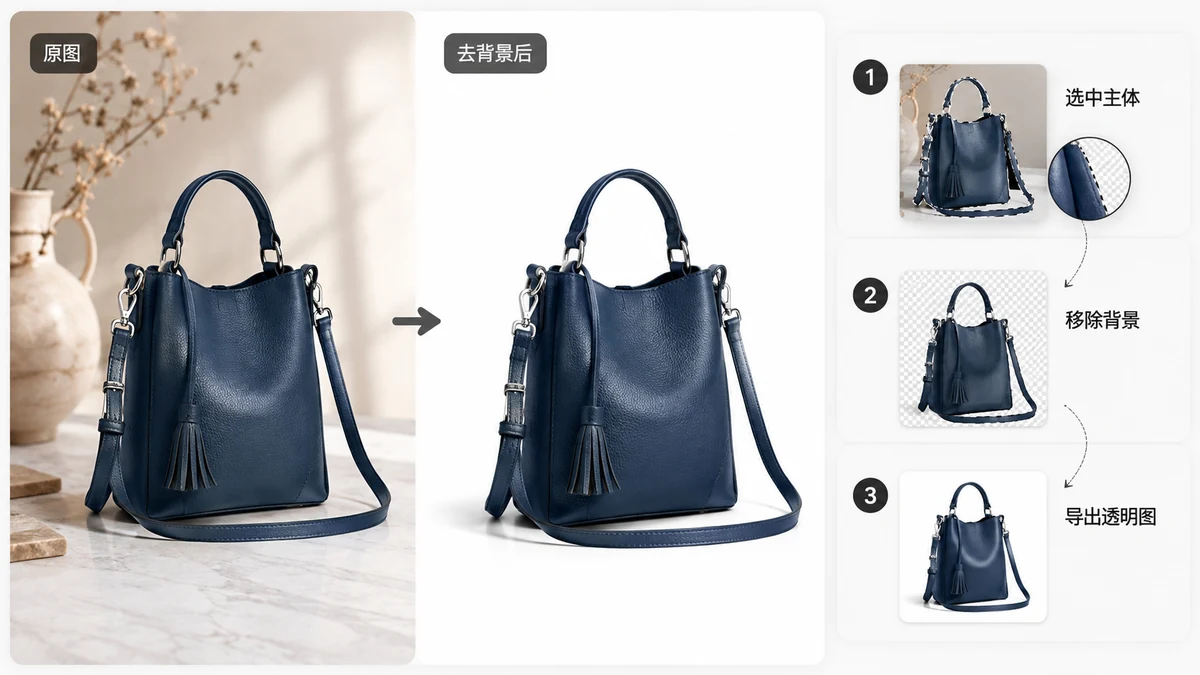
A messy background is the fastest way to make a good product look cheap. Marketplaces know this, which is why Amazon requires a pure white background (RGB 255, 255, 255) on main images, and why the best Etsy and Shopify shops keep their catalogs visually consistent. If your photos were shot on a kitchen table or a home studio backdrop that's gone slightly gray, you need to cut the product out and drop it onto clean white, or leave it transparent for a lifestyle composite later.
You can do all of that in a browser tab, on the whole batch at once, without uploading anything.
Cut the product out, then set the background you need
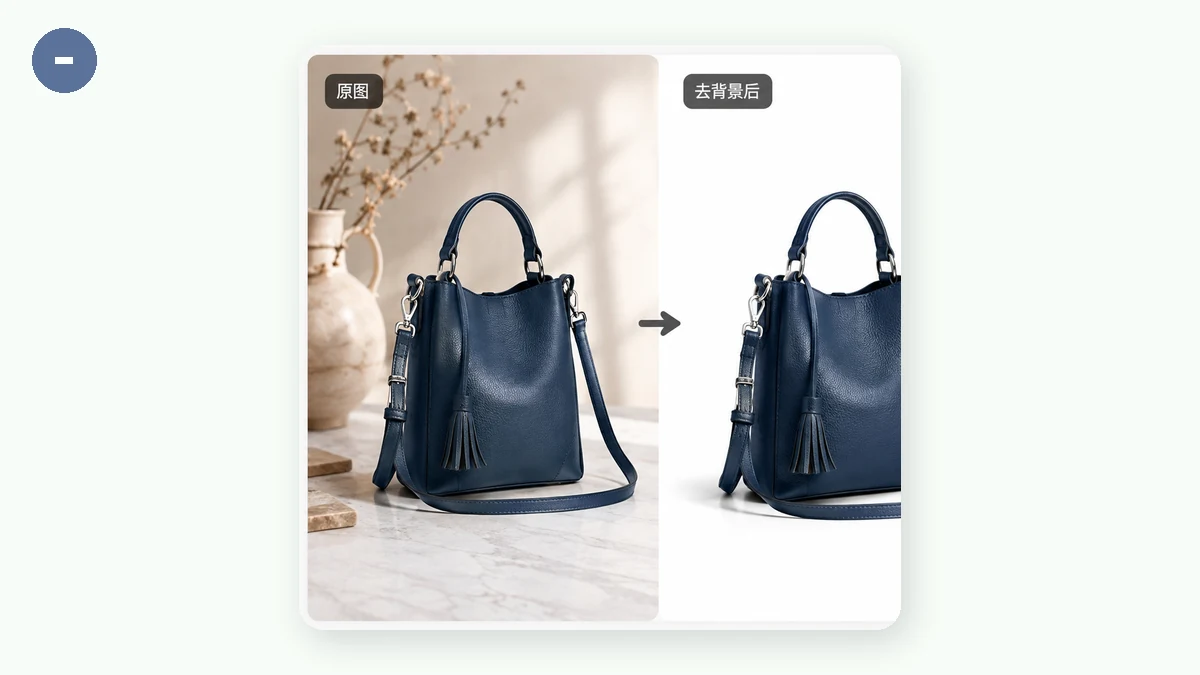
The workflow is two decisions: separate the subject, then decide what sits behind it.
- Open the Background Remover.
- Drop in one photo or your whole product set.
- Choose the output: transparent PNG, pure white, or a custom color.
- Download.
The tool runs a segmentation model that finds the product and deletes everything else. For a marketplace main image, pick white and you get the RGB 255 background listings expect. For a hero image you'll composite later, choose transparent and keep the product on its own layer.
Why batch matters for a catalog
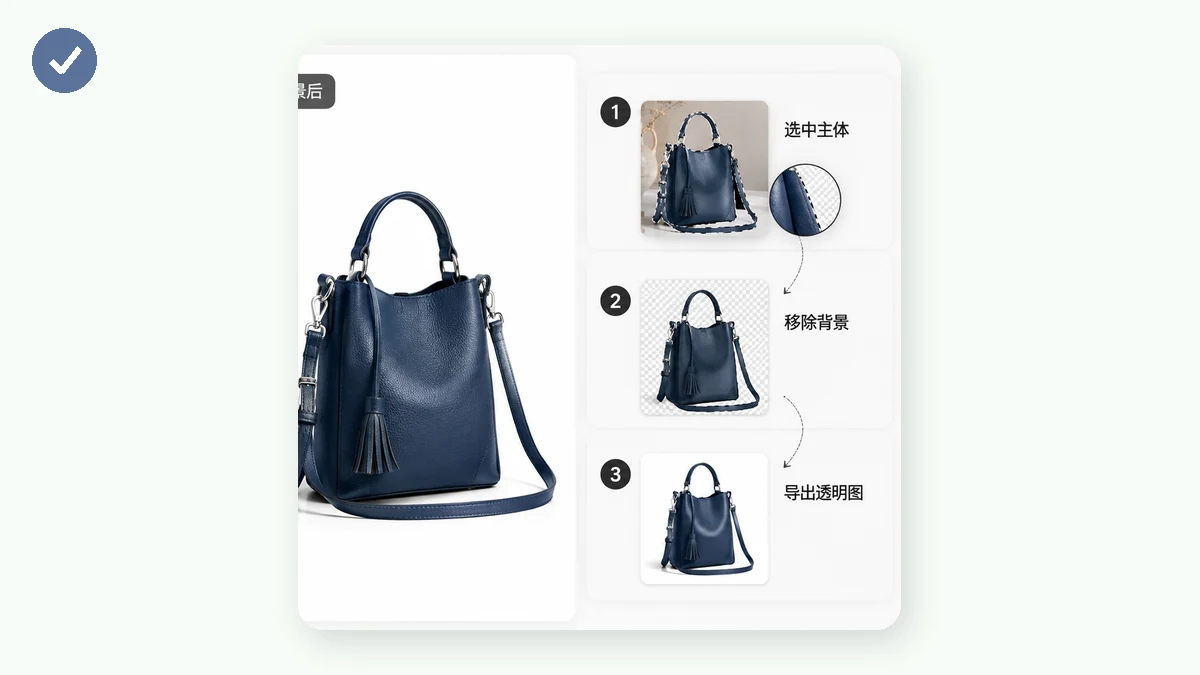
A single cutout is a one-minute job anywhere. The pain is doing it forty times for a full catalog, keeping every crop and background identical. The Background Remover handles batches, so you can load a folder of angles and variants, process them in one pass, and get a set that looks like it came from the same shoot. Consistency across a listing (same white, same framing) reads as "professional" to a shopper even when they can't say why.
Shooting so the cutout comes out clean
Better input means less cleanup. Product photos are usually kind to a segmentation model because the subject is centered, in focus, and distinct from the background, but a few habits make the cutouts noticeably crisper:
- Contrast the product against the background. A white mug on a white sheet gives the model almost nothing to separate. Shoot light products on a mid-gray surface and dark products on a lighter one.
- Even, diffuse light. Soft light avoids hard shadows that the model might read as part of the object. A shadow pooling under the product is the most common thing that gets left behind.
- Keep the whole product in frame. A cropped edge becomes a hard, flat cut in the result, which looks wrong on a floating cutout.
- Prefer the higher-quality model for hero shots. The 43MB silueta model gives cleaner edges than the fast 4MB one, worth it for a main image; the fast model is fine for bulk thumbnails.
Handling the tricky products
Some categories fight back. Reflective items (glassware, jewelry, polished metal) confuse the model where the background reflects in the surface. Transparent products (a clear bottle) are hard because "see-through" and "delete this" look similar to a segmenter. And anything fuzzy (a knit sweater, a plush toy) has a soft edge where a strand or two may get lost.
For these, get the automatic cut first, then zoom in and touch up the few problem edges in any image editor. Starting from a 95%-done cutout beats masking by hand from scratch. For clean, matte, well-lit products, which is most of a typical catalog, the automatic result usually needs no touch-up at all.
Privacy and offline, which quietly help a small shop
Your product shots can be unreleased inventory, prototypes, or designs you don't want circulating before launch. On tools.faxianai.com the images never leave your device; everything runs locally with WebAssembly, so there's no upload and no account. Nothing sits on a server waiting to leak.
The tools are also a PWA that works offline after the first visit. Background removal downloads its model once (4MB fast or 43MB high-quality), then runs with no connection, so you can prep a whole listing from a café with bad Wi-Fi or an inventory room with none.
Once your product is on transparent or white, you can finish the listing image with a text or logo watermark if your brand uses one, or leave the clean cutout exactly as marketplaces prefer it.