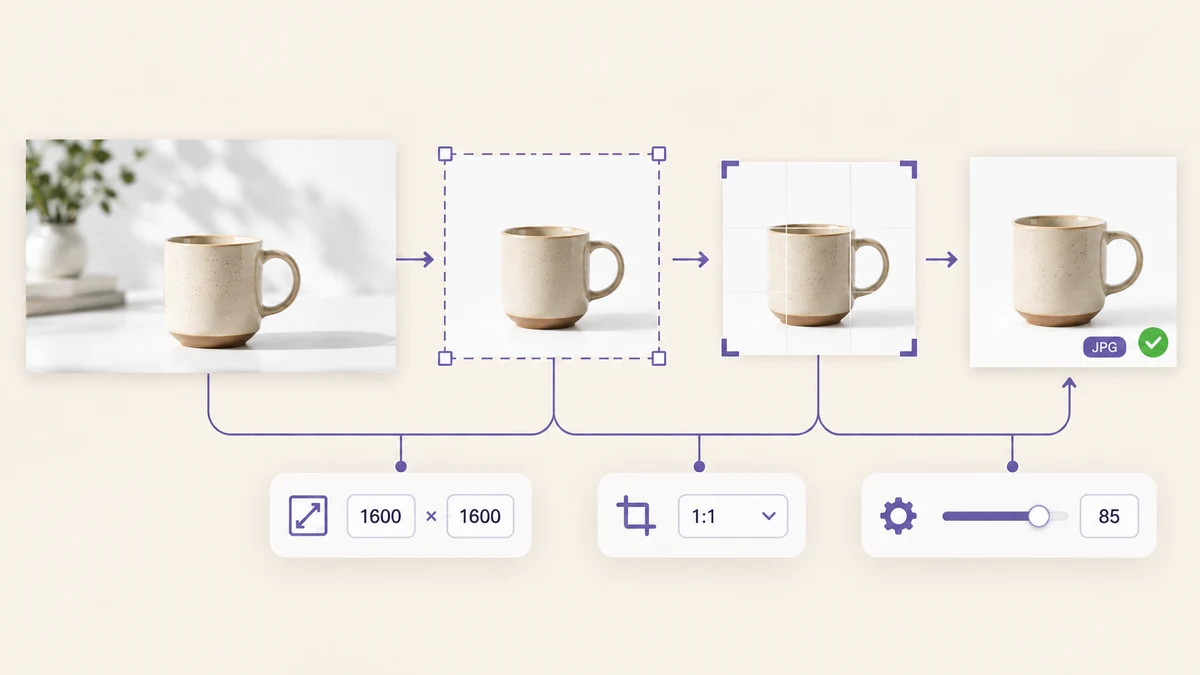
A folder arrived last week: 312 product images, anywhere from 800 × 800 to 5472 × 3648, a mix of JPG, PNG and a few HEIC files. The marketplace wanted 1600 × 1600 JPGs under 2MB. The other version of this job is the blog migration: two hundred PNG illustrations to convert to WebP with the width capped at 1600. They look like different tasks; they are the same pipeline.
Why separate passes hurt quality
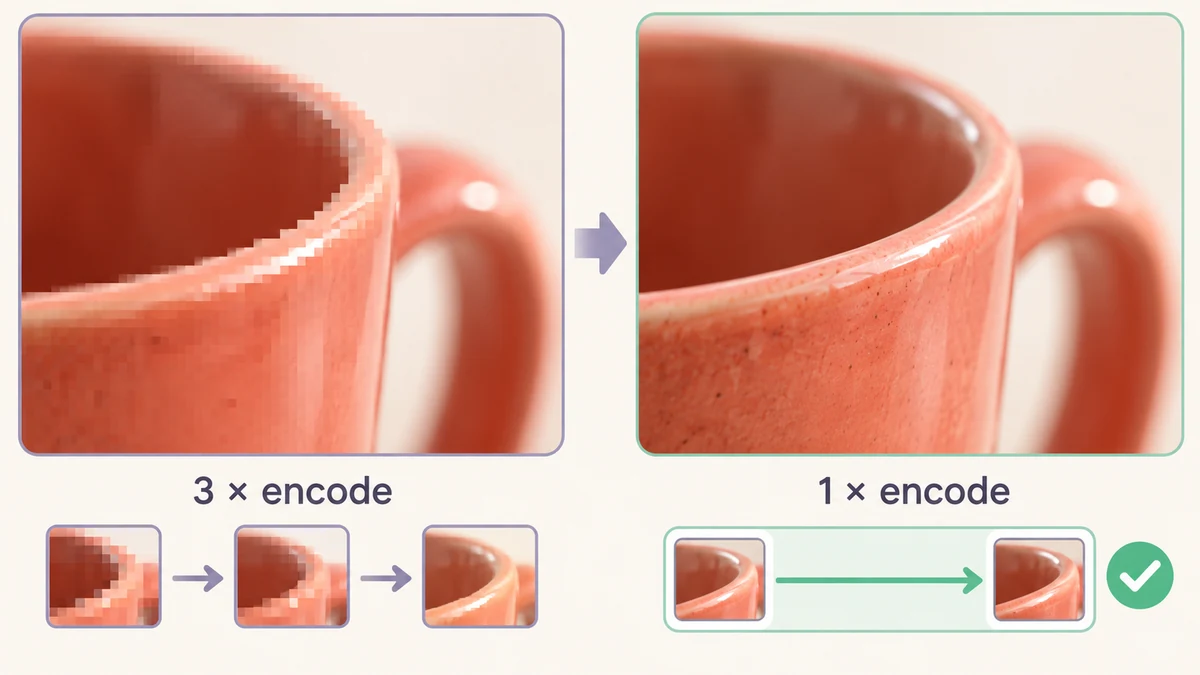
The intuitive approach is three tools in a row: resize and download, convert and download, compress and download. Each handles batches, but each also re-encodes the file when it finishes. JPG is lossy; every encode throws information away, and after three rounds the edges show visible blocking and fringing when you zoom in.
The right approach encodes exactly once at the end. The image is decoded to a bitmap, resized, cropped and converted in memory, and only the final step writes a file in the target format and quality. Batch Image Processing is built this way — six steps in a fixed order with no lossy stage between them.
Scenario one: 300 product images for a marketplace
Target: 1600 × 1600, JPG, under 2MB, shop name bottom-right. Step by step:
- Size: Fill 1600 × 1600. Wide and tall images are first scaled to just cover that box.
- Crop to ratio: 1:1. Whatever exceeds the square is trimmed from the centre; product shots with a centred subject are unaffected.
- Watermark: on, text set to the shop name, bottom right, size 4 percent, opacity 50 percent.
- Output: JPG, quality 85, file names set to Rename to name-001 with the SKU or category as the prefix.
On an ordinary laptop 312 images finish in three to four minutes, landing between 200 and 600KB — far under the 2MB cap. The HEIC originals are read directly; no conversion round first. The ZIP comes out with tidy sequential names, ready to upload without renaming.
Some product shots have the subject well off-centre, and a centre crop would cut into them. Pull those aside, frame them by hand in Image Cropper, and run them through the pipeline separately. In most batches that is under one in ten.
Scenario two: a blog gallery moved to WebP
Target: every illustration as WebP, width no more than 1600, screenshots kept sharp. Simpler than the first scenario:
- Size: Width 1600 with Allow upscaling off. Anything already narrower is left alone.
- Output: WebP, quality 80.
- File names: keep the original. Then the only change in the posts is the extension, .png to .webp.
Two hundred PNGs converted this way typically shed more than 70 percent of their weight. The one thing to watch is logos and icons with transparent backgrounds. WebP supports transparency and the pipeline keeps the alpha channel, so that is fine; but if your target were JPG, transparent areas would be filled white, and those files should stay PNG.
Afterwards, drop two of the results into Image Converter to spot-check how they behave in an older browser — cheap reassurance.
Fill, Fit or Longest side?
The resize mode is the setting people most often get wrong. Each of the three common modes serves one situation:
- Longest side: you only care that the image isn't too big and the ratio doesn't matter. Blog images and shared albums.
- Fit inside W × H: the whole image must fit in a box without cropping, so one side may fall short. Thumbnails and slides.
- Fill W × H: the box must be covered and the overflow trimmed. Marketplace images, avatars and fixed-ratio cards, usually paired with Crop to ratio.
A quick rule: if the platform says "no more than N pixels", use Longest side or Fit. If it says "must be exactly W × H", use Fill.
Two checks before you run
First, look at the live preview. The pipeline renders the first image with every current setting applied — watermark placement, whether the crop clips the subject, any colour shift — all visible at a glance. Confirm, then hit Process all. Don't discover after 300 files that the shop name landed on the product.
Second, keep the originals. The pipeline never modifies your source files, but re-encoded outputs carry no EXIF or capture data, so make sure the originals are stored somewhere before you download the ZIP. For photos that should lose their location data this is a feature; see what EXIF metadata is and why you'd remove it.
Batch resizing and converting comes down to one sentence: configure once, run the whole batch, never touch disk in between. Everything else is a choice between three resize modes and two output formats.