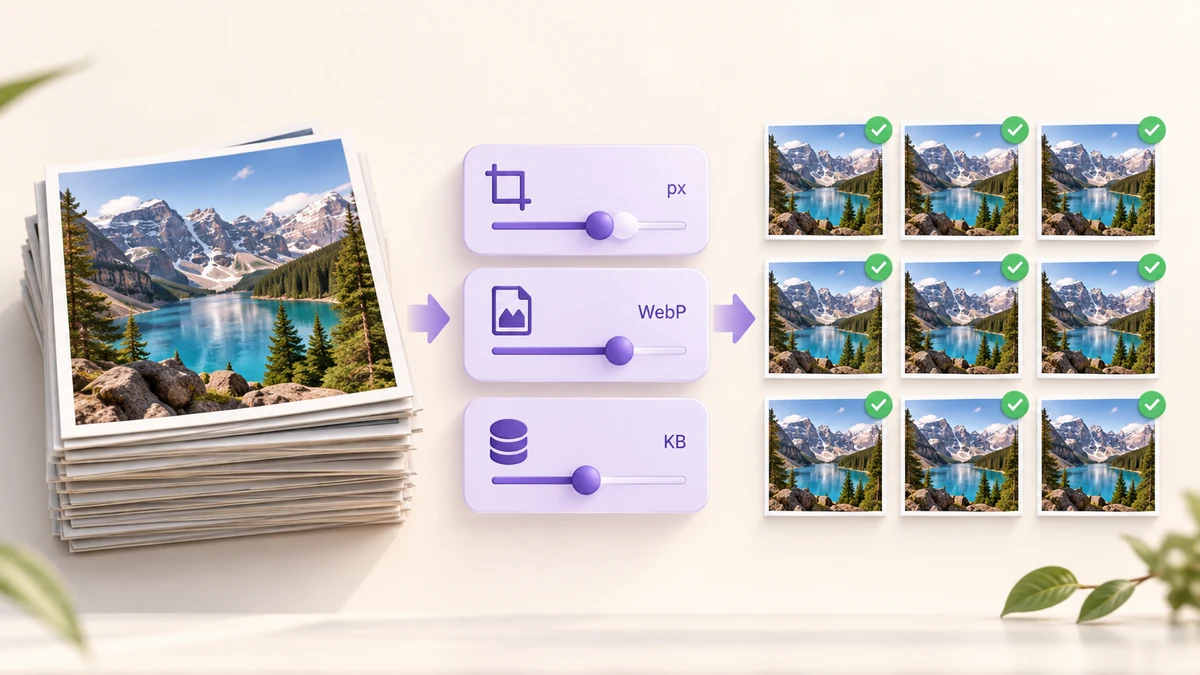
"Get this batch under 500KB" sounds like a one-line job and regularly turns into an afternoon: open one, compress, check the size, not enough, compress again, next file. The reason is that most tools hand you a single quality slider, while file size actually depends on three things at once — quality, pixel count and format. Set all three correctly, in the right order, and the whole batch goes through in one pass with no per-file guessing.
Every setting below can be configured once in Batch Image Processing and run against the entire batch.
First, which 'size' do they mean?
Platforms use "size" for two different things: file size ("no more than 2MB") and pixel dimensions ("longest side no more than 2000 px"). Many limits specify both. Application portals typically want "JPG, under 200KB, 295 × 413 pixels"; marketplaces typically want "at least 1600 × 1600, under 3MB".
Write both down before you start, because they map to different steps: the pixel limit sets the resize step, the byte limit sets quality and format. Chasing a byte limit with the quality slider alone is the slowest route there is.
Three dials, in this order
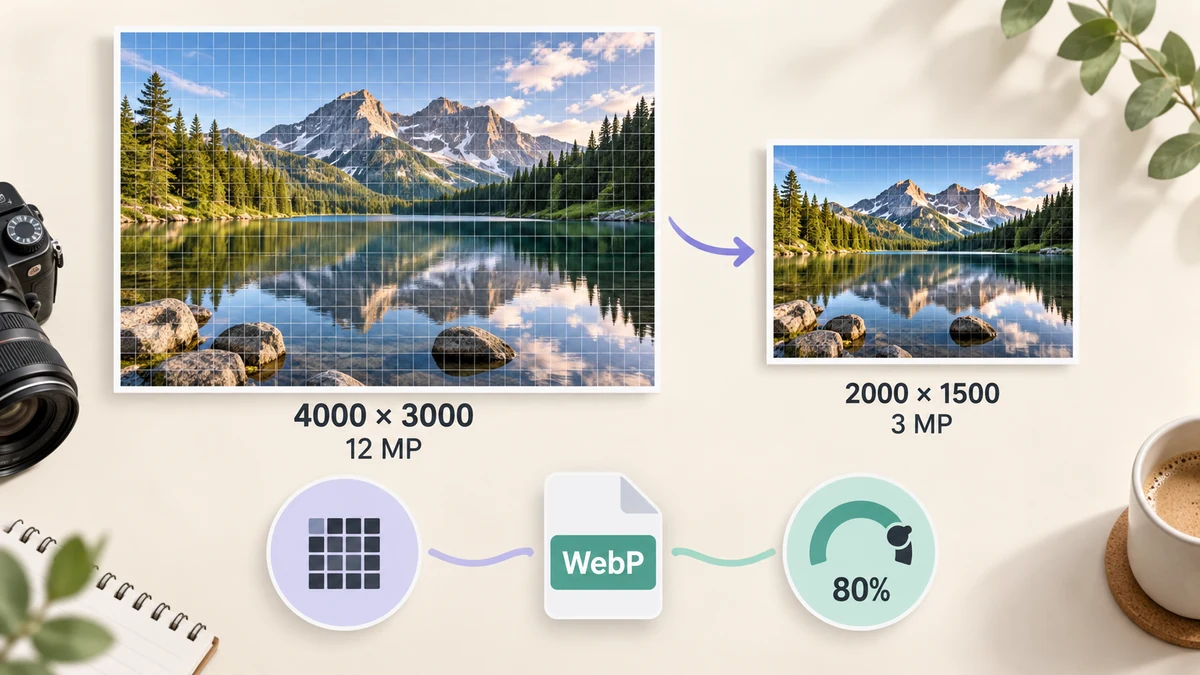
Dial one: pixels. A 4000 × 3000 phone photo is 12 megapixels; at 2000 × 1500 it is 3, and at the same quality the file is roughly a quarter of the size. This is the most powerful dial by far and the least visible — for screens and web pages, a longest side of 1600 to 2000 pixels is more than enough.
In the pipeline, set the Size step to Longest side 2000 and leave Allow upscaling off, so small images are never stretched the other way.
Dial two: format. Photographs go to JPG or WebP; at equal quality WebP is 25 to 35 percent smaller. Screenshots, icons and anything with transparency stay PNG with the 256-colour palette on, which usually removes sixty to seventy percent. If the platform only accepts JPG, choose JPG and don't gamble on WebP for the sake of a few kilobytes.
Dial three: quality. For JPG and WebP the sweet spot is 75 to 85 percent — visually almost indistinguishable from 95, at less than half the bytes. Start at 80, run the batch, and re-run only the stragglers at 70.
What if the batch is a mix of huge and tiny files
A typical folder has 8MB camera originals sitting next to 150KB screenshots. The good news: one set of settings works for all of them; there is no need to sort first.
- Large files get shrunk by Longest side 2000 and then compressed at 80 percent, landing somewhere between 300 and 600KB.
- Small files are already under 2000 pixels, so the resize step leaves them alone. If compression would make them bigger, the default rule Never output a file larger than the original keeps the untouched file instead.
So one setting will not blur your small images — they are either skipped or lightly re-encoded. The only files to keep out of this pipeline are ones that must retain every original pixel, such as print masters.
Starting settings for common limits
Use these as first attempts and adjust from the results.
- Application or ID photos: under 200KB. Size Fit inside 1200 × 1600, JPG, quality 80. Still over? Drop quality to 70; reducing pixels further usually breaks the portal's minimum.
- Marketplace main images: under 1MB or 3MB, at least 1600 px. Size Fill 1600 × 1600, crop 1:1, JPG, quality 85. White-background product shots usually come out at 200 to 500KB.
- Email attachments: 10MB total. Size Longest side 1600, JPG, quality 75. Thirty photos typically total 6 to 8MB.
- Website gallery: as small as possible. Size Longest side 1920, WebP, quality 78. Total image weight usually drops to under a third.
For cases with exact pixel requirements, such as ID photos, fix the single image first with Image Resizer, then send the whole batch through the pipeline for the byte limit.
What to check afterwards
The pipeline lists before and after dimensions and sizes for every file. Three things to scan:
- Anything in red grew instead of shrinking — almost always a JPG converted to PNG. Switch it back to JPG.
- Is the largest file still over the limit? Lower quality by 5 to 10 points and re-run just those files.
- Open two at random at 100 percent and look at edges and text. At quality 80 you should see nothing; blocky colour patches mean quality went too low.
Set once, run the batch, re-run the few that miss. That is the whole process, and what it saves is not only time but the quality lost to repeated re-encoding when files are pushed through tool after tool. For the broader picture of combining batch operations, see how to batch process images.