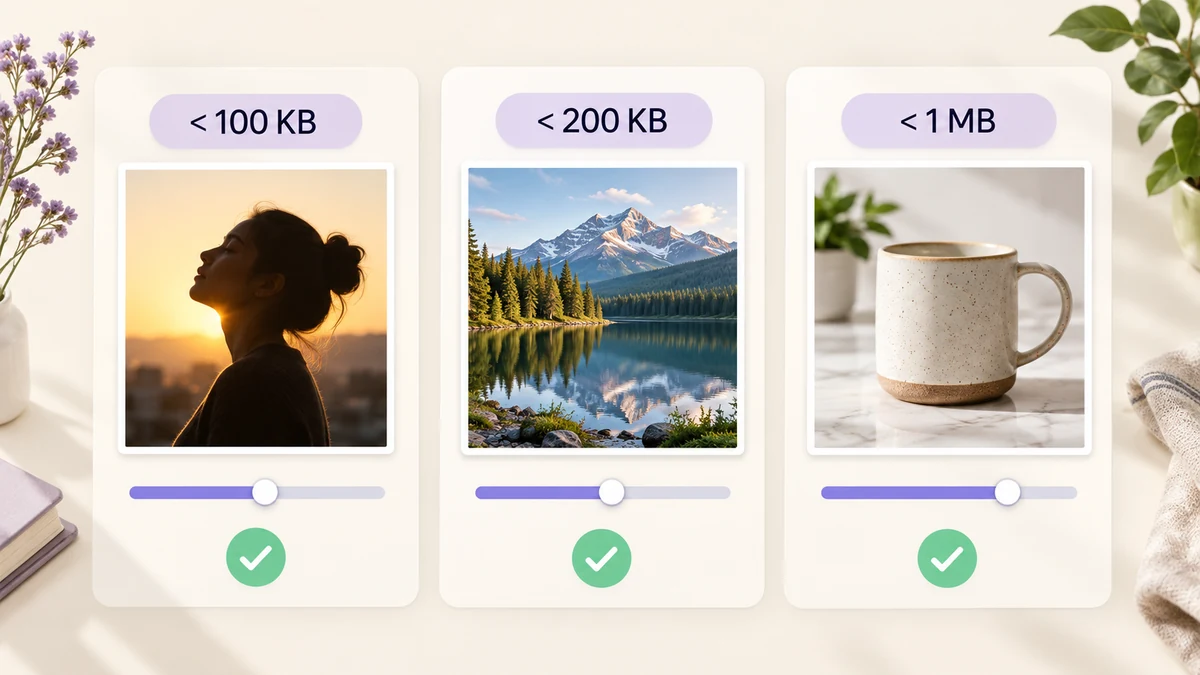
"Upload failed: file must be under 200KB" — nearly everyone has met that line, followed by open, drag the slider, save, check, try again. One image is tolerable; a batch is an afternoon. Work out which pixels and format the limit implies, then let the tool search the quality for a byte target, and the whole thing becomes one pass.
Start with a limits table
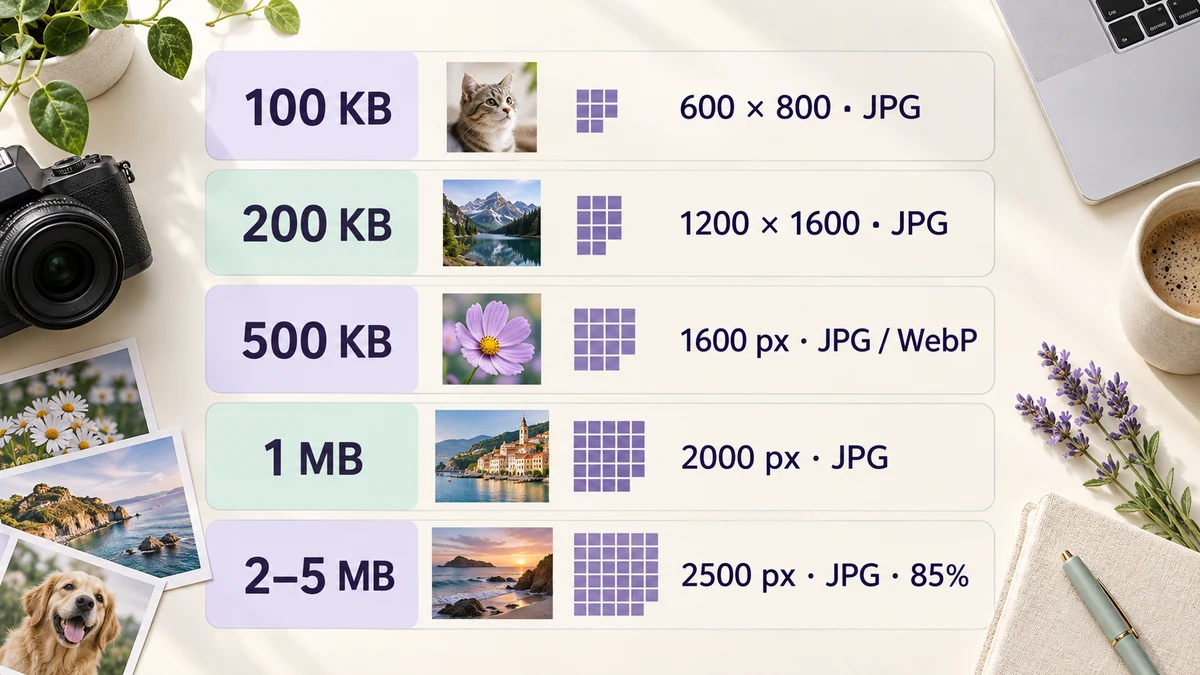
Starting settings for the limits that come up most often — begin here and adjust from the results:
- Under 100KB (résumé photos, forum avatars, some government portals): fit inside 600 × 800, JPG, target 100KB. A head-and-shoulders photo is perfectly sharp at this size.
- Under 200KB (application and exam portals, mini-app avatars): fit inside 1200 × 1600, JPG, target 200KB.
- Under 500KB (CV attachments, internal systems, email signatures): longest side 1600, JPG or WebP, target 500KB.
- Under 1MB (marketplace images, social platforms, form attachments): longest side 2000, JPG, target 1MB. A 1600 × 1600 white-background product shot is usually 300–400KB, nowhere near the line.
- 2MB to 5MB (job boards, submission systems): longest side 2500, JPG at 85 percent, usually no target needed.
The pattern: the smaller the limit, the more pixels you drop first. Above 1MB, quality alone usually does it.
Why one quality slider isn't enough
File size is set by three things: pixel count, format and quality. Dragging only the quality slider means forcing the weakest of the three dials. A 4000 × 3000 phone photo at quality 30 can still be 600KB and already covered in blocks; shrink it to 1200 × 1600 first and quality 80 lands at 150KB, cleaner than before.
The other problem is that images differ. At the same quality 80, an ID photo on a plain background is 60KB and a leafy landscape is 400KB. One fixed quality across a batch guarantees some files far under the limit and some over. The time-saver is a byte target, with the quality found per image.
Set a target size and let the tool find the quality
The Output step of Batch Image Processing has a Target size (KB) field. Enter 200 and, for every image, the tool tries your chosen quality first; if that is over, it binary-searches between 30 and 95 percent for the highest quality under 200KB; only if 30 percent still misses does it reduce pixels by 15 percent and search again. PNG goes to a 256-colour palette first.
After the run each row shows a result like "under target · Q78"; the rare file that cannot get there is flagged in red. From the upload limit's point of view, a few hundred images are one operation.
The recommended combination: cap pixels in the Size step (fit inside 1200 × 1600, say) and set the target in Output. Shrinking pixels first and then finding the quality looks far better than forcing quality alone.
When it can't get there
A few files occasionally come back red. The usual causes:
- The pixel cap is too generous: a 100KB target with 2000 pixels allowed leaves detailed photos no room. Tighten the cap one step.
- PNG was selected: photographs as PNG are large by nature; switch to JPG and re-run.
- The image is noise or fine texture: high-ISO night shots and fabric close-ups are two or three times the size of ordinary photos at the same pixels. Test one in Image Compressor to confirm it really needs fewer pixels.
Where a portal also sets a minimum pixel size — application photos, typically — check that minimum before setting the target, so you don't shrink below the requirement to hit the bytes.
Two things to do afterwards
First, look at the largest result. The list shows every file; open the biggest, confirm it is under the limit and shows no blocking. Second, keep the originals. A photo squeezed to 100KB can't be enlarged again later; keep a copy somewhere else.
The limits table plus a byte target is enough to make "file too large" disappear from your day. For application photos that also fix the pixel dimensions, see photos under 200KB at required dimensions; for the general batch approach, batch compressing to a target size.