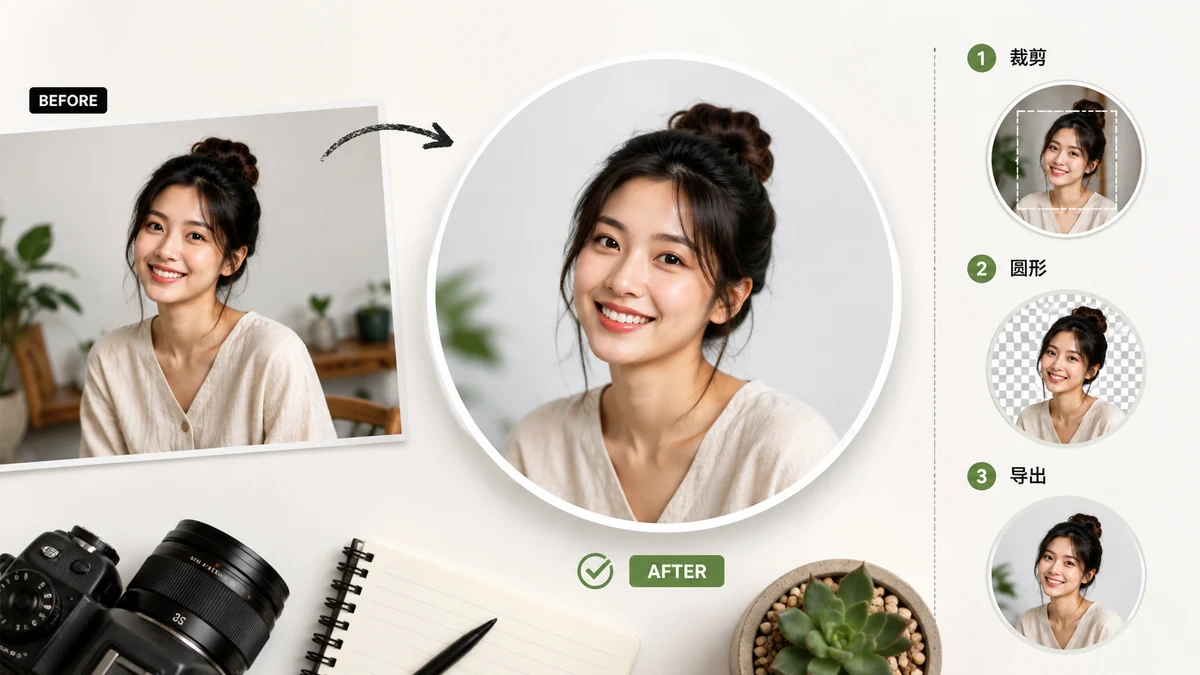
Most "profile picture makers" ask you to do one small thing first: upload your photo. For a snapshot of your dog that's fine. For a photo of your own face — which is usually what a profile picture is — it's worth pausing. That image is going to sit on someone's server, and you're trusting a page you've never heard of to delete it afterward. There's a way to make a clean round avatar without any of that.
What a round avatar actually needs
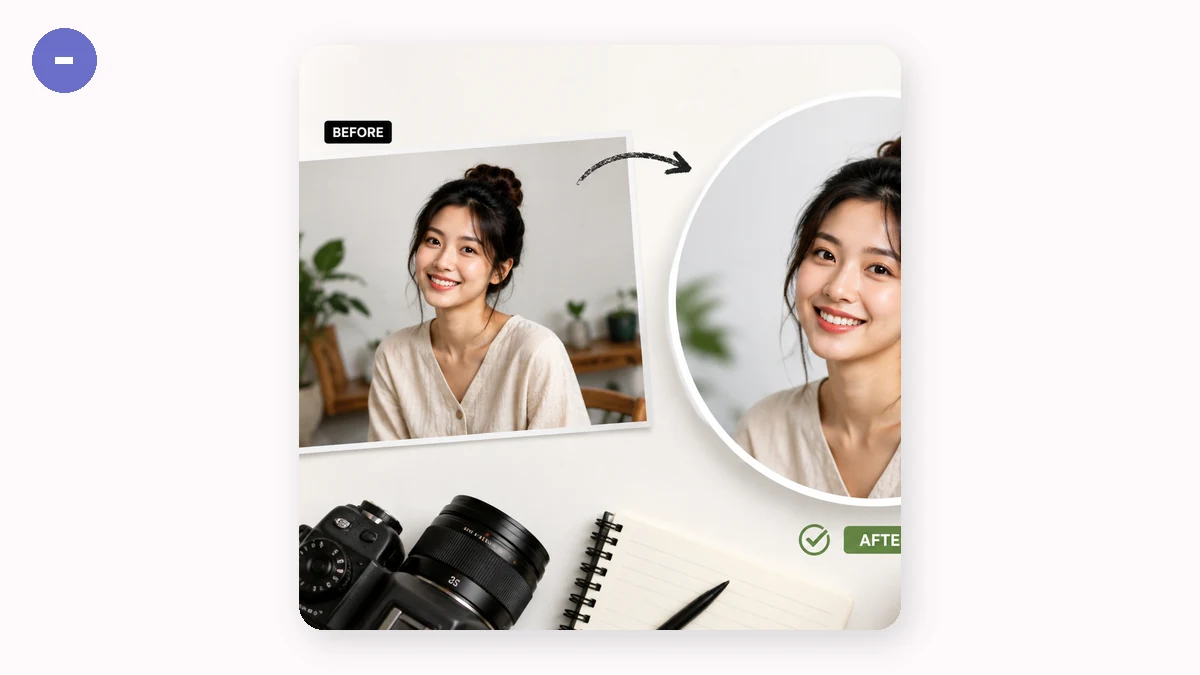
A profile picture that reads as round has two properties. First, it's cropped to a circle before you hand it over, so the platform isn't slicing your photo with a mask you can't see. Second, it's a PNG with a transparent background, so the corners outside the circle are empty rather than a white square that shows up on dark pages and colored cards.
Get both right and your avatar looks intentional everywhere — Slack, a forum, a chat app, a personal site. Get either wrong and you get the familiar off-center crop or the white box peeking out behind a round frame.
Do the cropping before you upload
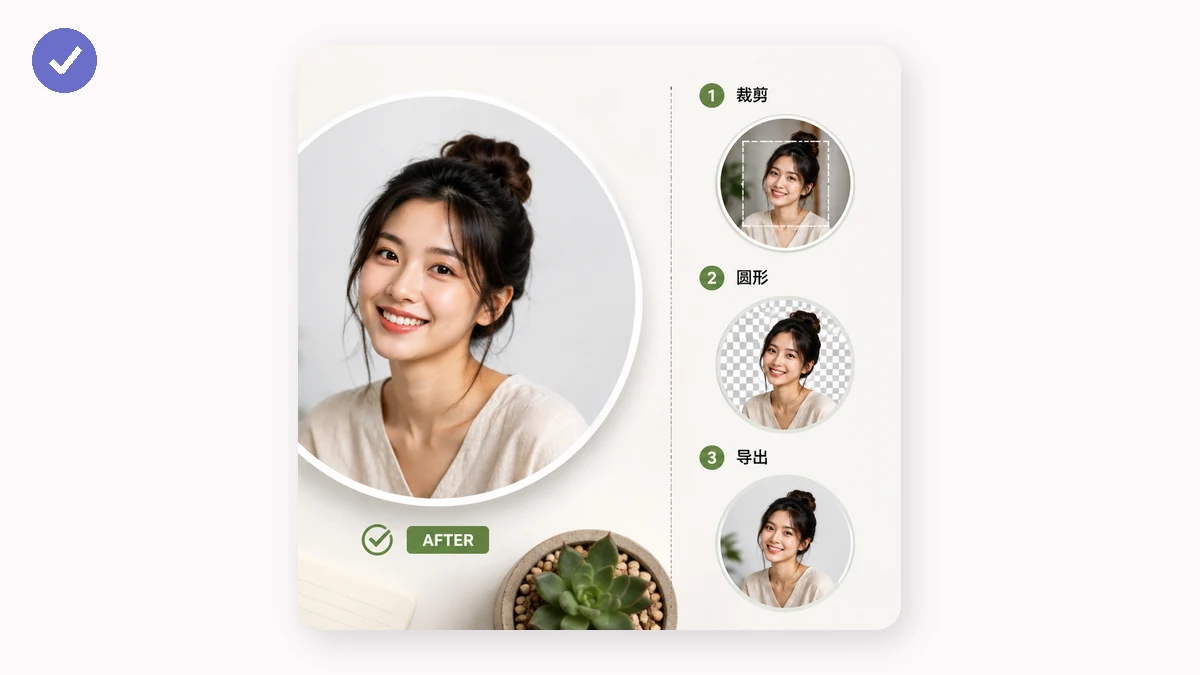
The reason avatars look chopped is that the circle is drawn on top of a square. When you upload a rectangle, the site centers it in a square window and hides everything outside a circular mask. If your subject wasn't dead-center, it's gone. Cropping to the circle yourself, first, means the shape you hand over is already final — there's nothing left for the platform to trim.
Drop in one image and it centre-crops to the largest square from the middle, then masks a true circle at full resolution. You can also choose a rounded square with an adjustable radius — useful for app icons and card thumbnails — or a plain square. Export with a transparent background, or on white if you specifically want a solid backdrop.
Where centre-cropping helps, and where it doesn't
Because it crops from the center, this works best when your subject is already roughly centered — most head-and-shoulders portraits and most logos are. If your face is off in a corner of a wide group shot, the tool grabs the middle of the frame, not you, and there's no handle to drag the crop into place. The fix is simple: crop the photo down to your face first with any basic cropper, then bring that tighter image here to make it round.
It also handles one image at a time. For a single avatar that's the natural pace. If you need fifty matching icons, this isn't a batch tool.
The privacy part, plainly
Everything runs in your browser. The photo is decoded, squared, masked, and encoded to PNG on your own device. Nothing is uploaded, there's no account, and no server sees the image. Load the page once and you can keep making avatars with your connection off. For a picture of your own face, that's the whole point — you make the avatar and it never leaves your machine.
Start with the photo you'd actually use, crop it to a circle, export a transparent PNG, and drop it wherever you need a profile picture.