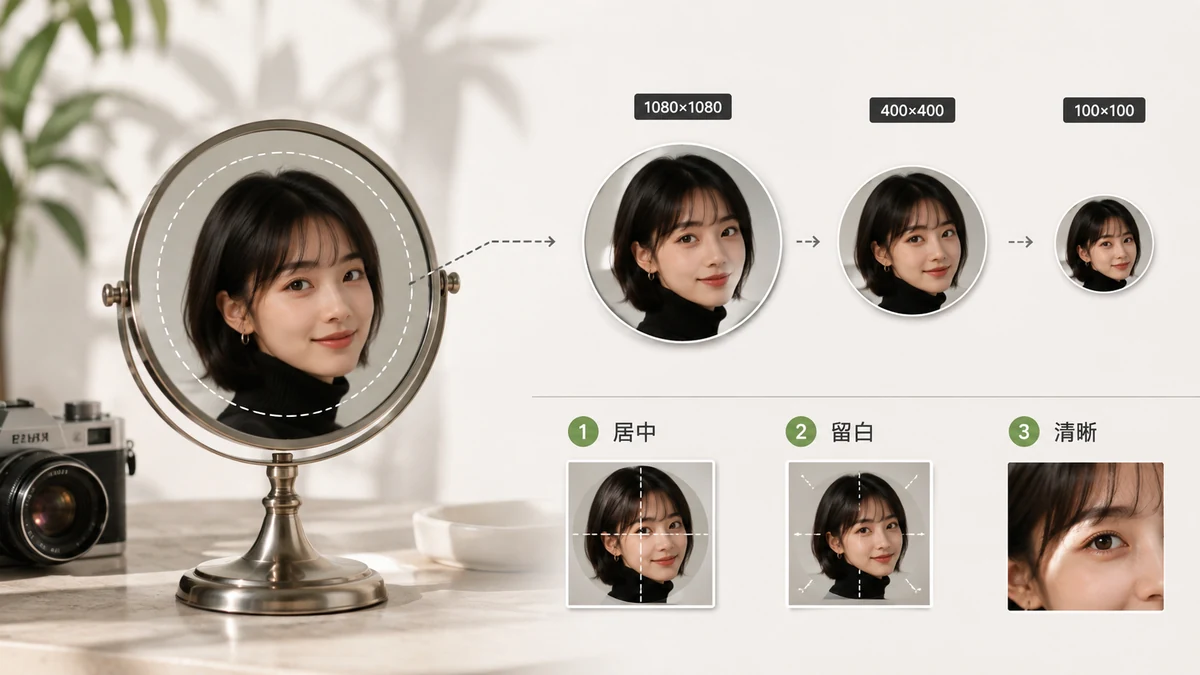
Almost every platform displays your profile picture as a circle, but stores it as a square. That one fact explains most avatar problems: upload a rectangular photo and the platform crops it to a square you didn't choose, then masks it to a circle that hides the corners. The way to keep control is to crop it square yourself first, then resize to the platform's spec. Here are those specs, and the two-step method that works everywhere.
The dimensions, platform by platform
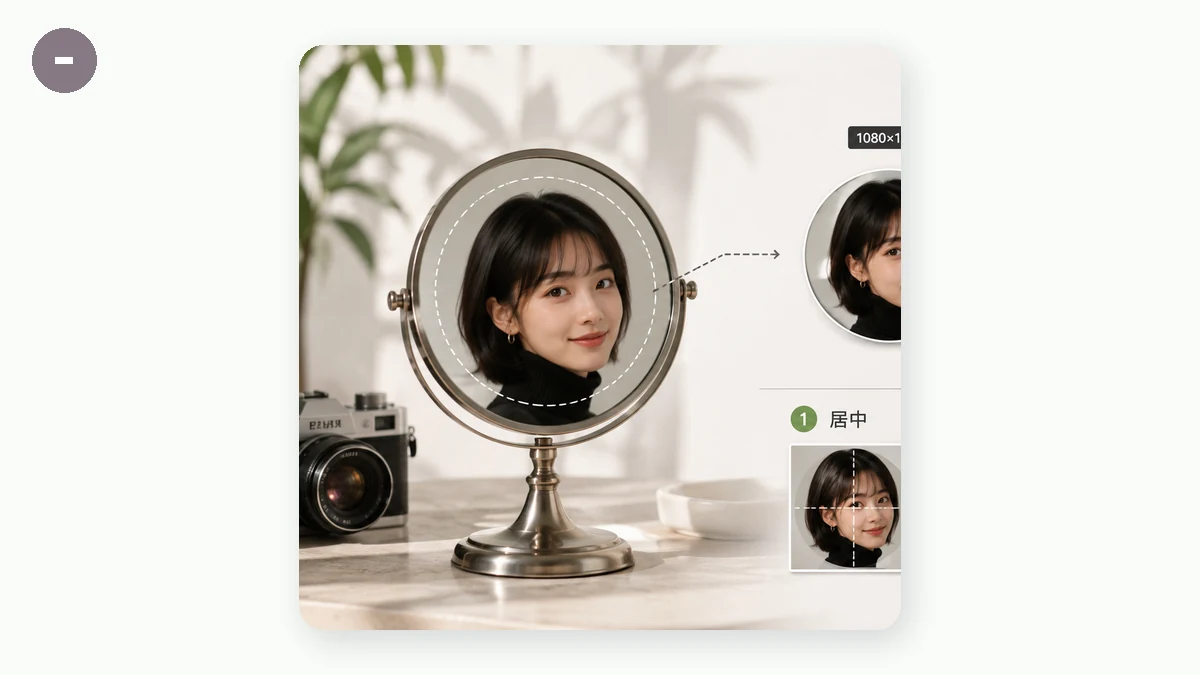
Upload sizes are usually larger than what's displayed, because platforms downscale for the tiny avatar and keep a higher-res copy for profile pages. Aim for the recommended upload size below — bigger uploads just get scaled down cleanly, but too-small ones look soft.
| Platform | Recommended upload | Shape shown |
|---|---|---|
| 320 × 320 | Circle | |
| 512 × 512 (min 180 × 180) | Circle | |
| X (Twitter) | 400 × 400 | Circle |
| 400 × 400 (up to 7680 × 4320) | Circle | |
| YouTube | 800 × 800 | Circle |
| TikTok | 200 × 200 | Circle |
| 640 × 640 | Circle | |
| Discord | 128 × 128 (up to 1024 × 1024) | Circle |
| 165 × 165 | Circle | |
| Twitch | 256 × 256 | Circle |
| GitHub | 500 × 500 | Rounded square |
| Slack | 512 × 512 | Rounded square |
A single 512 × 512 square covers nearly all of these at once. Export one clean square at that size and you can upload the same file almost anywhere. Only go larger (800 × 800) if you're targeting YouTube specifically or want headroom for future changes.
Step 1: crop to a square
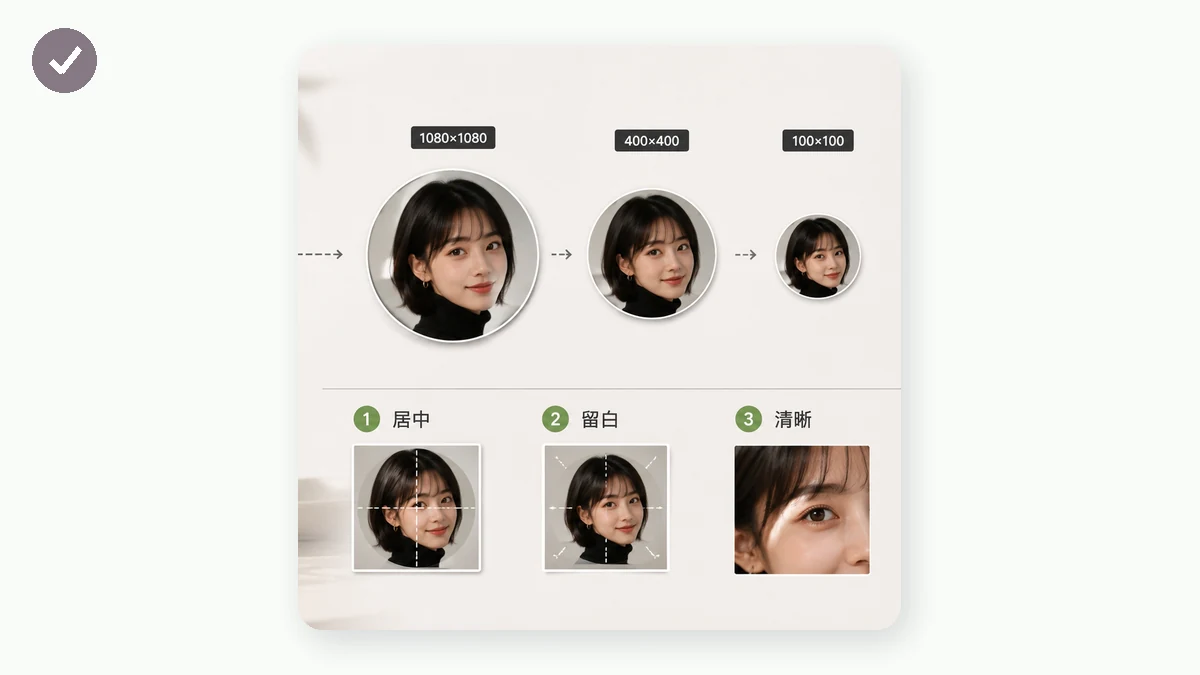
Since the container is square-then-circle, start by cropping your photo to a perfect 1:1 ratio, framing your face slightly high-and-centered so nothing important lands in the corners the circle will hide. tools.faxianai.com's Crop tool has a 1:1 preset and a draggable box, so you can position the square exactly where you want it.
Keep these framing tips in mind:
- Leave breathing room. The circle mask shaves off the corners of your square, so don't push your head or chin to the very edge.
- Center the eyes in the upper third. At avatar sizes that's what reads as "a person," even when the picture is 40 pixels wide in a comment thread.
- Check it small. A face that looks great at full size can turn into an unrecognizable blob at 48 px. Zoom out mentally before you commit.
Step 2: resize to the target
Once you have a clean square, resize it to the platform's number from the table — or just to 512 × 512 for a universal avatar. Because your crop is already 1:1, the aspect ratio stays perfect and the resize only changes the pixel count.
The Resizer does high-quality downscaling, so shrinking an 8-megapixel crop down to 512 px stays sharp instead of turning muddy. Enter the target pixels, keep the ratio locked (it already matches), and download.
Why do it locally
A profile photo is usually a picture of your face — not something you want sitting on a random server. Both tools here run entirely in your browser using Canvas; the image never uploads. After your first visit they're cached and work offline, so you can crop and size a new avatar on a flight and have it ready to post the moment you land.
The short version: crop to 1:1, resize to 512 × 512 (or the platform's exact number), frame your face away from the corners, and one file serves everywhere.