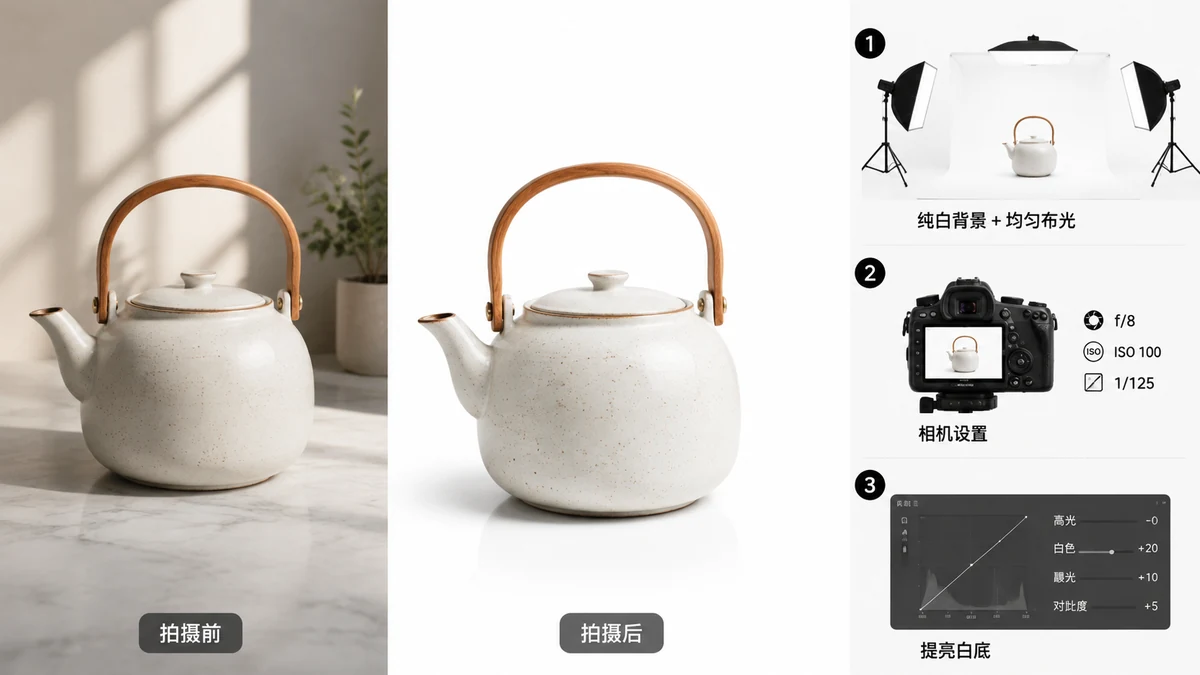
The white-background product shot is the default look of online retail for a reason: it removes distractions, makes the product the whole point, and satisfies the main-image rules on Amazon, eBay, and most marketplaces. The good news is you don't need a lightbox, a sweep, or expensive software to get one. A phone photo and two browser tools will do it.
Here's the workflow, start to finish.
Why "true white" matters
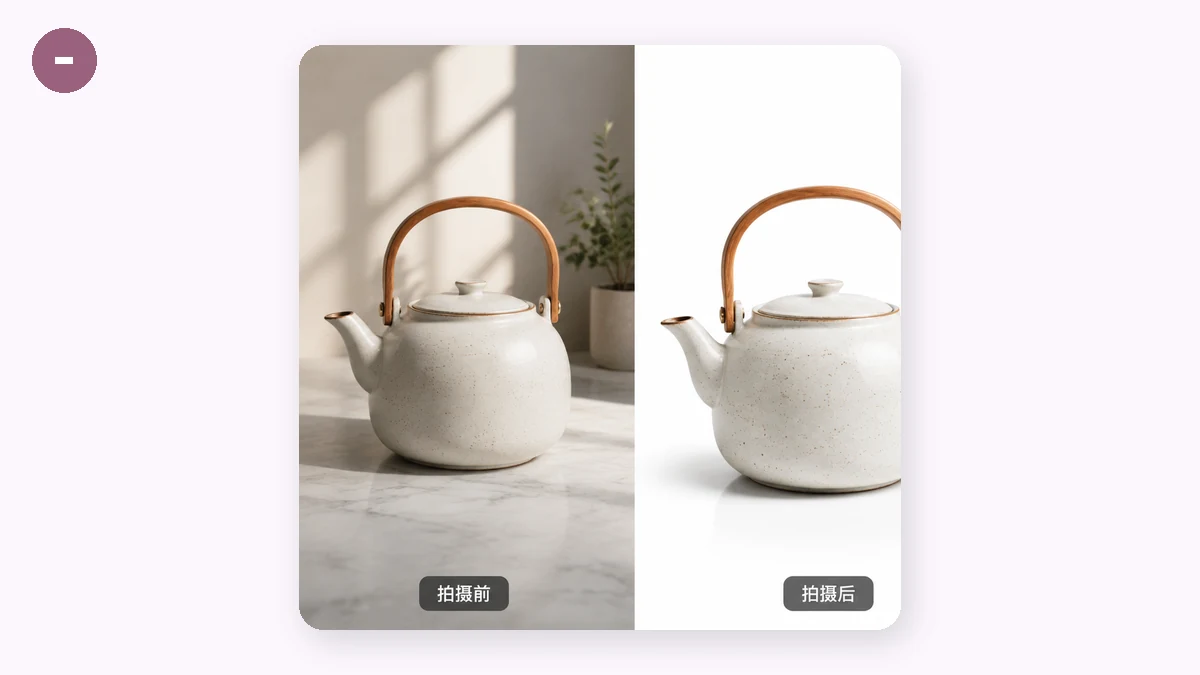
Not all white is white. A photo taken against a white wall usually comes out slightly gray or with a warm tint, and marketplaces that require a pure-white background mean RGB 255, 255, 255 — the exact value, everywhere behind the product. A dingy off-white can fail an automated check even when it looks fine to you.
That's the reason a two-step approach beats trying to shoot a perfect white background in-camera. You cut the product out cleanly, then place it on a canvas that's mathematically pure white. No lighting setup can guarantee that; a cutout can.
Step 1 — cut the product out
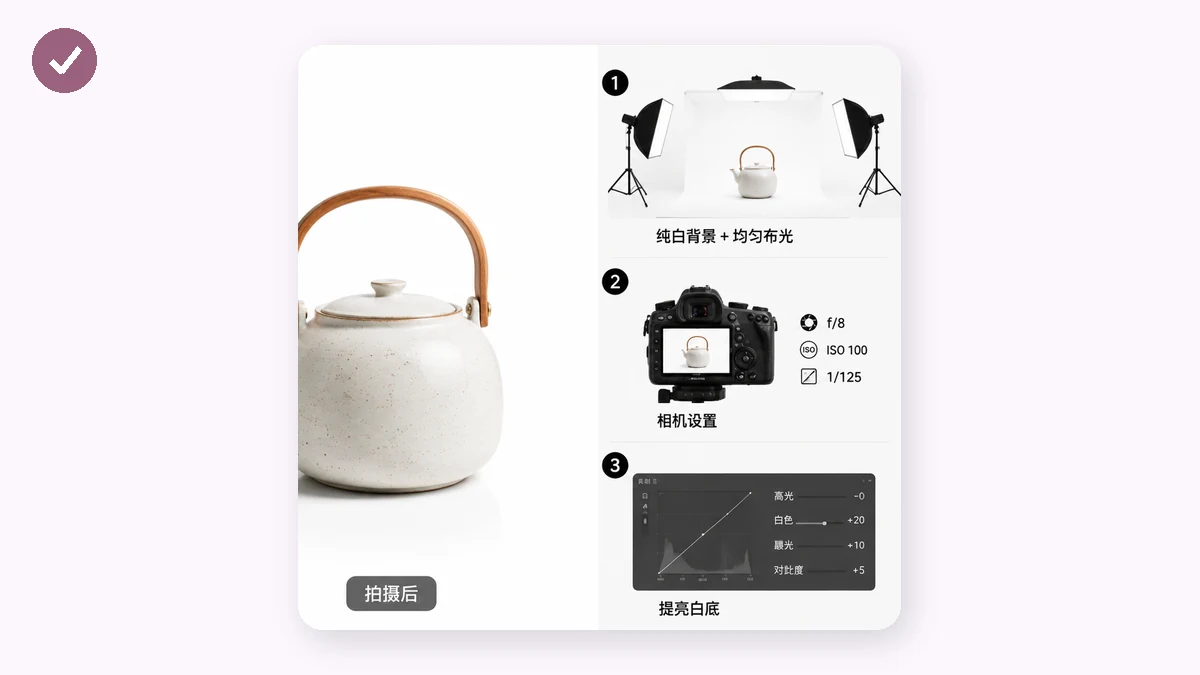
Start with the Background Remover. It runs an AI segmentation model in your browser to separate the product from whatever's behind it, then lets you export either a transparent PNG or the product already dropped onto white.
A few tips for a clean cutout:
- Shoot against a background that contrasts with the product — the model has an easier time.
- Good, even lighting reduces harsh shadows the cutout would otherwise trace around.
- For fine edges like hair, fur, or wispy fabric, the larger, higher-accuracy model handles detail better than the fast one.
One note on how it runs: background removal works in the browser, and after a one-time download of the AI model it can run offline. That first model download needs a connection.
Step 2 — place it on true white and size it right
A transparent PNG is only half the job. Now put the product on a real white canvas at the right dimensions for wherever it's going. The E-commerce Image Resizer does both in one pass: it drops the cutout onto a pure-white background, centers the product, lets you set a margin so it breathes, and outputs at the exact size each marketplace wants.
| Marketplace | Common target size |
|---|---|
| Amazon | 2000 × 2000 px |
| Shopify | 2048 × 2048 px |
| eBay | 1600 px longest side |
| Etsy | 2000 px |
| Taobao / JD | 800 × 800 px |
Pick the preset, and you get a centered product on clean white at the right resolution — the exact thing a main-image rule is asking for. Have a whole product line? Drop the folder in and it batches everything into a ZIP.
The complete flow
- Photograph the product against a contrasting background in even light.
- Run it through the Background Remover; export a transparent PNG (or straight to white).
- Feed it to the Resizer, choose the marketplace preset, set a comfortable margin.
- Download — a centered product on true white at the correct size.
Two clicks per image, and it batches, so a catalog of fifty takes about as long as one.
A quick quality check
Before you upload, zoom to 100% and look at the edges of the cutout. Watch for a faint colored halo (leftover background) or chewed-up fine detail. If an edge looks rough, re-run with the higher-accuracy model. Also glance at the corners of the canvas to confirm the background reads as clean white, not a near-white gray.
Private by default
Both tools run entirely on your machine with Canvas and WebAssembly — nothing uploads, no account, no watermark on the output. Your product shots, including unreleased ones, never leave your computer. The resizer works offline after your first visit, and background removal works offline too once its model has downloaded.
Cut it out, set it on true white, size it to spec. That's a professional product photo without the studio.