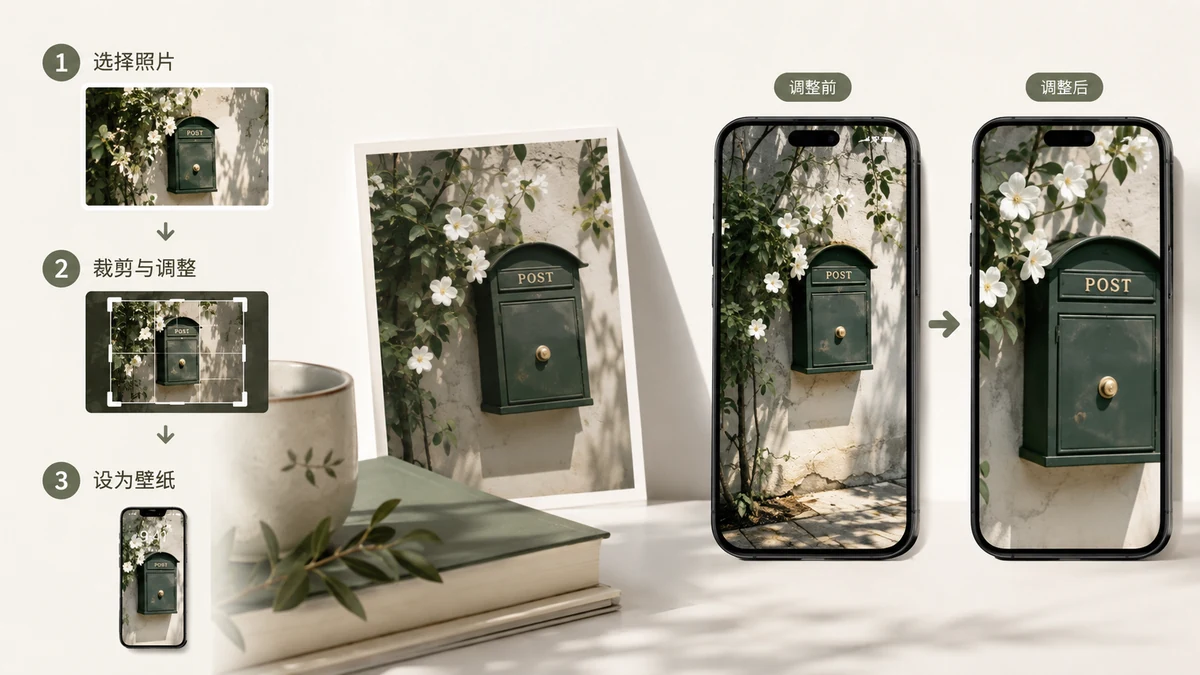
Setting a favorite photo as your wallpaper should be easy, and the phone's built-in picker usually gives you a pinch-to-zoom crop and calls it done. The problem shows up when the photo doesn't match the screen's shape: you either zoom in until half the picture is gone, or you're stuck with the phone deciding what to cut. Making a wallpaper that actually fits takes about thirty seconds once you understand the one real obstacle — shape — and the two ways around it.
The core problem: your photo and your screen are different shapes
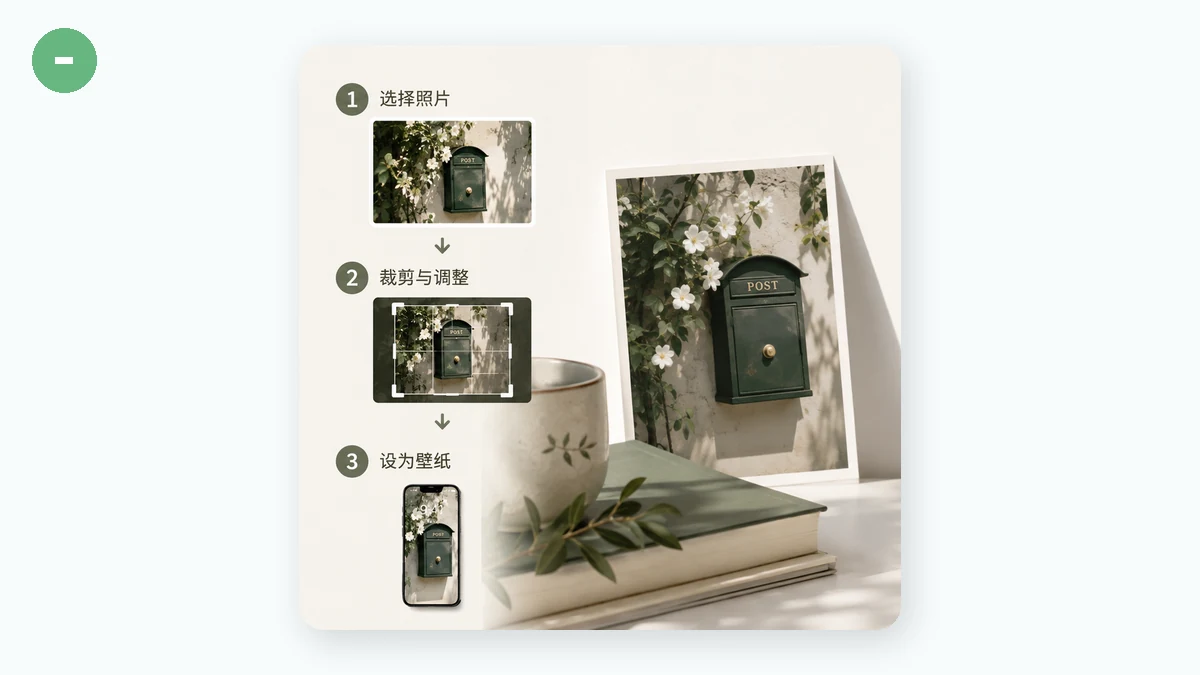
Phone screens are tall and narrow, around 9:19.5 on a modern handset. Photos are rarely that shape. A camera photo is usually 3:2 or 4:3 landscape; a square from social apps is 1:1. Drop any of those onto a tall screen and there's leftover space, or overflow, depending on how you scale it. So the question is never "will it fit exactly" — it won't — but "how do I want the mismatch handled."
There are two good answers.
Option 1: Cover-crop (fill the screen)
Scale the photo up until it covers the whole screen, and let whatever hangs past the edges get trimmed. This gives the sharpest, most immersive result — no bars, no backdrop, just your image edge to edge.
The caveat with portrait wallpapers: since the screen is tall, a landscape photo has to be scaled up a lot to fill the height, which pushes its left and right sides off the screen. If your subject is dead-center — a face, a single object — that's fine, it survives. If the important stuff runs across the width (a group lined up, a wide skyline, text), cover-crop will slice the ends off. Check before you commit.
Option 2: Blurred edges (keep the whole photo)
Place the entire photo, uncropped, centered on the screen, and fill the empty space above and below with a soft, blurred, enlarged copy of the same photo. Nothing gets cut. The blurred backdrop reads as a deliberate design choice rather than dead space, and it picks up the photo's own colors so it always matches.
This is the right call for landscape shots on a portrait screen, group photos, or anything where cropping would ruin it. The trade-off is that your actual photo appears a bit smaller, sitting in a band across the middle.
| Your photo | Best fit mode | Why |
|---|---|---|
| Vertical / portrait photo | Cover-crop | Already close to screen shape; fills cleanly |
| Landscape photo | Blurred edges | Cover-crop would cut the sides off |
| Square photo | Either | Cover-crop for a subject; blur to keep it all |
| Group / wide scene | Blurred edges | Keeps everyone and everything in frame |
Do it in one step
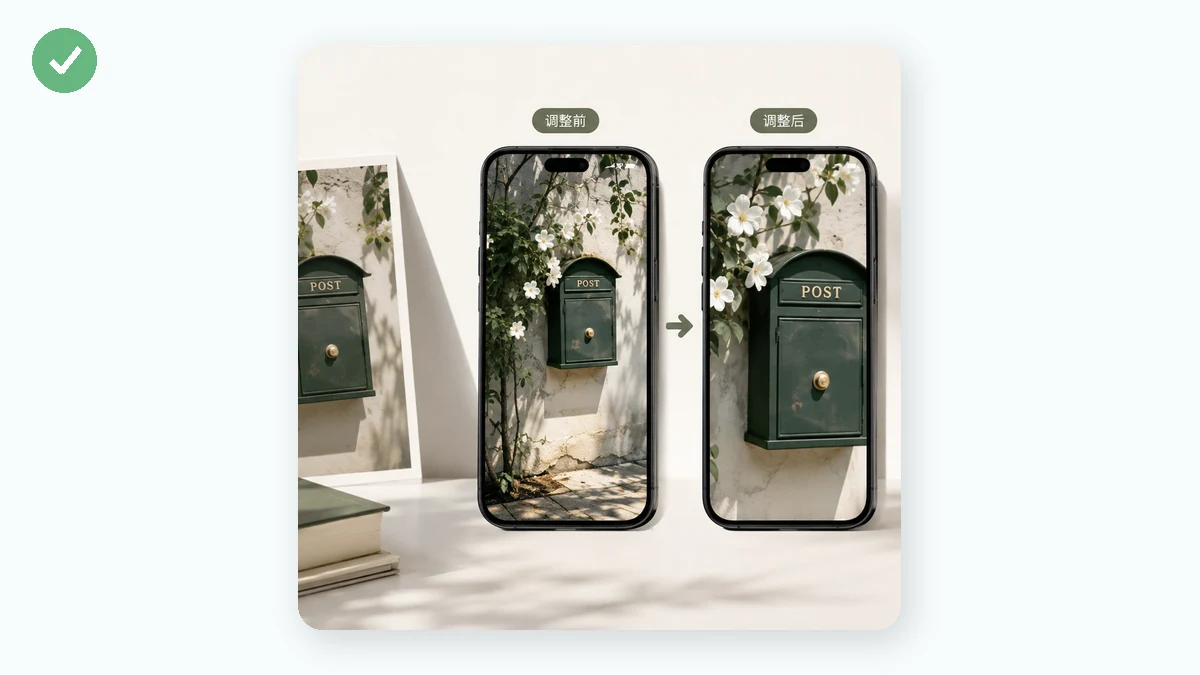
Instead of wrestling with the built-in cropper, use a tool that targets your exact screen resolution and offers both fit modes. tools.faxianai.com's Wallpaper Resizer has device presets for iPhone, Android, iPad, and more — pick your phone, drop the photo, choose cover-crop or blurred edges, and it outputs a wallpaper at the precise pixel size your screen wants. You can batch several and download a ZIP.
No good photo? Make a text wallpaper instead
Sometimes you don't want a photo at all — you want a clean quote, a name, a date, or a single word on a nice gradient. That's a different tool. The Wallpaper Maker builds a minimalist text wallpaper: pick a gradient background, type your words, and it renders at your device's size. It's a fast way to make a matching lock-screen quote or a plain background that won't clash with your icons.
Private, and works on a plane
Both tools run entirely in your browser using Canvas — your photo is never uploaded, which matters when the picture is of your family or your own artwork. And because the tools are cached after your first visit, they keep working with no connection at all. You can turn a vacation photo into a fitted wallpaper mid-flight and have it ready before you land.
The short version: your photo and your screen are different shapes, so pick your fit — cover-crop for a centered subject, blurred edges to keep the whole image — target your exact resolution, and you get a wallpaper that fills the screen without the phone guessing for you.