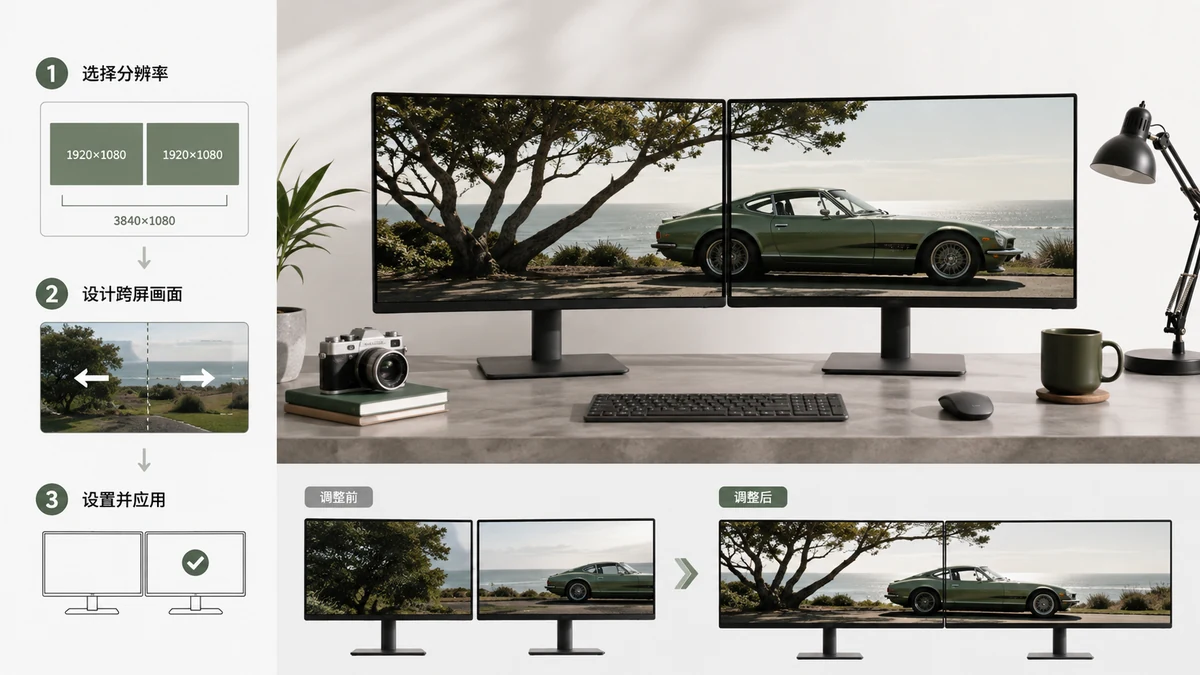
A dual monitor wallpaper has two setups, and picking the wrong one is why images end up duplicated, stretched, or split down the middle. There is the spanning wallpaper (one wide image stretched across both screens) and the per-screen wallpaper (a separate image on each monitor). They need different pixel sizes. Here is how to get both right.
Spanning: one image across two screens
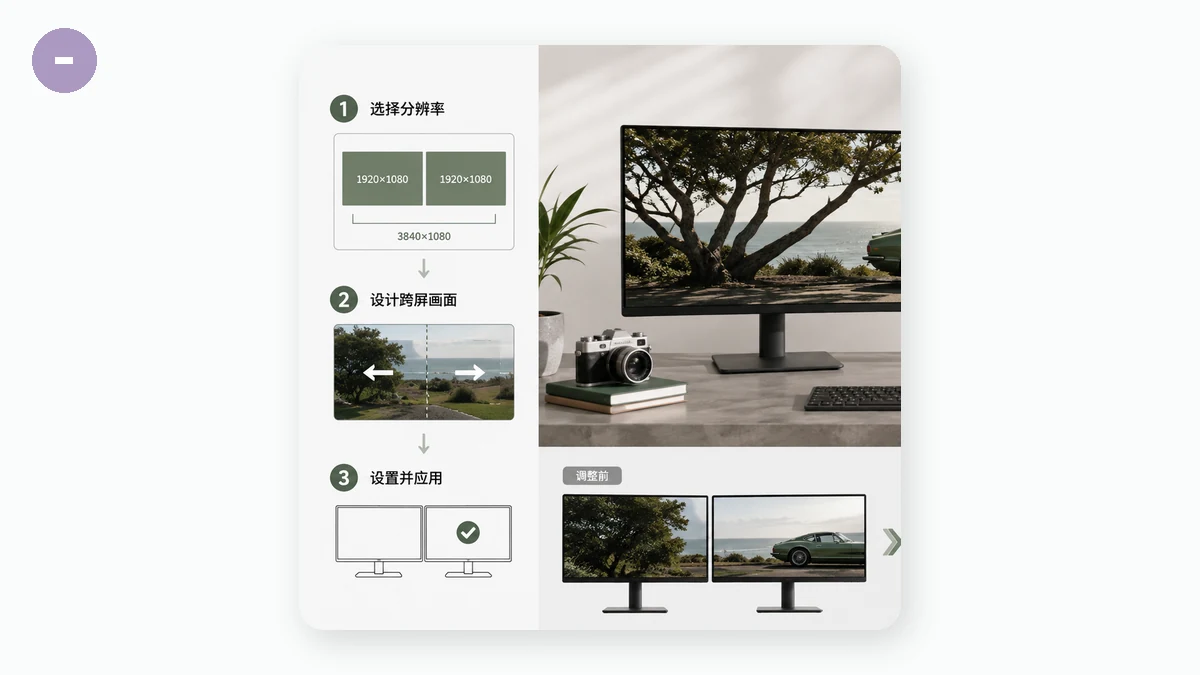
For a single image that flows across both monitors, add the widths together and keep the shared height. Two 1920×1080 monitors side by side make one canvas of 3840×1080. Two 2560×1440 monitors make 5120×1440.
| Two identical monitors | Spanning wallpaper size |
|---|---|
| 1920 × 1080 (1080p) each | 3840 × 1080 |
| 2560 × 1440 (1440p) each | 5120 × 1440 |
| 3840 × 2160 (4K) each | 7680 × 2160 |
| 1680 × 1050 each | 3360 × 1050 |
This math assumes both screens are the same resolution and sit at the same height. If your monitors are different sizes or one is rotated vertically, spanning gets messy and per-screen wallpapers usually look better.
Two practical notes on spanning:
- Windows handles spanning natively. Set the background style to Span in Personalization, and Windows stretches one image across all displays.
- The bezels between your monitors eat a slice of the image. A face or key subject placed right at the seam gets cut in half. Keep important content away from the center gap.
Per-screen: a different image on each
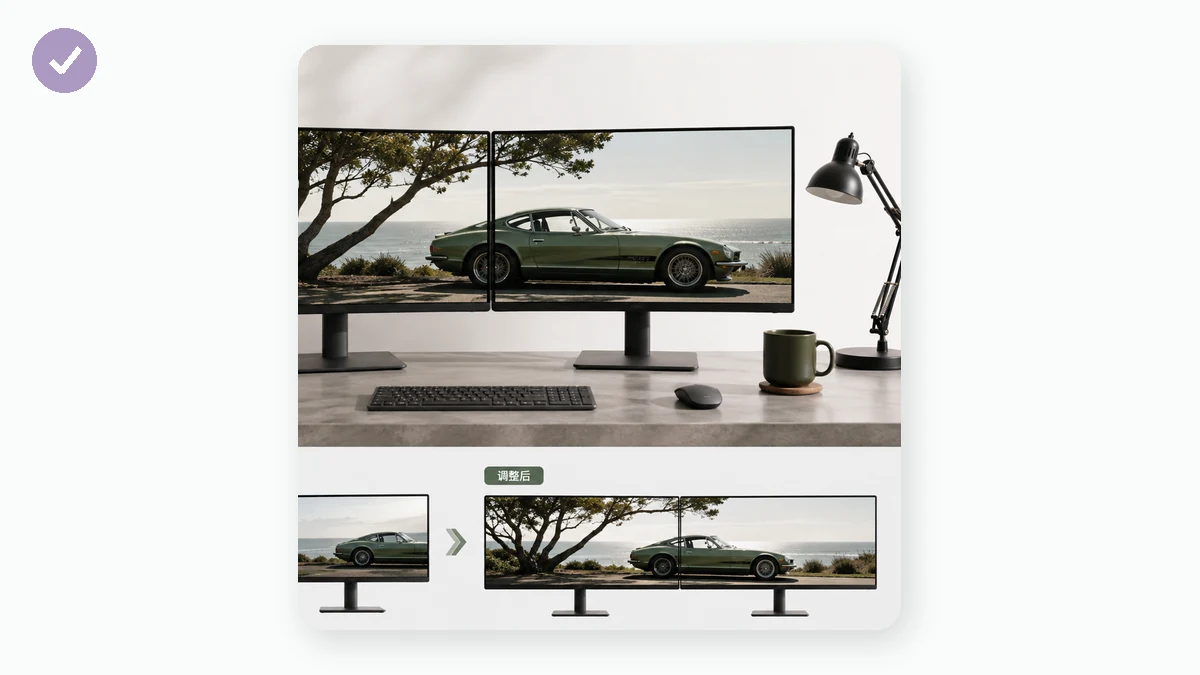
If your monitors differ in size, or you just want two separate scenes, make one wallpaper per screen at that screen's exact resolution. A 4K monitor gets a 3840×2160 image; the 1080p one beside it gets 1920×1080. On Windows you can right-click a monitor in the wallpaper picker and assign an image to just that display.
This is the more forgiving option. Nothing has to line up across the seam, and mismatched resolutions stop being a problem.
Fitting a photo to these odd shapes
3840×1080 is extremely wide — a 32:9 ratio. Almost no normal photo is that shape, so a spanning wallpaper from a regular photo needs help. You have two honest paths:
- Cover / crop to fill the full 3840×1080, accepting that the top and bottom of the original get trimmed off. Works when the photo is wide and the subject sits in the middle band.
- Blurred edges to keep the whole photo centered and fill the wide leftover space with a soft blur of itself. Better when cropping would cut something important.
The Wallpaper Resizer has ultrawide and multi-monitor presets built in, including 3840×1080 and 5120×1440, plus 3440×1440 for single ultrawide screens. Drop in a photo, pick the target, choose cover-crop or blurred-edges, and export. Everything runs in your browser with Canvas, so nothing uploads and there is no waiting. Doing per-screen wallpapers? Queue several sizes and grab them all as a ZIP.
Which should you use?
Go spanning when both monitors match and you want one dramatic panorama — landscapes and cityscapes shine here. Go per-screen when your displays are different resolutions, one is rotated, or you simply prefer two distinct backgrounds. Per-screen is the safer default; spanning is the more impressive one when your hardware cooperates.
Once you know your combined width and shared height, the export is a two-minute job. No sign-up, no watermark, and it works offline after the first visit.