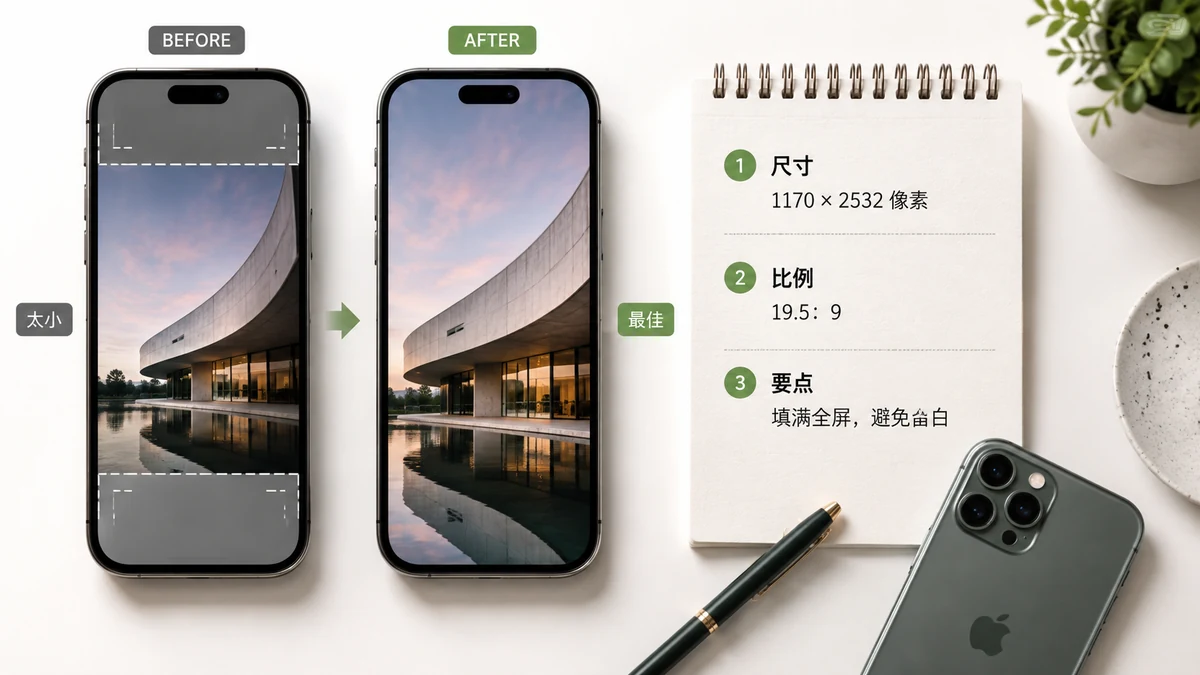
The "best" iPhone wallpaper size is simply your model's exact screen resolution in pixels — no more, no less. Match it and the image is razor-sharp with nothing wasted. Miss it and iOS stretches, crops, or blurs your picture to make it fit. The catch is that Apple uses a different resolution for nearly every model, so there's no single number. Below is the full per-model table, followed by the quick way to fit any photo to yours.
Exact wallpaper resolution by iPhone model
These are the true pixel dimensions of each screen — the size your wallpaper file should be. All are portrait (taller than wide), because that's how you hold the phone.
| iPhone model | Wallpaper resolution (px) |
|---|---|
| iPhone 16 Pro Max | 1320 × 2868 |
| iPhone 16 Pro | 1206 × 2622 |
| iPhone 16 Plus / 15 Pro Max / 15 Plus / 14 Pro Max | 1290 × 2796 |
| iPhone 16 / 15 Pro / 15 / 14 Pro | 1179 × 2556 |
| iPhone 14 Plus / 13 Pro Max / 12 Pro Max | 1284 × 2778 |
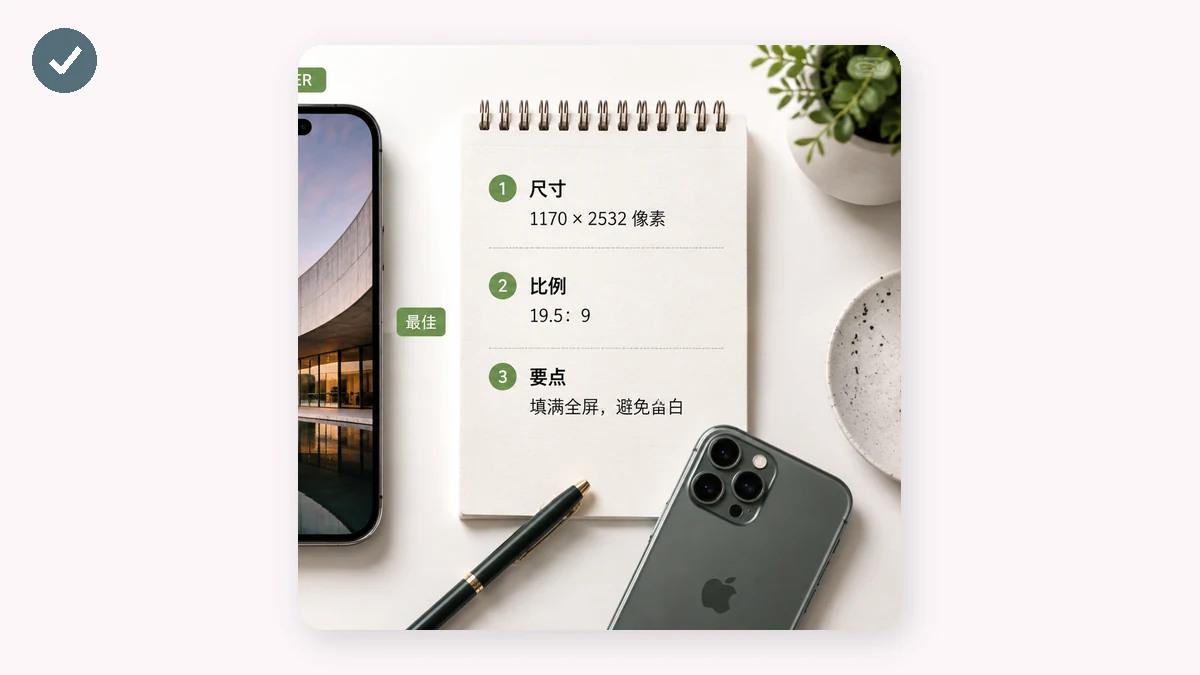
| iPhone 14 / 13 / 13 Pro / 12 / 12 Pro | 1170 × 2532 |
| iPhone 13 mini / 12 mini | 1080 × 2340 |
| iPhone 11 Pro Max / XS Max | 1242 × 2688 |
| iPhone 11 / XR | 828 × 1792 |
| iPhone 11 Pro / XS / X | 1125 × 2436 |
| iPhone SE (2nd/3rd gen) | 750 × 1334 |
If you don't know your exact model, the safe move is to pick a common large size like 1290 × 2796 — it's slightly bigger than most screens, so iOS scales it down cleanly rather than up.
Why your photo comes out cropped
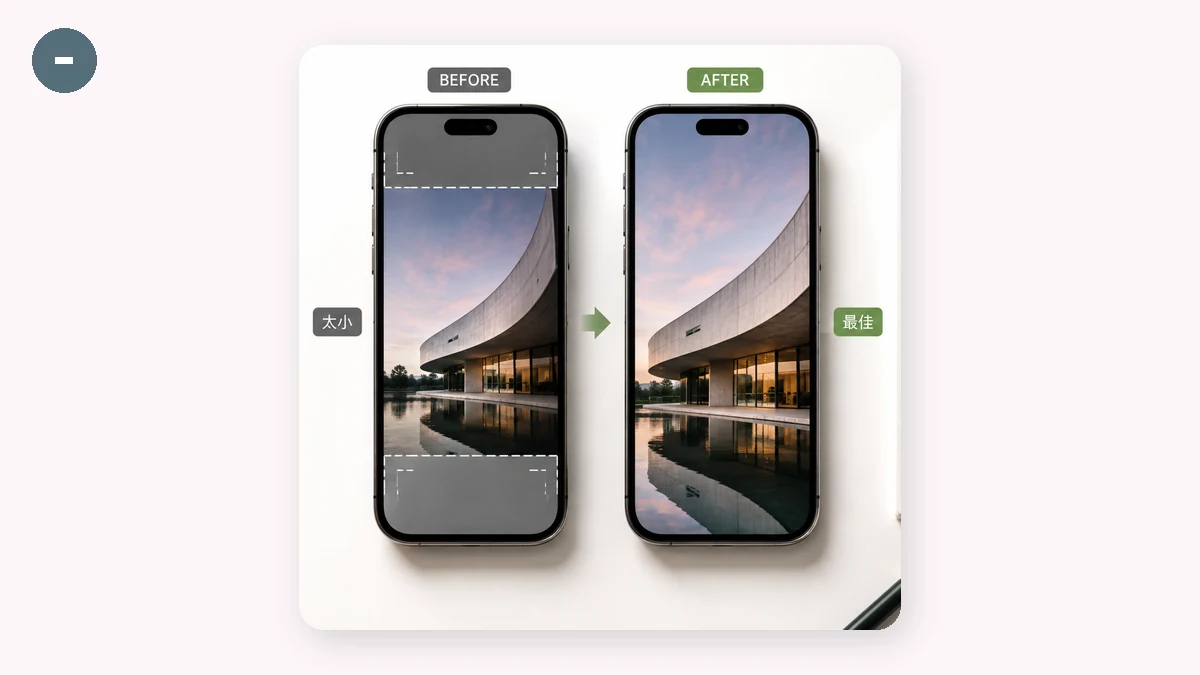
Here's the honest part nobody mentions. iPhone screens are tall and narrow — roughly a 9:19.5 shape. Most photos you take, and almost every photo from a camera, are either square or landscape (wider than tall). Putting a wide photo onto a tall screen means something has to give. There are only two real options:
- Cover-crop — scale the photo up until it fills the whole screen, letting the left and right edges (on a landscape shot) fall off the sides. Sharpest result, but you lose part of the image.
- Blurred edges — keep the entire photo visible, centered, on a soft blurred version of itself that fills the empty space above and below. Nothing is cut, and the backdrop looks intentional rather than like empty bars.
Neither is "wrong" — it depends on whether the whole photo matters or just the subject. A portrait of a person often survives a cover-crop fine; a group shot or a wide landscape usually looks better with blurred edges so nobody gets sliced off.
Fit any photo to your iPhone in one step
Rather than doing the math and cropping by hand, point a tool at the exact resolution and let it fit. tools.faxianai.com's Wallpaper Resizer has every iPhone size above built in as a preset — pick your model, drop your photo, and choose cover-crop or blurred edges. It outputs a file at the precise pixel dimensions your screen wants.
A few things that make it painless:
- Presets, not guesswork. Select "iPhone 16 Pro" and you get 1206 × 2622 without looking anything up.
- Both fit modes. Try cover-crop first; if it cuts something you care about, switch to blurred edges.
- Batch + ZIP. Setting wallpapers for the whole family's phones, or making a matched set? Process several at once and download them together.
It's private and works offline
Wallpapers are personal — a photo of your kid, your trip, your art. The Wallpaper Resizer runs entirely in your browser with Canvas; your photo is never uploaded anywhere. And because the tool is cached after your first visit, it keeps working with no signal, so you can build a home-screen background on the subway.
The short version: match your model's exact resolution from the table, pick cover-crop for a single subject or blurred edges to keep the whole shot, and let the resizer output the exact size.