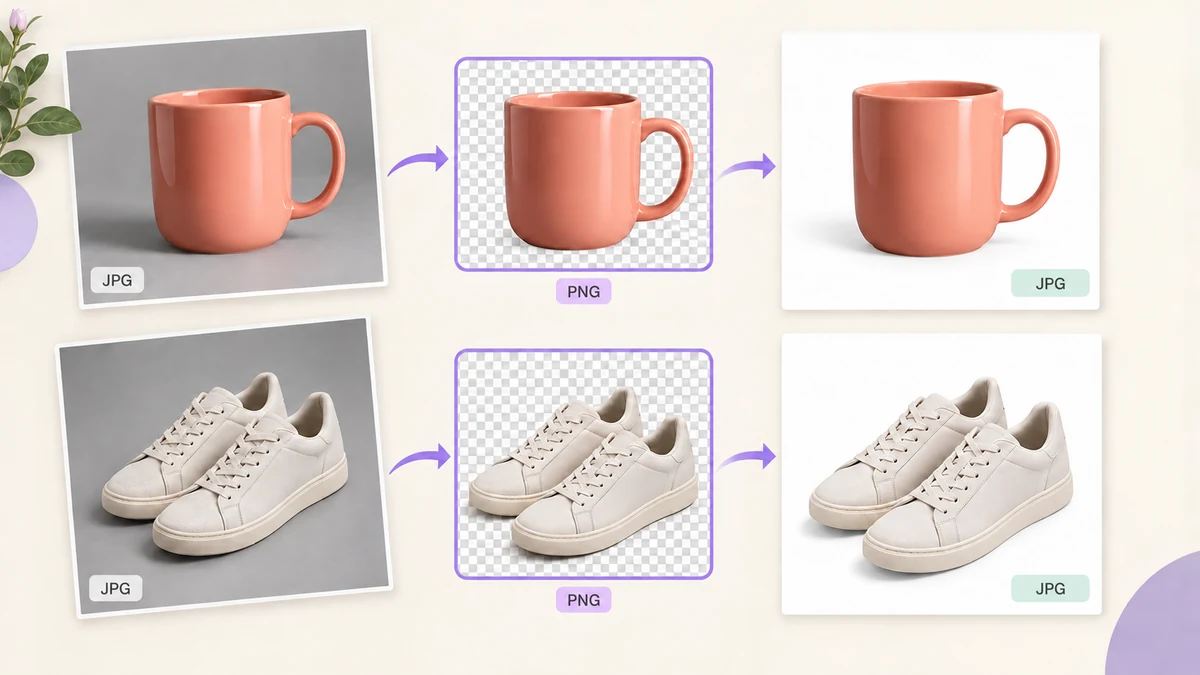
A "white" background from a studio is rarely white: the backdrop reads #F2F2F2 to #FAFAFA, edges carry shadow, corners carry gradient. Platforms want #FFFFFF, subject centred, 1:1. Fixing dozens of SKUs by hand is real time or real money.
The workflow below runs entirely in the browser with nothing uploaded, in two steps: cut out, then batch-normalise.
Why platforms insist on pure white
Taobao white-background images, some JD categories and Amazon main images all require pure white because product cards in search results sit on white — an off-white background shows as a visible grey square. Pure white also compresses smaller and loads faster. It's a hard rule, not taste; non-compliant images get rejected or demoted.
Step one: AI cutout
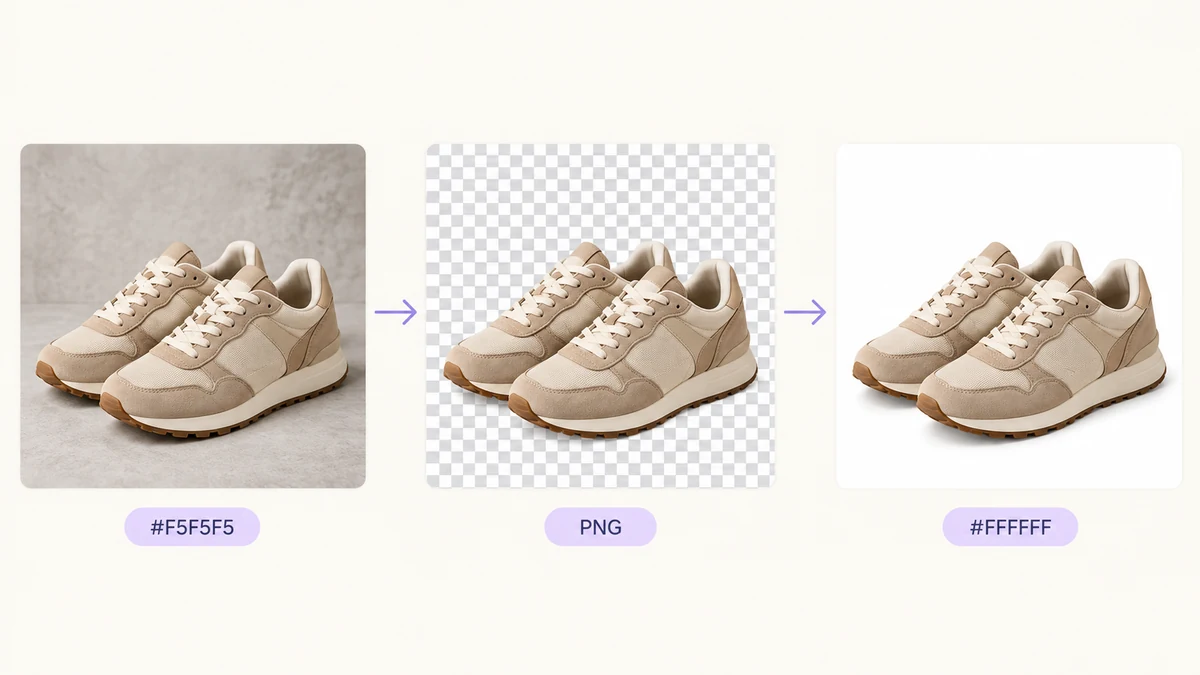
Drop the product photos into AI Background Remover. The model runs in your browser (the model file downloads once and is cached), a few seconds per image. Choose transparent PNG as the output rather than white at this stage — the transparent version gives the next step more freedom.
Dozens at a time is fine; they process in order and download as a ZIP. Keep the tab in the foreground — some browsers throttle background tabs.
Step two: white fill, uniform size, compression
Drop the transparent PNGs into Batch Image Processing:
- Size: Fit inside 1500 × 1500, so the product sits fully inside the frame with a little white margin; Allow upscaling off.
- Crop to ratio: none.
- Output: JPG at 88 percent. Transparent areas are filled pure white #FFFFFF on conversion, which is exactly what platforms want; set a 900KB target.
- File names: rename to SKU-001 and so on.
After the run every file is pure white, centred, around 1500 pixels and a few hundred KB. If you also want transparent versions for marketing images, switch the output to PNG and run once more.
Where a platform demands a strict 1600 × 1600 with the product filling the frame, use Fill 1600 × 1600 with crop 1:1 instead — and check the preview first so nothing is clipped.
Images that don't cut cleanly
- Glass, liquids, transparency: AI hesitates on semi-transparent edges; shoot cups and perfume bottles on white in the first place rather than relying on cutout.
- Fur, fluff, fringe: a grey halo along the edge. Inspect at 200 percent and handle the obvious ones individually.
- White products on white: the model misjudges when subject and background match. A light grey backdrop at the shoot is easier to cut.
- Several products in one frame: the cutout is fine, but a centre crop can clip the outer ones. Frame by hand in Image Cropper.
Typically around one in ten images needs a second look; the rest are usable straight away.
The time budget
Fifty product photos: three to five minutes of cutout depending on the computer, under a minute of batch normalisation, ten minutes of edge checking. Under twenty minutes in total, with the images never leaving your computer, no fee and no queue.
Platform specs are in the Taobao, Pinduoduo, JD and Douyin guide and Amazon product image requirements; more on shooting and finishing white-background photos in how to make white-background product photos.